1. Introduktion
This manual provides essential information for setting up, operating, maintaining, and troubleshooting your GMKtec NucBox M8 Mini PC. Please read this manual thoroughly before using the product to ensure proper functionality and longevity.
2. Pakkens indhold
Bekræft, at alle nedenstående varer er inkluderet i din pakke:
- GMKtec NucBox M8 Mini PC
- Strømadapter og kabel
- HDMI kabel
- Brugermanual

Image: Contents of the GMKtec NucBox M8 Mini PC package, including the mini PC, power adapter, HDMI cable, and user manual.
3. Produktet er slutview
The GMKtec NucBox M8 is a compact and powerful mini PC designed for various computing tasks, from office work to multimedia and light gaming.

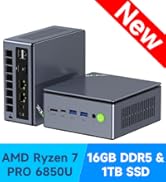
Billede: Foran og bagpå view of the GMKtec NucBox M8 Mini PC, showcasing dens kompakte design og forskellige porte.
3.1. Porte og stik
The NucBox M8 features a comprehensive set of ports for versatile connectivity:

Image: Detailed diagram illustrating the location and type of ports on the front and rear panels of the GMKtec NucBox M8 Mini PC.
- Frontpanel: Power Button, 3.5mm Audio Jack, 2x USB 3.2 (10Gbps), 1x USB4 (40Gbps), 1x OCuLink Port
- Bagside: DC Power Input, 2x 2.5G LAN, 1x HDMI 2.0, 1x DisplayPort 1.4, 2x USB 2.0, Security Lock Slot
4. Opsætningsvejledning
4.1. Tilslutning af eksterne enheder
- Connect your monitor(s) to the HDMI 2.0, DisplayPort 1.4, or USB4 (DisplayPort Alt Mode) ports. The device supports up to three displays simultaneously at 8K resolution.
- Tilslut dit tastatur og din mus til de tilgængelige USB-porte.
- For wired network access, connect an Ethernet cable to one of the 2.5G LAN ports. For wireless connectivity, ensure Wi-Fi 6E is enabled in the operating system.
- Connect any other desired peripherals (e.g., external storage, audio devices).
4.2. Tænder
- Connect the power adapter to the DC Power Input port on the rear panel.
- Sæt strømadapteren i en stikkontakt.
- Press the power button located on the front panel to turn on the Mini PC.
4.3. Indledende konfiguration
Upon first boot, the system will guide you through the Windows 11 Pro setup process. Follow the on-screen instructions to configure your operating system, including language, region, network settings, and user accounts.
5. Betjeningsvejledning
5.1. Ydelsestilstande
The NucBox M8 offers three performance modes to optimize for power consumption, noise, or maximum performance:

Image: Diagram illustrating the three custom performance modes (Silent, Balanced, Performance) and their associated power consumption, CPU temperature, and noise levels.
- Lydløs tilstand (28W): Optimized for quiet operation and low power consumption. Ideal for light tasks.
- Balanceret tilstand (35W): Provides a balance between performance and noise. Suitable for everyday use.
- Ydelsestilstand (40W): Maximizes CPU performance for demanding applications and gaming.
These modes can typically be switched via software utilities provided by GMKtec or through the system's power options in Windows.
5.2. Opsætning af flere skærme
The NucBox M8 supports simultaneous output to up to three displays, enabling an expanded workspace or immersive gaming experience. Connect monitors using the HDMI 2.0, DisplayPort 1.4, and USB4 ports.

Billede: Eksample setup of the GMKtec NucBox M8 connected to three external monitors, demonstrating its multi-screen capability.
5.3. Netværksforbindelse
The Mini PC offers both wired and wireless networking options:
- wired: Dual 2.5 Gigabit Ethernet ports provide high-speed, stable network connections, suitable for NAS setups or online gaming.
- Trådløs: Integrated Wi-Fi 6E supports 2.4GHz, 5GHz, and 6GHz bands for fast and reliable wireless communication, reducing congestion.

Image: The GMKtec NucBox M8 Mini PC with two Ethernet cables connected to its dual 2.5G LAN ports, highlighting high-speed data transfer.

Image: Features of Wi-Fi 6E and Bluetooth 5.2 on the GMKtec NucBox M8, detailing maximum theoretical speeds and supported frequency bands.
5.4. OCuLink for External GPU
The NucBox M8 includes an OCuLink port, allowing connection to an external GPU (eGPU) for enhanced graphics performance. This can transform the mini PC into a high-end machine suitable for demanding gaming or creative workloads.

Image: The GMKtec NucBox M8 Mini PC connected to an external GPU via the OCuLink port, demonstrating its expandability for graphics-intensive tasks.
Note: OCuLink is not hot-swappable. It is recommended to power off the Mini PC before connecting or disconnecting an eGPU.
5.5. USB4 Functionality
The USB4 port provides ultra-high-speed data transfer up to 40Gbps, supports 100W Power Delivery (PD) input, and DisplayPort 1.4 video output. This allows for a single-cable solution for power, data, and video with compatible devices.

Image: Diagram detailing the multi-functional capabilities of the USB4 port on the GMKtec NucBox M8, including power delivery, data transfer, and video output.
6. Vedligeholdelse
6.1. Rensning
To maintain optimal performance, regularly clean the exterior of the Mini PC with a soft, dry cloth. Ensure ventilation openings are free from dust accumulation. Do not use liquid cleaners directly on the device.
6.2. Lagerudvidelse
The NucBox M8 supports storage expansion with two M.2 2280 slots compatible with PCIe Gen4x4 SSDs, allowing for up to 16TB of additional storage. This provides ampplads til store files, games, and applications.
Billede: Intern view of the GMKtec NucBox M8, highlighting the two M.2 2280 slots for SSD expansion.
6.3. Kølesystem
The Mini PC features a dual-fan cooling system combined with copper heat pipes and 360° circulating airflow design to efficiently dissipate heat from the CPU, SSD, and memory, ensuring stable performance even under prolonged heavy loads.

Image: Diagram illustrating the dual-fan cooling system and heat pipe design within the GMKtec NucBox M8, showing efficient heat dissipation.
7. Fejlfinding
- Ingen strøm: Sørg for, at strømadapteren er korrekt tilsluttet både Mini PC'en og en fungerende stikkontakt. Prøv en anden stikkontakt, hvis det er nødvendigt.
- Ingen visning: Check all monitor cable connections (HDMI, DisplayPort, USB4). Ensure the monitor is powered on and set to the correct input source.
- Ingen internetforbindelse: For wired connections, verify the Ethernet cable is properly connected to both the Mini PC and your router/modem. For wireless, check Wi-Fi settings in Windows and ensure your router is functioning.
- Langsom ydeevne: Check the selected performance mode (see Section 5.1). Close unnecessary applications. Ensure the cooling vents are not obstructed.
- Periferiudstyr ikke fundet: Try connecting the peripheral to a different USB port. Ensure necessary drivers are installed.
For further assistance, refer to the support section or contact GMKtec customer service.
8. Specifikationer
| Feature | Specifikation |
|---|---|
| Mærke | GMKtec |
| Model | NucBox M8 |
| CPU | AMD Ryzen 5 PRO 6650H (6 Cores, 12 Threads, up to 4.5 GHz) |
| GPU | AMD Radeon 660M (Integreret) |
| VÆDDER | 16GB LPDDR5 6400MHz |
| Opbevaring | 512GB PCIe 4.0 M.2 2280 SSD (Expandable up to 16TB with 2x M.2 slots) |
| Operativsystem | Windows 11 Pro |
| Video output | 1x HDMI 2.0, 1x DisplayPort 1.4, 1x USB4 (supports 8K@60Hz, 3-screen output) |
| USB-porte | 1x USB4 (40Gbps), 2x USB 3.2 (10Gbps), 2x USB 2.0 |
| Netværk | Dual 2.5G LAN, Wi-Fi 6E (2.4/5/6GHz), Bluetooth 5.2 |
| Lyd | 3.5mm Audio Jack |
| Dimensioner | 18.8 x 18.6 x 13.7 cm |
| Vægt | 1.68 kg |

Image: Detailed specifications of the AMD Ryzen 5 PRO 6650H CPU, including clock speed, core count, thread count, and L3 cache.

Image: Technical details of the LPDDR5 6400 MT/s memory, highlighting its speed and stability compared to previous generations.

Image: Illustrates the gaming performance of the integrated AMD Radeon 660M GPU, showing frames per second (FPS) in various games at 1080p resolution.
9. Garanti og support
The GMKtec NucBox M8 Mini PC comes with a 1 års producentgaranti. For any technical issues, questions, or support needs, please contact GMKtec customer service. Our support team is available to assist you within 24 hours.
For more information, visit the official GMKtec webwebsted eller kontakt din lokale forhandler.

Image: Display of various international quality and safety certifications for GMKtec products, ensuring reliability and performance.


