1. Produktet er slutview
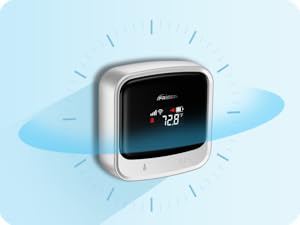
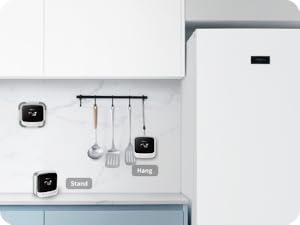
The Frigga S0 is a versatile environmental monitoring device designed to track temperature and humidity in various locations. It features dual 4G cellular and Wi-Fi connectivity, ensuring continuous data transmission and alerts. The device is suitable for monitoring conditions in RVs, vacation homes, pet environments, and other critical areas.
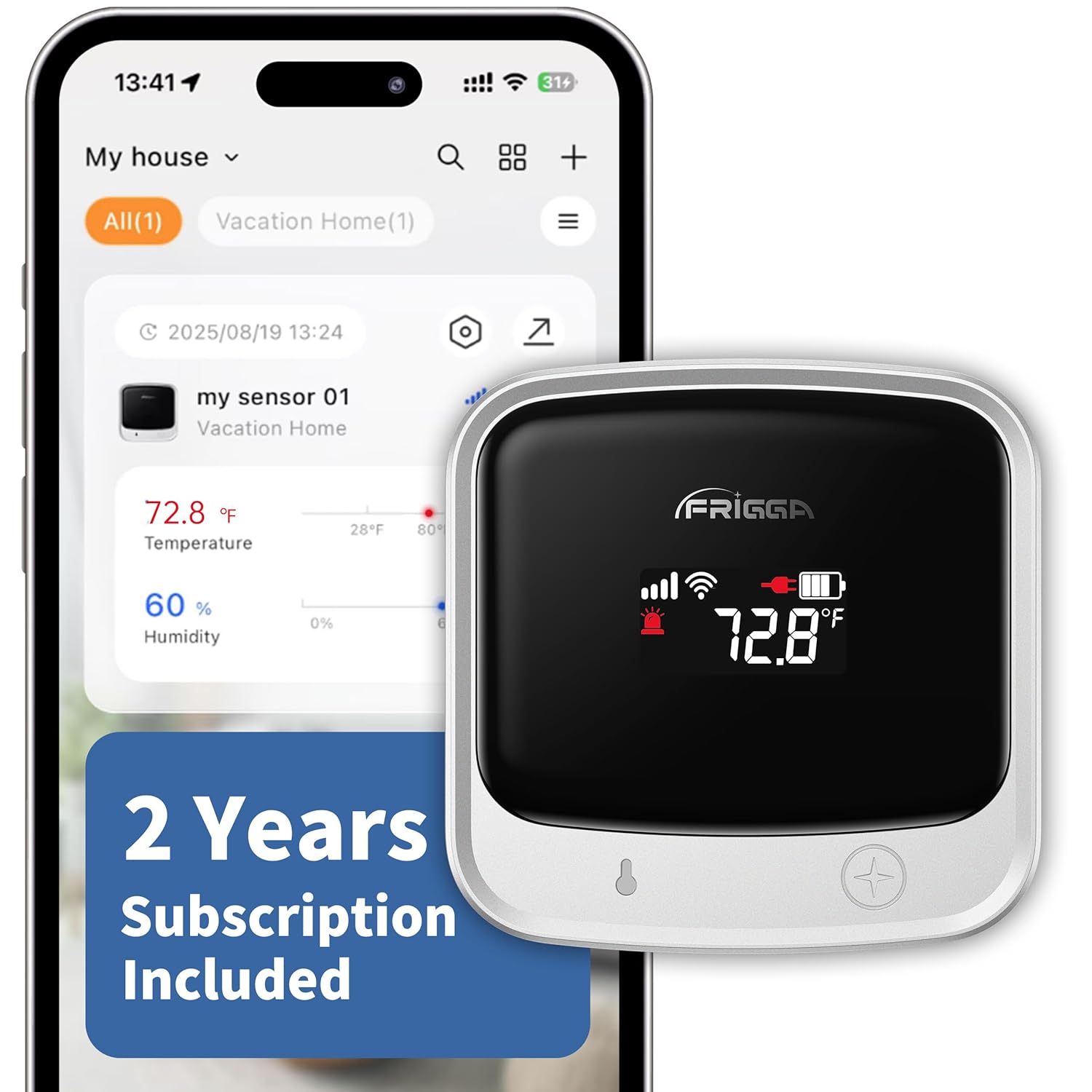
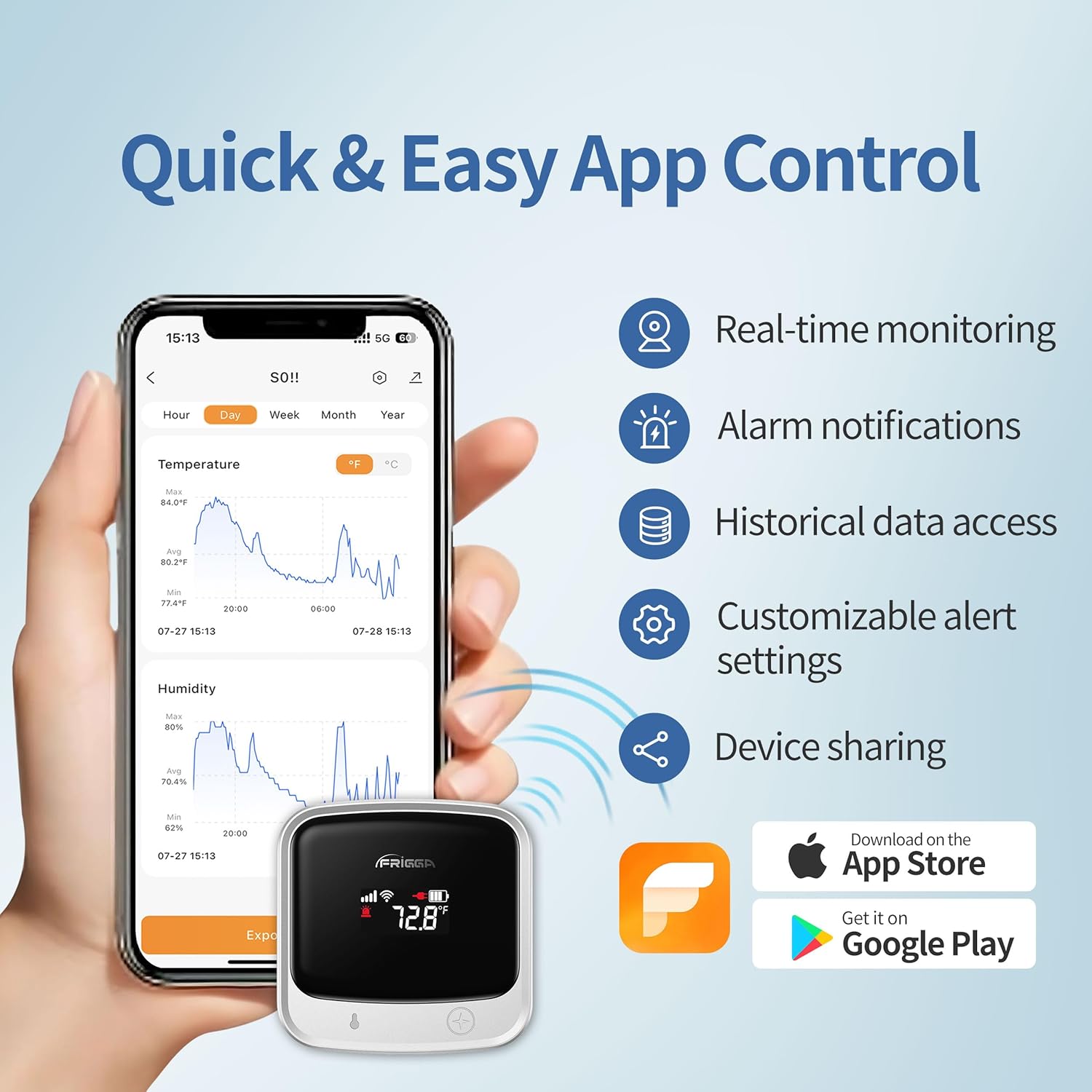
The Frigga S0 monitor, a compact device with an LCD screen showing temperature and battery status, is depicted alongside its mobile application interface. The app displays real-time temperature and humidity readings, indicating the device's remote monitoring capabilities.
Nøglefunktioner:
- Dual 4G + Wi-Fi Connectivity: Supports both 2.4 GHz and 5 GHz Wi-Fi networks and 4G cellular for uninterrupted monitoring.
- Global SIM Card with 2 Years Cellular Service: Includes a preloaded global SIM card with two years of cellular service.
- Multi-Channel Alerts: Provides instant notifications via app push, email, and on-device voice alarms for critical changes, power failures, or disconnections.
- Easy-to-Use Mobile Application: Allows real-time data monitoring, adjustment of thresholds, and sharing access. Data is stored for two years and can be downloaded.
- Genopladeligt batteri: Built-in high-capacity battery offers up to seven days of continuous operation.
2. Hvad er der i æsken
- 1 x Frigga S0 Temperature Sensor
- 1 x strømoplader
- 1 x USB-C kabel
- 1 x brugermanual
3. Opsætningsvejledning
3.1 Første enhedsaktivering
- Oplad enheden: Connect the Frigga S0 monitor to the power charger using the provided USB-C cable. Ensure the device is fully charged before initial use.
- Tænd: Press and hold the power button (usually a single press) until the LCD screen illuminates.
3.2 Mobile Application Installation and Pairing
- Download appen: Download the "Frigga SmartLife" app from the Apple App Store (for iOS) or Google Play Store (for Android).
This image shows the logos for the Apple App Store and Google Play Store, guiding users to download the Frigga SmartLife mobile application for their device.
- Opret konto: Open the Frigga SmartLife app and follow the on-screen instructions to create a new user account. You will need to provide an email address for verification.
- Aktiver Bluetooth: Sørg for, at Bluetooth er aktiveret på din smartphone.
- Tilføj enhed: In the Frigga SmartLife app, tap the "+" icon (usually in the upper-right corner) to add a new device. Follow the app's prompts to put the Frigga S0 into pairing mode and complete the connection. Voice-guided setup may assist in this process.
A screenshot from the Frigga SmartLife app illustrates the device pairing interface, where users can select their Frigga S0 monitor to connect.
3.3 Wi-Fi Connection (Optional)
The Frigga S0 supports both 4G cellular and Wi-Fi connectivity. Wi-Fi is optional; if you do not require Wi-Fi, you may skip this step.
- Få adgang til Wi-Fi-indstillinger: Within the Frigga SmartLife app, navigate to the device's network configuration settings.
- Vælg netværk: Choose your desired 2.4 GHz or 5 GHz Wi-Fi network from the list.
- Indtast adgangskode: Input the Wi-Fi network password and confirm the connection.

This image shows a screenshot of the Frigga SmartLife app, detailing the steps to connect the monitor to a Wi-Fi network by selecting the network and entering the password.
4. Betjeningsvejledning
4.1 Realtidsovervågning
Once connected, the Frigga S0 will automatically report data to the online platform every 10 or 30 minutes. The LCD display refreshes every 5 seconds, providing immediate local readings.
Til view real-time data and historical records, open the Frigga SmartLife app. The app dashboard will display current temperature and humidity levels.
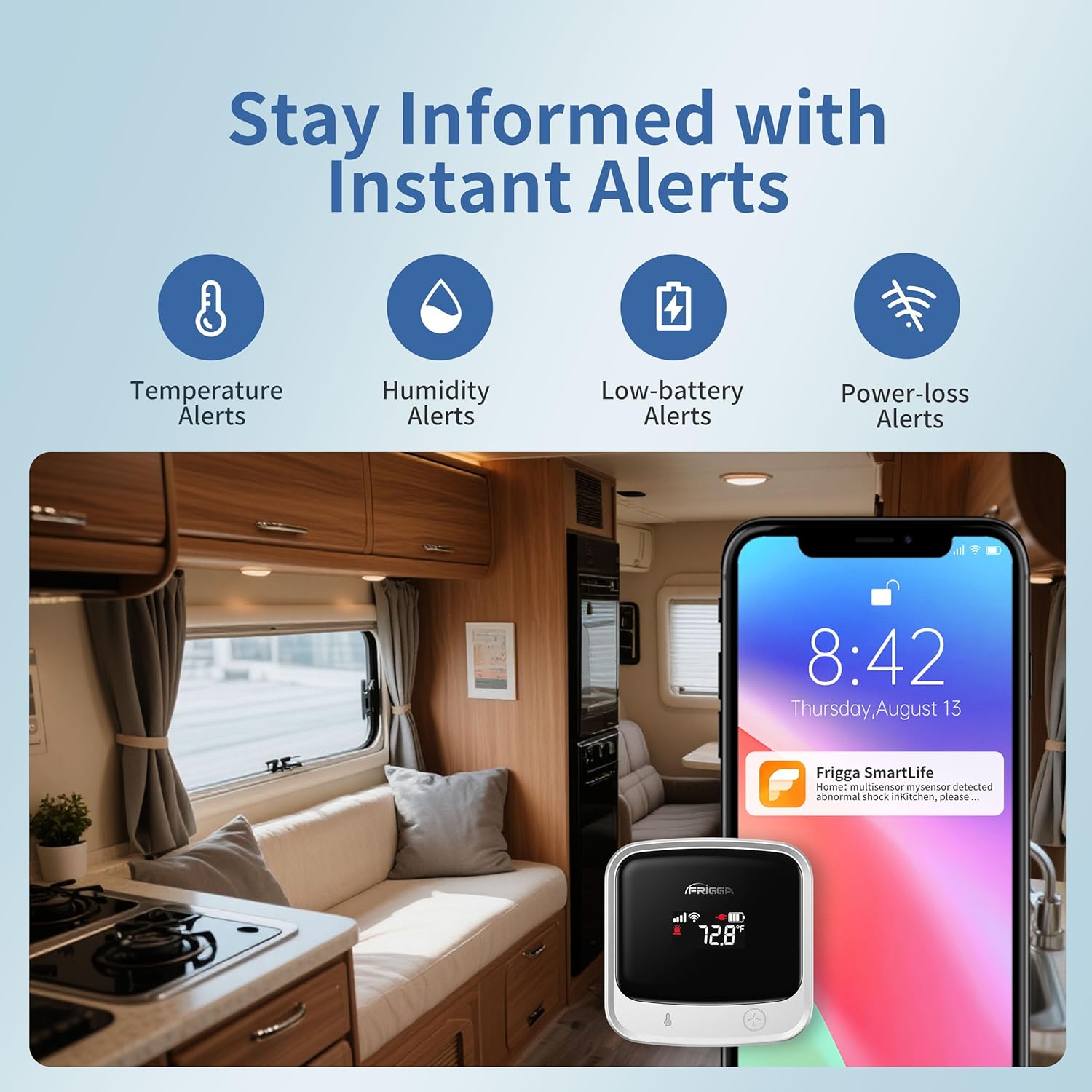
The Frigga S0 monitor is shown alongside a smartphone displaying the Frigga SmartLife app. The app interface features graphs illustrating real-time and historical temperature and humidity trends, along with options for alarm notifications and data access.
4.2 Customizing Alert Settings
You can set custom thresholds for temperature and humidity alerts through the Frigga SmartLife app.
- Adgangsindstillinger: In the app, tap the settings icon (often a gear or three dots) for your device.
- Adjust Thresholds: Locate the temperature and humidity alarm settings. Set your desired upper and lower limits.
- Configure Alert Channels: Choose your preferred alert methods: app push notifications, email, or on-device voice alarms.
A screenshot from the Frigga SmartLife app illustrates the device settings menu, where users can configure temperature and humidity alarm limits and manage alert notification preferences.
4.3 Data Access and Export
All monitoring records are securely stored on Frigga servers for two years. You can access historical data and download it in CSV format directly from the Frigga SmartLife app.
4.4 Deling af enhed
The Frigga SmartLife app allows you to share access to your device with family members or teammates. This enables multiple users to monitor the environment simultaneously.
- Navigate to Sharing: In the app, find the device sharing option.
- Tilføj brugere: Enter the email addresses of individuals you wish to share access with.
5. Vedligeholdelse
5.1 Batteristyring
The Frigga S0 features a rechargeable lithium-ion battery. When the battery level is low, the device will issue a low-battery alert via the configured channels. Connect the device to the power charger using the USB-C cable to recharge.
A full charge provides up to seven days of continuous monitoring. For continuous operation, the device can remain plugged in.
5.2 Rengøring
Tør enheden af med en blød, tør klud. Brug ikke slibende rengøringsmidler, og enheden må ikke nedsænkes i vand.
5.3 Cellular Service Renewal
The device includes two years of cellular service. After this period, you can renew your subscription for continued cellular monitoring. Refer to the Frigga SmartLife app or Frigga's official website for renewal options and pricing.
6. Fejlfinding
| Spørgsmål | Mulig årsag | Løsning |
|---|---|---|
| Enheden tænder ikke | Lavt batteri | Charge the device using the provided USB-C cable and power adapter. |
| Kan ikke oprette forbindelse til Wi-Fi | Incorrect password; Out of range; Network not supported (e.g., public Wi-Fi with portal) | Verify Wi-Fi password. Ensure device is within Wi-Fi range. Confirm your Wi-Fi network is 2.4 GHz or 5 GHz and does not require a web portal login. |
| Ingen mobilforbindelse | Out of 4G service area; Cellular service expired | Move the device to an area with better 4G coverage. Check your cellular service subscription status in the app. |
| Ingen advarsler modtaget | Incorrect alert settings; App notifications disabled; Email in spam folder | Verify alert thresholds and notification channels in the Frigga SmartLife app. Check your phone's notification settings for the app. Check your email spam folder. |
| Unøjagtige aflæsninger | Sensor obstruction; Extreme environmental conditions | Ensure the sensor is not obstructed. Allow the device to stabilize in its environment for accurate readings. |
| App account creation issues | Email verification delay; App glitch | Wait for the verification code (check spam folder). If issues persist, try again later or contact Frigga support. |
7. Specifikationer
| Feature | Detalje |
|---|---|
| Modelnummer | S0 |
| Forbindelse | 4G Cellular, Wi-Fi (2.4 GHz & 5 GHz) |
| Batteritype | 1 Lithium Ion (rechargeable, included) |
| Batterilevetid | Up to 7 days (continuous monitoring) |
| Dimensioner | 2.63 cm B x 2.63 cm H |
| Varens vægt | 0.7 pund (ca. 11.2 ounces) |
| Farve | Sølv |
| Datalagring | 2 years on Frigga servers |
| Alert Channels | App Push, Email, On-device Voice |
8. Garanti og support
8.1 Garantioplysninger
For detailed warranty information, please refer to the documentation included with your product or visit the official Frigga webStandardgarantibetingelser dækker typisk fabrikationsfejl i en bestemt periode fra købsdatoen.
8.2 Kundesupport
If you encounter any issues or have questions regarding your Frigga S0 monitor, please contact Frigga customer support. Contact information can usually be found on the official Frigga website or within the Frigga SmartLife application.
Online ressourcer:


