1. Introduktion
This manual provides detailed instructions for the YCCTEAM Wired Controller, designed for use with Xbox One, Xbox Series X/S, and PC (Windows 7/8/10). Please read this manual carefully to ensure proper setup, operation, and maintenance of your controller.
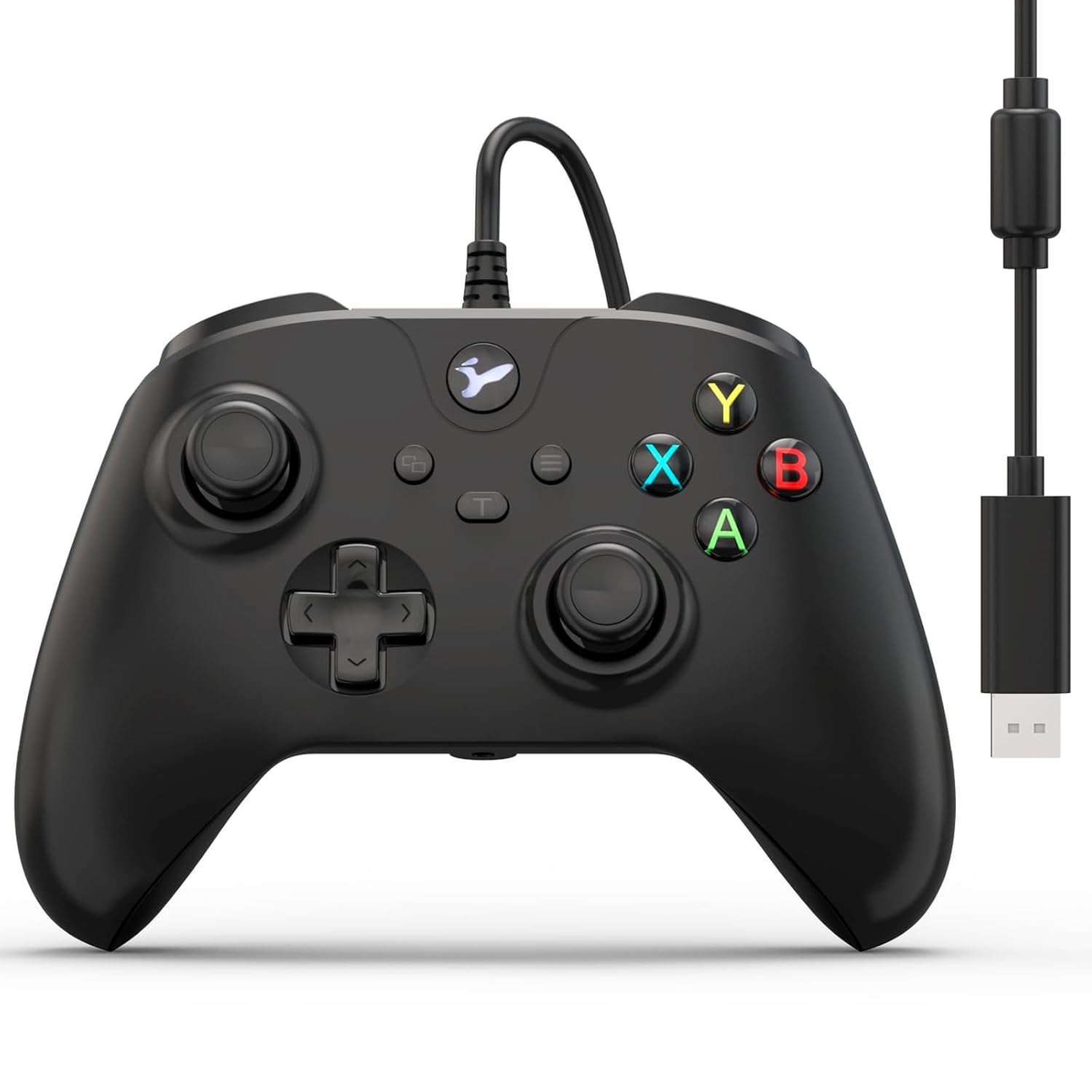
Billede 1.1: Forside view of the YCCTEAM Wired Controller with its integrated USB cable.
2. Produktet er slutview
2.1 Nøglefunktioner
- Precision Vibration Feedback: Equipped with dual motors for immersive vibration feedback, enhancing gameplay realism.
- Højpræcisionskontroller: Features 256-level precision 3D joysticks, dual pressure-sensitive triggers, and an 8-way D-pad for accurate input.
- Ergonomisk design: Asymmetric contouring and textured grips provide comfort during extended gaming sessions.
- Plug-and-Play-forbindelse: Connects directly via a 7.2-foot USB cable, requiring no batteries or Bluetooth pairing.
- Turbofunktion: An 8Hz Turbo mode allows for rapid, automatic button presses, reducing finger strain.
- 3.5 mm lydstik: Integrated audio jack for headset connection, enabling clear in-game communication.
- Bred kompatibilitet: Compatible with Xbox One, Xbox One S, Xbox One X, Xbox Series X, Xbox Series S, and PC (Windows 7/8/10).
2.2 Controllerkomponenter

Billede 2.1: Detaljeret view of controller components including A/B/X/Y buttons, 3.5mm audio jack, 3D joysticks, and linear triggers.
- A/B/X/Y-knapper: Standard handlingsknapper.
- D-Pad: Directional pad for precise movement or menu navigation.
- Venstre/højre joysticks: 3D analog sticks for 360-degree control.
- Venstre/højre triggere (LT/RT): Pressure-sensitive analog triggers.
- Venstre/højre kofangere (LB/RB): Digital shoulder buttons.
- Menu-knap: Få adgang til menuer eller systemindstillinger i spillet.
- View Knap: Access in-game maps or system views.
- Xbox knap: Power on/off console, access Xbox Guide.
- 3.5 mm lydstik: For connecting compatible headsets.
- USB-kabel: Integrated 7.2-foot USB cable for connection.

Image 2.2: The controller features dual vibration motors for enhanced haptic feedback during gameplay.
3. Opsætningsvejledning
3.1 Connecting to Xbox One/Series X|S
- Sørg for, at din Xbox-konsol er tændt.
- Locate an available USB port on your Xbox console.
- Plug the USB connector of the YCCTEAM Wired Controller into the USB port.
- The controller will automatically be recognized by the console. The Xbox button on the controller will illuminate to indicate a successful connection.
- Your controller is now ready for use.

Image 3.1: Controller connected to various Xbox consoles and a PC, demonstrating broad compatibility.
3.2 Connecting to PC (Windows 7/8/10)
- Sørg for, at din pc er tændt.
- Find en ledig USB-port på din pc.
- Plug the USB connector of the YCCTEAM Wired Controller into the USB port.
- Windows will automatically detect and install the necessary drivers. This process may take a few moments.
- Once drivers are installed, the controller will be ready for use. You can verify its status in your PC's Device Manager or game controller settings.
- No additional software or batteries are required.
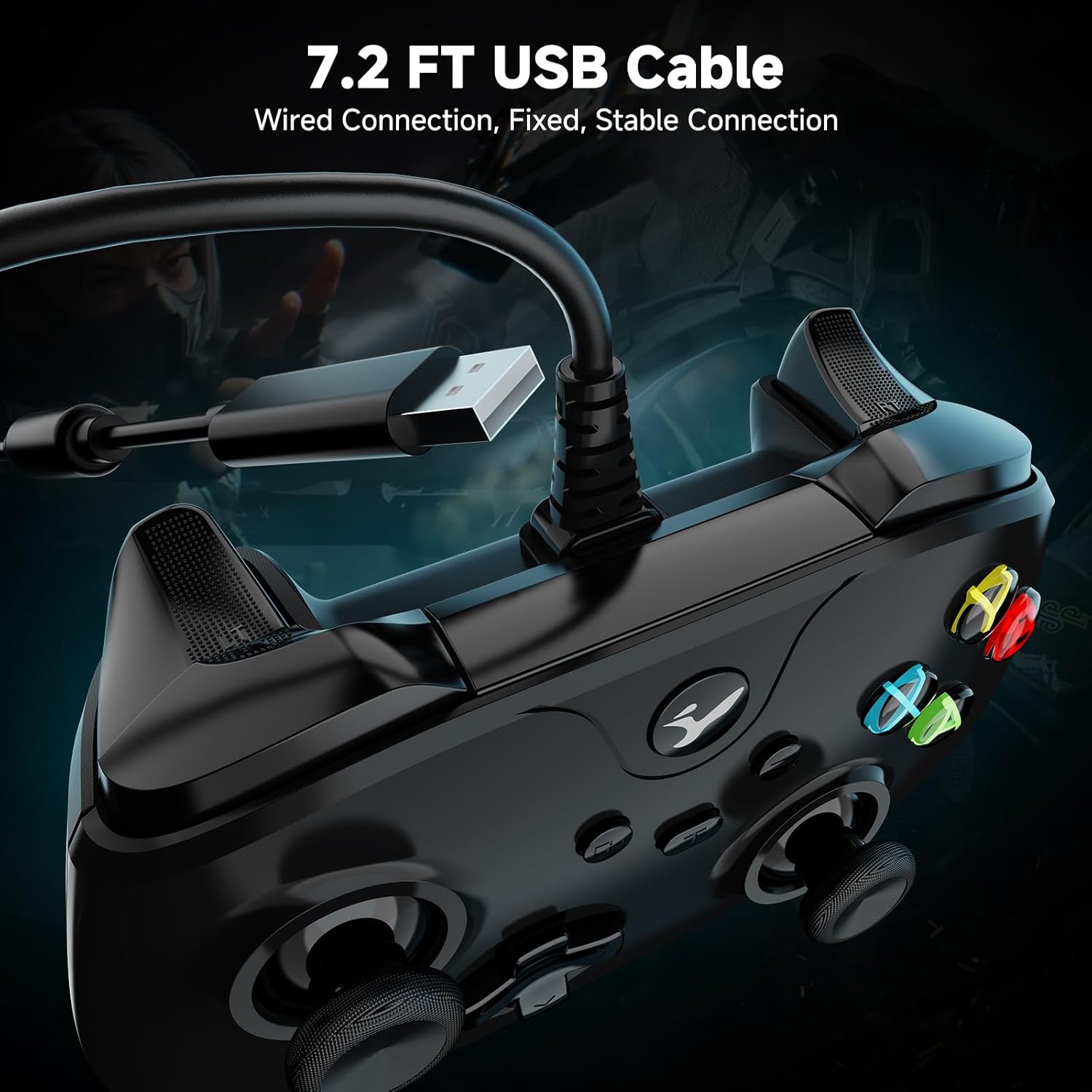
Image 3.2: The 7.2-foot USB cable provides a stable wired connection to your device.
4. Betjeningsvejledning
4.1 Grundlæggende kontrol
The YCCTEAM Wired Controller functions similarly to standard Xbox controllers. Use the joysticks for movement and camera control, the D-pad for menu navigation or specific actions, and the A/B/X/Y buttons for in-game commands. The LB/RB bumpers and LT/RT triggers provide additional input options.
4.2 Turbofunktion
The controller features an 8Hz Turbo mode for rapid button presses. This function can be activated for specific buttons to perform repeated actions automatically.
- Sådan aktiverer du Turbo: Press and hold the desired action button (e.g., A, B, X, Y, LB, RB, LT, RT) and then press the "Turbo" button (often indicated by a 'T' or similar icon, usually near the center of the controller). The button will now rapidly repeat its input when held down.
- Sådan deaktiverer du Turbo: Repeat the activation process: press and hold the button with Turbo enabled, then press the "Turbo" button again.

Image 4.1: The Turbo function allows for rapid, automatic button presses.
4.3 Using the 3.5mm Audio Jack
The integrated 3.5mm audio jack allows you to connect a compatible headset for in-game audio and voice chat.
- Plug your 3.5mm headset into the audio jack located at the bottom of the controller.
- Ensure your headset is properly seated.
- Audio and microphone functions should be automatically routed through the controller. You may need to adjust audio settings within your game or console/PC system settings.

Image 4.2: Connect a 3.5mm headset for audio and communication.
5. Vedligeholdelse
- Rensning: Brug en blød, tør klud til at rengøre controlleren. Ved genstridigt snavs, gnid letamp En klud kan bruges, men sørg for, at der ikke kommer fugt ind i betjeningsenhedens åbninger.
- Opbevaring: Opbevar controlleren et køligt, tørt sted væk fra direkte sollys og ekstreme temperaturer.
- Kabelpleje: Avoid sharply bending or twisting the USB cable. Do not pull the cable to disconnect; always grasp the USB plug.
- Undgå dråber: While designed for durability, repeated drops can damage internal components. Handle with care.
6. Fejlfinding
| Problem | Løsning |
|---|---|
| Controller not recognized by console/PC. |
|
| Ingen vibrationsfeedback. |
|
| Lydstikket virker ikke. |
|
| Controller does not wake up after PC standby. |
|
| Buttons or joysticks are unresponsive or have "drift". |
|
7. Specifikationer
- Model: B0FRS94GX3
- Forbindelse: Kablet USB
- Kabellængde: 7.2 fod (cirka 2.2 meter)
- Kompatibilitet: Xbox One, Xbox One S, Xbox One X, Xbox Series X, Xbox Series S, PC (Windows 7/8/10)
- Joysticks: 256-level precision 3D joysticks
- Vibration: Dual motors for haptic feedback
- Lyd: 3.5mm headset audio jack
- Turbofunktion: 8Hz rapid fire
- Dimensioner: Cirka 6.5 x 4.84 x 2.76 tommer
- Vægt: Cirka 10.6 ounce (300 gram)
- Fabrikant: YCCTEAM
8. Garanti og support
YCCTEAM products are designed for reliability and performance. For specific warranty details, please refer to the product packaging or the official YCCTEAM website. If you encounter any issues or have questions regarding your YCCTEAM Wired Controller, please contact YCCTEAM customer support through their official channels.
Kontaktoplysninger:
- Webwebsted: www.yccteam.com (Bemærk: Dette er en pladsholder URL, please refer to actual product documentation for correct support webwebsted.)
- E-mail: Henvis til embedsmanden webwebsted for support-e-mailadresser.
Gem venligst dit købsbevis for garantikrav.


