1. Introduktion
This manual provides detailed instructions for the setup, operation, and maintenance of your Cuifati 4G CPE Cat6 Mobile WiFi Hotspot Router. This device offers secure, high-speed internet sharing across multiple devices using a SIM card, making it suitable for various environments including home, office, and outdoor activities.
2. Pakkens indhold
Kontroller venligst, at alle nedenstående varer er til stede i din pakke:
- Cuifati 4G CPE Cat6 Mobile WiFi Hotspot Router
- Strømadapter
- Ethernet kabel
- Karabinhage (for bærbarhed)
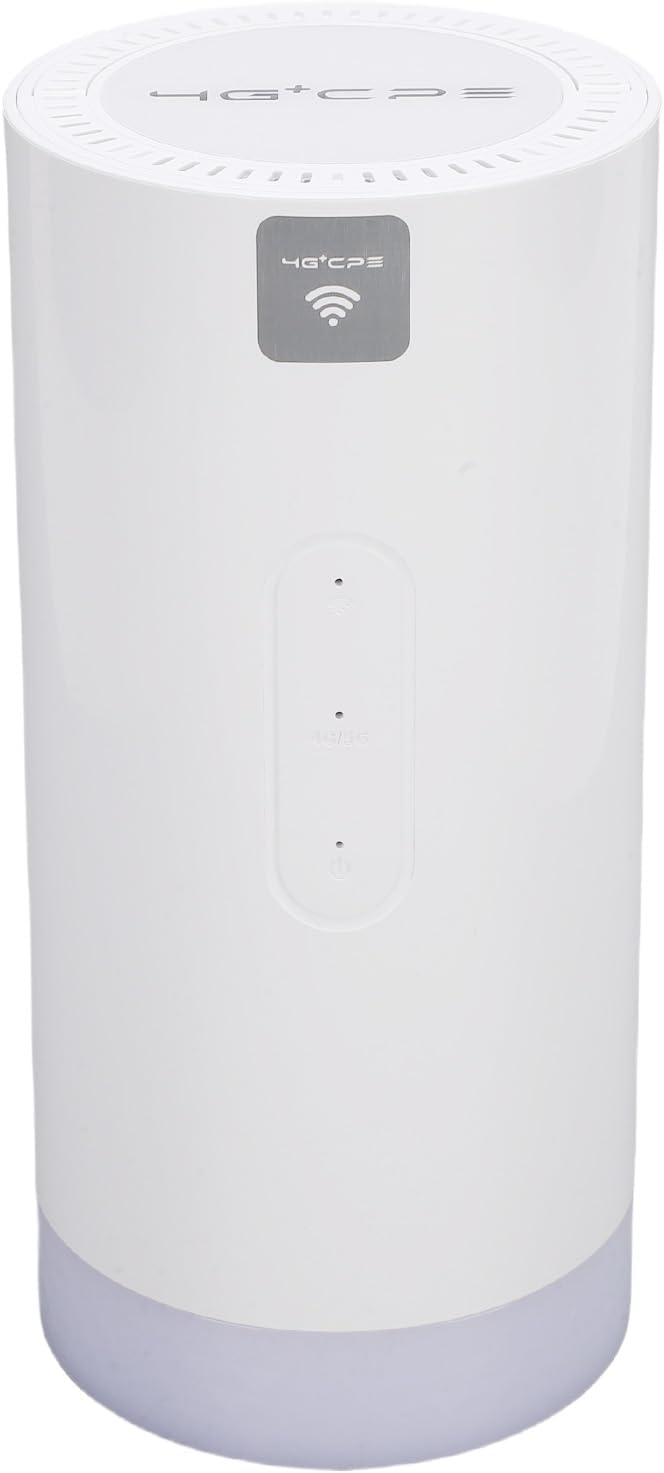
Image: Package contents including the router, power adapter, Ethernet cable, and carabiner.
3. Produktet er slutview
3.1 Frontpanel

Billede: Forside view of the router, showing LED indicators and the 4G+CPE logo.
The front panel features LED indicators for WiFi connection status, network connection status, and battery level, providing an intuitive display of the device's operational status.
3.2 Bagpanel og porte

Billede: Bagside view of the router, displaying various ports and the product information label.
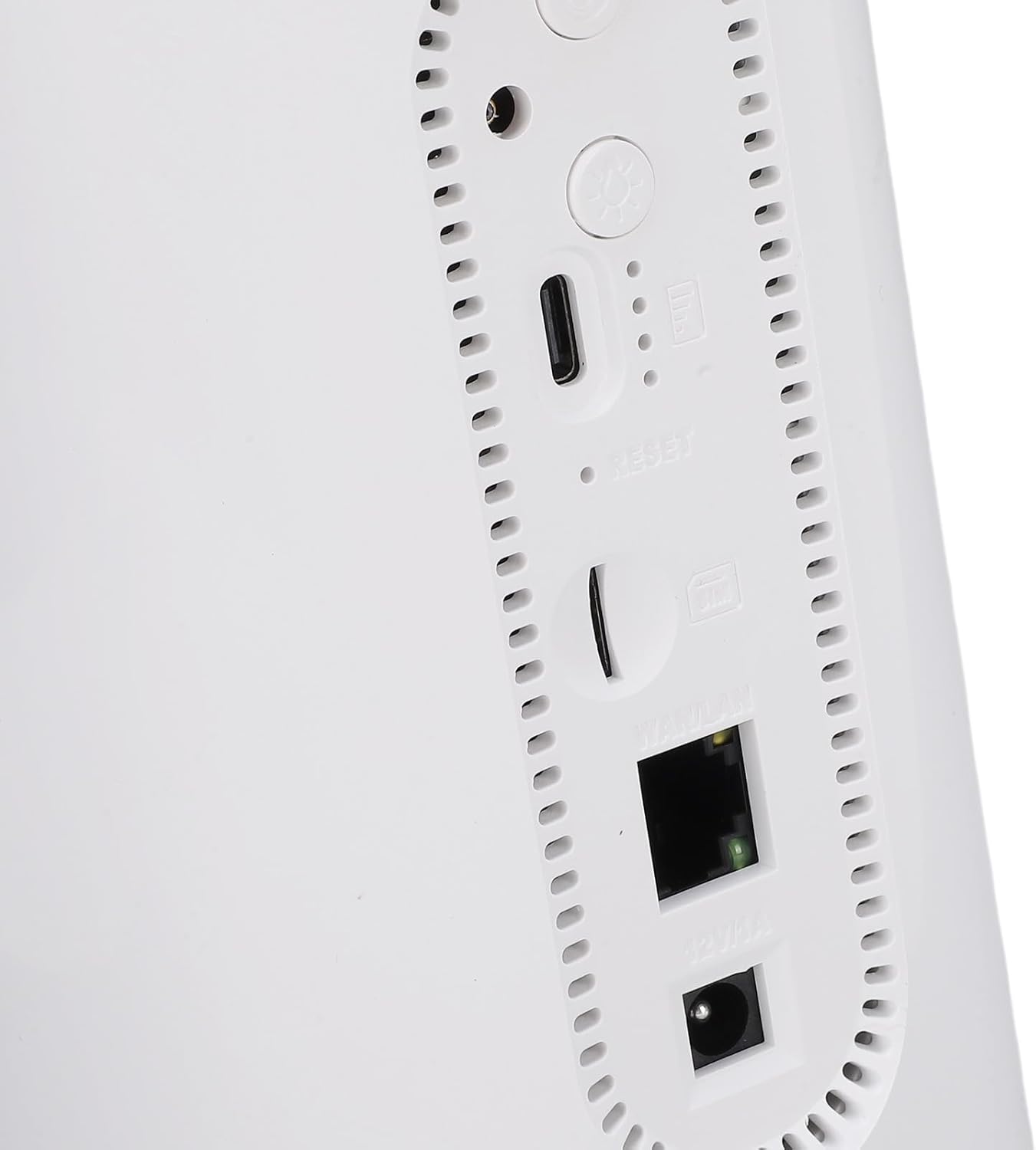
Billede: Nærbillede view of the rear ports, including SIM card slot, Reset button, WAN/LAN port, and power input.
The rear panel includes essential ports and controls:
- SIM-kortplads: Til isætning af et Micro SIM-kort.
- Nulstil knap: Bruges til at gendanne fabriksindstillinger.
- WAN/LAN-port: An Ethernet port for wired connections or connecting to an existing network.
- Strømindgang: Til tilslutning af strømadapteren.
- Power knap: For at tænde eller slukke for enheden.
- Camping Light Button: To activate or deactivate the colorful light feature.
4. Opsætning
4.1 Installation af SIM -kort
- Sørg for, at routeren er slukket.
- Find SIM-kortstikket på bagpanelet.
- Insert a Micro SIM card into the slot with the gold contacts facing down and the notched corner oriented correctly. Push until it clicks into place.
- To remove, gently push the SIM card again until it ejects.
4.2 Tænd
- Connect the provided power adapter to the power input port on the rear panel.
- Sæt strømadapteren i en stikkontakt.
- Press and hold the Power Button until the LED indicators illuminate. The device will begin to boot up.
4.3 Indledende WiFi-forbindelse
- Once the router is powered on and the network indicator shows a stable connection, locate the default WiFi Network Name (SSID) and Password (PWD) on the label at the bottom or rear of the device. (Example: SSID: 4G+CPE-XXXX, PWD: XXXXXXXXXX)
- On your smartphone, tablet, or computer, search for available WiFi networks.
- Select the SSID corresponding to your router.
- Enter the default PWD when prompted.
- Du skulle nu have forbindelse til internettet.
5. Betjeningsvejledning
5.1 Tilslutning af enheder
You can connect multiple devices to the router via WiFi. For wired connections, use an Ethernet cable to connect a device to the WAN/LAN port.
5.2 Adgang til Web Management interface
To configure advanced settings, access the web administrationsgrænseflade:
- Sørg for, at din enhed er forbundet til routerens WiFi-netværk.
- Åbn a web browser (f.eks. Chrome, Firefox).
- Indtast standard-IP-adressen (f.eks. 192.168.199.1) into the address bar and press Enter. This IP address is typically found on the product label.
- Enter the default username (e.g., admin) og adgangskode (f.eks. admin) when prompted. These credentials are also on the product label.
- From the interface, you can change WiFi settings, view connected devices, and manage network preferences.
5.3 LED-indikatorer
The LED indicators on the front panel provide visual feedback on the router's status:
- WiFi-indikator: Shows the status of the WiFi network.
- Netværksindikator: Displays the status of the 4G/3G/2G mobile network connection.
- Batteriindikator: Angiver det aktuelle batteriniveau.
Refer to the full product specifications for detailed indicator behavior (e.g., solid, blinking, color codes).
5.4 Camping lys funktion
This router includes a colorful light feature. Press the dedicated Camping Light Button on the rear panel to activate or deactivate this function. This can be useful for outdoor activities.
6. Vedligeholdelse
- Rensning: Brug en blød, tør klud til at rengøre enheden. Undgå flydende rengøringsmidler eller slibende materialer.
- Opbevaring: Opbevar routeren et køligt, tørt sted væk fra direkte sollys og ekstreme temperaturer.
- Batteripleje: For optimal battery life, avoid fully discharging the battery frequently. If storing for extended periods, charge the battery to approximately 50%.
- Firmwareopdateringer: Kontroller jævnligt producentens webwebsted eller web administrationsgrænseflade for tilgængelige firmwareopdateringer for at sikre optimal ydeevne og sikkerhed.
7. Fejlfinding
- Ingen internetforbindelse:
- Sørg for, at SIM-kortet er korrekt isat og aktiveret med en dataplan.
- Check the network LED indicator. If it's off or red, there might be a network issue or no signal.
- Genstart routeren og din tilsluttede enhed.
- Bekræft APN-indstillinger i web management interface (if applicable).
- Kan ikke oprette forbindelse til WiFi:
- Ensure the WiFi LED indicator is on.
- Verify you are entering the correct WiFi password.
- Flyt tættere på routeren for at forbedre signalstyrken.
- Genstart routeren.
- Langsom internethastighed:
- Tjek din mobilnetværks signalstyrke.
- Reducer antallet af tilsluttede enheder.
- Sørg for, at ingen baggrundsprogrammer bruger for meget båndbredde.
- Prøv at flytte routeren til et sted med bedre signalmodtagelse.
- Routeren svarer ikke:
- Press and hold the Power Button for 10 seconds to force a shutdown, then restart.
- If issues persist, perform a factory reset by pressing the Reset button with a pin for 5-10 seconds. Note: This will erase all custom settings.
8. Specifikationer
| Feature | Specifikation |
|---|---|
| Modelnummer | CUIFATIvd1g4kecbu |
| Mærke | Cuifati |
| Forbindelsesteknologi | 4G LTE (Cat6), Ethernet |
| Trådløs Standard | 802.11 b/g/n/AC (2.4G, 5.8G) |
| WiFi-hastighed | 2.4G: 300Mbps, 5.8G: 866Mbps |
| Frekvensbåndsklasse | Tri-Band (LTE FDD, TDD, WCDMA, EDGE) |
| SIM-korttype | Micro SIM x 1 |
| Batterikapacitet | 10000mAh litiumbatteri (indbygget) |
| Kryptering | WiFi Protected Access™ (WPA/WPA2) 2 |
| Dimensioner | Ca. 200 x 95 x 92 mm / 7.87 x 3.74 x 3.62 tommer |
| Varens vægt | 1.88 pund |
| Kompatible enheder | Smartphones, tablets, bærbare computere, computere |
| Anbefalet brug | Indendørs/Udendørs |
9. Garanti og support
For warranty information and technical support, please refer to the documentation included with your purchase or contact Cuifati customer service directly. You may also visit the official Cuifati webwebsted for yderligere hjælp og ressourcer.