1. Introduktion og overview
The Thermalright Trofeo Vision LCD AIO Display is a 6.86-inch PC monitor designed for real-time hardware monitoring and personalized visual displays. Featuring a crisp 1280x480 resolution, this compact screen offers a convenient way to track system performance metrics such as CPU/GPU temperatures, fan speed, and memory usage. It connects via a simple USB Type-C interface and is compatible with most Windows systems, utilizing the Thermalright TRCC software for customization.
2. Produktfunktioner
- 6.86” Wide LCD Screen: Features a crisp 1280×480 resolution display, ideal for showcasing system statistics, hardware performance, or personalized visuals within your gaming PC.
- Real-Time Hardware Monitoring: Easily track CPU/GPU temperatures, fan speed, memory usage, and other critical data, providing complete control over your system's health at a glance.
- TRCC Software with DIY Options: Includes the Thermalright TRCC application, offering multiple preset themes and extensive DIY customization capabilities to design your unique interface.
- Plug & Play USB-C Connection: A straightforward Type-C interface ensures quick setup and broad compatibility with most Windows systems, eliminating the need for complex driver installations.
- Compact & Stylish Build: With dimensions of 187.2 × 72.1 × 21 mm, this slim display integrates seamlessly inside or outside your PC case, enhancing both functionality and aesthetic appeal for PC enthusiasts.
3. Specifikationer
| Feature | Detalje |
|---|---|
| Dimension | L187.2 mm x W72.1 mm x H21 mm |
| Skærmstørrelse | 6.86 tommer |
| Skærmopløsning | 1280×480 pixel |
| LCD-stik | USB Type-C |
| Beskrivelse af skærmoverfladen | LCD |
| Varens vægt | 8 ounce |
| Fabrikant | Thermalright |
| Varemodelnummer | Aio Lcd |
4. Opsætningsvejledning
The Thermalright Trofeo Vision LCD Display is designed for straightforward installation. Follow these steps to set up your monitor:
- Unboxing: Carefully remove all components from the packaging. The package typically includes the LCD display, a USB Type-C cable, and a user manual.
- Forbindelse: Connect the provided USB Type-C cable to the LCD Connector port on the display. The other end of the USB Type-C cable should be connected to an available USB port on your Windows PC. The device is plug-and-play, so no complicated drivers are typically required for basic functionality.
- Montering (valgfrit): The display features strong magnetic suction for installation. It can be adsorbed onto metal surfaces within your PC case. For alternative mounting, refer to the included accessories and instructions for brackets if provided.
- Første opstart: Once connected, the display should power on automatically. If not, ensure the USB connection is secure and your PC is powered on.
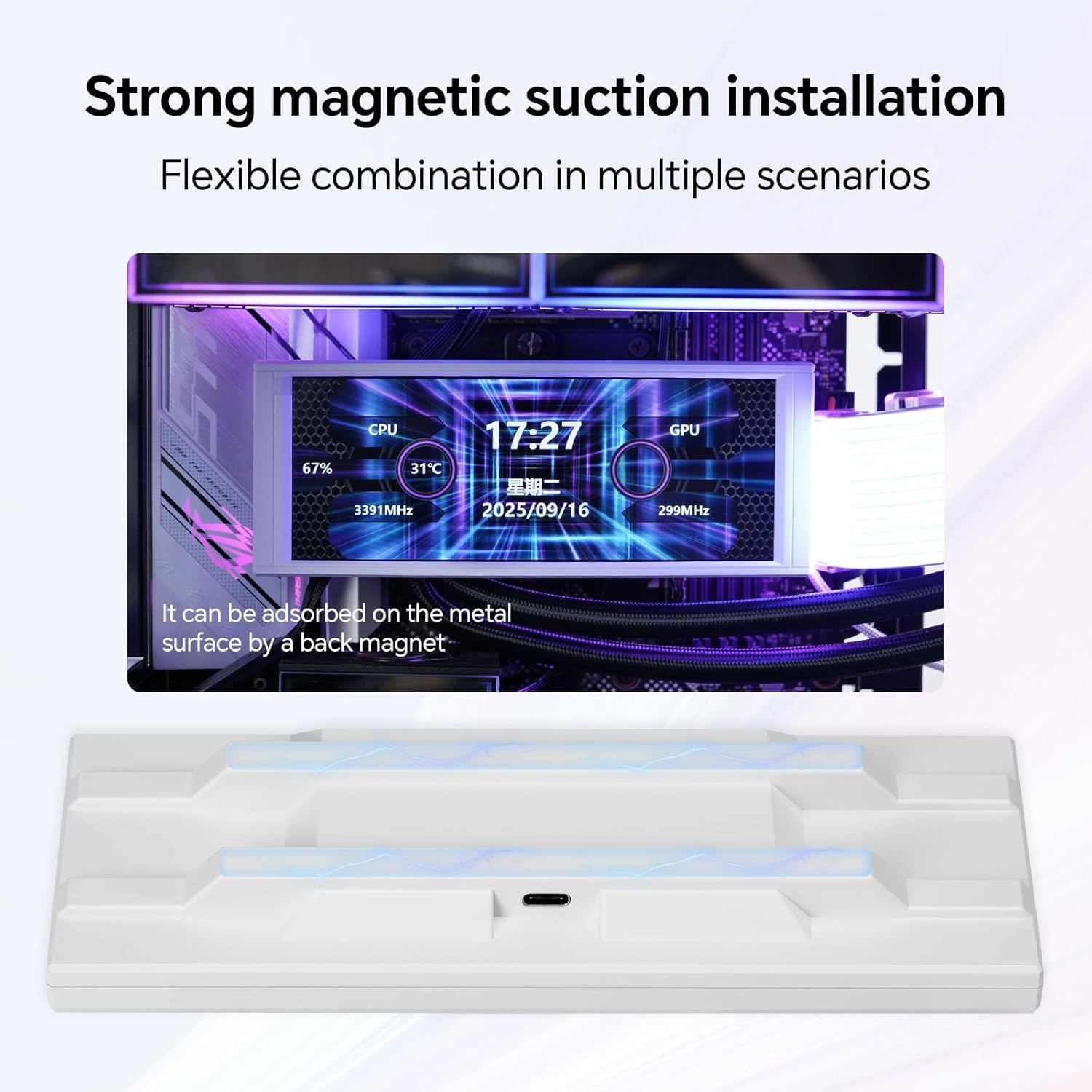
Image: The display features strong magnetic suction for flexible installation within a PC case.

Image: Contents of the Thermalright Trofeo Vision LCD Display package, including the display, USB Type-C cable, and user manual.
5. Betjeningsvejledning
After successful setup, the Thermalright Trofeo Vision LCD Display will begin to function. To fully utilize its features, software installation is recommended.
Realtidsovervågning
The display provides real-time monitoring of your PC's hardware. This includes:
- CPU/GPU Temperatures
- Blæserhastighed
- Hukommelsesbrug
- Other system performance metrics

Image: The display continuously monitors CPU and GPU workloads, showing temperatures and usage percentages.

Image: A close-up of the display showing current time, date, CPU and GPU temperatures, and usage statistics.
6. Software Installation and Customization (TRCC Software)
To unlock the full potential of your Thermalright Trofeo Vision LCD Display, including theme customization and advanced monitoring options, you need to install the Thermalright TRCC software.
- Download TRCC Software: Visit the official Thermalright website to download the latest version of the TRCC software. Ensure you download the correct version for your operating system (Windows is supported).
- Installation: Follow the on-screen instructions to install the TRCC software. It is recommended to install it on your primary system drive.
- Launch and Connect: Launch the TRCC application. The software should automatically detect your connected Trofeo Vision LCD Display.
- Temavalg: The TRCC software offers various preset themes. You can browse and select a theme that suits your preference.
- DIY-tilpasning: For advanced users, the software provides DIY customization options. You can design your own unique interface by adjusting layouts, data points, and visual elements.

Image: The TRCC software interface displaying options for simple DIY personalized themes and free background format for text presentation.
Official Product Videos: Software Overview
Video: This video demonstrates the Thermalright TRCC software, showcasing its interface for controlling the LCD screen and customizing display settings for water-cooling systems.
Video: En kort gennemgangview of the Thermalright Trofeo Vision LCD AIO Display Screen, highlighting its visual capabilities and integration within a PC setup.
7. Vedligeholdelse
To ensure the longevity and optimal performance of your Thermalright Trofeo Vision LCD Display, follow these maintenance guidelines:
- Rensning: Use a soft, lint-free cloth to gently wipe the screen surface. Avoid abrasive materials or harsh chemical cleaners, as these can damage the display. For stubborn smudges, lightly dampRengør kluden med vand eller en skærmsikker rengøringsopløsning.
- Håndtering: Handle the display with care. Avoid dropping it or subjecting it to strong impacts. When adjusting its position, do so gently to prevent damage to the magnetic mounts or internal components.
- Miljøforhold: Operate the display within recommended temperature and humidity ranges. Avoid exposing it to extreme heat, cold, or moisture.
- Kabelstyring: Ensure all cables are properly routed and not under excessive tension or pinched, which can lead to damage over time.
8. Fejlfinding
If you encounter issues with your Thermalright Trofeo Vision LCD Display, refer to the following troubleshooting steps:
- Display Not Turning On/Blank Screen:
- Check the USB Type-C connection at both the display and your PC. Ensure it is securely plugged in.
- Try connecting the display to a different USB port on your PC.
- Genstart din computer.
- Verify that the TRCC software is running correctly on your PC.
- Skærmflimmer eller ustabil visning:
- Sørg for, at dine grafikdrivere er opdaterede.
- Try reinstalling the TRCC software.
- Check for any electromagnetic interference from other devices near the display.
- TRCC Software Issues (e.g., not detecting display, themes not applying):
- Ensure the TRCC software is the latest version from the official Thermalright webwebsted.
- Restart the TRCC application and your PC.
- Temporarily disable any antivirus or firewall software that might be interfering with the TRCC application.
- Check Windows User Account Control (UAC) settings if you encounter permission issues.
- Incorrect Display Orientation for Videos (e.g., MP4s upside down):
- Check for rotation settings within the TRCC software.
- Sørg for videoen file format is fully supported by the TRCC software. Converting the video to a different compatible format might resolve the issue.
- Magnetic Mounting Issues:
- Ensure the mounting surface is clean and free of dust or debris.
- If the magnetic hold is weak, consider using additional adhesive or a dedicated bracket for more secure mounting.
9. Garanti og support
For warranty information, technical support, or further assistance with your Thermalright Trofeo Vision LCD AIO Display, please refer to the official Thermalright webwebstedet eller kontakt deres kundesupport direkte. Gem din købskvittering som købsbevis i tilfælde af garantikrav.
Manufacturer: Thermalright


