1. Introduktion
Thank you for choosing the Tongtion Wireless Display Dongle Adapter. This device provides a seamless and portable solution for mirroring content from your smartphone, PC, or tablet to a larger display such as a TV, monitor, or projector. Featuring 1080p HDMI streaming, 5GHz WiFi, and support for AirPlay and Miracast, it offers a plug-and-play experience for various applications including business presentations, home entertainment, and multimedia education.
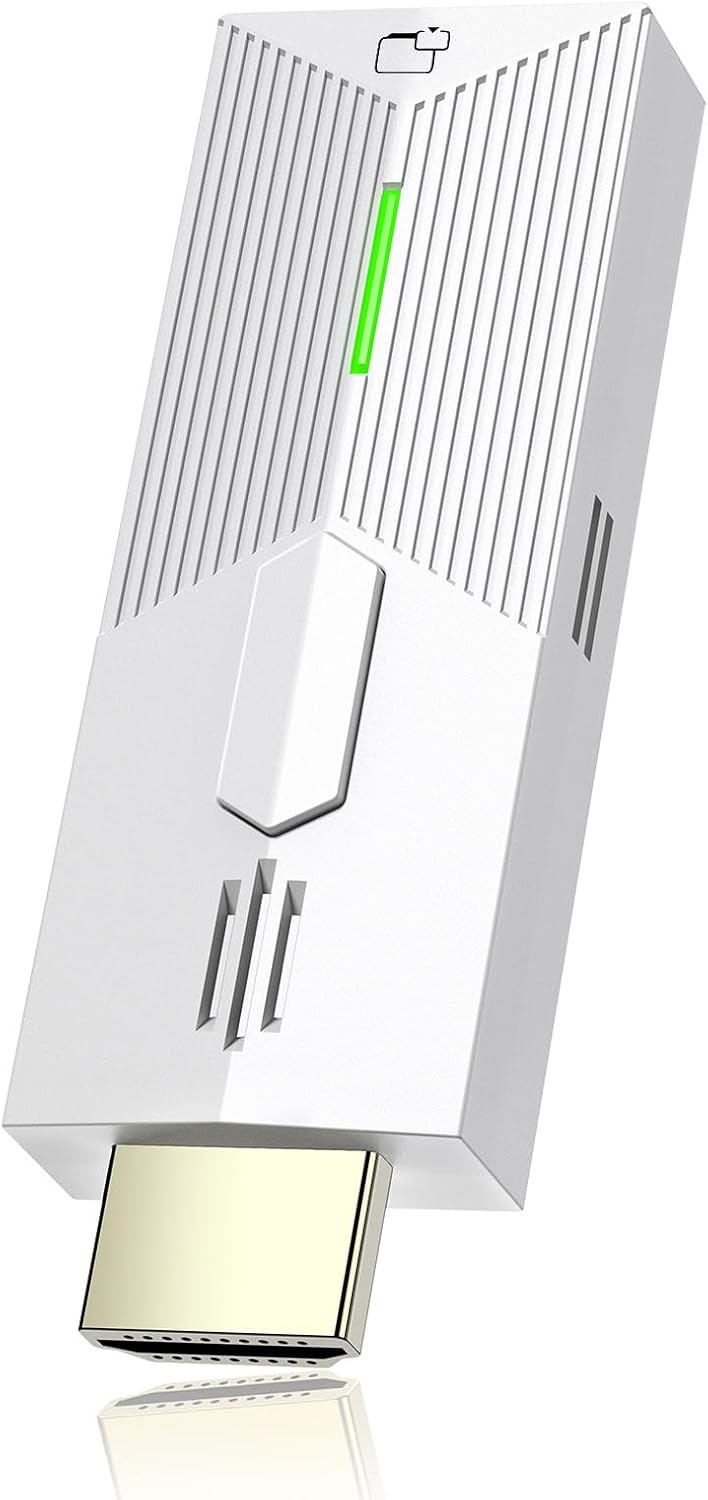
Image: The Tongtion Wireless Display Dongle Adapter, a compact white device with an HDMI connector and status indicator.
2. Pakkens indhold
Kontroller venligst, at alle varer er til stede i din pakke:
- Tongtion Wireless HDMI Display Dongle Adapter
- USB Power Cable (often integrated or separate for power)
- Brugervejledning (dette dokument)
3. Produktet er slutview
The Tongtion Wireless Display Dongle Adapter is designed for ease of use and stable performance. Below are the key components and their functions:
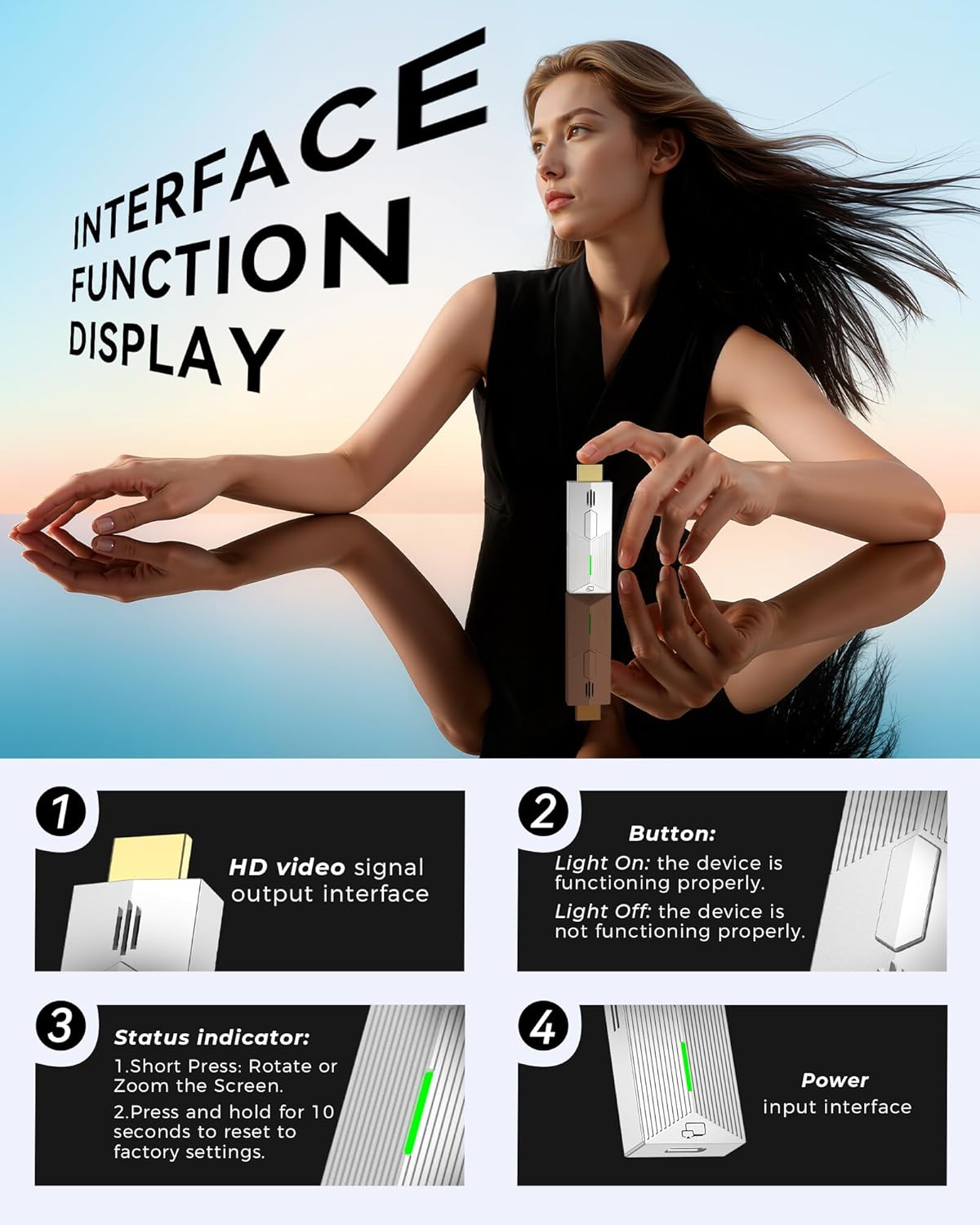
Billede: Detaljeret view of the dongle's interface, highlighting the HDMI output, button, status indicator, and power input.
- HD Video Signal Output Interface: This is the HDMI connector that plugs into your TV, monitor, or projector.
- Knap:
- Short Press: Rotates or zooms the screen.
- Press and hold for 10 seconds: Resets the device to factory settings.
- Statusindikator:
- Light On: The device is functioning properly.
- Light Off: The device is not functioning properly.
- Power Input Interface: Connects to the USB power cable for device operation.
The device supports 5G stable transmission for low latency and a smooth viewing experience. It is compatible with a wide range of devices and operating systems, including iOS, Android, Windows, and macOS.

Image: Diagram showing compatibility with various devices including iPhone, Android, Tablet, Laptop, TV, Monitor, and Projector, along with supported operating systems and protocols like WiFi, AirPlay, DLNA, Miracast, Windows, iOS, Android, and macOS.
4. Opsætningsvejledning
Follow these steps to set up your Tongtion Wireless Display Dongle Adapter:
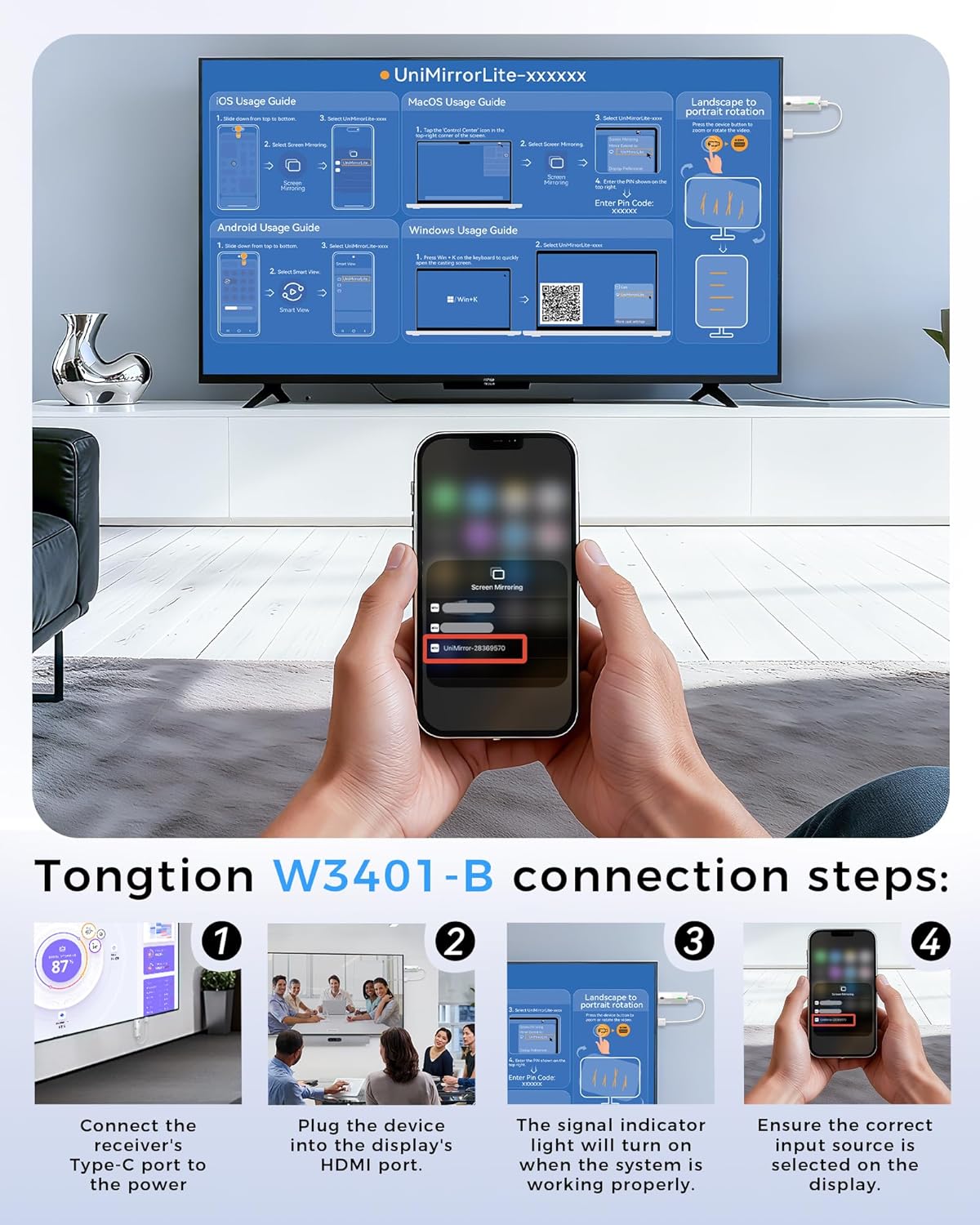
Image: Visual guide demonstrating the four connection steps for the Tongtion Wireless Display Dongle.
- Tilslut strøm: Connect the receiver's Type-C port (or USB power input) to a power source using the provided USB cable. This can be a USB port on your TV or a separate USB power adapter (5V/2A recommended).
- Plug into Display: Plug the device into an available HDMI port on your TV, monitor, or projector.
- Verify Indicator: Ensure the signal indicator light on the dongle turns on, indicating the system is working properly.
- Vælg input: On your display device (TV/monitor/projector), use its remote control to select the correct HDMI input source that the dongle is connected to.
Once connected, your display should show a setup screen with instructions for connecting your source device (smartphone, PC, etc.). The specific network name (SSID) and PIN will be displayed on your screen.
5. Betjeningsvejledning
The Tongtion Wireless Display Dongle supports various wireless protocols for screen mirroring. No dedicated app is required for most devices.

Image: Comprehensive usage guides for connecting iOS, macOS, Android, and Windows devices, including steps for screen mirroring and screen rotation.
5.1. iOS Usage Guide (AirPlay)
- Slide down from the top-right corner of your iPhone/iPad screen to open Control Center.
- Tap the "Screen Mirroring" icon.
- Select "UniMirrorLite-xxxxxx" (the name displayed on your TV screen) from the list of available devices.
- Your iOS device screen will now be mirrored to the display.
5.2. macOS Usage Guide (AirPlay)
- Click the "Control Center" icon in the top-right corner of your macOS screen.
- Select "Screen Mirroring".
- Choose "UniMirrorLite-xxxxxx" (the name displayed on your TV screen) from the list.
- If prompted, enter the PIN code displayed on your TV screen.
5.3. Android Usage Guide (Miracast/Smart View)
- Slide down from the top of your Android screen to open the Quick Settings panel.
- Tap the "Smart View" (or "Cast", "Wireless Display", "Screen Mirroring") icon.
- Select "UniMirrorLite-xxxxxx" (the name displayed on your TV screen) from the list of available devices.
- Your Android device screen will now be mirrored to the display.
5.4. Windows Usage Guide
- Tryk på Windows-tasten + K on your keyboard to quickly open the "Connect" sidebar.
- Select "UniMirrorLite-xxxxxx" (the name displayed on your TV screen) from the list of available wireless displays.
- Your Windows screen will now be mirrored or extended to the display.
5.5. Screen Rotation and Zoom
The Wireless HDMI Display Adapter supports mirror mode and off-screen mode. By clicking the button in the middle of the dongle, you can easily zoom in and out of the screen or rotate the display to enhance the viewoplevelse.

Image: A laptop displaying content on its screen while simultaneously extending the display to a large TV via the wireless dongle, illustrating the extended mode functionality.
6. Vedligeholdelse
To ensure the longevity and optimal performance of your Tongtion Wireless Display Dongle Adapter, please follow these maintenance guidelines:
- Rensning: Brug en blød, tør klud til at rengøre enheden. Undgå at bruge flydende rengøringsmidler eller aerosoler.
- Opbevaring: Opbevar enheden et køligt, tørt sted væk fra direkte sollys og ekstreme temperaturer.
- Håndtering: Håndter enheden forsigtigt. Undgå at tabe den eller udsætte den for hårde stød.
- Magt: Always use the recommended power adapter (5V/2A) to prevent damage.
7. Fejlfinding
If you encounter issues with your Tongtion Wireless Display Dongle Adapter, refer to the following common problems and solutions:
| Problem | Mulig årsag/løsning |
|---|---|
| Ingen visning på TV/skærm. |
|
| Unstable connection or lag. |
|
| Cannot mirror certain apps (e.g., Netflix, Amazon Prime Video). | This dongle does not support certain paid applications that employ "HDCP" video copyright protection. These include, but are not limited to, Netflix, Amazon Prime Videos, Hulu, Comcast TV, Xfinity, Vudu, Sky Go, and BT Sport. This is a limitation due to copyright protection, not a device malfunction. |
| Device not found during screen mirroring. |
|
8. Specifikationer
| Feature | Detalje |
|---|---|
| Mærke | Tongtion |
| Modelnummer | TGN-W3401-B-YK-001 |
| Forbindelsesteknologi | HDMI, 5GHz WiFi |
| Connector Type | HDMI |
| Opløsning | 1080p Full HD Output (supports 4K decoding) |
| Understøttede protokoller | AirPlay, DLNA, Miracast, Cast |
| Understøttet OS | iOS, Android, Windows, macOS |
| Varens vægt | 2.39 ounce |
| Produktdimensioner | 5.8 x 3.7 x 1 tommer |
9. Garanti og support
Tongtion products are designed for reliability and performance. For warranty information and technical support, please refer to the official Tongtion webwebsted eller kontakt vores kundeserviceteam.
- Online support: Besøg Tongtion Store on Amazon for product information and FAQs.
- Kontakte: For further assistance, please reach out to Tongtion customer support through the contact methods provided on our official channels.


