1. Introduktion
This manual provides detailed instructions for the YYSWIE D20 10.1 Inch Android 14 Tablet. Please read this guide thoroughly before using your device to ensure proper operation and to maximize its features. Keep this manual for future reference.

Figure 1: YYSWIE D20 10.1 Inch Android 14 Tablet with Stylus Pen
2. Pakkens indhold
Bekræft at alle varer er til stede i din pakke:
- YYSWIE D20 10.1 Inch Android 14 Tablet
- Stylus pen
- Oplader
- USB-C kabel
- Forudpåført skærmbeskytter
- Brugervejledning (dette dokument)

Figur 2: Tablet og medfølgende tilbehør
3. Produktet er slutview
3.1 Nøglefunktioner
- Vise: 10.1-inch IPS HD (1280x800) with eye-care mode
- Processor: Quad-Core (1.6 GHz Allwinner)
- VÆDDER: 6 GB (3 GB fysisk + 3 GB virtuel)
- Opbevaring: 32GB internal, expandable up to 128GB via microSD card (not included)
- Operativsystem: Android 14
- Batteri: 5000mAh, up to 10 hours usage
- Kameraer: 2 MP foran, 5 MP bag
- Forbindelse: Wi-Fi (802.11b), Bluetooth 4.0
- Ekstra: Includes stylus pen, pre-installed screen protector, parental controls

Figure 3: High-Performance Quad-Core CPU

Figure 4: Storage Capacity Overview
3.2 Fysiske komponenter
Familiarize yourself with the tablet's buttons, ports, and cameras.
- Power knap: Located on the side/top edge. Used to turn the tablet on/off or put it to sleep.
- Lydstyrkeknapper: Juster lydniveauer.
- USB-C-port: Til opladning og dataoverførsel.
- MicroSD -kortplads: Til udvidelse af lagerplads.
- Forreste kamera: Til videoopkald og selfies.
- Bagkamera: Til at tage billeder og videoer.
- Nulstil Pinhole: A small hole for factory reset (use a thin pin).

Figure 5: Front and Rear Camera Locations
4. Opsætning
4.1 Opladning af tabletten
- Tilslut USB-C-kablet til tablettens USB-C-port.
- Plug the other end of the USB-C cable into the provided charger.
- Sæt opladeren i en stikkontakt.
- Lad tabletten oplades helt, før den tages i brug første gang. Batteriindikatoren på skærmen viser opladningsstatus.

Figur 6: Opladning af tabletten
4.2 Tænd/sluk
- For at tænde: Press and hold the Power button until the YYSWIE logo appears.
- For at slukke: Tryk på tænd/sluk-knappen og hold den nede, indtil der vises en menu. Vælg "Sluk", og bekræft.
- At sove/vågne: Tryk kort på Power-knappen.
4.3 Indledende konfiguration
Når du tænder din tablet første gang, skal du følge instruktionerne på skærmen for at konfigurere den:
- Vælg dit foretrukne sprog.
- Opret forbindelse til et Wi-Fi-netværk.
- Log ind med din Google-konto, eller opret en ny. Dette er nødvendigt for at downloade apps fra Google Play Store.
- Review og accepterer vilkårene og betingelserne.
- Konfigurer skærmlås (pinkode, mønster eller adgangskode) for sikkerhed.
4.4 Indsættelse af et MicroSD-kort
Sådan udvider du din tablets lagerplads:
- Find microSD-kortstikket på siden af tabletten.
- Sæt forsigtigt microSD-kortet i stikket med de gyldne kontakter nedad, indtil det klikker på plads.
- The tablet will detect the card and prompt you to format it for use. Follow the on-screen instructions.
4.5 Brug af styluspennen
The included stylus pen is non-charging and does not require Bluetooth pairing. Simply use it directly on the screen for navigation, drawing, or note-taking.

Figure 7: Using the Stylus Pen
5. Betjening af din tablet
5.1 Grundlæggende navigation (Android 14)
Your tablet runs on Android 14, offering an intuitive user experience. Common gestures include:
- Tryk på: Vælg et element.
- Stryg: Rul gennem skærme eller lister.
- Knib-for-at-zoome: Forstør eller formindsk indhold.
- Langt tryk: Få adgang til kontekstmenuer eller flyt ikoner.
- Navigationslinje: Use the on-screen buttons (Back, Home, Recent Apps) at the bottom of the screen.
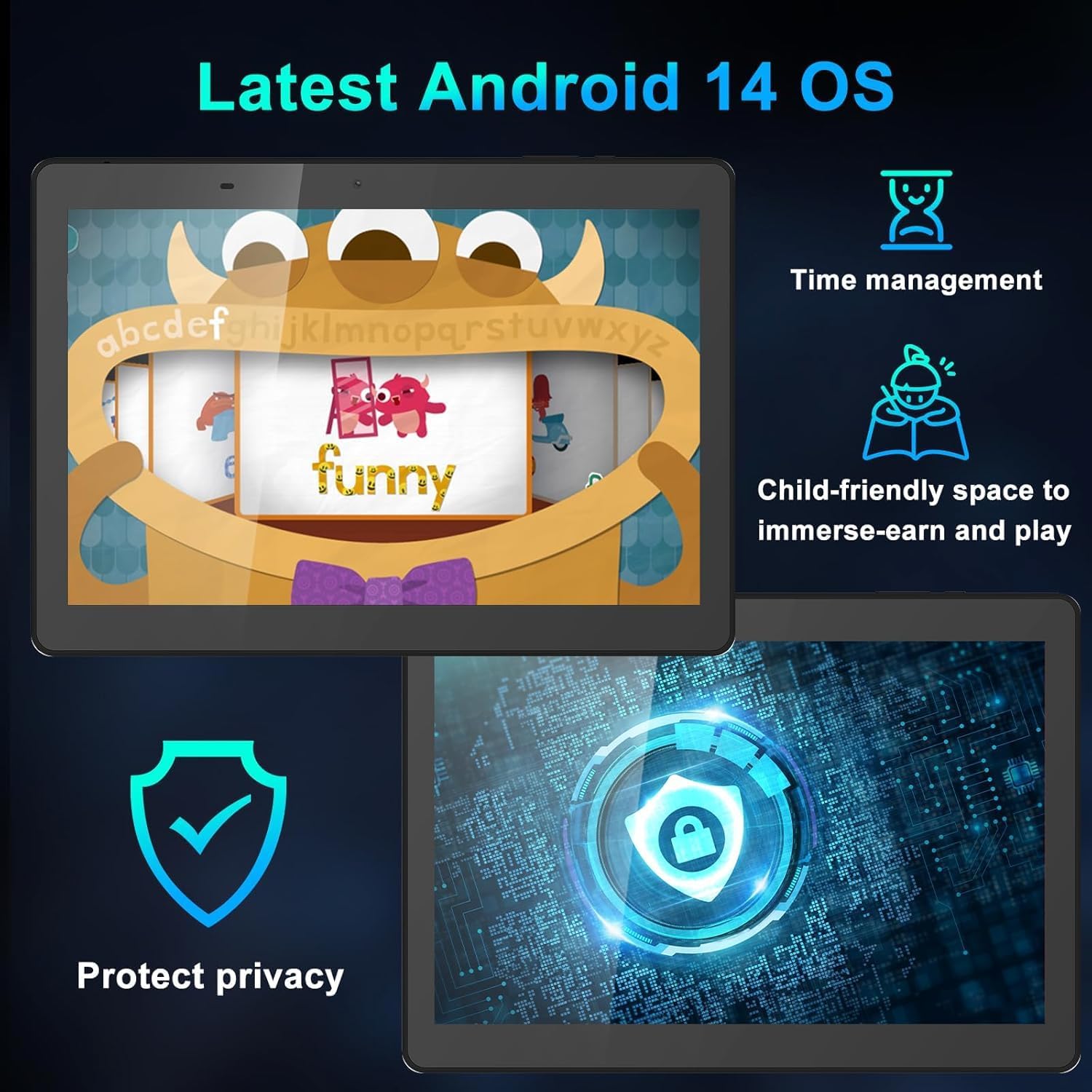
Figure 8: Android 14 Interface Highlights
5.2 Forbindelse til Wi-Fi og Bluetooth
Access these settings from the Quick Settings panel (swipe down from the top of the screen) or through the main Settings app.
- Wi-Fi: Turn Wi-Fi on, select your network, and enter the password if required.
- Bluetooth: Turn Bluetooth on, scan for devices, and select the device you wish to pair with.
5.3 Brug af kameraet
Åbn Kamera-appen fra startskærmen eller appskuffen.
- Tryk på udløserknappen for at tage et billede.
- Skift mellem for- og bagkamera ved hjælp af kameraikonet.
- Vælg videotilstand for at optage videoer.
5.4 Forældrekontrol
Android 14 includes enhanced parental controls. Navigate to Indstillinger > Digitalt velvære og forældrekontrol to manage screen time, app access, and content filtering for child profiles.

Figure 9: Tablet Use for Young Users
5.5 Eye-Care Mode
To reduce blue light emission and eye strain, activate Eye-Care Mode. This can usually be found in Indstillinger > Skærm or through the Quick Settings panel.

Figure 10: 10.1 Inch IPS HD Display
6. Vedligeholdelse og pleje
6.1 Rengøring
Brug en blød, fnugfri klud til at rengøre skærmen og tablettens kabinet. Undgå at bruge skrappe kemikalier eller slibende materialer.
6.2 Batteristyring
- Undgå ekstreme temperaturer, da disse kan forringe batteriets levetid.
- For optimal battery health, avoid frequently draining the battery completely or keeping it at 100% charge for extended periods.
- Brug kun den medfølgende oplader og kabel.
6.3 Softwareopdateringer
Tjek regelmæssigt efter og installer softwareopdateringer for at sikre, at din tablet har de nyeste funktioner, sikkerhedsrettelser og forbedringer af ydeevnen. Gå til Indstillinger > System > Systemopdatering.
7. Fejlfinding
Hvis du støder på problemer med din tablet, kan du bruge følgende almindelige løsninger:
| Problem | Løsning |
|---|---|
| Tabletten tænder ikke | Ensure the battery is charged. Connect the charger and wait a few minutes before attempting to power on again. If unresponsive, try a soft reset by pressing and holding the power button for 10-15 seconds. |
| Tabletten fryser eller reagerer ikke | Press and hold the Power button for about 10 seconds to force a restart. If the issue persists, try clearing the cache of problematic apps or performing a factory reset (see below). |
| Problemer med Wi-Fi-forbindelse | Restart your tablet and your Wi-Fi router. Forget the network in Wi-Fi settings and reconnect. Ensure you are within range of the Wi-Fi signal. |
| Batteriet aflades hurtigt | Reduce screen brightness, close unused apps, disable Wi-Fi/Bluetooth when not in use, and check for apps consuming excessive power in battery settings. |
| Stylus pen not working | Ensure the screen is clean. The stylus is passive and does not require charging or pairing. If the issue persists, test with finger input to determine if it's a screen or stylus issue. |
7.1 Fabriksindstilling
A factory reset will erase all data on your tablet and restore it to its original factory settings. Back up important data before proceeding.
- Gå til Indstillinger > System > Nulstillingsindstillinger.
- Vælge Slet alle data (gendan fabriksindstillinger).
- Bekræft din beslutning, og indtast din pinkode/mønster/adgangskode, hvis du bliver bedt om det.
- Tabletten genstarter og begynder nulstillingsprocessen.
8. Specifikationer
| Feature | Detalje |
|---|---|
| Mærke | YYSWIE |
| Modelnummer | D20 |
| Operativsystem | Android 14 |
| Skærmstørrelse | 10.1 tommer |
| Skærmopløsning | 1280 x 800 pixels (IPS HD) |
| Processor | 1.6 GHz firekernet processor (Allwinner) |
| VÆDDER | 6 GB (3 GB fysisk + 3 GB virtuel) |
| Intern opbevaring | 32 GB |
| Udvidelig opbevaring | Up to 128GB via MicroSD card |
| Batterikapacitet | 5000mAh |
| Gennemsnitlig batterilevetid | Op til 10 timer |
| Bag Webcam opløsning | 5 MP |
| Front Webcam opløsning | 2 MP |
| Trådløs type | 802.11b (Wi-Fi) |
| Bluetooth | Bluetooth 4.0 |
| Varens vægt | 1.57 pund |
| Produktdimensioner | 12.2 x 7.48 x 1.34 tommer |

Figure 11: Tablet Dimensions and Key Specifications
9. Garanti og support
9.1 Garantioplysninger
YYSWIE offers a 12 måneders garanti for its products. If you experience any issues within this period, please contact our customer support for assistance.
9.2 Kundesupport
For any questions, technical assistance, or warranty claims, please contact YYSWIE customer support. We aim to reply to customer messages within 24 hours.
- Online support: Refer to the YYSWIE store on Amazon for contact options.
- E-mail support: Available 24/7 for dedicated technical assistance.


