1. Introduktion
This manual provides detailed instructions for the installation, operation, and maintenance of your VIKVIZ 5MP PoE IP Bullet Camera (Model: PG2T56IRC-ZS). Please read this manual thoroughly before using the product to ensure proper setup and functionality. Keep this manual for future reference.
2. Produktet er slutview
2.1 Nøglefunktioner
- 5MP Ultra HD-opløsning: Captures video at 2592 x 1944 resolution at 30 frames per second.
- 5X optisk zoom: Features a 2.7-13.5mm varifocal lens with a 105° ultra-wide viewvinkel.
- Fuld farve nattesyn: Dual illuminated system with 4 warm LEDs and 4 IR LEDs for clear color night vision up to 98 feet.
- Smart Motion Detection: Advanced human and vehicle detection to reduce false alarms.
- Tovejs lyd: Indbygget mikrofon og højttaler til kommunikation i realtid.
- H.265+ videokomprimering: Efficiently saves storage space and provides smoother video.
- Strøm via Ethernet (PoE): Single Ethernet cable for both power and data transmission.
- Vejrbestandigt design: IP66 rated metal casing for outdoor use in various weather conditions.
- Fleksibel opbevaring: Supports NFS, NVR, APP Cloud Storage, or SD cards (up to 256GB, purchased separately).
2.2 Pakkens indhold
Bekræft at alle varer er til stede i din pakke:
- VIKVIZ 5MP PoE IP Bullet Camera
- Instruktionsmanual
- Monteringsskruer

Image: Contents of the VIKVIZ 5MP PoE IP Bullet Camera package, including the camera, instruction manual, and mounting screws.
3. Opsætning
3.1 Installationssted
Vælg en udendørs placering, der giver den ønskede viewing angle and is within reach of an Ethernet cable. The camera is IP66 weatherproof, suitable for various environmental conditions.

Image: A VIKVIZ bullet camera mounted on an exterior wall, shown operating in rainy conditions, highlighting its IP66 weatherproof rating.
3.2 Montering af kameraet
- Marker borepunkterne på væggen eller i loftet ved hjælp af kameraets monteringsbase som skabelon.
- Bor pilothuller på de markerede positioner.
- Insert the provided wall anchors (if necessary for your surface).
- Secure the camera's mounting base to the surface using the mounting screws.
- Juster kameravinklen efter behov.
3.3 Power and Network Connection (PoE)
The camera supports Power over Ethernet (PoE), simplifying installation by using a single Ethernet cable for both power and data.
- Connect one end of an Ethernet cable to the camera's PoE port.
- Tilslut den anden ende af Ethernet-kablet til en PoE-aktiveret NVR, PoE-switch eller PoE-injektor.
- Ensure the NVR/switch/injector is powered on. The camera will power up automatically.
Note: A PoE NVR/switch/injector and DC power adapter are not included. If PoE is not available, a 12V DC power adapter (not included) can be used with a standard Ethernet connection.

Image: A VIKVIZ PoE camera connected to a Network Video Recorder (NVR) using a single Ethernet cable, illustrating the Power over Ethernet setup for data, sound, and power.
3.4 Indledende konfiguration
For initial setup and configuration, use the recommended software:
- For Windows and MAC: Use AjDevTools software.
- For professional playback and recording: Blue Iris software is recommended.
- Mobil adgang: Download the "videolink" app for smartphone access.
The camera works with most major web browsers including Google Chrome, Microsoft Edge, and Safari.
4. Betjening
4.1 Fjernadgang via mobilapp
The "videolink" app allows you to view live footage, receive motion alerts, and manage camera settings from your smartphone.
- Download and install the "videolink" app from your device's app store.
- Følg instruktionerne i appen for at tilføje dit kamera. Dette involverer typisk at scanne en QR-kode på kameraet eller manuelt indtaste dets oplysninger.
- Når du er tilføjet, kan du få adgang til live view, playback recordings, and configure settings.
4.2 Smart Motion Detection (Human/Vehicle)
The camera features advanced recognition technology to accurately identify human and vehicle movement, minimizing false alarms.
- Configure detection zones and sensitivity settings within the camera's software or mobile app.
- When a person or vehicle is detected, the camera can trigger an event, sending notifications via email, FTP, or push alerts to your smartphone.
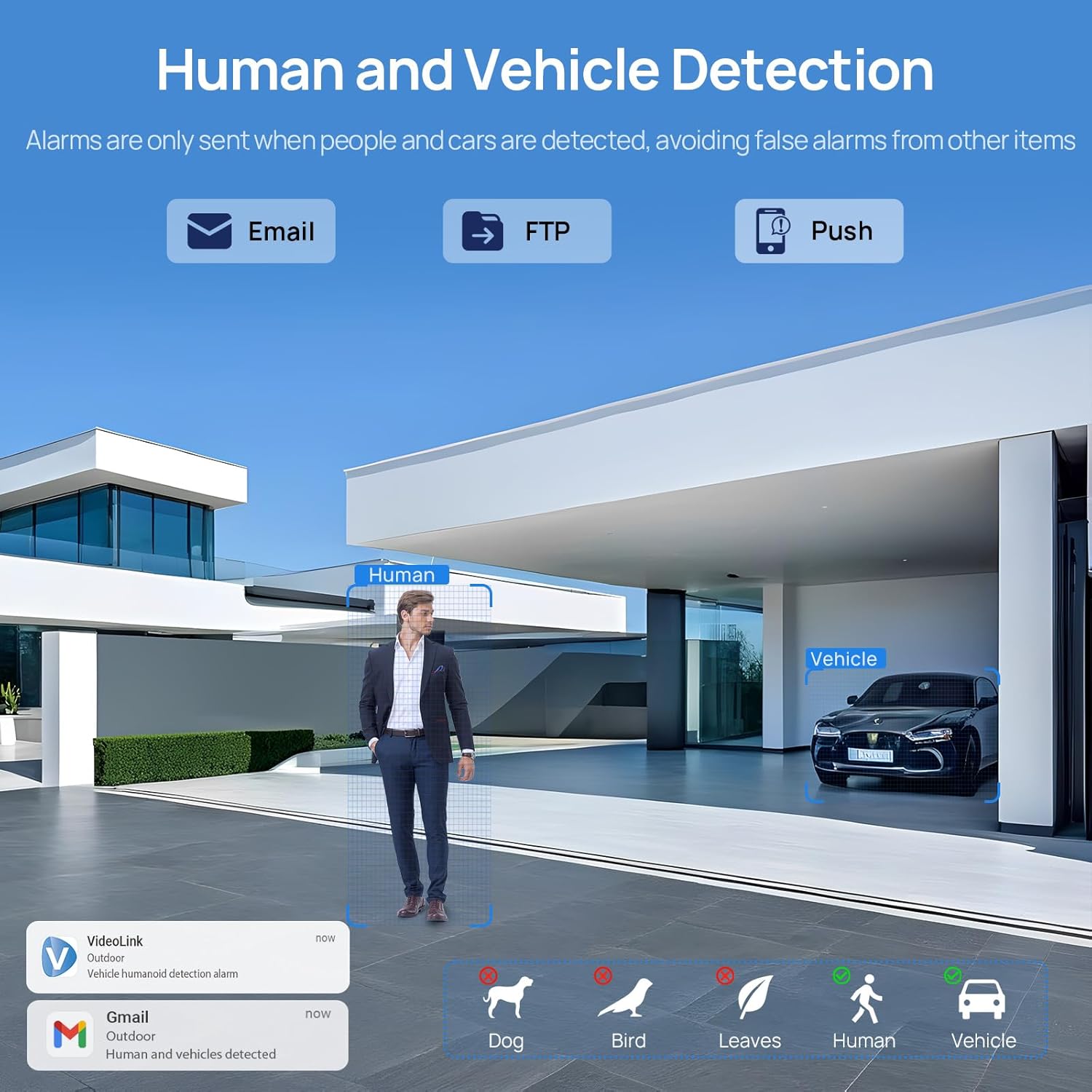
Image: A scene demonstrating the camera's human and vehicle detection capabilities, showing alerts for detected individuals and cars while ignoring animals or environmental factors.
4.3 Nattesynstilstande
The camera offers versatile night vision capabilities:
- IR nattesyn: By default, the IR illuminator is active at night for black and white surveillance.
- Fuld farve nattesyn: When a target is detected, the spotlight activates to record in full color. The spotlight will warn the target in the area.
- Smart Dual Illumination: The camera intelligently switches between IR light and warm light (spotlight) depending on the situation, providing color details when needed.

Image: A split image showing a scene at night with the spotlight off (black and white IR vision) and with the spotlight on (full-color night vision), demonstrating the camera's dual illumination feature.
4.4 5X Optical Zoom
The 2.7-13.5mm varifocal lens allows for 5X optical zoom, enabling you to adjust the viewing angle from 32° to 100° and focus on specific details without losing image quality.
- Adjust the zoom level through the camera's software or mobile application.
- The optical zoom maintains clarity even at maximum magnification.

Image: A series of images demonstrating the 5X optical zoom capability of the camera, showing a wide view and then progressively zoomed-in views of a specific area, highlighting the detail retention.
4.5 Tovejslyd
The integrated microphone and speaker enable two-way communication, allowing you to listen to the environment and speak through the camera.
- Access the two-way audio function via the mobile app.
- Use it to greet visitors or deter unwanted individuals.

Image: A scenario depicting a delivery person at a door, with a VIKVIZ camera facilitating a two-way audio conversation between the homeowner (via smartphone app) and the delivery person.
5. Vedligeholdelse
- Regelmæssig rengøring: Rengør kameralinsen regelmæssigt med en blød kludamp klud for at sikre en klar billedkvalitet. Undgå slibende rengøringsmidler.
- Firmwareopdateringer: Tjek producentens webwebstedet eller appen for tilgængelige firmwareopdateringer for at sikre optimal ydeevne og sikkerhed.
- Kabelinspektion: Regularly inspect the Ethernet cable for any signs of wear or damage, especially in outdoor installations.
- Miljøbeskyttelse: While the camera is weatherproof (IP66), ensure it is not submerged in water or exposed to extreme conditions beyond its operating temperature range (-10°C to 50°C).
6. Fejlfinding
- Ingen strøm: Ensure the PoE NVR/switch/injector is powered on and the Ethernet cable is securely connected. If using a DC adapter, verify the power source and connection.
- Intet videofeed: Check network connectivity. Ensure the camera is properly configured in your NVR or app. Verify the IP address and network settings.
- Dårlig billedkvalitet: Rengør kameralinsen. Kontroller for blokeringer i kameraets felt. view. Ensure sufficient lighting for night vision modes. Adjust focus if applicable.
- Falske bevægelsesadvarsler: Adjust the sensitivity settings for human/vehicle detection in the camera's software or app. Refine detection zones to exclude irrelevant areas.
- To-vejs lydproblemer: Check microphone and speaker settings in the app. Ensure network bandwidth is sufficient for real-time audio.
- Kan ikke få fjernadgang til kameraet: Verify your internet connection. Ensure port forwarding (if required by your network setup) is correctly configured on your router. Check firewall settings.
7. Specifikationer
| Feature | Specifikation |
|---|---|
| Modelnavn | PG2T56IRC-ZS |
| Opløsning | 5MP (2592 x 1944) @ 30fps |
| Optisk zoom | 5X (2.7-13.5mm varifocal lens) |
| Viewi vinkel | 105° (wide) to 32° (telephoto) |
| Night Vision Range | Op til 98 fod (30 meter) |
| Nattesyn type | Full Color, IR, Smart Hybrid Light |
| Lyd | Tovejslyd (indbygget mikrofon og højttaler) |
| Videokomprimering | H.265+, H.265, H.264 |
| Forbindelse | Ethernet (PoE), ONVIF |
| Opbevaringsmuligheder | NFS, NVR, APP Cloud Storage, Micro SD Card (up to 256GB) |
| Vejrbestandig vurdering | IP66 |
| Driftstemperatur | -10°C til 50°C (14°F til 122°F) |
| Strømkilde | PoE (Power over Ethernet) eller 12V DC (adapter medfølger ikke) |
| Materiale | Metal |
| Dimensioner | 12.7 x 5.11 x 4.72 tommer |
| Vægt | 2.2 pund |
8. Garanti og support
8.1 Returpolitik
This product is eligible for a return within 30 days of purchase for a refund or replacement, subject to the retailer's terms and conditions.
8.2 Teknisk support
For technical assistance, troubleshooting, or warranty inquiries, please contact VIKVIZ customer support through their official webwebstedet eller forhandleren, hvor produktet blev købt. Se din købsdokumentation for specifikke kontaktoplysninger.


