1. Introduktion
This manual provides detailed instructions for the setup, operation, and maintenance of your Play Mac Pro Smart Projector. Please read this manual thoroughly before using the projector to ensure proper functionality and to maximize your viewoplevelse. Gem denne vejledning til fremtidig reference.
2. Produktet er slutview
2.1 Nøglefunktioner
- Built-in Official Google TV: Access popular streaming apps directly.
- Google Voice Assistant: Control the projector and search content using voice commands.
- Høj lysstyrke: 2500 ANSI Lumens for clear images in various lighting conditions.
- Indbygget 1080P-opløsning: Supports 4K video input for detailed visuals.
- Automatiske justeringer: Auto Focus and Auto Keystone correction for a clear, rectangular image.
- Avanceret forbindelse: WiFi 6 and Bluetooth 5.2 for seamless wireless connections.
- Alsidig installation: Supports ceiling, tabletop, tripod, and wall mounting.
- Flere porte: HDMI ARC, USB, and 3.5mm audio for external devices.
2.2 Pakkens indhold
Sørg for at alle varer er til stede i pakken:
- Play Mac Pro Smart Projector
- Fjernbetjening
- Strømkabel
- Brugervejledning (dette dokument)
2.3 Projektorkomponenter
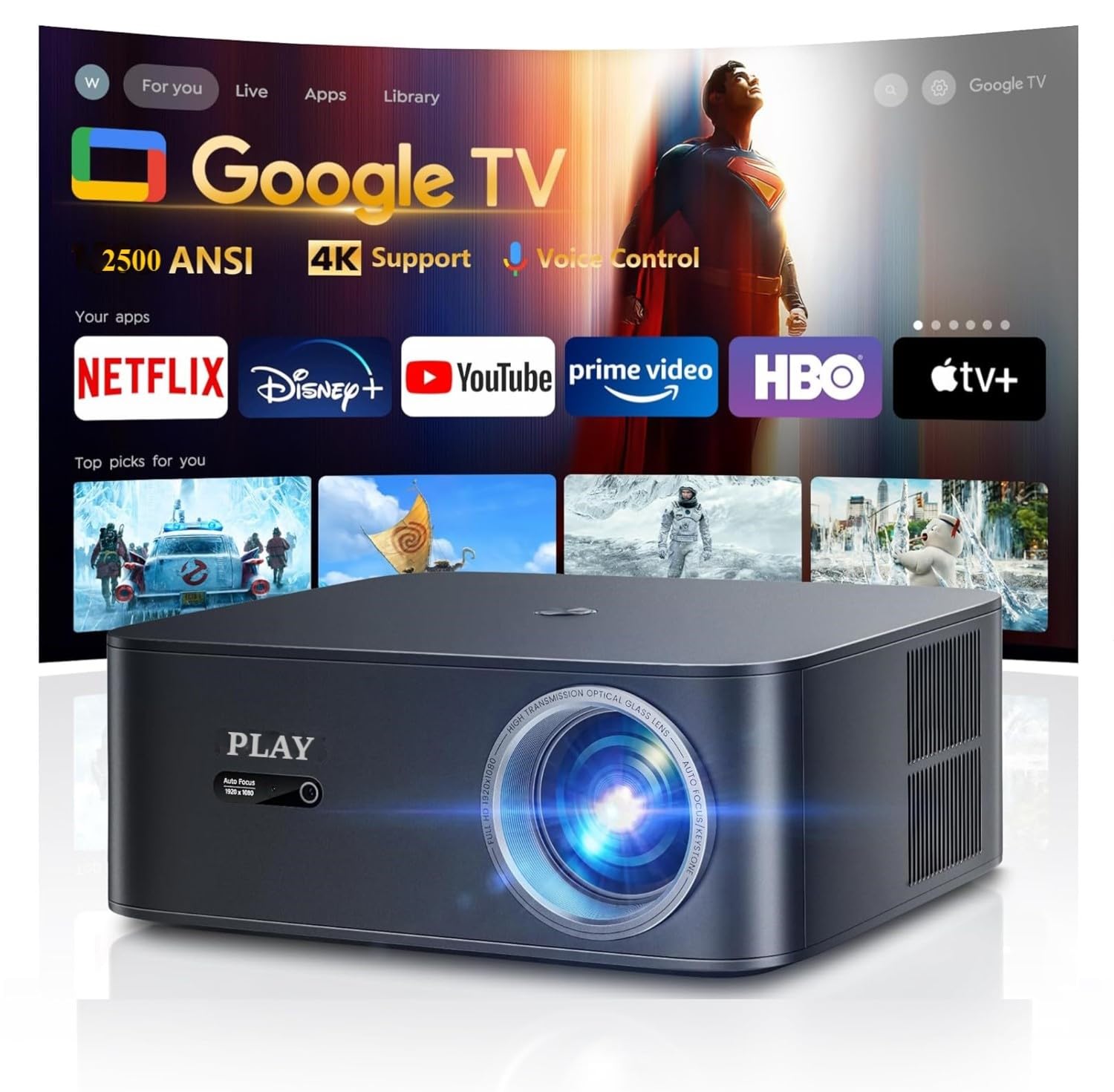
Figur 2.3.1: Front view of the Play Mac Pro Smart Projector displaying the Google TV interface with various streaming app icons. The projector features a lens on the front and ventilation on the sides.

Figur 2.3.2: Bag view of the Play Mac Pro Smart Projector, highlighting the HDMI, USB, and power input ports for connecting external devices and power supply.
3. Opsætning
3.1 Placeringsmuligheder
The Play Mac Pro projector offers flexible placement options:
- Bordplademontering: Placer projektoren på en flad overflade.
- Loftmontering: Securely attach the projector to the ceiling using compatible mounting hardware (not included). The projector has four M5 screw holes at the bottom for this purpose.
- Stativmontering: Use a standard tripod for portable setup.
- Vægbeslag: Attach to a wall using appropriate brackets (not included).

Figur 3.1.1: Illustration of versatile installation methods, including tray bracket, desktop setup, and ceiling mount, demonstrating the projector's adaptability to different environments.
3.2 Strømtilslutning
- Tilslut strømkablet til projektorens strømindgang.
- Sæt den anden ende af strømkablet i en passende stikkontakt.
- Tryk på tænd/sluk-knappen på projektoren eller fjernbetjeningen for at tænde den.
4. Betjeningsvejledning
4.1 Google TV-grænseflade
The Play Mac Pro projector features an officially licensed Google TV operating system, providing access to a wide range of streaming applications and content.
- Upon startup, the Google TV home screen will display, offering personalized content recommendations and quick access to installed apps like Netflix, Disney+, YouTube, and Prime Video.
- Navigate the interface using the provided remote control.

Figur 4.1.1: The Google TV home screen, illustrating the unified platform for streaming, live TV, sports, and music, with numerous app icons visible.
4.2 Google Voice Assistant
Utilize the built-in Google Voice Assistant for hands-free control:
- Press and hold the dedicated voice control button on your remote.
- Speak your command clearly, such as "Open Netflix," "Play Inside Out 2," "What's the weather?" or "Turn up the volume."
- Release the button after speaking. The projector will process your command.

Figur 4.2.1: A hand holding the projector's remote control, demonstrating the use of Google Voice Assistant with example commands displayed on the projected screen.
5. Forbindelse
5.1 Trådløs forbindelse (WiFi 6 og Bluetooth 5.2)
- WiFi 6: Connect to your home network for internet access and streaming. Supports Airplay (iOS devices) and Miracast (Android & Windows devices) for screen mirroring.
- Bluetooth 5.2: Pair with external Bluetooth speakers, headphones, or sound systems for enhanced audio.

Figur 5.1.1: A smartphone wirelessly casting content to the projector, illustrating the WiFi 6 and Bluetooth 5.2 connectivity features for seamless media sharing.
5.2 Kabelbaserede forbindelser
The projector is equipped with the following ports for wired connections:
- HDMI ARC: Connect to laptops, gaming consoles (PS5, Nintendo Switch), or soundbars. HDMI ARC simplifies audio connection to compatible sound systems.
- USB: Tilslut USB-drev til medieafspilning.
- 3.5 mm lydport: Tilslut eksterne højttalere eller hovedtelefoner.

Figur 5.2.1: An illustration detailing the projector's connectivity options, showing how it seamlessly connects to various external devices such as phones, laptops, game consoles, and USB drives via its HDMI, USB, and audio ports.
6. Image and Audio Adjustments
6.1 Automatiske justeringer
The projector features intelligent automatic adjustments for optimal image quality:
- Autofokus: The projector automatically adjusts the lens to achieve a sharp image.
- Auto Keystone: The projector automatically corrects trapezoidal distortion to ensure a rectangular image, even when projected at an angle.

Figur 6.1.1: A visual representation of the projector's Auto Focus and Auto Keystone features, demonstrating real-time screen adjustments for a perfectly sharp and rectangular image.
6.2 Manuelle justeringer
- Zoom: Juster billedstørrelsen fra 50% til 100% uden at flytte projektoren.
- Aspektforhold: Select between 4:3 and 16:9 aspect ratios to match your content.
- Lysstyrke og kontrast: Customize image brightness and contrast settings via the Google TV menu.
- Sleep timer: Indstil en timer, så projektoren automatisk slukker.
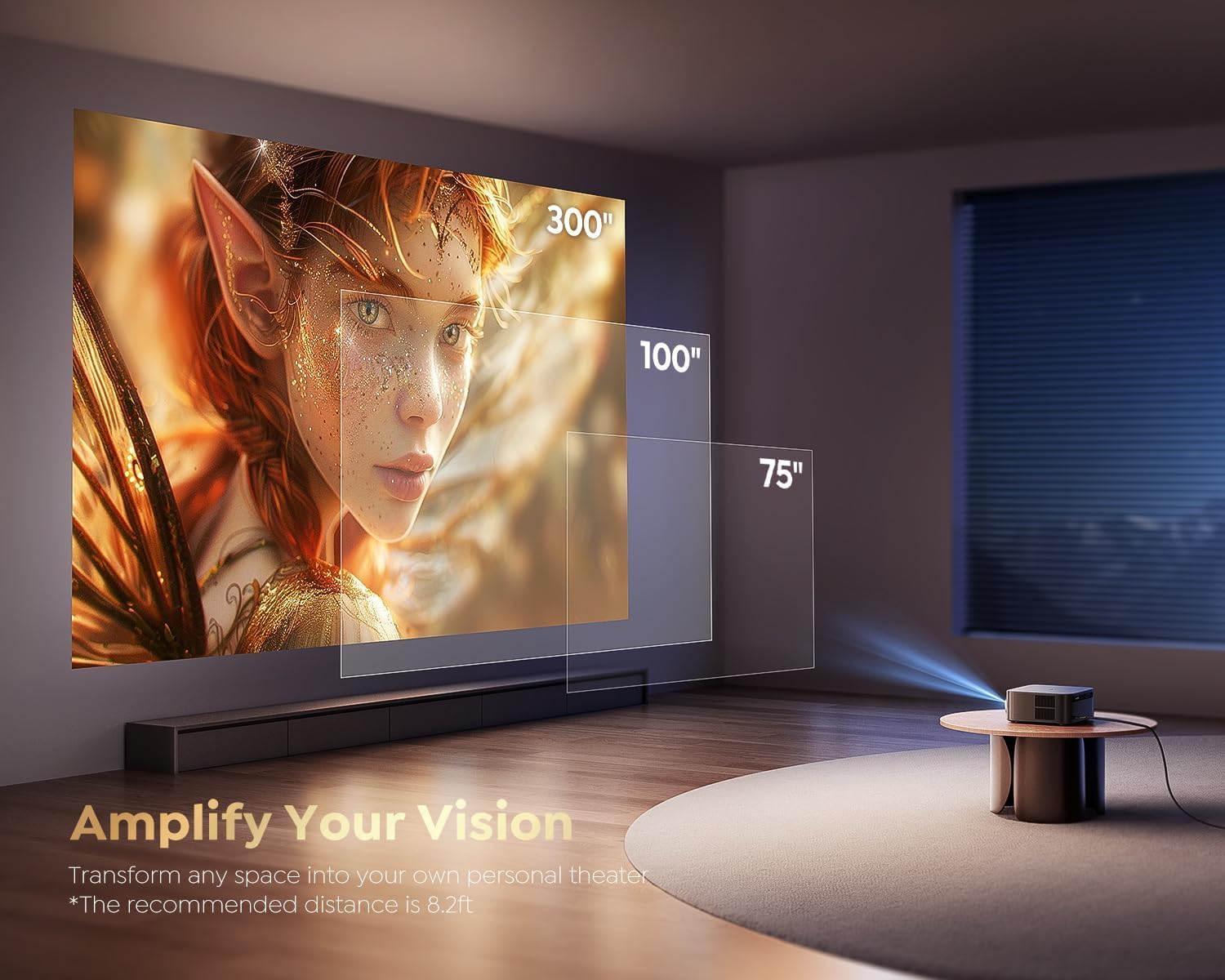
Figur 6.2.1: An image illustrating the projector's ability to display various screen sizes, from 75 inches to 300 inches, transforming any space into a personal theater.
6.3 Lyd
The projector includes powerful built-in speakers. For external audio, use Bluetooth 5.2 or the HDMI ARC port to connect a soundbar, or the 3.5mm audio port for other audio devices.
7. Vedligeholdelse
For at sikre projektorens levetid og optimale ydeevne skal du følge disse vedligeholdelsesretningslinjer:
- Rengøring af linsen: Brug en blød, fnugfri klud, der er specielt designet til optiske linser. Brug ikke slibende rengøringsmidler eller opløsningsmidler.
- Rengøring af ydersiden: Tør projektorens yderside af med en blød, tør klud. Undgå at bruge flydende rengøringsmidler direkte på enheden.
- Ventilation: Sørg for, at projektorens ventilationsåbninger ikke er blokerede for at forhindre overophedning.
- Opbevaring: Når projektoren ikke er i brug i længere perioder, skal den opbevares køligt og tørt, væk fra direkte sollys og ekstreme temperaturer.
8. Fejlfinding
If you encounter issues with your Play Mac Pro Smart Projector, refer to the following common troubleshooting steps:
- Ingen strøm: Check if the power cable is securely connected to both the projector and the power outlet. Ensure the outlet is functional.
- Intet billede: Verify that the input source is correctly selected (e.g., HDMI, Google TV). Check all cable connections. If using wireless casting, ensure both devices are on the same network.
- Sløret billede: Allow the Auto Focus feature to operate. If the issue persists, check for obstructions in front of the lens or ensure the projector is placed within the recommended projection distance.
- Ingen lyd: Check the volume settings on both the projector and any connected external audio devices. Ensure the correct audio output is selected in the projector's settings. If using HDMI ARC, confirm compatibility and proper setup.
- Fjernbetjeningen reagerer ikke: Udskift batterierne i fjernbetjeningen. Sørg for, at der ikke er nogen forhindringer mellem fjernbetjeningen og projektoren.
- Problemer med Wi-Fi/Bluetooth-forbindelse: Restart the projector and your router/Bluetooth device. Ensure the projector is within range of the Wi-Fi network or Bluetooth device.
For further assistance, please contact customer support as detailed in the Warranty and Support section.
9. Specifikationer
| Feature | Specifikation |
|---|---|
| Mærke | Spil |
| Model | MacPro-PLAY |
| Displayteknologi | LCD |
| Display Type | LED |
| Lysstyrke | 2500 ANSI Lumens |
| Indfødt opløsning | 1920 x 1080 (1080P) |
| Understøttet opløsning | Op til 3840 x 2160 (4K) |
| Billedkontrastforhold | 20000:1 |
| Aspektforhold | 16:9 (Understøtter 4:3) |
| Opdateringshastighed | 60 Hz |
| Operativsystem | Certified Google TV |
| Stemmekontrol | Google Voice Assistant |
| Trådløs forbindelse | WiFi 6, Bluetooth 5.2 |
| Hardware-interface | HDMI ARC, USB, 3.5mm Audio |
| Særlige funktioner | Auto Focus, Auto Keystone, 50%-100% Zoom, Built-in Speaker, Auto Obstacle Avoidance, Auto Screen Alignment |
| Kompatible enheder | Phone, Laptop, PS5, Nintendo Switch |
| Monteringstype | Ceiling Mount, Table Mount, Tripod Mount, Wall Mount |
| Produktdimensioner | 14 x 12.5 x 12 cm |
| Varens vægt | 1.5 kg |
| Voltage | 110 volt |
10. Garanti og support
Play provides comprehensive support for your Mac Pro Smart Projector:
- Garanti: Enjoy 1-YEAR repair coverage from the date of purchase.
- Teknisk support: Lifetime technical support is available to assist you with any questions or issues you may encounter.
For technical assistance or warranty claims, please refer to the contact information provided with your product packaging or visit the official Play webwebsted.


