Indledning
This manual provides comprehensive instructions for the installation, operation, and maintenance of your UNITOPSCI 4+64G Android 15 Car Stereo. Designed specifically for Kia Soul models from 2014 to 2017, this unit enhances your driving experience with advanced features such as wireless Carplay/Android Auto, GPS navigation, Bluetooth 5.0, and a high-resolution IPS touchscreen.
Please read this manual thoroughly before installation and use to ensure proper functionality and to maximize the benefits of your new car stereo system.
Pakkens indhold
Før installationen påbegyndes, skal du kontrollere, at alle komponenter er til stede i pakken:
- 1 x Bilradio
- 1 x strømkabel
- 1 x GPS-antenne
- 1 x bagkameraindgangskabel
- 1 x RCA-kabel
- 2 x USB-kabel
- 1 x Brugermanual (dette dokument)
- 1 x mikrofon
- 1 x bil bag View Kamera
- 1 x installationsværktøj

Figur 1: Overview of the UNITOPSCI car stereo unit and all included accessories, including cables, antennas, microphone, rear camera, and installation tools.
Opsætning og installation
Professional installation is recommended for this car stereo system. Ensure the vehicle's battery is disconnected before starting any electrical work.
1. Køretøjskompatibilitet
This unit is designed for Kia Soul models manufactured between 2014 and 2017. Verify your vehicle's dashboard configuration matches the compatible design.

Figur 2: The UNITOPSCI car stereo seamlessly integrated into a Kia Soul dashboard, demonstrating the 'After' installation appearance.
Figur 3: Visual guide indicating which Kia Soul dashboard configurations are compatible ('Fit') and incompatible ('Not Fit') with this specific car stereo model.
2. Ledningsforbindelser
Refer to the included wiring diagram for specific connections. Key connections include:
- Strømkabel: Connect to the vehicle's power supply (constant 12V, accessory, and ground).
- GPS-antenne: Monter på et sted med frit view af himlen for optimal signalmodtagelse.
- Indgangskabel til bagkamera: Connect to the provided AHD rear view kamera.
- USB kabler: Til dataoverførsel og opladning.
- Mikrofon: Til håndfri opkald og stemmekommandoer.
- RCA-kabler: Til ekstern lyd-/videoindgang/udgang.
3. Første opstart
After all connections are secure, reconnect the vehicle's battery. Turn on the ignition. The unit should power on automatically. Follow any on-screen prompts for initial setup, such as language selection and time zone.
Betjeningsvejledning
Trådløs Carplay og Android Auto
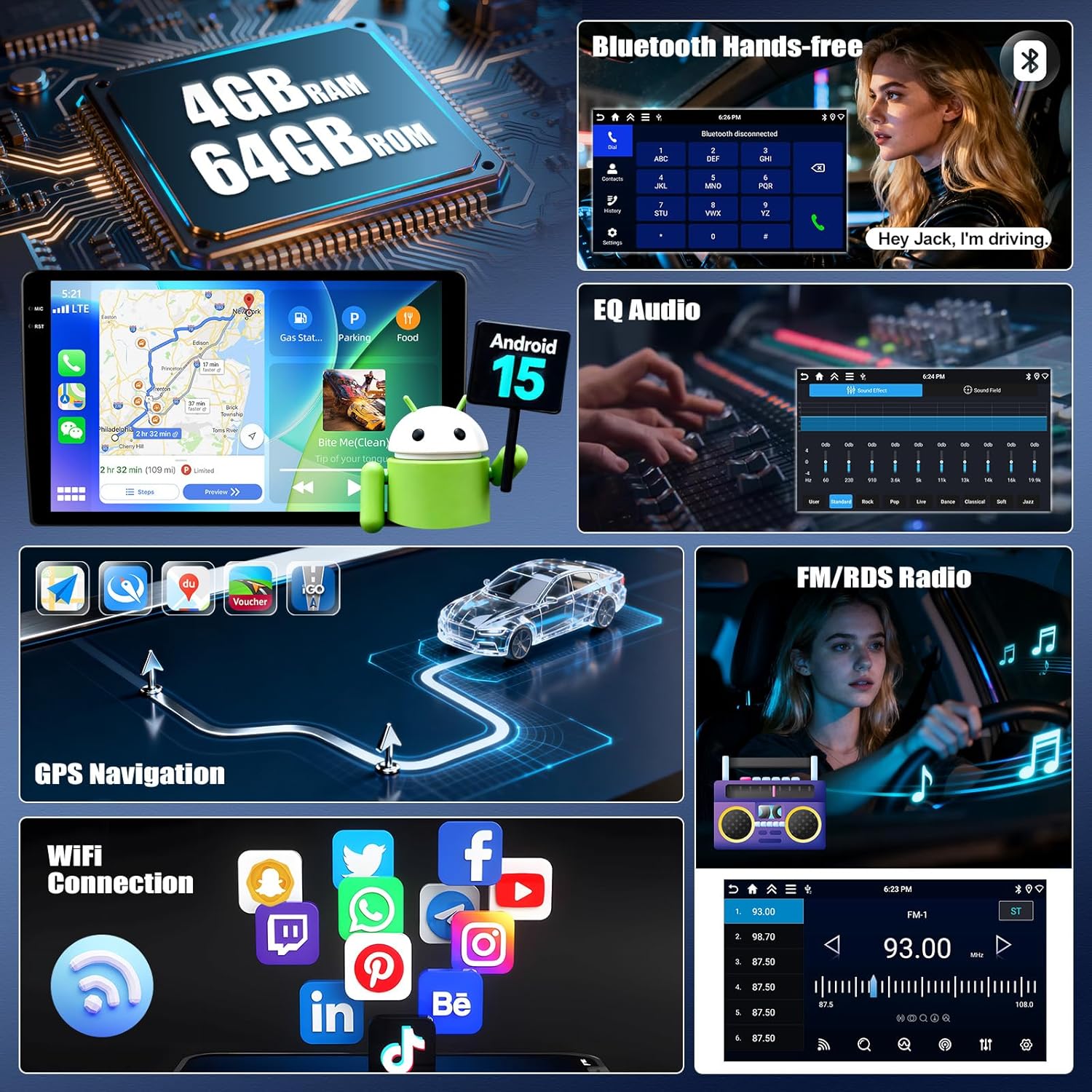
Connect your iPhone or Android smartphone wirelessly to access navigation, music, calls, and messages directly on the stereo's display. This feature integrates smart voice control via Siri or Google Assistant.
- Sørg for, at Bluetooth og Wi-Fi er aktiveret på din smartphone.
- On the car stereo, navigate to the Carplay or Android Auto application.
- Select your phone from the available devices to pair.
- Bekræft parringskoden på begge enheder.

Figur 4: The car stereo display showing the user interface for Wireless Carplay and Android Auto, with various app icons visible.
Mirror Link-funktionalitet
Mirror Link allows you to display your smartphone's screen on the car stereo. Android users can also control their phone directly from the stereo's touchscreen.
- For iOS devices: Connect via Wi-Fi or USB.
- For Android devices: Connect via Wi-Fi or USB for mirroring, and control via USB.
Bluetooth 5.0
The integrated Bluetooth 5.0 module enables hands-free calling and wireless audio streaming.
- Access the Bluetooth menu on the stereo.
- Aktivér Bluetooth på din telefon, og søg efter tilgængelige enheder.
- Select "UNITOPSCI" (or similar device name) from the list and pair.
- Når den er parret, kan du foretage/modtage opkald og afspille musik trådløst.

Figur 5: The car stereo displaying the Bluetooth interface for hands-free calling and music playback, with a phone dial pad and music controls.
FM/RDS-radio
Tune into your favorite radio stations with enhanced signal reception. RDS (Radio Data System) provides additional information like station name and song title where available.
- Select the FM/RDS application from the main menu.
- Use the scan function to automatically find and save stations, or manually tune to a frequency.

Figur 6: The car stereo displaying the FM radio interface, showing frequency selection and potential RDS information.
GPS Navigation & WiFi Connection
The unit features dual navigation capabilities, supporting both offline and online maps. Connect to Wi-Fi to access online maps, download apps, and browse the internet.
- GPS-navigation: Access the navigation app. Ensure the GPS antenna is properly installed for accurate positioning.
- WiFi-forbindelse: Gå til Indstillinger > Netværk og internet > Wi-Fi. Vælg det ønskede netværk, og indtast adgangskoden.

Figur 7: The car stereo displaying GPS navigation with options for online and offline maps, alongside various app icons indicating WiFi connectivity.
Ratbetjening (SWC)
Program your steering wheel buttons to control audio functions (volume, track skip) and answer calls, enhancing driving safety.
- Navigate to the SWC settings in the stereo's menu.
- Follow the on-screen instructions to "learn" each button's function by pressing the button on your steering wheel and then selecting the corresponding function on the stereo's screen.

Figur 8: The car stereo displaying the interface for programming Steering Wheel Controls, showing options to assign functions to physical buttons.
AHD bag View Kamera
Det medfølgende AHD-bakkamera giver et klart billede view of the area behind your vehicle. It automatically activates when shifting into reverse, displaying real-time views with parking assist lines.

Figur 9: The car stereo displaying the rear view from the AHD camera, complete with dynamic parking assist lines for safe maneuvering.
Multiple UI Themes & Split Screen
Customize your stereo's appearance with various UI themes. The split-screen function allows you to run two applications simultaneously, such as navigation and music playback.
- UI-temaer: Access the theme settings to select your preferred visual style.
- Opdelt skærm: Drag an app to one side of the screen or use the dedicated split-screen button (if available) to activate.

Figur 10: The car stereo demonstrating various user interface themes and the split-screen feature, allowing two applications to run concurrently.
Opretholdelse
For at sikre din UNITOPSCI bilstereos levetid og optimale ydeevne, skal du følge disse vedligeholdelsesretningslinjer:
- Rensning: Brug en blød, tør klud til at rengøre berøringsskærmen og enhedens yderside. Undgå slibende rengøringsmidler eller opløsningsmidler.
- Softwareopdateringer: Periodically check for software updates via the system settings to ensure you have the latest features and bug fixes. A stable Wi-Fi connection is required for updates.
- Temperatur: Undgå at udsætte enheden for ekstreme temperaturer i længere perioder.
- Forbindelser: Sørg for, at alle kabler er korrekt tilsluttet og ikke er beskadigede.
Fejlfinding
Hvis du støder på problemer med din bilstereo, kan du se følgende almindelige fejlfindingstrin:
Ingen strøm
- Kontrollér alle strømkabelforbindelser for at sikre, at de er fastgjort.
- Kontroller, at bilens sikring til stereoanlægget ikke er sprunget.
- Sørg for, at køretøjets tænding er tændt.
Ingen lyd
- Kontroller lydstyrkeniveauet, og sørg for, at det ikke er slået fra.
- Verify speaker wire connections are correct and secure.
- Check audio settings (EQ, balance, fader) to ensure they are not set to extreme values.
GPS Signal Loss or Inaccuracy
- Ensure the GPS antenna is mounted in a location with an unobstructed view af himlen.
- Kontroller GPS-antennens forbindelse til enheden.
- Opdater kortdata, hvis tilgængelige.
Problemer med Bluetooth-forbindelse
- Sørg for, at Bluetooth er aktiveret på både stereoanlægget og din smartphone.
- Slet tidligere parringer på begge enheder, og forsøg at parre dem igen.
- Restart both the stereo and your smartphone.
Carplay/Android Auto opretter ikke forbindelse
- Verify Wi-Fi and Bluetooth are active on your phone.
- Sørg for, at din telefons operativsystem er opdateret.
- Check for any specific app permissions required by Carplay/Android Auto on your phone.
If problems persist after attempting these steps, please contact UNITOPSCI customer support for further assistance.
Specifikationer
| Feature | Detalje |
|---|---|
| Operativsystem | Android 15 |
| VÆDDER | 4 GB |
| ROM | 64 GB |
| Skærmstørrelse | 9 tommer |
| Skærmopløsning | 1280 x 720P IPS Touchscreen |
| Bluetooth version | 5.0 |
| Forbindelse | Bluetooth, Wi-Fi, USB |
| Særlige funktioner | Wireless CarPlay, Android Auto, Mirror Link, GPS Navigation, FM/RDS, EQ, DSP, Steering Wheel Control, AHD Backup Camera |
| Kompatible enheder | Smartphone (Android/iOS) |
| Lydudgangstilstand | Stereoanlæg |
| Kontrolmetode | Tryk, stemme |
| Varens vægt | 1.92 kilo (4.22 pund) |
| Pakkedimensioner | 14.17 x 11.02 x 3.74 tommer |
Garanti og support
Garantioplysninger
Your UNITOPSCI car stereo comes with a 1 års garanti from the date of purchase. This warranty covers manufacturing defects and malfunctions under normal use. Additionally, a 30-day money-back guarantee and a 12-month replacement service are offered.
Optional extended protection plans are available for purchase:
- 2-årig beskyttelsesplan
- 3-årig beskyttelsesplan
Gem venligst dit købsbevis for garantikrav.
Kundesupport
For any inquiries, technical assistance, or support during installation or usage, please contact our dedicated customer service team. We offer lifetime after-sales consultation and technical support.
E-mail: UNITOPSCI@126.com
Our professional after-sales team is available 24/7 to assist you.

Figur 11: Visual representation of UNITOPSCI's customer support, highlighting replacement, quick response, lifetime support, and return policies.


