1. Introduktion
This manual provides essential information for setting up, operating, and maintaining your KTC H34S5 34-inch UWQHD Curved Gaming Monitor. Please read this manual thoroughly before using the product to ensure proper function and longevity.

Figur 1: Forside view of the KTC H34S5 34-inch UWQHD Curved Gaming Monitor.
2. Pakkens indhold
Bekræft, at alle nedenstående varer er inkluderet i din pakke:
- 34 Inch Curved Monitor (x1)
- Monitor Base (x1)
- Quick Start Guide (QSG) (x1)
- DisplayPort (DP) Cable (x1)
- Strømadapter (x1)
- 3-Pin Power Cord (x1)

Figure 2: Illustration of monitor dimensions and included accessories.
3. Opsætning
3.1 Samling af skærm
- Tag forsigtigt skærmen og dens fod ud af emballagen.
- Attach the monitor base to the stand column. Ensure it clicks securely into place.
- Attach the assembled stand to the back of the monitor. Align the mounting points and press firmly until it locks.
3.2 Tilslutning til enheder
Skærmen tilbyder flere tilslutningsmuligheder:
- DisplayPort (DP 1.4): Use the provided DP cable for resolutions up to 3440x1440 at 180Hz. Connect one end to the monitor's DP input and the other to your computer's DP output.
- HDMI (HDMI 2.0): Use an HDMI cable (not included) for resolutions up to 3440x1440 at 100Hz. Connect one end to the monitor's HDMI input and the other to your device's HDMI output.
- USB 2.0: This port is for firmware upgrades only.
- Lydudgang: Tilslut eksterne højttalere eller hovedtelefoner til denne port.
After connecting, power on your monitor and connected device. Select the correct input source using the monitor's On-Screen Display (OSD) menu.

Figure 3: Monitor rear panel with input ports labeled.
4. Betjeningsvejledning
4.1 On-Screen Display (OSD) menu
The OSD menu allows you to adjust various monitor settings. Refer to the Quick Start Guide for detailed instructions on navigating the OSD using the monitor's control buttons.
4.2 Picture-in-Picture (PIP) and Picture-by-Picture (PBP) Modes
The monitor supports PIP and PBP modes, allowing you to display content from multiple input sources simultaneously. These modes enhance multitasking efficiency.
- Billede-i-billede (PIP): Displays a smaller window from a secondary input source over the main display.
- Billede-for-billede (PBP): Divides the screen into multiple sections, each displaying content from a different input source.
Access these settings through the OSD menu to configure and activate them according to your needs.

Figure 4: Monitor demonstrating Picture-in-Picture and Picture-by-Picture modes.
5. Funktioner
5.1 Display Performance
- 34-Inch UWQHD Curved Display: The 3440 x 1440 resolution with a 21:9 aspect ratio and 1500R curvature provides an expansive and immersive viewoplevelse.
- Levende farver: Enjoy accurate and vivid colors with 125% sRGB color gamut area, 1.07 billion colors, and 300cd/m² brightness. The HVA panel with a 4000:1 contrast ratio and HDR support delivers detailed visuals.
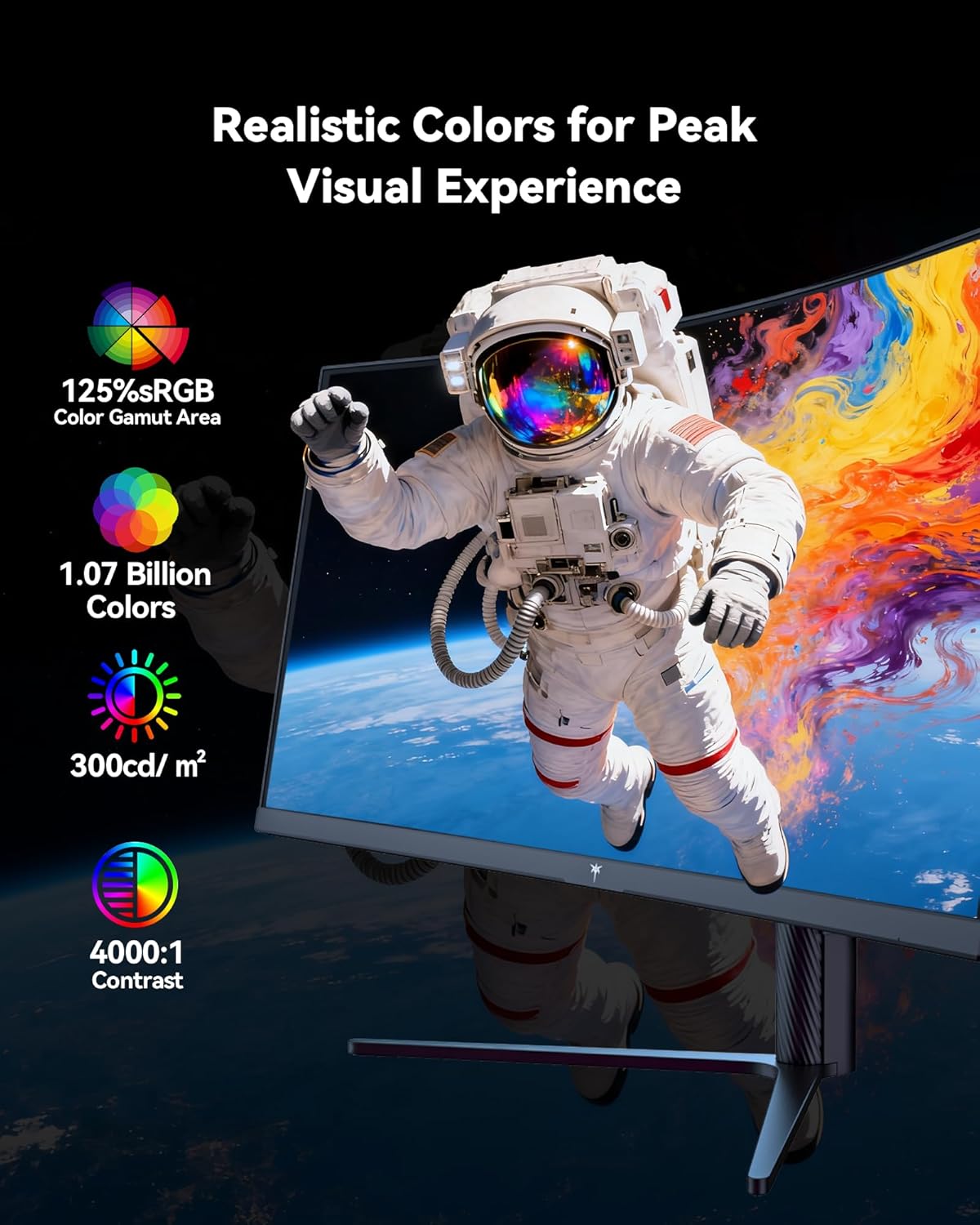
Figure 5: Visual representation of the monitor's color and contrast capabilities.
5.2 Spilfunktioner
- High Refresh Rate & Fast Response Time: A 180Hz refresh rate and 1ms MPRT (Moving Picture Response Time) ensure smooth, fluid motion and minimize ghosting during fast-paced gaming.
- Adaptiv synkroniseringsteknologi: This feature synchronizes the monitor's refresh rate with your graphics card's frame rate, eliminating screen tearing and stuttering for a seamless gaming experience.

Figure 6: Comparison of display with Adaptive Sync ON versus OFF.
5.3 Ergonomisk design
The monitor's stand allows for various adjustments to optimize your viewkomfort:
- Vip: -5° til 20°
- Drejelig: ±45°
- Pivot: ±5°
- Højdejustering: Up to 110mm (±5mm)
The monitor is also VESA compatible (100mm x 100mm) for alternative mounting solutions.

Figure 7: Ergonomic adjustment capabilities and physical dimensions.
6. Specifikationer
| Feature | Specifikation |
|---|---|
| Produktdimensioner | 6.22 x 27.99 x 20.4 tommer |
| Varens vægt | 16.75 pund |
| Modelnummer | H34S5 |
| Skærmstørrelse | 34 tommer |
| Aspektforhold | 21:9 |
| Opløsning | 3440 x 1440 pixels (UWQHD) |
| Opdateringshastighed | 180Hz (DP 1.4), 100Hz (HDMI 2.0) |
| Svartid | 1ms MPRT |
| Krumning | 1500R |
| Billedlysstyrke | 300 Candela pr. kvadratmeter |
| Kontrastforhold | 4000:1 |
| Skærmoverflade | Mat |
| VESA-kompatibilitet | 100 mm x 100 mm |
| Forbindelse | HDMI 2.0 x 2, DP 1.4 x 2, USB 2.0 (for upgrade), Audio Out |
7. Vedligeholdelse
To ensure optimal performance and longevity of your monitor, follow these maintenance guidelines:
- Rensning: Tør forsigtigt skærmen af med en blød, fnugfri klud. Brug en skærmspecifik rengøringsopløsning på kluden, ikke direkte på skærmen, til genstridige pletter.
- Ventilation: Ensure adequate airflow around the monitor by keeping vents clear of obstructions.
- Opbevaring: Når skærmen ikke er i brug i længere perioder, skal den opbevares køligt og tørt, helst i originalemballagen.
- Magt: Use only the provided power adapter and cord. Disconnect power during electrical storms or when leaving the monitor unattended for long periods.
8. Fejlfinding
Hvis du støder på problemer med din skærm, kan du se følgende almindelige fejlfindingstrin:
- Ingen strøm: Sørg for, at netledningen er korrekt tilsluttet både skærmen og en fungerende stikkontakt. Kontroller strømadapterens forbindelse.
- Intet signal: Verify that the video cable (DP or HDMI) is correctly connected to both the monitor and your computer. Ensure the correct input source is selected in the OSD menu. Try a different video cable or port if available.
- Display Issues (Flickering, Distorted Image): Check your computer's display settings to ensure the resolution and refresh rate are compatible with the monitor's specifications. Update your graphics card drivers. If Adaptive Sync is enabled, try disabling it to see if the issue persists.
- Døde pixel: While rare, a small number of dead pixels may be present on LCD panels. If you notice a significant number or they interfere with your viewing experience, contact customer support.
For yderligere assistance, se afsnittet Garanti og support.
9. Garanti og support
KTC provides a three-year warranty for this monitor. For any issues or technical support, please contact KTC customer service. They aim to respond within 12 hours.
You can typically find contact information on the KTC official webwebsted eller via din købsplatform.
10. Produktvideo
Se den officielle produktvideo for et visuelt overblikview of the KTC H34S5 34-Inch Curved Gaming Monitor's features and design.
Video 1: Officiel overview of the KTC 34-Inch Curved Gaming Monitor (H34S5).


