1. Introduktion
This manual provides comprehensive instructions for the installation, operation, and maintenance of your Crucial Micron 2500 M.2 2230 NVMe Solid State Drive (SSD). Please read this manual carefully before proceeding with installation or use to ensure proper functionality and to prevent data loss or damage to your device.
The Micron 2500 NVMe SSD offers high-performance storage, designed for speed and responsiveness in various computing applications. It features sequential read speeds of up to 7,100 MB/s and up to 1,000,000 random read IOPS. This SSD is engineered for thin and light devices, available in a compact 22x30mm form factor and 1TB capacity variant. Advanced NAND technology and accelerated caching contribute to faster write speeds and an optimized user experience.
Nøglefunktioner:
- Up to 7100 MB/s Read Speeds and 5800 MB/s Write Speeds
- Compact 1TB capacity in M.2 2230 Form Factor
- Fast PCIe 4.0x4 Connection Speed
- Compatible with a wide range of devices featuring M.2 2230 SSD slots, including Steam Deck, Surface devices, ASUS ROG Ally, Mini PCs, and Laptops.
2. Produktet er slutview og specifikationer
The Micron 2500 M.2 2230 NVMe SSD is an internal storage component. Below are its detailed specifications:
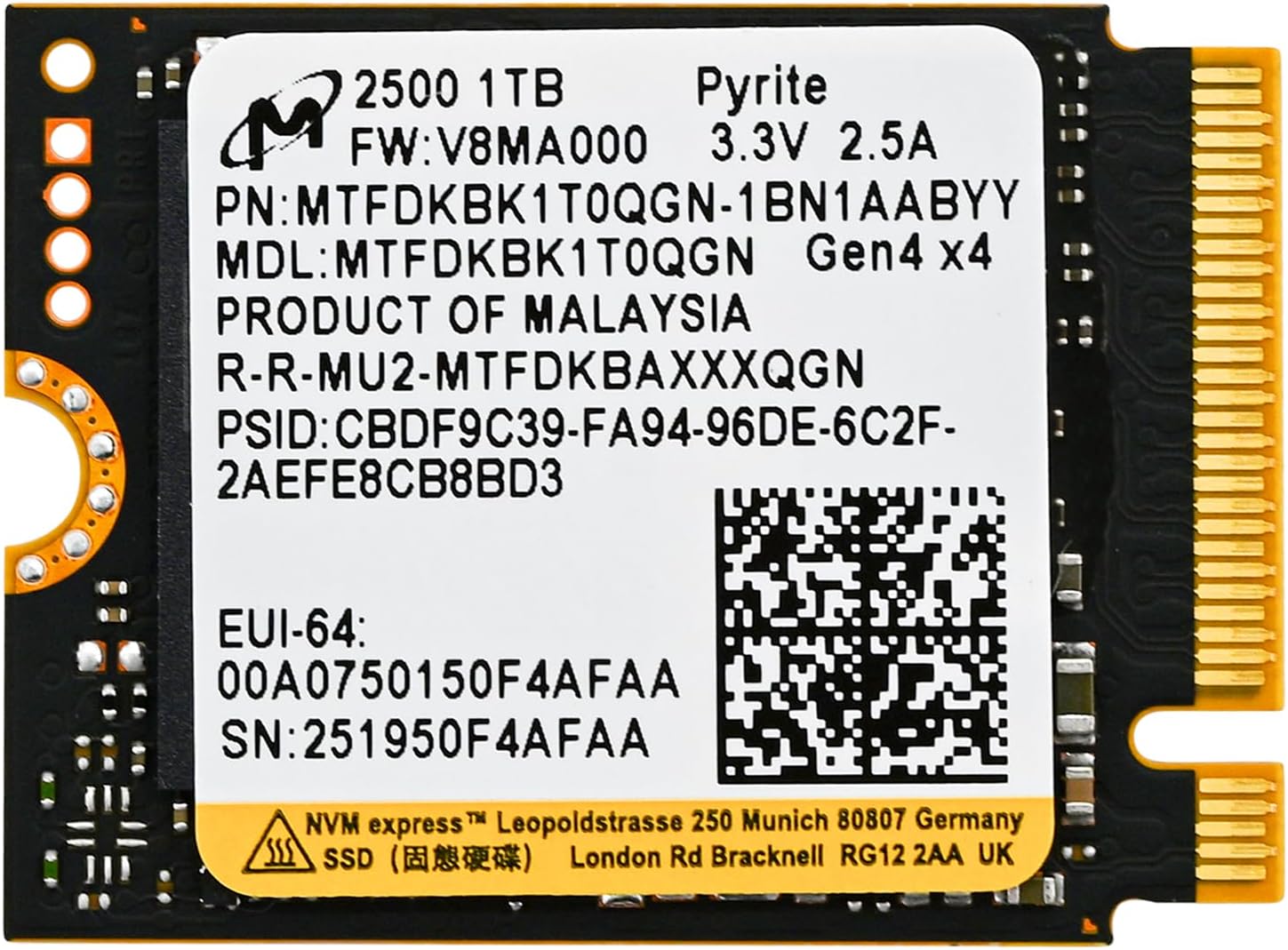
Figure 1: Micron 2500 1TB M.2 2230 NVMe SSD. The label displays the model number MTFDKBK1T0QGN-1BN1AABYY, firmware version V8MA000, power requirements (3.3V 2.5A), and other identifiers like PSID, EUI-64, and SN. It also indicates 'PRODUCT OF MALAYSIA' and 'Gen4 x4' interface.
| Specifikation | Detalje |
|---|---|
| Mærke | Crucial (Micron) |
| Serie | 2500 |
| Modelnummer | MTFDKBK1T0QGN-1BN1AABYYR |
| Kapacitet | 1 TB (953.9 GB Digital Storage Capacity) |
| Formfaktor | M.2 2230 |
| Interface | PCIe Gen 4.0x4 NVMe |
| Sekventiel læsehastighed | Op til 7100 MB/s |
| Sekventiel skrivehastighed | Op til 5800 MB/s |
| Dimensioner (LxBxH) | 1.18 x 0.87 x 0.04 tommer (30 x 22 x 1 mm) |
| Varens vægt | 3.2 ounce |
| Speciel funktion | Stødbestandig |
| Fabrikant | Micron |
3. Opsætning og installation
Installing an M.2 NVMe SSD requires careful handling and basic technical knowledge. If you are unsure about any step, it is recommended to consult a professional technician or refer to your device's specific service manual.
Sikkerhedsforanstaltninger:
- Sluk: Always power off your device and disconnect it from the power source before opening the chassis.
- Statisk elektricitet: Discharge any static electricity from your body by touching a grounded metal object before handling the SSD. Consider using an anti-static wrist strap.
- Håndteres med forsigtighed: Hold the SSD by its edges to avoid touching the gold connectors or components.
- Værktøj: Use appropriate tools, typically a small Phillips head screwdriver.
Generelle installationstrin:
- Forbered din enhed:
- Back up any important data from your existing storage drive.
- Power down your computer or compatible device (e.g., Steam Deck, Surface, ASUS ROG Ally, Mini PC, Laptop) completely.
- Disconnect the power cable and any other connected peripherals.
- Open the device chassis or access panel according to the manufacturer's instructions.
- Locate the M.2 Slot:
- Identify the M.2 slot on your motherboard or device. Ensure it supports the 2230 form factor and PCIe Gen 4.0x4 NVMe interface.
- If an existing M.2 SSD is present, carefully remove the retaining screw and slide it out.
- Install the Micron 2500 SSD:
- Gently insert the Micron 2500 SSD into the M.2 slot at a 30-degree angle, ensuring the gold connectors are fully seated.
- Press the SSD down until it is flush with the motherboard and secure it with the retaining screw.
- Saml igen og tænd:
- Close the device chassis or access panel.
- Reconnect the power cable and peripherals.
- Tænd din enhed.
- Initialiser og formater (ny installation):
- For a new SSD, you will need to initialize and format it through your operating system's Disk Management utility (Windows) or Disk Utility (macOS/Linux).
- If installing an operating system, boot from your installation media and follow the on-screen prompts.
4. Betjeningsvejledning
Once installed and formatted, your Micron 2500 NVMe SSD operates like any other storage drive. Here are some general operating guidelines:
- Operativsystem: Install your preferred operating system on the SSD for faster boot times and overall system responsiveness.
- Applications and Games: Installer ofte brugte programmer og spil på SSD'en for at drage fordel af hurtigere indlæsningstider.
- Datalagring: Store important files and documents on the SSD. While highly durable, regular backups to an external drive or cloud service are always recommended.
- TRIM-kommando: Ensure your operating system supports and enables the TRIM command. TRIM helps maintain the performance and longevity of SSDs by allowing the operating system to inform the SSD which data blocks are no longer in use and can be wiped internally.
5. Vedligeholdelse
Proper maintenance can help ensure the longevity and optimal performance of your Micron 2500 NVMe SSD.
- Firmwareopdateringer: Periodically check the Crucial/Micron website for firmware updates for your SSD. Firmware updates can improve performance, stability, and compatibility. Follow the provided instructions carefully when performing updates.
- Monitor SSD Health: Use SSD monitoring tools (often provided by your operating system or third-party software) to check the health and temperature of your drive.
- Undgå fuld kapacitet: While SSDs perform well even when nearly full, leaving some free space (e.g., 10-15%) can help maintain optimal performance and extend lifespan.
- Regelmæssige sikkerhedskopier: Always maintain regular backups of your critical data. While SSDs are reliable, no storage device is immune to failure.
6. Fejlfinding
If you encounter issues with your Micron 2500 NVMe SSD, consider the following troubleshooting steps:
Almindelige problemer og løsninger:
- SSD ikke fundet:
- Sørg for, at SSD'en er korrekt isat i M.2-slottet.
- Check your device's BIOS/UEFI settings to confirm the M.2 slot is enabled and configured for NVMe.
- Verify that your motherboard or device supports NVMe SSDs and the PCIe Gen 4.0x4 interface.
- Try the SSD in another compatible M.2 slot or device if available, to rule out a slot issue.
- Langsom ydeevne:
- Ensure your operating system is up-to-date and has the latest drivers for your chipset and NVMe controller.
- Confirm that TRIM is enabled (usually automatic in modern OS).
- Check if the SSD is running at its advertised PCIe Gen 4.0x4 speed in your system's BIOS/UEFI or through system information tools. Some older systems or specific M.2 slots might operate at lower PCIe generations.
- Sørg for, at SSD'en ikke er overfyldt.
- Monitor SSD temperature; overheating can lead to thermal throttling and reduced performance. Ensure adequate airflow in your device.
- Operativsystemet starter ikke op:
- Verify the boot order in your BIOS/UEFI settings.
- If it's a new installation, ensure the SSD has been properly initialized and formatted, and the operating system installed correctly.
- If migrating an OS, ensure the migration process was successful and the bootloader is correctly configured.
If these steps do not resolve your issue, please contact Crucial/Micron customer support for further assistance.
7. Garanti og support
Your Crucial Micron 2500 NVMe SSD is backed by a manufacturer's warranty. For specific warranty terms and conditions, please refer to the warranty information included with your product packaging or visit the official Crucial webwebsted.
Kundesupport:
For technical support, troubleshooting assistance, or warranty claims, please contact Crucial customer support through their official website. You will typically need your product's model number (MTFDKBK1T0QGN-1BN1AABYYR) and serial number (SN) for support inquiries.
Crucial Official Webwebsted: www.crucial.com


