1. Introduktion
The ATTACK SHARK X820 Ultra is a 75% wireless gaming mechanical keyboard designed for versatility and performance. It features a hot-swappable gasket mount, RGB backlighting, and tri-mode connectivity (Bluetooth, 2.4G wireless, and wired USB-C). A unique Smart TFT Display and a multi-functional knob provide intuitive control and real-time information. This manual provides detailed instructions for setting up, operating, and maintaining your keyboard.

Figure 1: The ATTACK SHARK X820 Ultra Mechanical Keyboard in Starlight White.
2. Pakkens indhold
Kontroller venligst, at alle nedenstående varer er til stede i din pakke:
- X820Ultra Keyboard (x1)
- USB-C-kabel (x1)
- 2-in-1 Key Puller (x1)
- Brugervejledning (x1)
- ATTACK SHARK Mascot Stickers (x2)
- Switches (x2)

Figure 2: All components included in the ATTACK SHARK X820 Ultra package.
3. Opsætning
3.1 Indledende opladning
Before first use, connect the keyboard to a USB power source using the provided USB-C cable to ensure it is fully charged. The Smart TFT Display will indicate the battery status.
3.2 Forbindelsestilstande
The X820 Ultra supports three connection modes: wired, 2.4GHz wireless, and Bluetooth. You can switch between modes using the dedicated switch on the keyboard or via the Smart TFT Display.
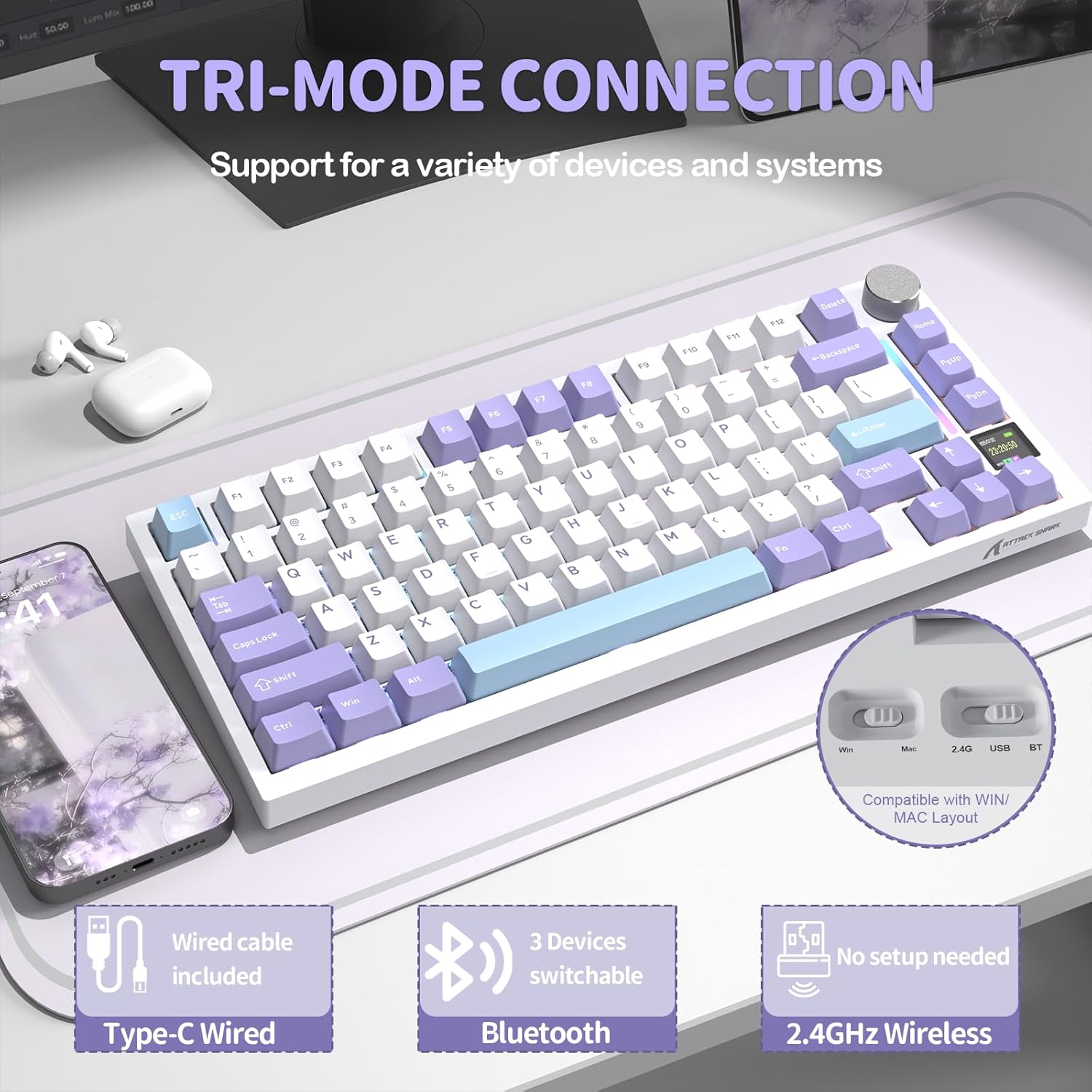
Figur 3: Overview af tastaturets tri-mode-tilslutningsmuligheder.
3.2.1 Kabelforbindelse
Connect the USB-C cable from the keyboard to your computer's USB port. The keyboard will automatically switch to wired mode.
3.2.2 2.4 GHz trådløs forbindelse
Insert the 2.4GHz USB receiver into an available USB port on your computer. Switch the keyboard to 2.4G mode. The keyboard should connect automatically. For optimal performance, ensure the receiver is close to the keyboard.
3.2.3 Bluetooth-forbindelse
Switch the keyboard to Bluetooth mode. On your device, search for Bluetooth devices and select "ATTACK SHARK X820 Ultra" to pair. The keyboard can store up to three Bluetooth connections, allowing for easy switching between devices.
4. Betjeningsvejledning
4.1 Smart TFT Display & Metal Control Knob
The integrated TFT smart screen and precision metal knob provide real-time information and intuitive control over various keyboard functions.
- Information i realtid: View battery level, connection status, date, and time.
- RGB Adjustment: Instantly change RGB lighting effects and colors.
- Skift af operativsystemtilstand: Easily switch between Windows and macOS modes.
- Lydstyrkekontrol: Press Fn + Knob to activate volume control, then scroll the knob to adjust volume.
- Menu navigation: Scroll the knob to navigate menu pages on the display. Short press the knob to select or confirm.

Figur 4: Detaljeret view of the Smart TFT Display and Metal Control Knob functionalities.
4.2 Dynamisk RGB-belysning
Personalize your typing experience with 16.8 million colors and over 19 lighting presets. The south-facing LEDs ensure vivid and even backlighting, especially through PBT keycaps. Adjust effects directly via the knob or screen, or use key combinations:
- Fn + { : Turn on/off RGB lighting.
- Fn + Enter: Change lighting color.
- Fn + }: Cycle through custom light effects.

Figure 5: Customization options for the keyboard's dynamic RGB backlight.
4.3 Hot-swap-design
The X820 Ultra features hot-swappable sockets, supporting both 3-pin and 5-pin mechanical switches. This allows you to easily change switches without soldering, customizing your typing feel. The keyboard comes with custom linear Shark switches for smooth keystrokes and fast response. Precision-tuned stabilizers ensure firm, rattle-free large keys with satisfying rebound.

Figure 6: Components illustrating the hot-swappable PCB design, including pre-lubed linear switches, hot-swap sockets, and plate-mounted stabilizers.
4.4 Gasket Structure & Advanced Acoustic Tuning
The keyboard is built with a soft gasket-mounted structure, combining a 1.2mm FR4 fiberglass dual-layer PCB with individual switch slots for improved flex and keystroke uniformity. This design, paired with upgraded acoustic tuning layers (PORON foam, IXPE pad, PET sheet, DEPDM, and molded silicone), results in a deeper sound profile, softer touch, and enhanced typing feedback.

Figur 7: Eksploderet view of the keyboard's gasket structure, showing the various dampening and acoustic layers.
4.5 Web Tilpasning af føreren
The X820 Ultra offers extensive customization without the need for software installation. You can adjust macros, lighting, DPI, and key remapping directly through your browser using the cloud driver. Full QMK web driver support is also available at qmk.top for deeper customization and advanced key mapping options.

Figure 8: Screenshots of the web driver interface for customizing keyboard settings.
Video 1: An official product video demonstrating the ATTACK SHARK X820 Ultra Wireless Gaming Mechanical Keyboard in use, highlighting its features and typing experience.
5. Vedligeholdelse
Regelmæssig vedligeholdelse forlænger tastaturets levetid og ydeevne.
- Rengøring af taster: Use the provided key puller to remove keycaps. Clean them with a soft cloth damprengøres med mild sæbe og vand. Sørg for, at de er helt tørre, før de sættes på igen.
- Rengøring af tastaturhuset: Use a soft, dry cloth to wipe down the keyboard body. For stubborn dirt, a slightly damp En klud kan bruges, men undgå for meget fugt.
- Rengøring af afbrydere: Use compressed air to remove dust and debris from around the switches. If switches are removed, clean the sockets carefully.
- Opbevaring: Når tastaturet ikke er i brug i længere perioder, skal det opbevares tørt og køligt, væk fra direkte sollys.
6. Fejlfinding
If you encounter issues with your ATTACK SHARK X820 Ultra keyboard, refer to the following common problems and solutions:
- Keyboard not connecting (Wireless/Bluetooth):
- Sørg for, at tastaturet er opladet.
- Verify the correct mode (2.4G/BT) is selected on the keyboard.
- For 2.4G, ensure the USB receiver is securely plugged in and close to the keyboard.
- For Bluetooth skal du sørge for, at Bluetooth er aktiveret på din enhed, og prøve at parre igen.
- Try connecting via wired USB-C to confirm keyboard functionality.
- RGB-belysning virker ikke eller er inkonsekvent:
- Check if RGB is turned off via the knob or Fn key combination.
- Ensure the keyboard firmware is up to date via the web chauffør.
- Perform a factory reset if customization settings are causing issues.
- Taster reagerer ikke:
- Ensure the keyboard is properly connected in the selected mode.
- If only specific keys are affected, try reseating the keycap and switch. Use the key puller to gently remove and reinsert the switch.
- Test with a different switch if available (from the included spare switches).
- Smart TFT Display is blank or frozen:
- Genoplad tastaturet.
- Restart the keyboard by turning it off and on.
- Kontakt kundesupport, hvis problemet fortsætter.
7. Specifikationer
| Feature | Detalje |
|---|---|
| Modelnavn | ATTACK SHARK X820Ultra |
| Tastaturbeskrivelse | Mekanisk |
| Forbindelse | BT/2.4G/Wired (USB-C) |
| Layout | 75 % |
| Antal nøgler | 81 |
| Afbrydere | Hot-Swappable (3/5-pin compatible) |
| Baggrundsbelysning | RGB (16.8M colors, 19+ effects) |
| Batterikapacitet | 4000mAh |
| Særlige funktioner | Smart TFT Display, Metal Control Knob, Gasket Mount, QMK Web Driver Support, Double-shot PBT Keycaps |
| Kompatibilitet | Windows, macOS |
| Varens vægt | 2.43 pund |
| Pakkedimensioner | 13.86 x 7.28 x 1.97 tommer |
8. Garanti og support
ATTACK SHARK products are designed and manufactured to the highest quality standards. For information regarding warranty coverage and support, please refer to the warranty card included in your package or visit the official ATTACK SHARK website. If you require technical assistance or have questions not covered in this manual, please contact ATTACK SHARK customer support through their official channels.


