1. Introduktion
This manual provides essential information for the safe and efficient operation of your Sceptre E345W-QU120D 34-inch Ultrawide Monitor. Please read this manual thoroughly before using the product and retain it for future reference. This monitor features a 34-inch 3440x1440 display, up to 115Hz refresh rate, 103% sRGB color gamut, and multiple connectivity options including DisplayPort and HDMI, along with built-in speakers.
2. Sikkerhedsoplysninger
Observe the following safety precautions to ensure proper operation and prevent damage to the monitor or injury to yourself.
- Placer ikke skærmen på en ustabil vogn, stativ eller bord.
- Udsæt ikke skærmen for regn eller fugt for at undgå brand- eller stødfare.
- Åbn ikke skærmen casing. Der er ingen dele indeni, som brugeren kan servicere. Overlad al service til kvalificeret servicepersonale.
- Sørg for tilstrækkelig ventilation. Bloker ikke ventilationsåbninger.
- Brug kun den netledning og adapter, der følger med skærmen.
- Tag stikket ud af stikkontakten, hvis skærmen ikke skal bruges i længere tid.
3. Pakkens indhold
Kontroller, at alle genstande er til stede og i god stand ved udpakning.
- Sceptre E345W-QU120D Ultrawide Monitor
- Monitorstativ (base og hals)
- Strømadapter og strømledning
- DisplayPort-kabel
- Screwdriver (for stand assembly)
- Brugervejledning (dette dokument)
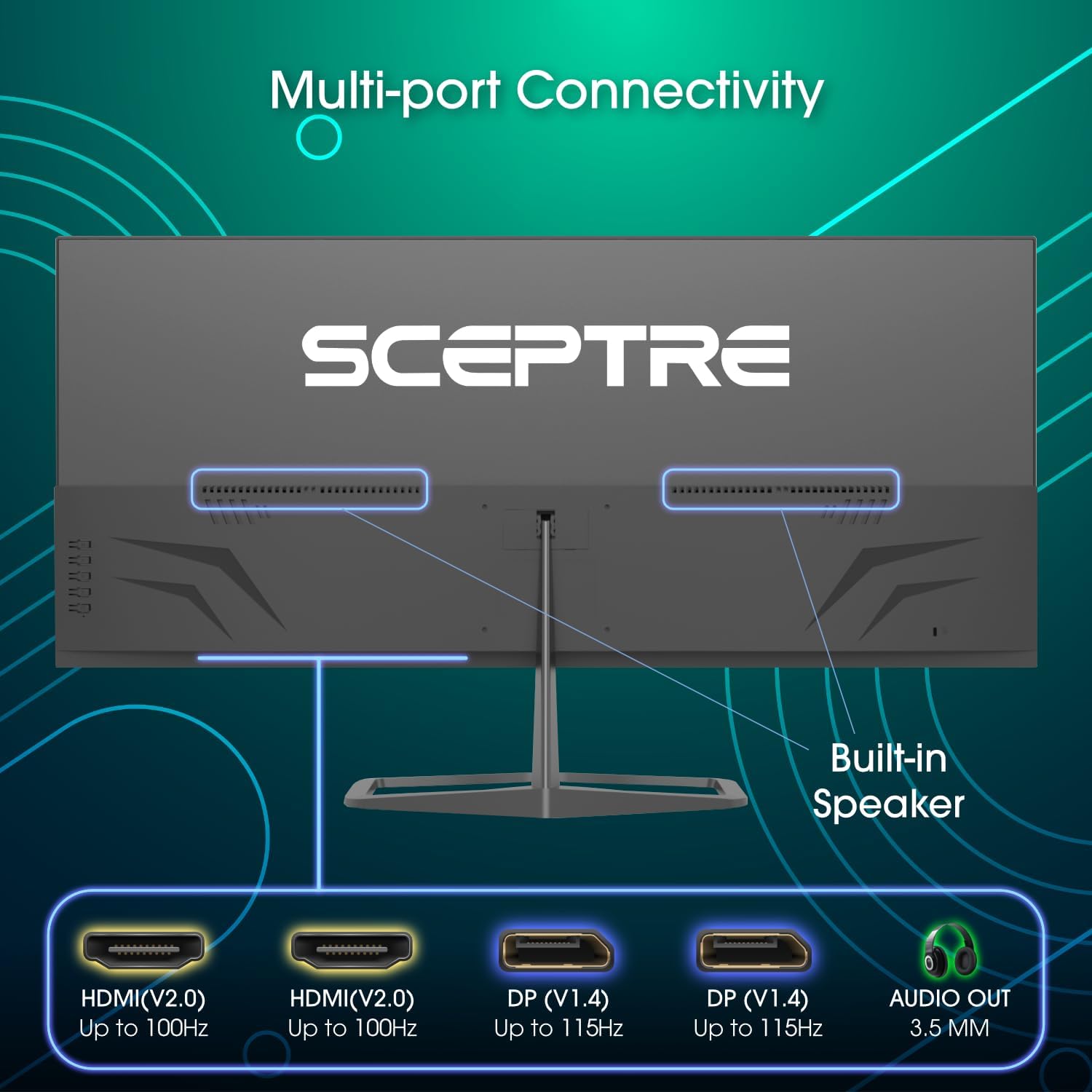
Image: Diagram illustrating the multi-port connectivity options on the Sceptre E345W-QU120D monitor, including HDMI, DisplayPort, and Audio Out. This image helps identify the various ports available on the monitor.
4. Opsætning
4.1 Samling af stativet
- Placer forsigtigt skærmen med forsiden nedad på en blød, ren overflade for at undgå ridser.
- Fastgør stativets hals til skærmen med de medfølgende skruer.
- Connect the stand base to the neck, securing it with the remaining screws. Use the included screwdriver for assembly.
- Ensure all screws are tightened securely before placing the monitor upright.
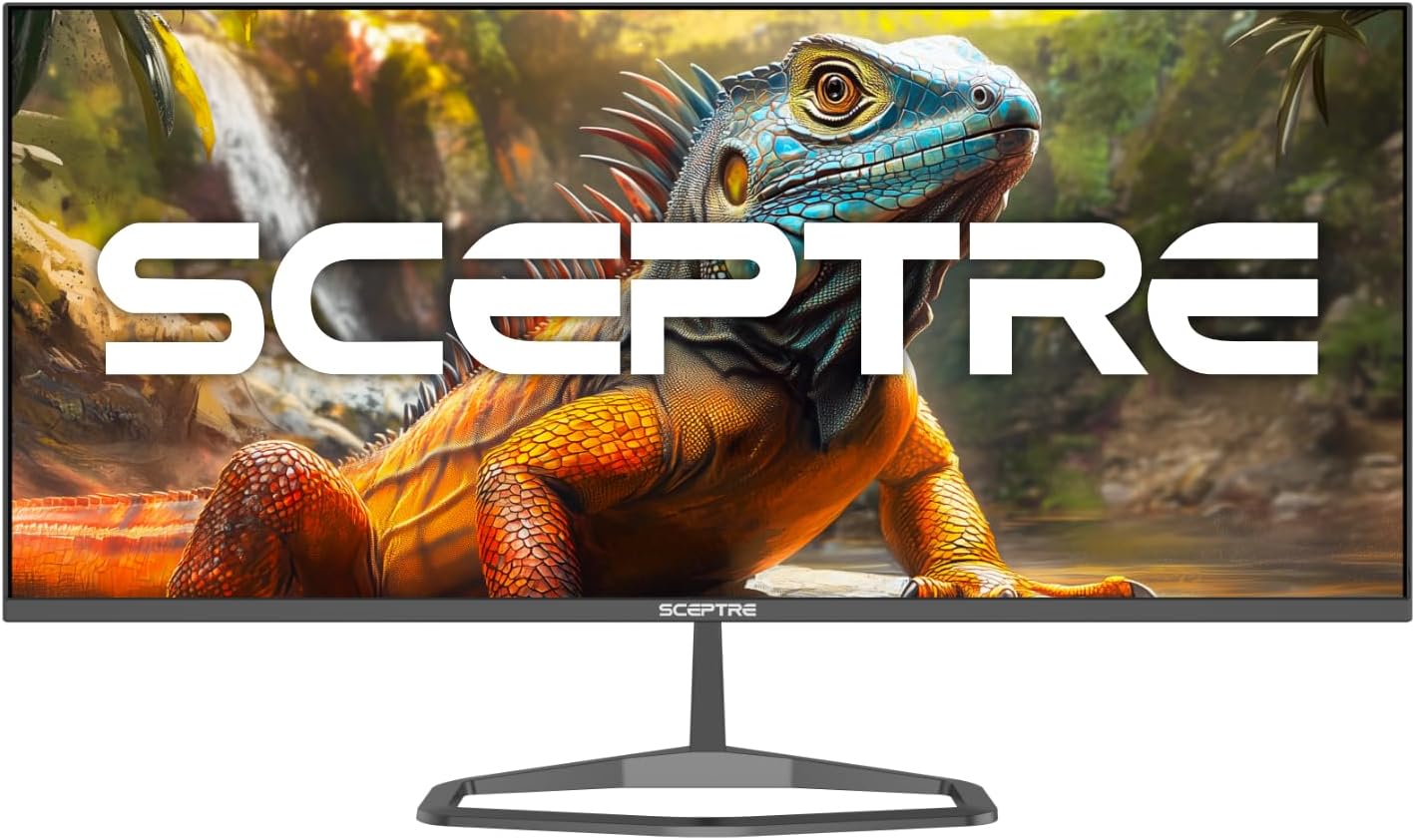
Image: The Sceptre E345W-QU120D Ultrawide Monitor displayed from the front, including its stable desktop stand. This image provides a visual reference for the assembled monitor.
4.2 Tilslutning til en computer
- Sørg for, at både skærmen og din computer er slukket.
- Connect one end of the DisplayPort cable (included) or an HDMI cable (not included) to the corresponding port on your computer's graphics card.
- Connect the other end of the cable to an available DisplayPort or HDMI input on the monitor. The monitor supports two DisplayPort (v1.4) inputs for up to 115Hz refresh rate and two HDMI (v2.0) inputs for up to 100Hz refresh rate.
- For audio output, you can use the 3.5mm Audio Out jack on the monitor to connect external speakers or headphones.
- Tilslut strømadapteren til skærmens strømindgang, og sæt derefter netledningen i en stikkontakt.
Billede: Bagside view of the Sceptre E345W-QU120D Ultrawide Monitor, highlighting the input ports and VESA mount area. This image assists in locating the various connection points.
5. Betjening af monitoren
5.1 Tænd/sluk
Press the power button, typically located on the back or bottom right side of the monitor, to turn the monitor on or off. The power indicator light will illuminate when the monitor is on.
5.2 On-Screen Display (OSD) menu
The OSD menu allows you to adjust various monitor settings. Use the control buttons (usually located on the back or bottom of the monitor) to navigate the menu.
- Inputkilde: Select between DisplayPort 1, DisplayPort 2, HDMI 1, or HDMI 2.
- Billedindstillinger: Juster lysstyrke, kontrast, skarphed og farvetemperatur.
- Farveindstillinger: Fine-tune color balance and gamma. The monitor features 103% sRGB color gamut for accurate color reproduction.
- Lydindstillinger: Juster lydstyrken for de indbyggede højttalere eller tilsluttede lydenheder.
- OSD-indstillinger: Konfigurer OSD-sprog, gennemsigtighed og timeout.
- Avancerede indstillinger: Enable or disable features like AMD FreeSync and Blue-Light Shift.

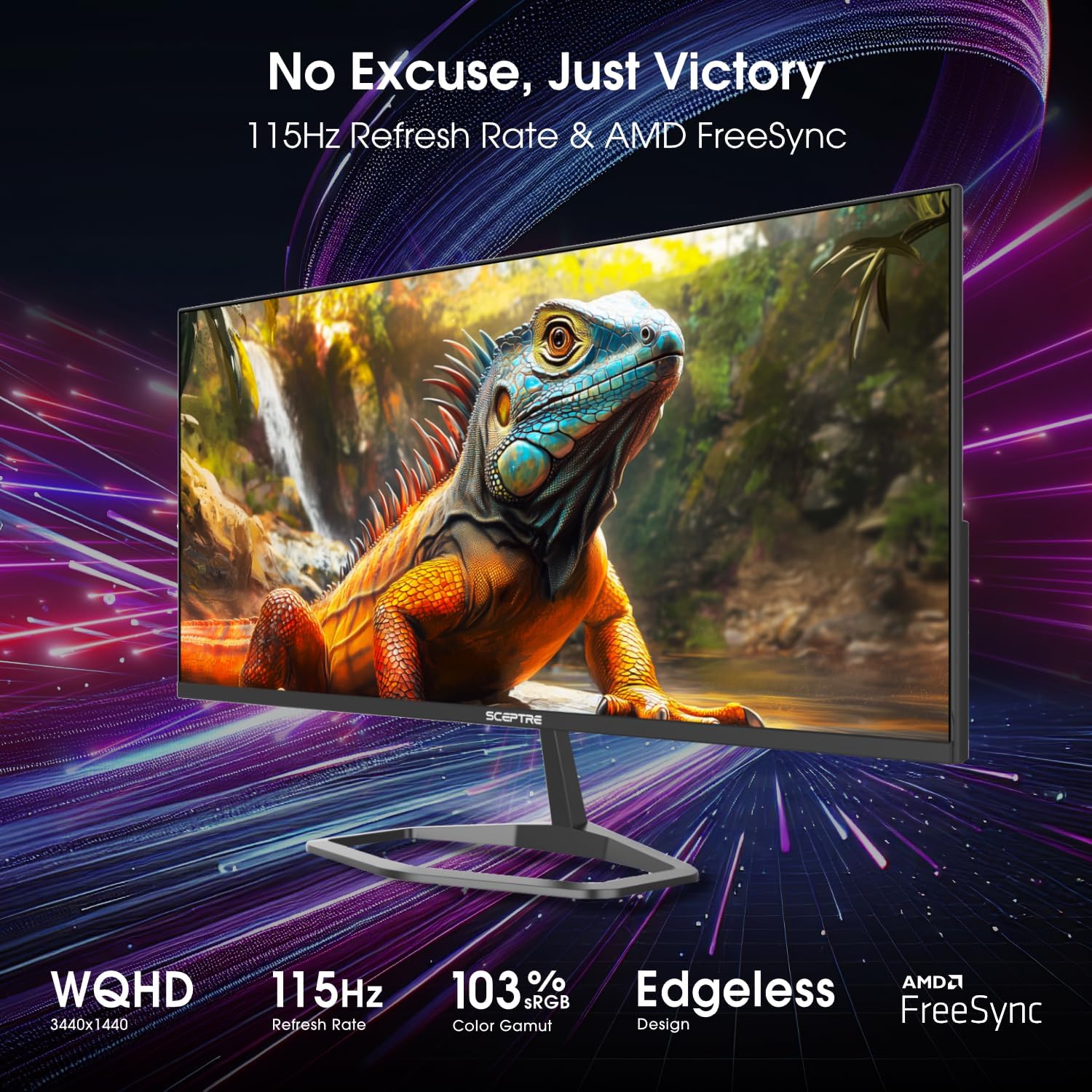
Billede: Forside view of the Sceptre E345W-QU120D 34-inch Ultrawide Monitor, showcasing its edgeless design and wide display. This image provides a general view of the monitor during operation.
5.3 Nøglefunktioner
- Høj opdateringshastighed: Up to 115Hz via DisplayPort and 100Hz via HDMI for smoother visuals.
- AMD FreeSync: Synchronizes the monitor's refresh rate with your graphics card's frame rate to eliminate screen tearing and stuttering. Enable this feature in the OSD menu and your graphics card settings.
- Blue-Light Shift: Reduces harmful blue light emissions to alleviate eye strain during prolonged use. This can be adjusted or enabled/disabled via the OSD menu.
- Integrerede højttalere: Provides audio output without the need for external speakers.
6. Vedligeholdelse
6.1 Rengøring af monitoren
- Tag altid stikket ud af stikkontakten før rengøring.
- Brug let en blød, fnugfri klud damprengøres med vand eller et ikke-slibende skærmrensemiddel.
- Do not spray cleaner directly onto the screen or into any openings.
- Tør forsigtigt skærmen af for at fjerne støv og snavs.
- Til skærmen casinBrug en blød, tør klud.
6.2 Generel pleje
- Undgå at placere tunge genstande på skærmen eller dens kabler.
- Hold skærmen væk fra direkte sollys, varmekilder og for meget støv.
- Ensure adequate space around the monitor for proper ventilation.
7. Fejlfinding
If you encounter issues with your monitor, refer to the following troubleshooting guide.
| Problem | Mulig årsag | Løsning |
|---|---|---|
| Ingen strøm | Strømkabel ikke tilsluttet; Stikkontakten virker ikke; Skærmens tænd/sluk-knap er slukket. | Ensure power cable is securely connected to monitor and outlet. Test outlet with another device. Press monitor power button. |
| Intet signal | Video cable not connected; Incorrect input source selected; Computer not outputting signal. | Check video cable connections (DisplayPort/HDMI) to both monitor and computer. Select correct input source via OSD menu. Restart computer. |
| Billede flimrer eller er forvrænget | Loose video cable; Incorrect resolution/refresh rate; Graphics card driver issues. | Secure video cable. Adjust resolution and refresh rate in computer display settings. Update graphics card drivers. |
| Ingen lyd fra de indbyggede højttalere | Volume too low; Muted; Incorrect audio output selected on computer. | Increase monitor volume via OSD. Check computer's audio settings to ensure monitor is selected as output device. |
| HDMI ports feel hot | Potential overheating; Cable issue. | Ensure proper ventilation around ports. Try a different HDMI cable. If problem persists, contact support. |
8. Specifikationer
| Feature | Detalje |
|---|---|
| Modelnummer | E345W-QU120D |
| Skærmstørrelse | 34 tommer |
| Opløsning | 3440 x 1440 (WQHD) |
| Max Refresh Rate (DisplayPort) | 115 Hz |
| Max Refresh Rate (HDMI) | 100 Hz |
| Aspektforhold | 21:9 |
| Farveskala | 103 % sRGB |
| Forbindelse | 2x HDMI (v2.0), 2x DisplayPort (v1.4), 1x Audio Out (3.5mm) |
| Indbyggede højtalere | Ja |
| VESA Mount kompatibel | Ja |
| Varens vægt | 9.7 pund (ca. 4.4 kg) |
| Produktmål (LxBxH) | 32 x 9 x 21 tommer (ca. 81.3 x 22.9 x 53.3 cm) |
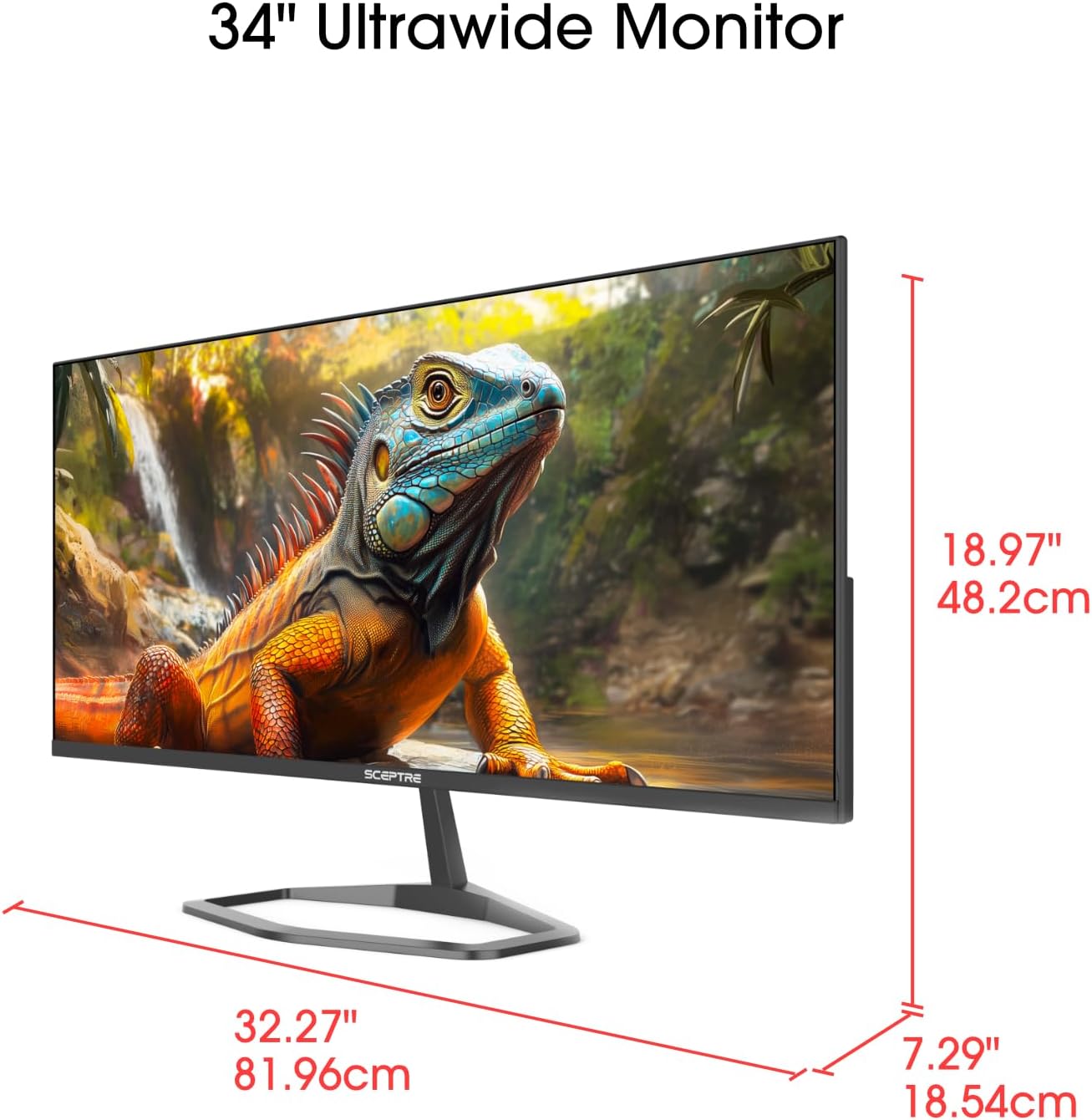
Image: This image displays the physical dimensions (height, width, and depth) of the Sceptre E345W-QU120D 34-inch Ultrawide Monitor, providing precise measurements for placement and setup.
9. Garantioplysninger
Sceptre products are covered by a limited warranty. For detailed warranty terms, conditions, and registration information, please refer to the official Sceptre webwebstedet eller garantikortet, der fulgte med dit produkt. Gem din købsbevis til garantikrav.
10. Kundesupport
If you require further assistance or have questions not covered in this manual, please contact Sceptre customer support.
- Online support: Visit the official Sceptre webwebsted med ofte stillede spørgsmål, driverdownloads og supportressourcer.
- Kontaktoplysninger: Refer to the Sceptre webwebstedet eller din produktemballage for at få de seneste kontaktoplysninger (telefon, e-mail).
- Sceptre Store: Du kan også besøge Sceptre Store on Amazon for produktinformation og tilbehør.


