1. Introduktion
Thank you for choosing the PRIXTON Prado XL 15.6-inch Digital Photo Frame. This manual provides essential information for setting up, operating, and maintaining your device. Please read it carefully before use to ensure optimal performance and longevity of your digital photo frame.
The PRIXTON Prado XL features a vibrant 15.6-inch Full HD IPS touchscreen display, offering clear and vivid image reproduction. With built-in Wi-Fi, 32GB of internal memory, and support for both photos and videos, it allows you to easily share and display your cherished memories. The frame also includes integrated speakers and multiple input options, including USB Type-C, USB-A, and an SD card slot, providing versatile ways to manage your content.
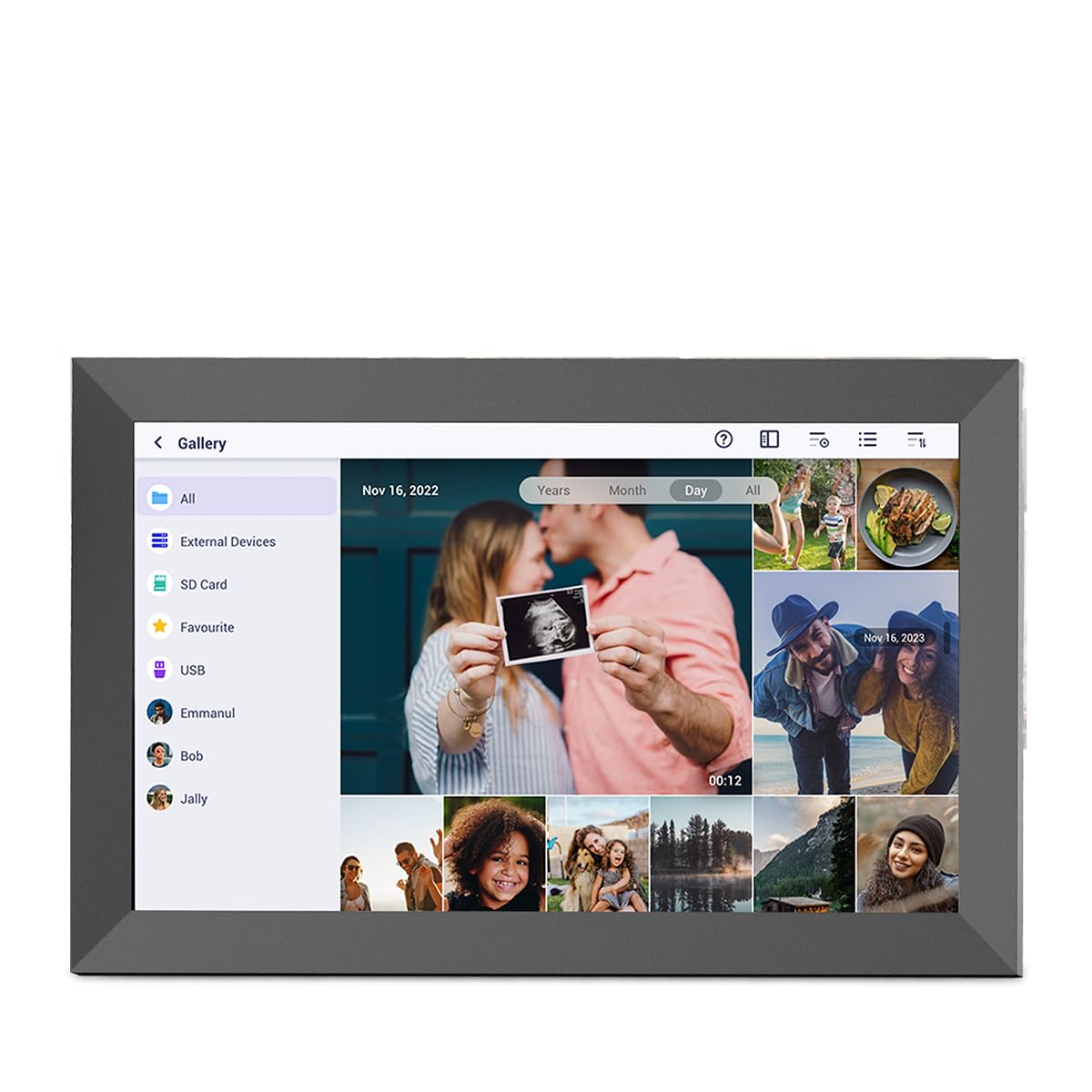
Image: The PRIXTON Prado XL digital photo frame showcasing a family picture.
2. Pakkens indhold
Markér venligst feltet for følgende elementer:
- PRIXTON Prado XL 15.6-inch Digital Photo Frame
- Strømadapter
- Brugervejledning (dette dokument)
3. Produktet er slutview
Familiarize yourself with the various ports and controls on your digital photo frame.

Image: Back panel of the frame, highlighting the power button, USB-A, USB-C, SD card slot, and headphone jack.
Nøglekomponenter:
- Power knap: Located on the back, used to turn the frame on/off or put it into sleep mode.
- USB-A-port: For connecting USB flash drives to transfer photos and videos.
- USB Type-C-port: For connecting compatible devices or for data transfer.
- SD-kortplads: For inserting SD cards to display or transfer media.
- Hovedtelefonstik: Til tilslutning af eksterne lydenheder.
- DC strømindgang: Til tilslutning af strømadapteren.
- Huller til vægmontering: Til montering af rammen på en væg.
4. Opsætning
4.1 Tænd
- Connect the power adapter to the DC Power Input port on the back of the frame.
- Sæt strømadapteren i en stikkontakt.
- The frame will automatically power on. If not, press and hold the Power Button for a few seconds.
4.2 Indledende konfiguration
Upon first startup, you will be guided through the initial setup process:
- Vælg sprog: Vælg dit foretrukne sprog fra listen.
- Opret forbindelse til Wi-Fi: Select your Wi-Fi network and enter the password. A stable internet connection is required for app functionality and software updates.
- Indstil dato og tid: Configure the correct date, time, and time zone.
4.3 Connecting with the Uhale App
The Uhale app allows you to easily send photos and videos directly to your frame from your smartphone.
- Download appen: Søg efter "Uhale" in your smartphone's app store (iOS or Android) and install it.
- Opret en konto: Open the Uhale app and follow the instructions to create a new user account.
- Par rammen: On your digital photo frame, navigate to the "Settings" menu and find the "Bind Device" or "Add Device" option. This will display a unique code or QR code.
- Enter Code/Scan QR: In the Uhale app, select "Add Device" and either manually enter the code displayed on your frame or use your phone's camera to scan the QR code.
- Når de er parret, kan du begynde at sende billeder og videoer til din ramme.

Image: A smartphone screen showing the Uhale app interface next to the digital photo frame.
5. Betjening af rammen
5.1 Navigation med berøringsskærm
The Prado XL features a responsive touchscreen for easy navigation:
- Tryk på: Select an item or open a menu.
- Stryg: Navigate through photos, menus, or lists.
- Knib-for-at-zoome: Zoom in or out on photos (if supported by software).
5.2 Tilføjelse af fotos og videoer
There are several ways to add media to your frame:
5.2.1 Via Uhale App
- Open the Uhale app on your paired smartphone.
- Vælg de billeder eller videoer, du vil sende.
- Tap the "Send" or "Share" button to transfer them to your frame.
- The media will appear on your frame shortly, provided it is connected to Wi-Fi.
5.2.2 Via USB Drive or SD Card
- Insert a USB flash drive into the USB-A port or an SD card into the SD card slot.
- The frame will detect the external storage. Navigate to the "Gallery" or "Files"-sektion.
- Select the desired photos or videos and choose to copy them to the frame's internal memory.

Image: User interacting with the Uhale app to send content to the digital photo frame.
5.3 Managing Content and Slideshows
- Galleri: Access all your stored photos and videos. You can view them individually or start a slideshow.
- Slet: Select unwanted media and choose the delete option.
- Indstillinger for slideshow: Customize slideshow duration, transition effects, and playback order in the settings menu.

Image: The digital photo frame displaying a lively birthday party scene.
6. Indstillingsmenu
Access the settings menu by tapping the gear icon on the home screen. Here you can configure various aspects of your frame:
- Vise: Adjust brightness, screen sleep time, and display mode.
- Wi-Fi: Administrer dine netværksforbindelser.
- Dato og tid: Manually set or synchronize date and time.
- Opbevaring: View internal storage usage and manage external storage devices.
- Om: View device information, including software version and model number.
7. Vedligeholdelse
7.1 Rengøring af skærmen
For at rengøre berøringsskærmen skal du forsigtigt tørre den af med en blød, fnugfri klud. Ved genstridige pletter kan du gnide den let.ampRengør kluden med vand eller en skærmsikker rengøringsopløsning. Undgå at bruge skrappe kemikalier eller slibende materialer.
7.2 Softwareopdateringer
Ensure your frame is connected to Wi-Fi to receive automatic software updates. Updates provide new features, performance improvements, and bug fixes. You can manually check for updates in the "Settings" > "About" menu.
8. Fejlfinding
| Spørgsmål | Mulig løsning |
|---|---|
| Frame does not turn on. | Sørg for, at strømadapteren er korrekt tilsluttet både rammen og en fungerende stikkontakt. Prøv en anden stikkontakt. |
| Kan ikke oprette forbindelse til Wi-Fi. | Check if your Wi-Fi router is on and working. Re-enter the Wi-Fi password carefully. Move the frame closer to the router. |
| Photos/videos not appearing. | Verify that the media has been successfully uploaded via the app or copied from USB/SD. Check file formats for compatibility. Ensure the frame is connected to Wi-Fi if using the app. |
| Berøringsskærmen reagerer ikke. | Restart the frame by holding the power button. Ensure the screen is clean and free of debris. |
| Frame is slow or freezes. | Restart the frame. Clear some internal storage if it is nearly full. |
9. Specifikationer
| Feature | Detalje |
|---|---|
| Modelnummer | 10006183 |
| Skærmstørrelse | 15.6 tommer |
| Display Type | IPS berøringsskærm |
| Opløsning | 1920 x 1080 Full HD |
| Intern hukommelse | 32 GB flash |
| VÆDDER | 1 GB |
| Forbindelse | Wi-Fi |
| Havne | USB Type-C, USB-A, SD Card Slot, Headphone Jack |
| Lyd | Integrerede højttalere |
| Dimensioner (L x B x H) | 14 x 21 x 2.51 cm |
10. Garanti og support
PRIXTON products are designed and manufactured to the highest quality standards. For information regarding warranty coverage, please refer to the warranty card included with your product or visit the official PRIXTON webwebsted.
If you encounter any issues or have questions not covered in this manual, please contact PRIXTON customer support for assistance. You can find contact details on the PRIXTON webwebsted eller via din købsplatform.
Online support: Visit the PRIXTON Store on Amazon


