1. Introduktion
This manual provides detailed instructions for the setup, operation, and maintenance of your Dierya M1 Wireless Gaming Mouse. Please read this manual thoroughly before using the product to ensure proper functionality and to maximize your user experience.

Figure 1: Dierya M1 Wireless Gaming Mouse and 2.4G USB Receiver.
2. Produktfunktioner
- 24,000 DPI optisk sensor: Adjustable DPI range from 200 to 24,000, with 6 preset levels (400-6400 DPI). Features a 125-1000 Hz polling rate, 300 IPS tracking speed, and 35G acceleration.
- Tri-mode-tilslutning: Supports ultra-fast 2.4 GHz wireless (1000 Hz polling rate), energy-efficient Bluetooth 5.2 (125 Hz polling rate), and stable USB-C wired connection (1000 Hz polling rate).
- Forlænget batterilevetid: Equipped with a 1000 mAh battery, providing up to 180 hours of use in ECO mode or 48 hours with RGB lighting enabled. Fully recharges in approximately 1 hour via USB-C. Includes an automatic power-saving mode after 1-5 minutes of inactivity.
- Let og ergonomisk design: Weighs 90g with a breathable honeycomb shell. Symmetrical design (125x63x41 mm) suitable for various grip styles.
- Holdbare komponenter: Features Huano switches rated for 20 million clicks and 100% PTFE feet for smooth gliding.
- Programmerbare knapper: Six customizable buttons for macros and reassignments.
- Dynamisk RGB-belysning: 13 integrated dynamic RGB lighting effects with 16.8 million customizable colors.
- Systemkompatibilitet: Compatible with Windows, macOS, Linux, and Chrome OS.
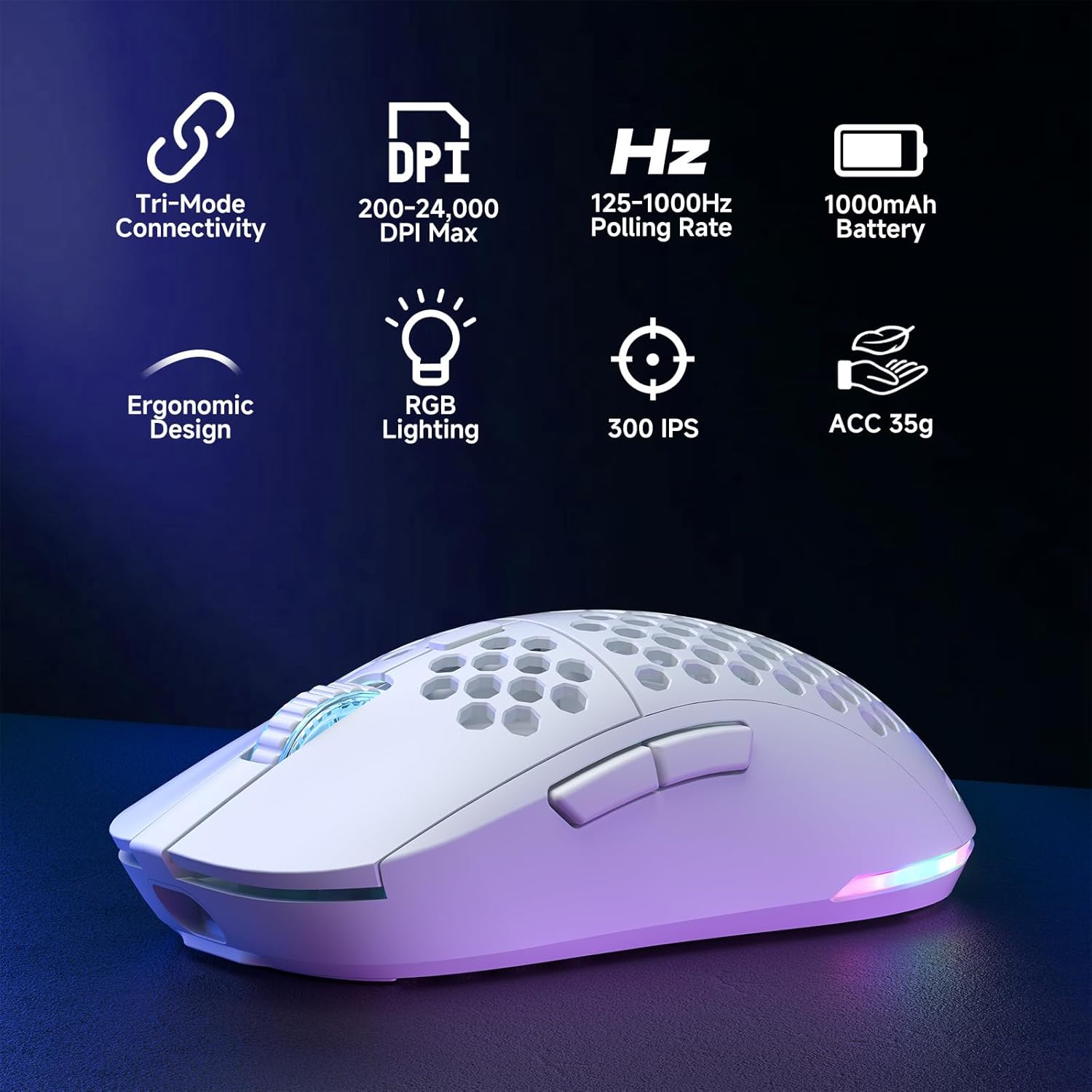
Figure 2: Key features of the Dierya M1 Wireless Gaming Mouse.
3. Produktdiagram og komponenter
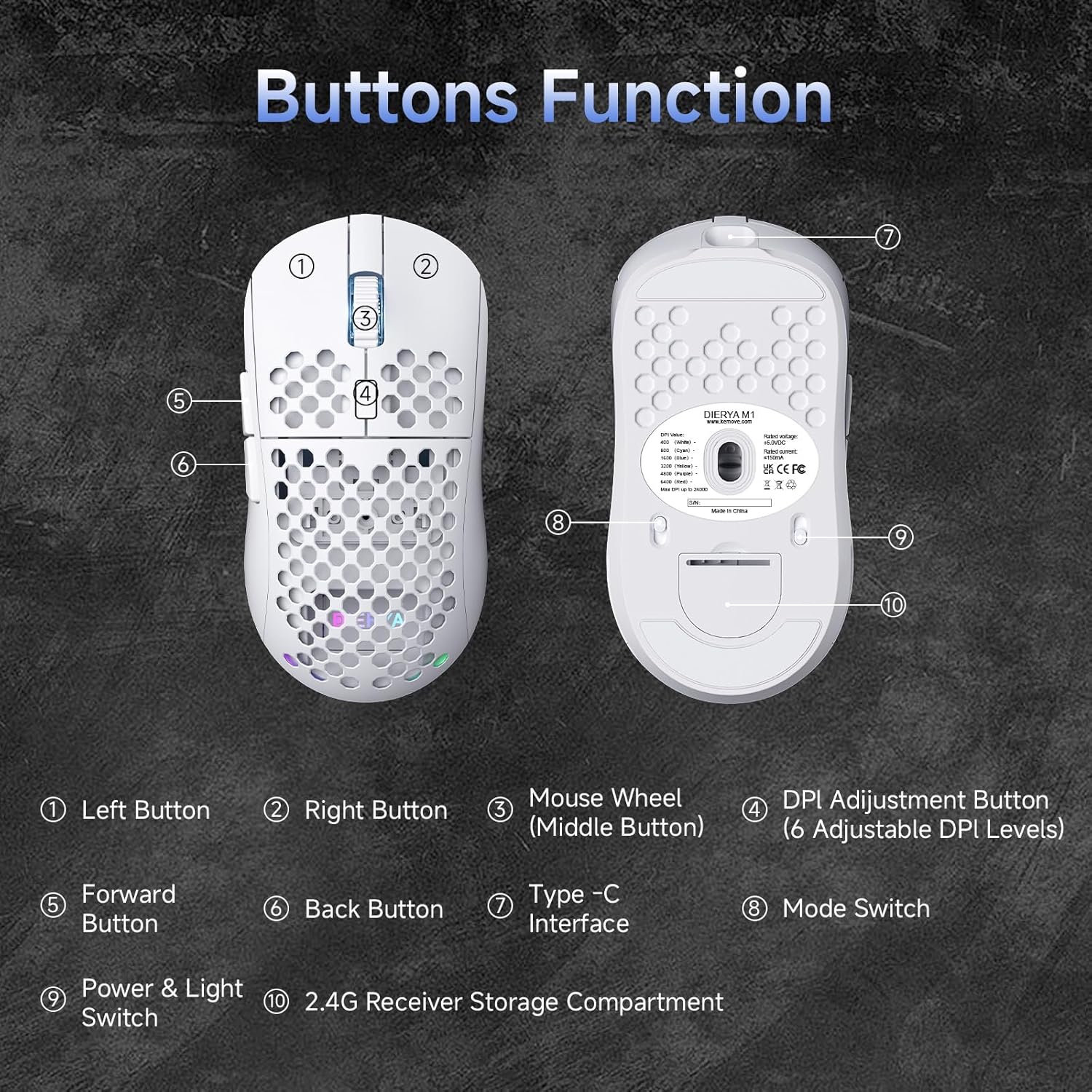
Figur 3: Top og bund view of the Dierya M1 mouse with labeled components.
- Venstre knap
- Højre knap
- Mouse Wheel (Middle Button)
- DPI Adjustment Button (6 Adjustable DPI Levels)
- Frem-knap
- Tilbage knap
- Type-C Interface
- Mode Switch (2.4G / Bluetooth / Wired)
- Power & Light Switch
- 2.4G Receiver Storage Compartment
4. Opsætning og tilslutning
The Dierya M1 mouse offers three connection modes: 2.4 GHz Wireless, Bluetooth 5.2, and USB-C Wired.

Figur 4: Overview af de tre forbindelsestilstande.
4.1. 2.4 GHz trådløs forbindelse
- Locate the 2.4G USB receiver in the storage compartment on the bottom of the mouse.
- Sæt USB-modtageren i en ledig USB-port på din computer.
- Indstil tilstandsknappen på undersiden af musen til '2.4G'-positionen.
- Musen burde oprette forbindelse automatisk.
4.2. Bluetooth 5.2-forbindelse
- Set the mode switch on the bottom of the mouse to the 'Bluetooth' position.
- Åbn Bluetooth-indstillingerne på din computer eller enhed.
- Søg efter new devices and select 'Dierya M1' from the list.
- Følg eventuelle anvisninger på skærmen for at fuldføre parringsprocessen.
4.3. USB-C kablet forbindelse
- Connect the provided USB-C cable to the Type-C interface on the front of the mouse.
- Tilslut den anden ende af USB-C-kablet til en ledig USB-port på din computer.
- Set the mode switch on the bottom of the mouse to the 'Wired' position.
- Musen fungerer som en kablet mus og oplades samtidigt.
5. Betjeningsvejledning
5.1. DPI-justering
The DPI Adjustment Button (4) on the top of the mouse allows you to cycle through preset DPI levels. Each DPI level is indicated by a specific color on the scroll wheel LED for a few seconds after adjustment.
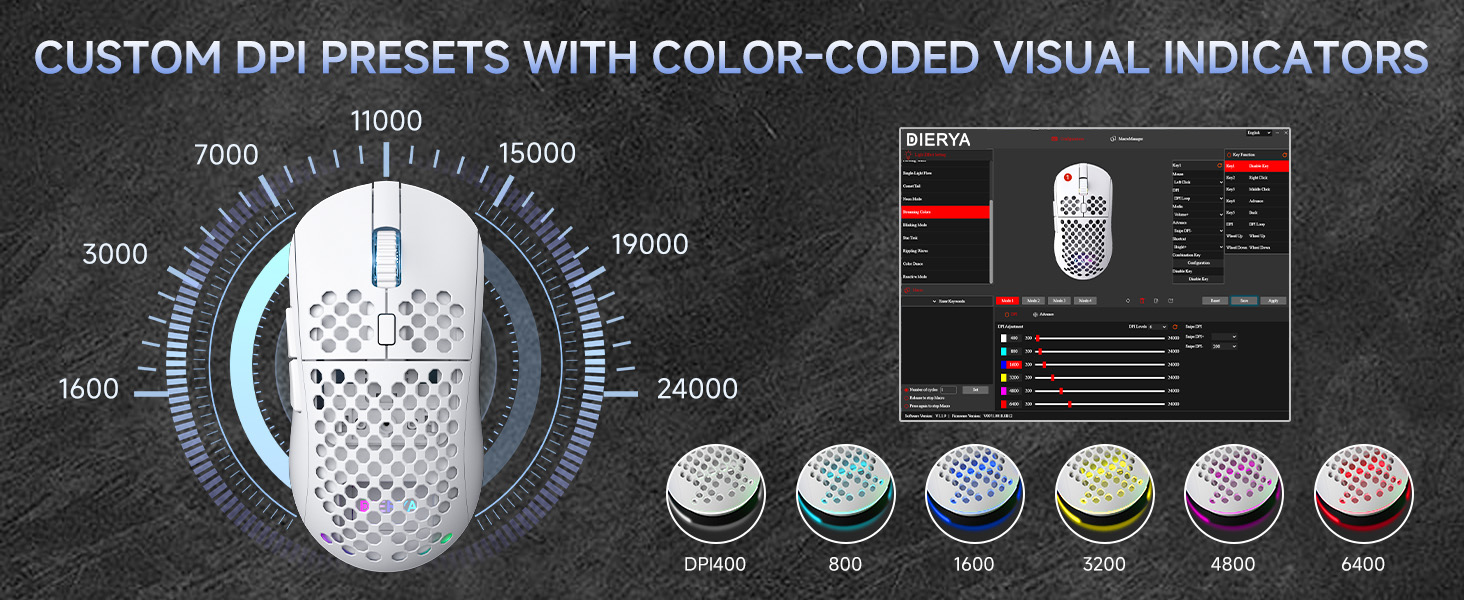
Figure 5: DPI levels and their corresponding scroll wheel LED colors.
- Press the DPI button to switch between 6 preset DPI levels.
- Default presets: 400 DPI (Red), 800 DPI (Green), 1600 DPI (Blue), 3200 DPI (Yellow), 4800 DPI (Purple), 6400 DPI (Cyan).
- For custom DPI settings and a wider range (200-24,000 DPI), use the M1 Driver Software (Windows only).
5.2. RGB-lysstyring
The mouse features 13 dynamic RGB lighting effects. You can control the lighting directly on the mouse or customize it further with the software.
- To cycle through RGB effects: Press and hold the DPI Adjustment Button (4) for 3 seconds.
- To turn RGB lighting On/Off: Use the Power & Light Switch (9) on the bottom of the mouse.
- For advanced customization of colors and effects, use the M1 Driver Software (Windows only).
5.3. Programmerbare knapper
The Dierya M1 has 6 programmable buttons (Left, Right, Middle, DPI, Forward, Back). These buttons can be customized for various functions, macros, or key reassignments using the M1 Driver Software.
6. Opladning og batteristyring
The Dierya M1 mouse is equipped with a 1000 mAh rechargeable battery.

Figure 6: Charging the Dierya M1 mouse and battery life indicators.
- Opladning: Connect the mouse to your computer using the provided USB-C cable. The mouse will charge while in wired mode or when connected to a power source. A full charge takes approximately 1 hour.
- Batterilevetid: Expect up to 180 hours of use in ECO mode (RGB off) and up to 48 hours with RGB lighting enabled.
- Strømbesparende: The mouse automatically enters a power-saving sleep mode after 1-5 minutes of inactivity. This duration can be adjusted via the M1 Driver Software.
- Indikator for lavt batteri: The RGB lighting or a specific LED will indicate when the battery is low. Charge the mouse promptly to avoid interruption.
7. M1 Driver Software (Windows Only)
The M1 Driver Software allows for advanced customization of your mouse settings. This software is currently available for Windows operating systems only.

Figure 7: M1 Driver Software interface.
7.1. Softwarefunktioner
- Nøgleopgave: Customize the function of all 6 buttons.
- Makro Editor: Opret og tildel komplekse makroer.
- DPI-justering: Fine-tune DPI settings from 200 to 24,000 in increments.
- Afstemningsfrekvens: Adjust the polling rate (125-1000 Hz).
- RGB-tilpasning: Personalize lighting effects, colors, and brightness.
- Sengetid: Configure the automatic power-saving sleep mode duration.
- Profile Ledelse: Gem og indlæs forskellige profiles for various applications or games.
7.2. Installation
Download the latest M1 Driver Software from the official Dierya website. Follow the on-screen instructions to install the software on your Windows computer.
8. Vedligeholdelse
- Rensning: Brug en blød, tør klud til at rengøre musen. Ved genstridigt snavs, brug en let tør klud.amp En klud kan bruges, så det sikres, at der ikke kommer væske ind i musen.
- Opbevaring: Opbevar musen et køligt, tørt sted væk fra direkte sollys og ekstreme temperaturer.
- Batteripleje: Avoid fully discharging the battery frequently. For long-term storage, charge the mouse to about 50% and store it in a cool, dry place.
9. Fejlfinding
- Musen svarer ikke:
- Sørg for, at musen er tændt.
- Check the connection mode switch (2.4G, Bluetooth, Wired) is set correctly.
- For 2.4G skal du sørge for, at USB-modtageren er tilsluttet korrekt.
- For Bluetooth, re-pair the device.
- Try connecting via USB-C cable to check if it works in wired mode.
- Charge the mouse; the battery might be depleted.
- Forsinket eller intermitterende forbindelse:
- Ensure the mouse is within range of the receiver/device (for wireless connections).
- Reducer interferens fra andre trådløse enheder.
- Sørg for, at batteriet er tilstrækkeligt opladet.
- Update mouse drivers if available (Windows only).
- RGB-belysning virker ikke:
- Check the Power & Light Switch (9) on the bottom of the mouse.
- Ensure the mouse is not in ECO mode or a low-power state.
- If using the software, verify RGB settings.
- DPI-justering virker ikke:
- Ensure you are pressing the correct DPI Adjustment Button (4).
- If using custom settings, check the M1 Driver Software.
10. Specifikationer
| Feature | Specifikation |
|---|---|
| Mærke | Dierya |
| Modelnavn | M1 |
| Farve | Hvid |
| Forbindelsesteknologi | 2.4 GHz trådløs, Bluetooth 5.2, USB-C kablet |
| Sensor Technology | Optisk |
| DPI rækkevidde | 200 - 24,000 dpi |
| Afstemningsfrekvens | 125-1000 Hz |
| Sporingshastighed | 300 IPS |
| Acceleration | 35G |
| Antal knapper | 6 (Programmerbar) |
| Afbrydere | Huano (20 Million Clicks) |
| Fødder Materiale | 100% PTFE |
| Batterikapacitet | 1000 mAh (litium-ion) |
| Batterilevetid (ECO-tilstand) | Op til 180 timer |
| Battery Life (RGB Mode) | Op til 48 timer |
| Opladningstid | Ca. 1 time |
| Vægt | 90 gram |
| Dimensioner | 125 x 63 x 41 mm |
| Operativsystemkompatibilitet | Windows, macOS, Linux, Chrome OS |
11. Garanti og support
The Dierya M1 Wireless Gaming Mouse comes with a 1 års producentgaranti. Denne garanti dækker fejl i materialer og udførelse ved normal brug.
For warranty claims, technical support, or further inquiries, please contact Dierya customer service through the official website or your point of purchase. Please have your product model number (M1) and proof of purchase ready when contacting support.


