1. Introduktion
This manual provides instructions for the KEYCOOL K21 Mechanical Number Keypad. The K21 is a versatile 21-key numeric keypad designed for enhanced productivity across various operating systems. It features triple-mode connectivity, hot-swappable switches, customizable RGB lighting, and programmable keys.

Figur 1: Forside view of the KEYCOOL K21 Mechanical Number Keypad showcasing dens RGB-belysning.
2. Opsætning
2.1 Pakkens indhold
Før du fortsætter, skal du sørge for at alle elementer er til stede:
- KEYCOOL K21 Mechanical Number Keypad
- USB-C kabel
- 2.4 GHz USB-modtager
- Keycap aftrækker
- Aftrækker
- Spare Switches (if included)
- Brugervejledning (dette dokument)

Figure 2: Standard accessories included with the K21 keypad.
2.2 Opladning af tastaturet
The K21 keypad is equipped with a 1500mAh battery. For optimal performance, fully charge the keypad before first use.
- Locate the USB-C port on the keypad.
- Connect the provided USB-C cable to the keypad and to a power source (e.g., computer USB port, USB wall adapter).
- Opladningsindikatorlampen lyser. Den skifter eller slukker, når den er fuldt opladet.
2.3 Forbindelsestilstande
The K21 supports three connection modes: Wired, 2.4GHz Wireless, and Bluetooth 5.0.

Figure 3: Location of connectivity components on the K21 keypad.

Figure 4: Detailed diagram of the keypad's connection points.
2.3.1 Kablet tilstand
- Ensure the keypad's ON/OFF switch is in the "OFF" position.
- Connect the USB-C cable to the keypad's Type-C port and to your computer.
- The keypad will be automatically recognized by your system.
2.3.2 2.4 GHz trådløs tilstand
- Locate the 2.4GHz USB receiver, usually stored in a dedicated slot on the keypad.
- Sæt 2.4 GHz USB-modtageren i en ledig USB-port på din computer.
- Turn the keypad's ON/OFF switch to the "ON" position.
- The keypad should connect automatically.
2.3.3 Bluetooth 5.0-tilstand
The K21 can connect to up to three Bluetooth devices.
- Turn the keypad's ON/OFF switch to the "ON" position.
- Press and hold the Bluetooth pairing key (refer to the keypad layout for specific key, often indicated by a Bluetooth icon or a combination with Fn).
- The indicator light will flash, indicating pairing mode.
- On your device (Laptop, Mac, Win, iOS, Android), go to Bluetooth settings and search for "KEYCOOL K21" or similar.
- Select the keypad to pair. Repeat for other Bluetooth profiles, hvis det ønskes.
2.4 Ergonomisk design
The K21 wireless numeric keypad features a sloped design for comfortable use and includes silicone bottom cushions for stability.

Figure 5: Ergonomic design and dimensions of the K21 keypad.
3. Betjening
3.1 Grundlæggende nøglefunktioner
The K21 is a 21-key numeric keypad. Standard numeric and arithmetic functions are available. Some keys may have secondary functions accessible via the Function (Fn) key.

Figur 6: Overview of the K21 keypad's features.
3.2 RGB-lysstyring
The K21 features adjustable RGB lighting effects.
- Fn + Tilbage: Turn ON/OFF the backlight.
- Fn + 6: Switch between different lighting effects.
- Fn + 7: Switch between different lighting colors.

Figure 7: Key combinations for controlling RGB lighting and hot-swappable switch design.
3.3-volumen rulle
The integrated volume roller allows for quick adjustment of system audio. Rotate the roller to increase or decrease volume. The roller may also have a press function for mute/unmute.
4. Tilpasning
4.1 Hot-swap-kontakter
The K21 keypad supports hot-swappable 3-pin/5-pin mechanical switches, allowing users to change switches without soldering. This enables customization of typing feel and sound.
- Using the provided switch puller, carefully remove the desired switch by gripping it firmly and pulling upwards.
- Juster stifterne på den nye kontakt med hullerne på printkortet.
- Gently press the new switch into place until it clicks. Ensure it is seated properly and not bent.

Figure 8: Illustration of a hot-swappable switch being installed.

Figure 9: Components and characteristics of a typical mechanical switch.
4.2 Programmable Keys and Software
The K21 keypad features programmable keys, allowing users to customize key functions, macros, and lighting effects via dedicated software.
- Download the official KEYCOOL K21 software from the manufacturer's webwebsted: www.kc-keycool.com.
- Installer softwaren på din Windows- eller Mac-computer.
- Connect the K21 keypad to your computer via wired mode.
- Launch the software to access customization options for key remapping, macro creation, and RGB lighting adjustments.
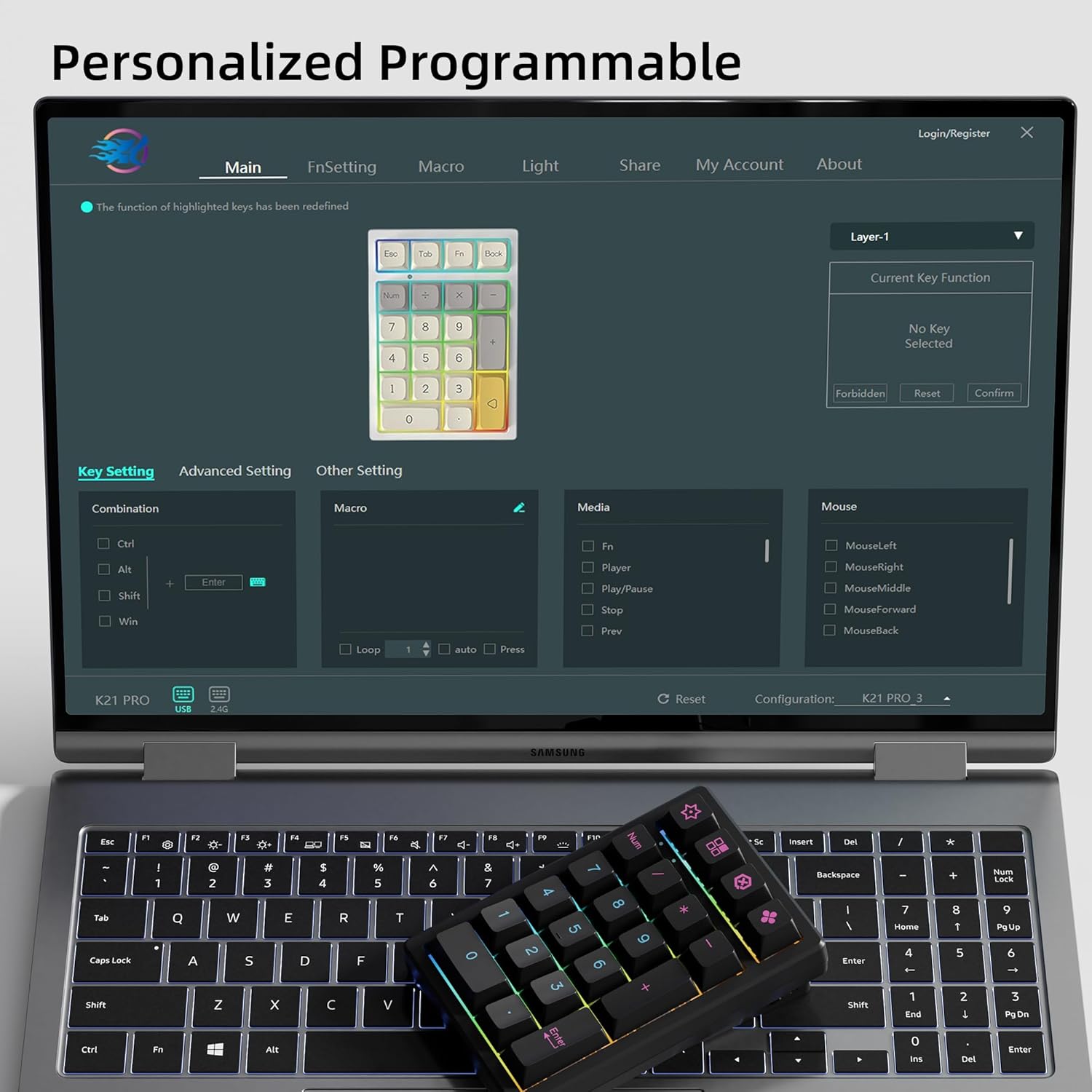
Figure 10: Software interface for personalizing key functions and lighting.

Figure 11: Further views of the customization software.
5. Vedligeholdelse
5.1 Rengøring
To maintain the keypad's appearance and functionality:
- Disconnect the keypad from all power sources and devices.
- Brug en blød, fnugfri klud dampened with a small amount of water or a mild cleaning solution to wipe the keycaps and casing.
- Brug trykluft eller en lille børste til at fjerne støv og snavs mellem tasterne.
- Undgå at bruge skrappe kemikalier eller slibende materialer.
5.2 Vedligeholdelse af kontakter og taster
The PBT keycaps are durable. If removing keycaps or switches for cleaning or replacement, use the provided tools to prevent damage.
6. Fejlfinding
6.1 Tastatur reagerer ikke
- Kablet tilstand: Ensure the USB-C cable is securely connected to both the keypad and the computer. Try a different USB port or cable.
- 2.4 GHz trådløs tilstand: Verify the 2.4GHz USB receiver is properly inserted into a USB port. Ensure the keypad's ON/OFF switch is in the "ON" position.
- Bluetooth-tilstand: Check if the keypad is paired correctly in your device's Bluetooth settings. Ensure the keypad's ON/OFF switch is in the "ON" position. If the keypad goes to sleep, the first key press might not register; press a key twice to wake it up and ensure connection.
- Batteri: Ensure the keypad is sufficiently charged. Connect it via USB-C to charge.
6.2 Problemer med RGB-belysning
- If RGB lighting is not working, ensure it is turned on using Fn + Tilbage.
- If specific keys are not lighting up, check if the switches are properly seated or if there's a software configuration issue.
6.3 Software Not Detecting Keypad
- Ensure the keypad is connected via wired mode when using the software.
- Verify that you have downloaded the correct software version for the K21 model from the official KEYCOOL webwebsted.
- Try restarting your computer and the software.
- If the device is listed as "Unknown Device" in Device Manager (Windows), try reinstalling the driver or checking for driver updates.
6.4 Dårlig batterilevetid
- High RGB brightness and continuous wireless usage can reduce battery life. Consider adjusting brightness or using wired mode when possible.
- Ensure the keypad is fully charged before use.
7. Specifikationer
| Feature | Detalje |
|---|---|
| Model | K21 |
| Mærke | KEYCOOL |
| Forbindelse | Bluetooth 5.0, 2.4 GHz trådløs, USB-C kablet |
| Tastaturtype | Mekanisk |
| Nøgleantal | 21 nøgler |
| Afbrydere | Hot-swap (kompatibel med 3-bens/5-bens) |
| tasterne | PBT (Heat-sublimation) |
| Baggrundsbelysning | RGB (tilpasses) |
| Batterikapacitet | 1500mAh |
| Afstemningsfrekvens | 1000 Hz |
| Kompatible systemer | Windows, Mac, Linux, Android, iOS |
| Særlige funktioner | Backlit, Hot-Swappable, Portable, Volume Roller, Gasket Mount |
| Produktdimensioner | 3.62 x 5.35 x 1.61 tommer (ca.) |
| Varens vægt | 12 ounce |
| Materiale | Plastic, Polybutylene Terephthalate |
Table 1: Technical specifications of the KEYCOOL K21 Mechanical Number Keypad.

Figure 12: Visual representation of KEYCOOL K21 specifications and multi-device compatibility.
8. Videodemonstration
Video 1: An official demonstration video showcasing the unboxing, switch replacement, and typing sound of a KEYCOOL mechanical keyboard. This video provides a visual guide to the product's features and user experience.