1. Introduktion
This manual provides detailed instructions for the setup, operation, and maintenance of your ELEPHAS K350 Smart Projector. Please read this manual thoroughly before using the product to ensure proper function and longevity. Keep this manual for future reference.
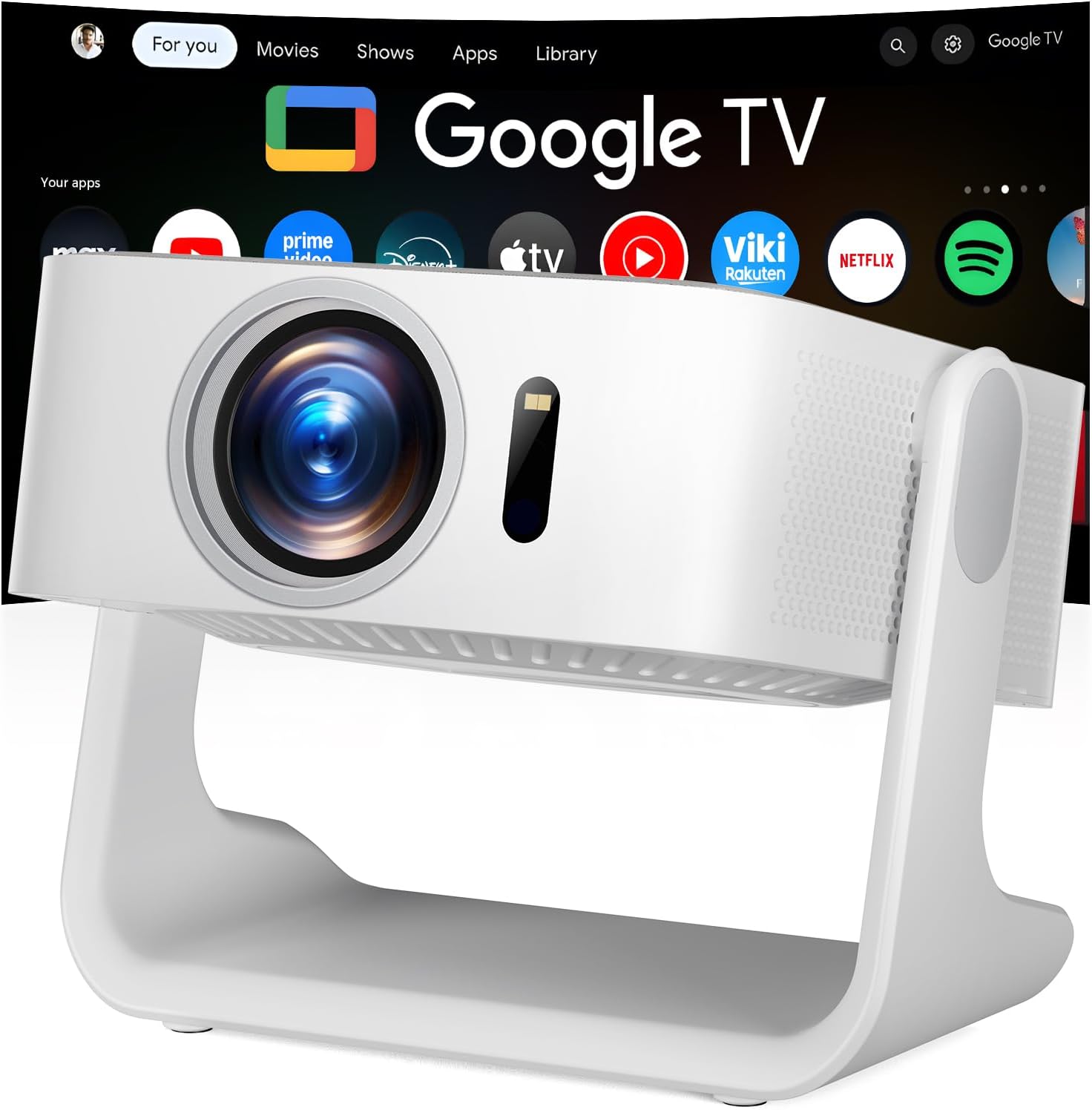
Image 1.1: The ELEPHAS K350 Smart Projector, a compact device with a lens visible on the front, projecting the Google TV interface onto a screen. The projector is white and sits on a stable base.
2. Pakkens indhold
Bekræft at alle varer er til stede i pakken:
- ELEPHAS K350 Smart Projector
- Fjernbetjening
- Strømadapter
- HDMI kabel
- Brugervejledning (dette dokument)
3. Produktet er slutview
Gør dig bekendt med projektorens komponenter og porte.
3.1 Forside og side View
Billede 3.1: Forside view of the ELEPHAS K350 Smart Projector, highlighting the projection lens and sensor for auto-focus/keystone correction.
3.2 Rear Panel and Connectivity
The rear panel typically includes power input, HDMI port, USB port, and audio output. Refer to the physical device for exact port locations.

Image 3.2: The ELEPHAS K350 Smart Projector connected to power, with its remote control and various streaming app logos (Netflix, Prime Video, YouTube, HBO Max, Hulu) displayed, indicating its smart capabilities.
4. Opsætning
4.1 Indledende tænding
- Connect the power adapter to the projector's power input and then to a power outlet.
- Tryk på tænd/sluk-knappen på projektoren eller fjernbetjeningen for at tænde for enheden.
- Follow the on-screen instructions for initial language and region settings.
4.2 Network Connection (Wi-Fi 6)
The projector supports Wi-Fi 6 for fast and stable internet connectivity.
- Navigate to the "Settings" menu on the Google TV interface.
- Select "Network & Internet".
- Vælg dit Wi-Fi-netværk fra listen, og indtast adgangskoden.
- Bekræft forbindelsen.

Image 4.1: Illustration of the projector's dual-band Wi-Fi 6 capability, showing a user gaming with the projector, emphasizing fast and stable connections for online content.
4.3 Bluetooth Pairing (Bluetooth 5.4)
Connect external audio devices or use the projector as a Bluetooth speaker.
- Go to "Settings" and select "Remotes & Accessories".
- Enable Bluetooth on the projector and your desired device (e.g., speaker, headphones).
- Vælg din enhed fra listen for at parre.

Image 4.2: Depiction of the projector's two-way Bluetooth 5.4 connectivity, showing it paired with external speakers for enhanced audio and a tablet for screen mirroring, illustrating versatile audio and display options.
4.4 Physical Placement and 270° Rotatable Stand
The integrated 270° rotatable stand allows flexible projection angles.
- Placer projektoren på en stabil overflade.
- Adjust the stand to direct the projection onto a wall, screen, or ceiling.
- Ensure no objects obstruct the projection path.
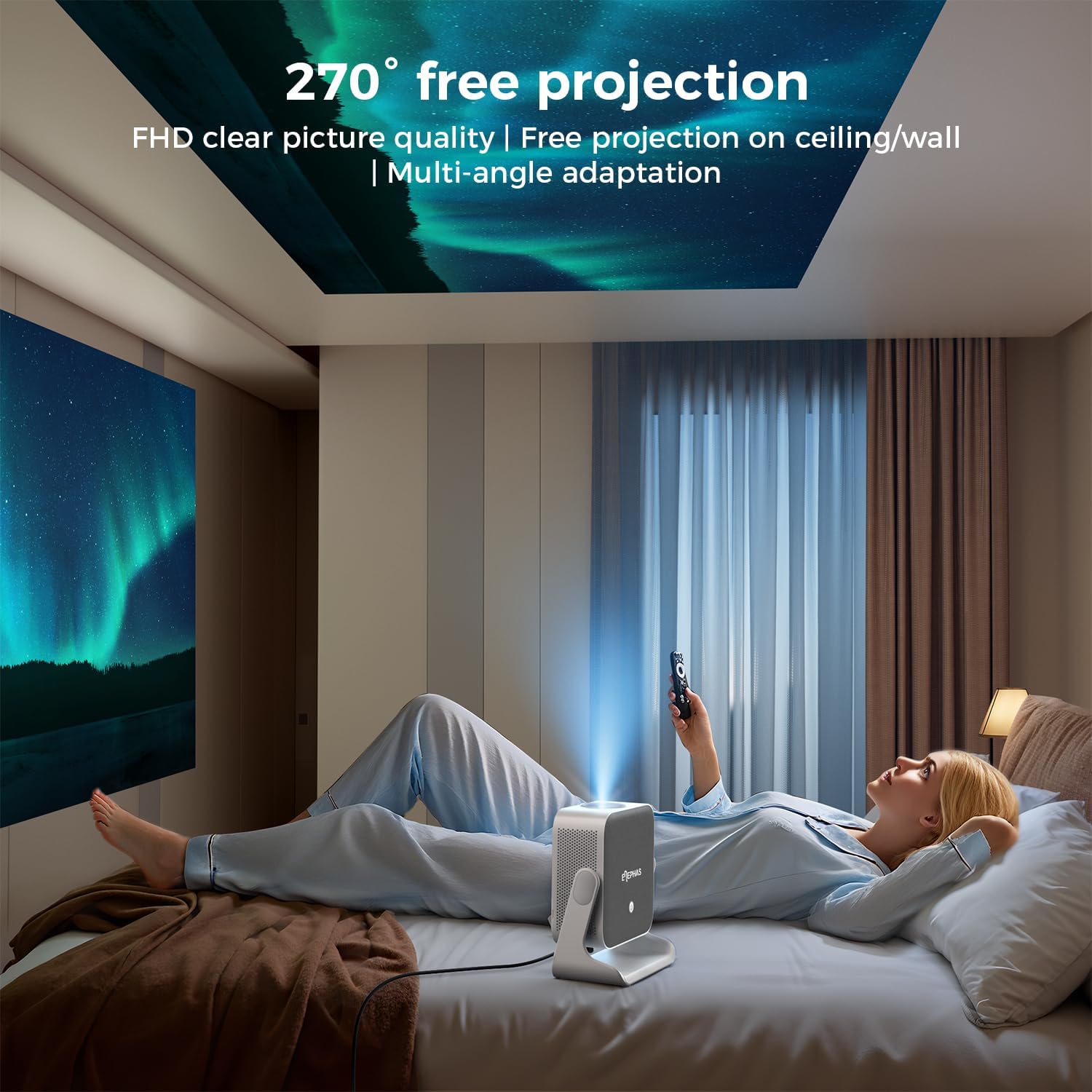
Image 4.3: A user lying in bed, watching content projected onto the ceiling by the ELEPHAS K350 Smart Projector, demonstrating its 270° rotatable stand for flexible viewing vinkler.
4.5 Auto Focus, Auto Keystone, and Auto Obstacle Avoidance
The projector features advanced automatic adjustments for optimal image quality.
- Autofokus: The projector automatically adjusts the image clarity using TOF technology. This occurs within milliseconds upon startup or movement.
- Automatisk keystone-korrektion: The image will automatically adjust to a rectangular shape, even if the projector is placed at an angle (up to ±30° vertical/horizontal).
- Undgåelse af forhindringer automatisk: The projector detects and adjusts the projection area to avoid obstacles on the surface.
- Zoom: The projection size can be adjusted up to 70% via settings if needed.

Image 4.4: A diagram illustrating the projector's AI intelligent algorithm for image correction, showing how TOF auto focus, auto obstacle avoidance, and auto keystone correction work to provide a clear, properly framed image.
5. Betjeningsvejledning
5.1 Google TV-grænseflade
The ELEPHAS K350 features an integrated Google TV system, providing access to a wide range of streaming services and applications.
- Use the remote control's navigation buttons to browse the Google TV home screen.
- Access pre-installed apps like Netflix, Prime Video, YouTube, Hulu, and Disney+.
- Download additional applications from the Google Play Store.

Image 5.1: The Google TV interface displayed on a projection screen, with examples of voice commands for the Google Assistant, such as "Open YouTube" or "Play Netflix," demonstrating effortless smart control.
5.2 Google Voice Assistant
Utilize the built-in Google Voice Assistant for hands-free control.
- Press the dedicated voice button on the remote control.
- Speak your command clearly, such as "Open Netflix," "Adjust volume," or "Søg efter action movies."
- The projector will respond to your voice commands.
5.3 External Device Connection (HDMI)
Connect gaming consoles, Blu-ray players, or other devices via the HDMI port.
- Ensure both the projector and the external device are powered off.
- Connect one end of the HDMI cable (included) to the external device and the other end to the HDMI port on the projector.
- Tænd for begge enheder.
- Select the HDMI input source from the projector's input menu.
5.4 Screen Mirroring (Google Cast)
Cast content from your Android or iOS devices using Google Cast.
- Sørg for, at din mobilenhed og projektoren er forbundet til det samme Wi-Fi-netværk.
- On your mobile device, open a compatible app (e.g., YouTube, Netflix) or use the screen mirroring function.
- Select the Cast icon and choose your ELEPHAS K350 projector from the list of available devices.
6. Vedligeholdelse
Regelmæssig vedligeholdelse sikrer optimal ydeevne og forlænger projektorens levetid.
- Rengøring af linser: Brug en blød, fnugfri klud, der er specielt designet til optiske linser, til forsigtigt at tørre projektorlinsen af. Undgå slibende materialer eller barske kemikalier.
- Fjernelse af støv: Periodically clean the projector's exterior with a soft, dry cloth. Ensure ventilation openings are free from dust accumulation to prevent overheating. Do not spray cleaning liquids directly onto the projector.
- Opbevaring: Når projektoren ikke er i brug i længere perioder, skal den opbevares køligt og tørt, væk fra direkte sollys og ekstreme temperaturer.
- Softwareopdateringer: Ensure the projector's software is up-to-date through the Google TV settings to benefit from the latest features and performance improvements.
7. Fejlfinding
Dette afsnit omhandler almindelige problemer, du kan støde på.
| Problem | Mulig årsag | Løsning |
|---|---|---|
| Ingen strøm | Strømkabel ikke tilsluttet; problem med stikkontakten | Sørg for, at strømkablet er korrekt tilsluttet. Test stikkontakten med en anden enhed. |
| Intet billede projiceret | Lens cap on; Incorrect input source; Device not powered on | Remove lens cap. Select the correct input source (e.g., HDMI). Ensure connected device is powered on. |
| Billedet er sløret | Out of focus; Projector moved | The projector has auto-focus. If manual adjustment is needed, check settings. Ensure the projector is stable. |
| Image distorted (not rectangular) | Incorrect keystone settings; Projector angle too extreme | The projector has auto-keystone correction. If issues persist, check manual keystone settings in the menu. Reposition the projector if the angle is too severe. |
| Ingen lyd | Volume too low; Muted; Incorrect audio output selected; Bluetooth not paired | Increase volume. Check if muted. Ensure internal speakers are selected or Bluetooth device is correctly paired. |
| Problemer med Wi-Fi-forbindelse | Forkert adgangskode; Routerproblemer; Uden for rækkevidde | Verify Wi-Fi password. Restart router. Move projector closer to router. |
8. Specifikationer
| Feature | Detalje |
|---|---|
| Mærke | ELEFAS |
| Modelnummer | K350 |
| Skærmopløsning | 1920 x 1080 (Fuld HD) |
| Forbindelsesteknologi | Wi-Fi 6, Bluetooth 5.4, HDMI |
| Særlige funktioner | Auto Focus, Auto Keystone, Auto Obstacle Avoidance, Built-In Speaker, Built-In Wi-Fi, Google TV, Google Voice Assistant, 270° Rotatable Stand |
| Lyd | Built-in 10W Hi-Fi speakers (Dolby Audio support) |
| Varens vægt | 4.51 pund |
| Pakkedimensioner | 11.02 x 10.12 x 7.09 tommer |
| Anbefalet brug | Home Cinema, Gaming, Outdoor Movie Nights, Presentations |
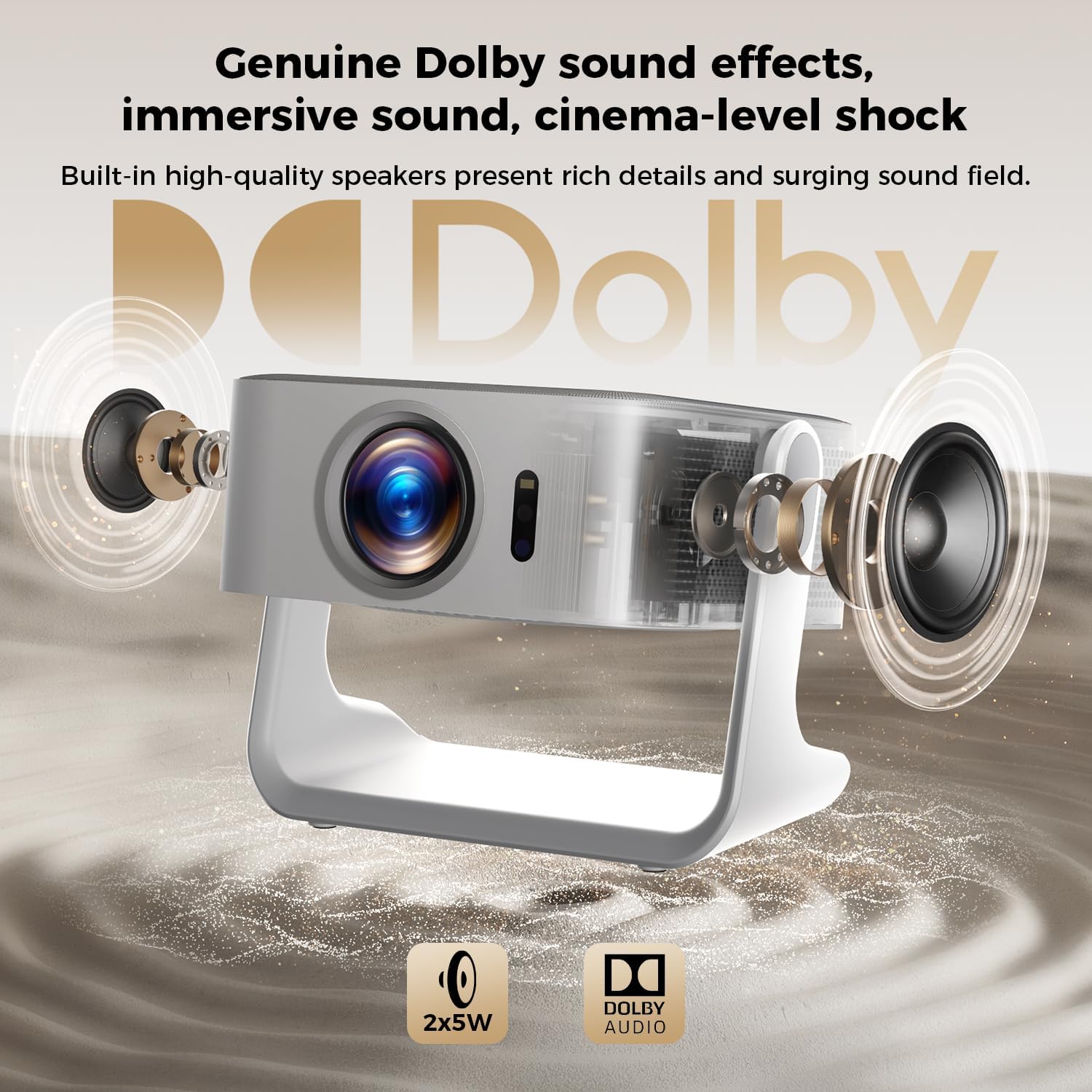
Billede 8.1: En eksploderet view of the ELEPHAS K350 Smart Projector, highlighting its internal 2x5W speakers and Dolby Audio support, indicating immersive sound capabilities.
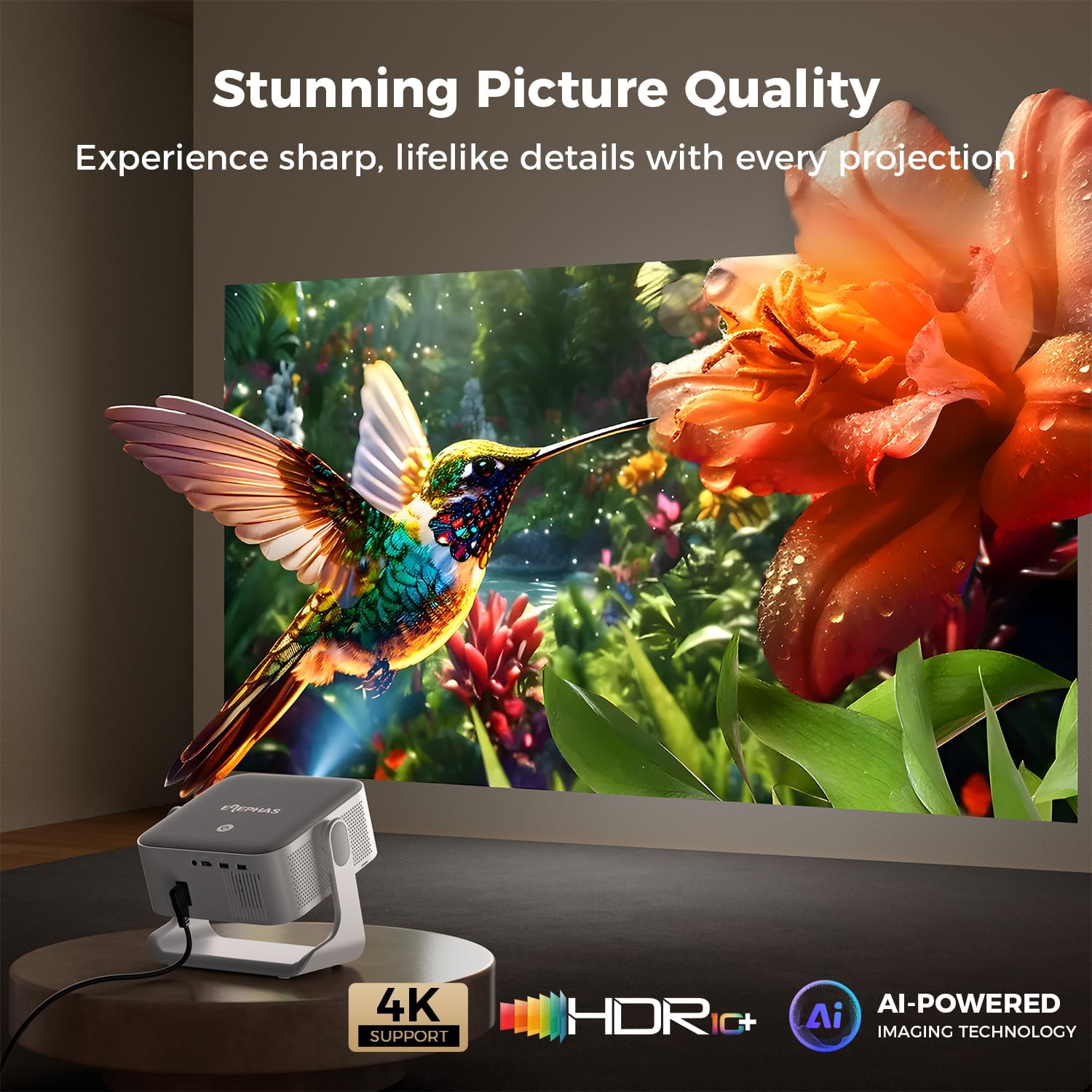
Image 8.2: The ELEPHAS K350 Smart Projector projecting a vibrant, detailed image of a hummingbird and flower, emphasizing its stunning picture quality with 4K support, HDR, and AI-powered imaging technology.
9. Garanti og support
The ELEPHAS K350 Smart Projector is backed by a 2-year service guarantee.
For any product-related issues, technical assistance, or warranty claims, please contact ELEPHAS customer support through the official channels provided at the point of purchase or on the ELEPHAS brand webwebsted.
Gem venligst din købsbevis for at validere garantien.


