1. Introduktion
Welcome to the user manual for your new FASTWD Android 15 Tablet 11-inch. This guide provides essential information for setting up, operating, and maintaining your device. Please read this manual thoroughly to ensure optimal performance and longevity of your tablet.
The FASTWD Android 15 Tablet features an 11-inch 2K QHD display, an Octa-Core T615 processor, 36GB RAM, 256GB ROM, and an 8000mAh battery. It supports 5G WiFi, 4G LTE, and includes AI-enhanced cameras, Gemini AI, and Widevine L1 for high-quality streaming.
2. Pakkens indhold
Upon unboxing, please verify that all items listed below are present in your package:
- FASTWD Android 15 Tablet (11-inch)
- Mus
- Tastatur
- Klik på Pen
- Læderetui
- Oplader
- Datakabel (USB Type-C)
- Brugervejledning til tablet

Figur 2.1: Included accessories with the FASTWD Android 15 Tablet.
3. Enhed overview
The FASTWD Android 15 Tablet features a sleek, lightweight metal body with a slim profile and straight edges. The display bezel measures 7.8mm, contributing to an immersive viewoplevelse.
Fysiske egenskaber
- Vise: 11-inch 2K QHD (2560x1440) In-cell Display with 90Hz refresh rate and Wide Viewing vinkel.
- Legeme: Metal construction, weighing approximately 568g.
- Porte: USB Type-C for charging and data transfer, SIM/MicroSD card slot.
- Kameraer: Rear 13MP + 3MP with autofocus and Low Light LED Flash; Front 8MP with autofocus.
- Lyd: Fire Amplitude Speakers with Artificial Intelligence Noise Cancellation technology.

Figur 3.1: Overview of the tablet's design and key features.

Figur 3.2: Detail of the tablet's connectivity ports and speaker placement.
4. Opsætning
4.1 Indledende opladning
Before first use, fully charge your tablet using the provided USB Type-C cable and charger. Connect the cable to the tablet's USB-C port and the charger to a power outlet. The battery indicator on the screen will show charging progress.
4.2 Tænd/sluk
- For at tænde: Press and hold the Power button until the FASTWD logo appears on the screen.
- For at slukke: Tryk og hold tænd/sluk-knappen nede, og vælg derefter 'Sluk' fra de muligheder, der vises på skærmen.
- For at genstarte: Tryk og hold tænd/sluk-knappen nede, og vælg derefter 'Genstart' fra valgmulighederne.
4.3 Guide til indledende opsætning
Når du tænder tabletten første gang, vil den guide dig gennem en indledende opsætningsproces. Dette inkluderer valg af sprog, oprettelse af forbindelse til et Wi-Fi-netværk, opsætning af din Google-konto og konfiguration af grundlæggende sikkerhedsindstillinger.
4.4 Installation af SIM- og MicroSD-kort
Locate the SIM/MicroSD card tray on the side of the tablet. Use the provided SIM ejector tool to open the tray. Insert your Nano-SIM card (for 4G LTE connectivity) and/or a MicroSD card (for expanded storage) into the designated slots, ensuring correct orientation. Gently push the tray back into the tablet.
4.5 Parring af Bluetooth-enheder
To connect Bluetooth accessories like the included keyboard or mouse:
- Gå til Indstillinger > Tilsluttede enheder > Bluetooth.
- Slå Bluetooth til/fra On.
- Sørg for, at din Bluetooth-enhed er i parringstilstand.
- Vælg 'Par ny enhed', og vælg din enhed på listen.
- Følg eventuelle anvisninger på skærmen for at fuldføre parringen.

Figur 4.1: Bluetooth device connection interface.
4.6 Face Recognition Unlock
For convenient and secure unlocking, you can set up Face Recognition:
- Gå til Indstillinger > Sikkerhed og privatliv > Lås enheden op > Ansigtslås.
- Follow the on-screen instructions to register your face. Ensure you are in a well-lit environment.
Figur 4.2: Face Recognition Unlock setup.
5. Betjeningsvejledning
5.1 Grundlæggende navigation
The tablet uses standard Android touch gestures:
- Tryk på: Vælg et element, eller åbn en app.
- Stryg: Rul gennem sider eller lister.
- Knib for at zoome: Zoom ind eller ud på billeder og web sider.
- Langt tryk: Få adgang til kontekstmenuer eller flyt appikoner.
5.2 Wi-Fi and 4G LTE Connectivity
- Wi-Fi: Gå til Indstillinger > Netværk og internet > Internettet. Select your desired Wi-Fi network and enter the password if required. The tablet supports 2.4G/5G dual-band Wi-Fi.
- 4G LTE: If a SIM card is installed, go to Indstillinger > Netværk og internet > SIM-kort to manage mobile data settings. The tablet supports 4G LTE TDD+FDD and VoLTE.

Figur 5.1: Connectivity features of the tablet.
5.3 App-administration
Sådan administrerer du dine applikationer:
- Installer apps: Brug Google Play Butik til at downloade og installere nye apps.
- Afinstaller apps: Long-press an app icon on the home screen or app drawer, then drag it to 'Uninstall' or select 'App info' and choose 'Uninstall'.
- Free Up Storage Space: Gå til Indstillinger > Apps > Se alle apps. Select an app, then choose 'Storage & cache' to clear cache or data, or 'Force stop' to temporarily halt its operation.
Figur 5.2: App management options.
5.4 Forældrekontrol
Manage and monitor tablet usage for children using parental controls:
- Gå til Indstillinger > Digital velvære og forældrekontrol.
- Set up screen time limits, app restrictions, and content filters.
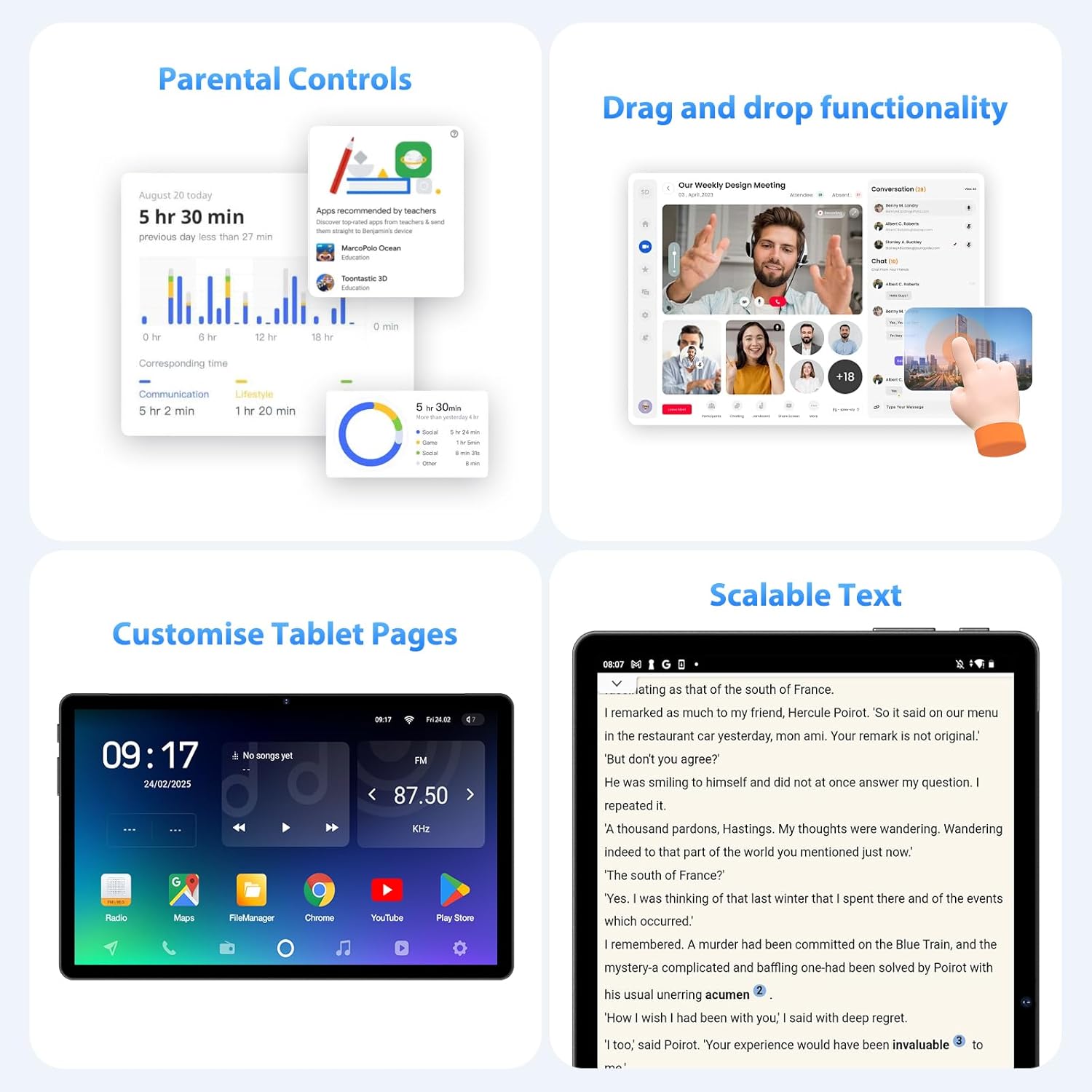
Figur 5.3: Parental control settings.
5.5 Double-tap to Wake
To quickly wake the screen without pressing the power button, simply double-tap the display. This feature can usually be enabled or disabled in Indstillinger > Vise > Lock screen display.
Figur 5.4: Double-tap to wake functionality.
5.6 Customizing Tablet Pages
Personalize your tablet's home screens by long-pressing on an empty area to access wallpaper, widgets, and home screen settings. You can also rearrange app icons and create folders.
Figur 5.5: Example of a customized tablet page.
6. Avancerede funktioner
6.1 Display and Multimedia
- 2K QHD 90Hz Display: Enjoy smooth visuals and vibrant colors on the 11-inch 2560x1440 resolution display. The 90Hz refresh rate enhances scrolling and gaming experiences.
- Widevine L1 DRM: Supports Widevine L1 Digital Rights Management, enabling high-definition (1080P) streaming from services like Netflix.
- DP HD Screen Throwing: Allows for high-definition screen mirroring or extension to compatible external displays.
- Scalable Text: Adjust text size for improved readability via display settings.
Figur 6.1: Scalable text feature for enhanced readability.
6.2 Performance and AI
- Octa-Core T615 Processor: Equipped with a powerful 12nm Octa-Core T615 processor (4x A73 + 4x A53) and Mali-G72 GPU for efficient multitasking and smooth application performance.
- Gemini AI Integration: Leverages Gemini AI for enhanced smart features and optimized user experience.
- AI Smart Detection: The tablet incorporates AI for various smart detection functionalities, improving user interaction and device efficiency.
Figur 6.2: Octa-core processor specifications.
6.3 Kamerafunktioner
The tablet is equipped with AI-enhanced cameras:
- Bagkameraer: 13MP + 3MP with HD Video Call support, autofocus, and Low Light LED Flash.
- Forreste kamera: 8MP with autofocus.
- Capture Unlock Face: Utilize the front camera for face recognition to unlock the device.
6.4 Lydsystem
Experience clear audio with the tablet's advanced sound system:
- Fire Amplitude Speakers: Delivers rich and immersive sound.
- AI-støjreduktion: Artificial Intelligence Noise Cancellation technology automatically filters out ambient noise for clearer audio output.
7. Vedligeholdelse og pleje
7.1 Rengøring af tabletten
Use a soft, lint-free cloth to gently wipe the screen and body of the tablet. For stubborn smudges, slightly dampRengør kluden med vand eller en skærmrengøringsopløsning. Undgå at bruge skrappe kemikalier eller slibende materialer.
7.2 Pleje af batterier
The tablet is equipped with an 8000mAh battery, providing approximately 8 hours of usage. To prolong battery life:
- Undgå ekstreme temperaturer.
- Lad ikke batteriet aflades helt for ofte.
- Brug den medfølgende oplader for optimal opladning.
- Reduce screen brightness and disable unnecessary features (Wi-Fi, Bluetooth, GPS) when not in use.
7.3 Softwareopdateringer
Tjek regelmæssigt efter og installer softwareopdateringer for at sikre, at din tablet har de nyeste funktioner, sikkerhedsrettelser og forbedringer af ydeevnen. Gå til Indstillinger > System > Systemopdatering for at tjekke for tilgængelige opdateringer.
7.4 Lagerstyring
The tablet comes with 256GB of internal storage, expandable up to 1TB via MicroSD card. To manage storage:
- Slet regelmæssigt unødvendige files og apps.
- Flyt stort files (photos, videos) to the MicroSD card or cloud storage.
- Clear app cache periodically via Indstillinger > Opbevaring.
8. Fejlfinding
Dette afsnit omhandler almindelige problemer, du kan støde på med din tablet.
8.1 Tablet tænder ikke
- Sørg for, at batteriet er opladet. Tilslut tabletten til opladeren i mindst 30 minutter.
- Tryk og hold tænd/sluk-knappen nede i 10-15 sekunder for at udføre en tvungen genstart.
8.2 Problemer med Wi-Fi-forbindelse
- Genstart din Wi-Fi-router og tabletten.
- Sørg for, at du er inden for Wi-Fi-signalets rækkevidde.
- Bekræft, at Wi-Fi-adgangskoden er korrekt.
- Glem netværket i Wi-Fi-indstillingerne, og genopret forbindelsen.
8.3 Langsom ydeevne
- Luk ubrugte programmer, der kører i baggrunden.
- Clear app caches and free up storage space.
- Genstart tabletten med jævne mellemrum.
- Consider performing a factory reset if performance issues persist (Note: This will erase all data on the tablet. Back up important data first).
8.4 Skærmen reagerer ikke
- Udfør en tvungen genstart ved at holde tænd/sluk-knappen nede.
- Sørg for, at skærmen er ren og fri for fugt eller snavs.
9. Specifikationer
| Feature | Specifikation |
|---|---|
| Mærke | FASTWD |
| Modelnavn | FASTWD Android 15 Tablet 11-inch |
| Operativsystem | Android 15 |
| Processor | Octa-Core T615 (4x A73, 4x A53, 12nm) |
| GPU | Mali-G72 |
| VÆDDER | 36 GB (12 GB + 24 GB virtuel) |
| Intern opbevaring | 256 GB |
| Udvidelig opbevaring | Op til 1 TB MicroSD |
| Skærmstørrelse | 11 tommer |
| Skærmopløsning | 2560x1440 (2K QHD) |
| Opdateringshastighed | 90 Hz |
| Batterikapacitet | 8000 mAh |
| Batterilevetid | Cirka 8 timer |
| Bagkamera | 13MP + 3MP with Autofocus and LED Flash |
| Forreste kamera | 8MP med autofokus |
| Wi-Fi | 802.11ac (2.4G/5G Dual-band) |
| Mobilforbindelse | 4G LTE (TDD+FDD), VoLTE |
| Bluetooth | Ja |
| Havne | USB Type-C |
| Dimensioner (produkt) | 26L x 16B x 0.8H cm |
| Vægt | Cirka 568g |
| DRM support | Widevine L1 |
| Andre funktioner | Gemini AI, GPS, TÜV Certified (implied from product title) |
10. Garanti og support
For detailed warranty information, please refer to the warranty card included in your product packaging or contact your point of purchase. Warranty terms and conditions may vary by region and retailer.
If you encounter issues not covered in this manual or require further assistance, please contact FASTWD customer support through the contact information provided with your product or on the official FASTWD webwebsted.


