1. Introduktion
This manual provides essential information for the proper use and maintenance of your TECLAST T65 Android 15 Tablet. Please read it thoroughly before using the device to ensure optimal performance and longevity.

2. Hvad er der i æsken
Bekræft at alle varer er til stede i pakken:
- Android 15 T65 tablet x 1
- Oplader x 1
- Ladekabel x 1
- Brugsanvisning x 1
- Udkastningsstift x 1
3. Produktfunktioner
3.1 Display og visuelle elementer
- 13.4-tommer IPS-skærm: Ekspansiv viewing area with narrow bezels for an immersive experience.
- 1920x1200 HD Resolution: Delivers clear and detailed visuals.
- TDDI Technology: Reduces touch layers for brighter images and faster response.
- 120Hz høj opdateringshastighed: Ensures smooth animations and agile touch response.
- Widevine L1-understøttelse: Enables streaming of 1080P content from platforms like Netflix and YouTube.
- Øjenbeskyttelsestilstande: Includes Reading Mode, Eye Protection Mode, and Dark Mode for comfortable viewing.

3.2 Ydeevne og lagring
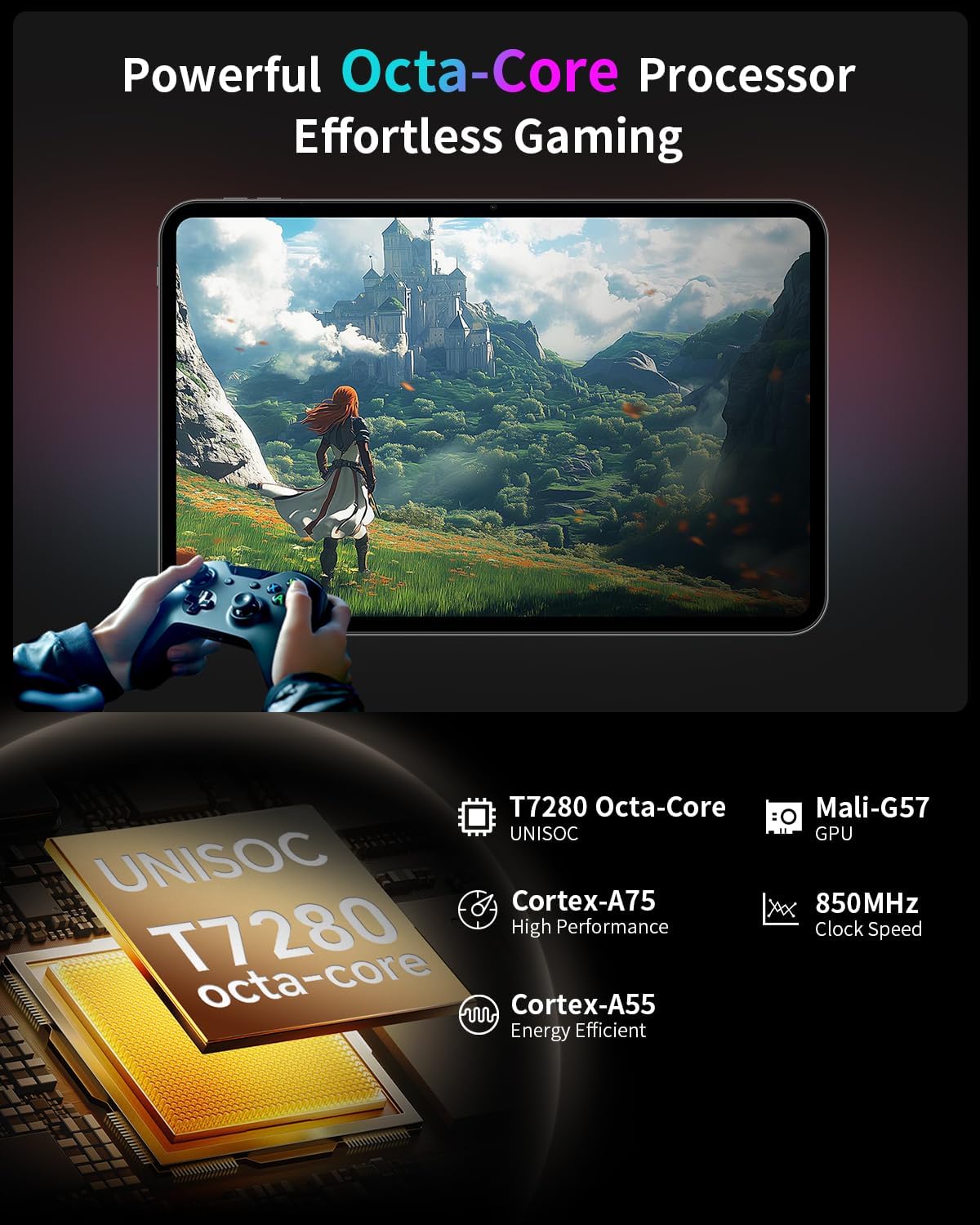
- Octa-Core-processor: Features a Unisoc T7280 CPU with A75 and A55 cores, clocking up to 2.2GHz for efficient performance.
- Mali-G57 GPU: Integrated graphics coprocessor for enhanced visual processing.
- 20GB (8GB+12GB Expansion) RAM: Giver ample memory for multitasking.
- 128 GB intern lagerplads: Sufficient space for applications and media.
- Udvidelig lagerplads: Supports up to 1TB via TF (microSD) card (sold separately).
3.3 Operating System and User Experience
- Android 15 (GMS Certified): Offers a smooth, fast, and secure operating experience with enhanced privacy features.
- AI Intelligent Optimization: Improves system efficiency.
- Produktivitetsfunktioner: Includes split-screen function, Quick Sidebar for fast app launch, and Assistive Control for quick system navigation.
- Forældrekontrol: Built-in Google Family Link for managing screen time, app usage, and device location for children.

3.4 Connectivity and Battery
- 8000mAh batteri: Provides extended usage, up to 8 hours of video playback.
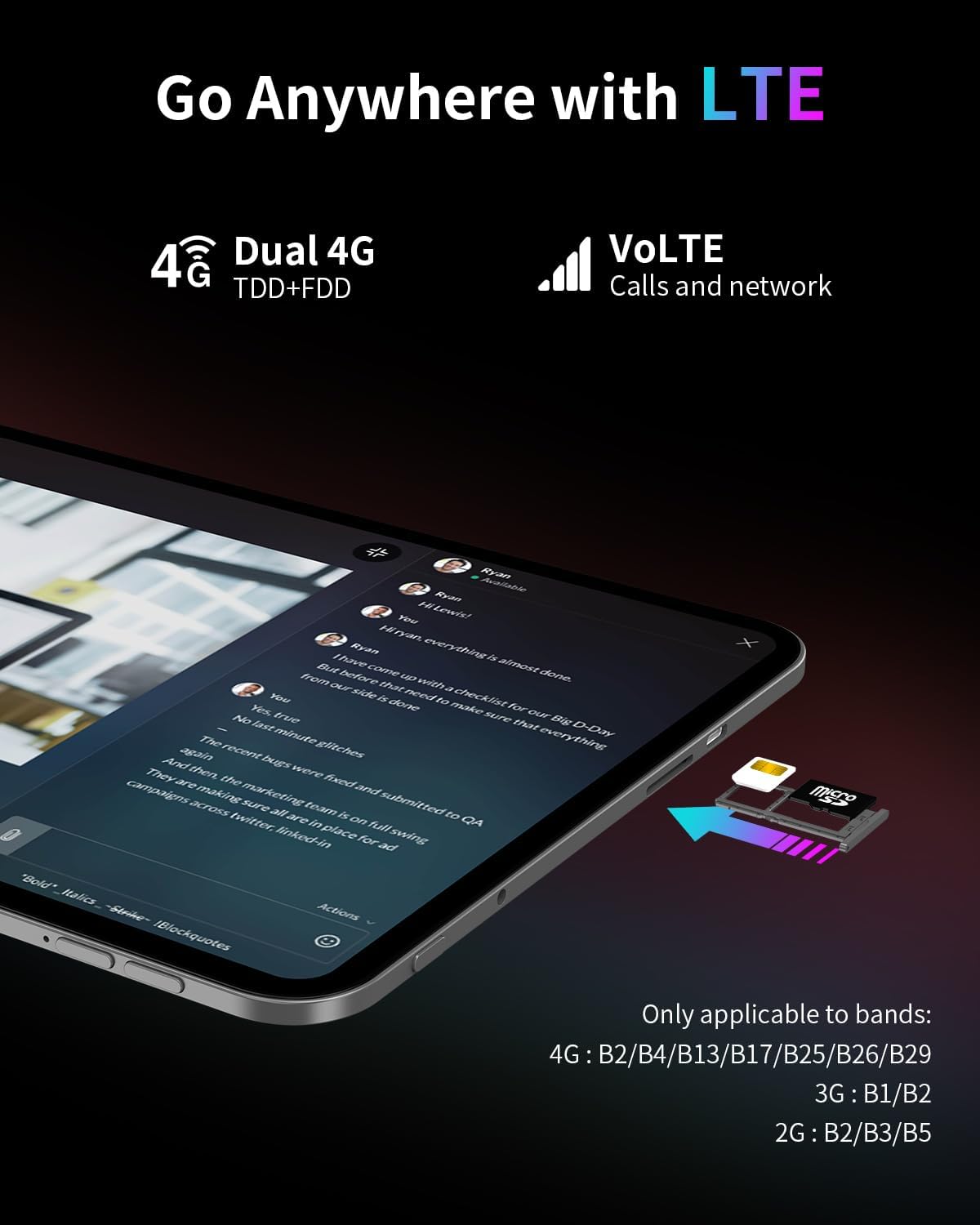
- 4G LTE-forbindelse: Supports mobile data for on-the-go internet access (bands: 4G: B2/B4/B13/B17/B25/B26/B29; 3G: B1/B2; 2G: B2/B3/B5).
- Dual-Band Wi-Fi (2.4GHz+5GHz): Supports 802.11a/b/g/n/ac for stable wireless internet.
- Bluetooth 5.0: Til tilslutning af trådløst tilbehør.
- GPS: Supports BeiDou, GPS, GLONASS, and GALILEO for accurate navigation.
- OTG-funktionalitet: Allows connection of USB peripherals.
- USB Type-C: Til opladning og dataoverførsel.
3.5 Lyd
- SWEET 4 Sound System: Enhanced audio output.
- Smart K Intelligent AmpLifier Chip: Improves sound clarity.
- 3.5 mm hovedtelefonstik: For wired audio connections.
4. Opsætning
4.1 Indledende tænding
- Press and hold the power button located on the side of the tablet until the TECLAST logo appears.
- Følg vejledningen på skærmen for at vælge dit sprog, oprette forbindelse til et Wi-Fi-netværk og konfigurere din Google-konto.
4.2 Indsættelse af SIM-/TF-kort
- Locate the SIM/TF card slot on the side of the tablet.
- Use the provided ejection pin to gently press into the small hole next to the tray until it pops out.
- Place your Nano-SIM card(s) and/or TF card into the tray, ensuring correct orientation as indicated on the tray.
- Sæt forsigtigt bakken tilbage i åbningen.
4.3 Opladning af tabletten
- Connect the charging cable to the USB Type-C port on the tablet.
- Plug the other end of the cable into the provided charger, and then into a power outlet.
- Batteriikonet på skærmen viser opladningsstatus.
5. Betjeningsvejledning
5.1 Grundlæggende navigation
- Berøringsbevægelser: Tryk for at vælge, swipe for at rulle, knib for at zoome.
- Startskærm: Få adgang til apps, widgets og notifikationer.
- Quick Sidebar: Swipe inward from the edge of the screen to access frequently used apps and system controls.
- Assistive Control: A virtual button providing quick access to system functions.
5.2 Skærmindstillinger
- Justering af lysstyrke: Drag the brightness slider in the quick settings panel or navigate to Settings > Display.
- Opdateringshastighed: The tablet automatically adjusts to 120Hz for smoother visuals. This can be managed in Display settings.
- Øjenbeskyttelsestilstande: Activate Reading Mode, Eye Protection Mode, or Dark Mode from quick settings or Display settings to reduce eye strain.
5.3 Forbindelse
- Wi-Fi: Gå til Indstillinger > Netværk og internet > Wi-Fi for at oprette forbindelse til tilgængelige netværk.
- Mobildata: Ensure a SIM card is inserted and mobile data is enabled in Settings > Network & internet > Mobile network.
- Bluetooth: Pair with Bluetooth devices via Settings > Connected devices > Bluetooth.
- GPS: Placeringstjenester kan administreres i Indstillinger > Placering.
5.4 Forældrekontrol
To set up parental controls, navigate to Settings > Digital Wellbeing & parental controls. You can use Google Family Link to manage screen time, monitor app usage, and set content restrictions for children's profiles.
6. Vedligeholdelse
6.1 Rengøring
- Brug en blød, fnugfri klud til at rengøre skærmen og tablettens kabinet.
- Undgå at bruge skrappe kemikalier, slibende rengøringsmidler eller aerosolspray.
- Til genstridige pletter, let dampRengør kluden med vand eller en skærmrengøringsopløsning.
6.2 Pleje af batterier
- Undgå at udsætte tabletten for ekstreme temperaturer.
- Lad ikke tabletten være fuldt opladet eller helt afladet i længere perioder.
- Brug kun den originale oplader og det kabel, der fulgte med enheden.
6.3 Softwareopdateringer
Søg regelmæssigt efter og installer softwareopdateringer for at sikre optimal ydeevne, sikkerhed og adgang til nye funktioner. Gå til Indstillinger > System > Systemopdatering.
7. Fejlfinding
7.1 Almindelige problemer og løsninger
- Tabletten tænder ikke:
- Ensure the battery is charged. Connect the charger and wait a few minutes before attempting to power on again.
- Press and hold the power button for at least 10-15 seconds to perform a forced restart. - Skærmen reagerer ikke:
- Restart the tablet.
- Ensure the screen is clean and free of moisture or debris. - Problemer med Wi-Fi-forbindelse:
- Restart the tablet and your Wi-Fi router.
- Forget the network in Wi-Fi settings and reconnect.
- Ensure you are within range of the Wi-Fi signal. - Apps går ned eller fryser:
- Close and reopen the app.
- Clear the app's cache and data in Settings > Apps.
- Ensure the app is updated to the latest version.
- Restart the tablet. - Batteriet aflades hurtigt:
- Reduce screen brightness.
- Close unused apps running in the background.
- Disable Wi-Fi, Bluetooth, or GPS when not in use.
- Check for apps consuming excessive battery in Settings > Battery.
7.2 Fabriksindstilling
Advarsel: En fabriksnulstilling vil slette alle data på din tablet. Sikkerhedskopier vigtige data, før du fortsætter.
To perform a factory reset, go to Settings > System > Reset options > Erase all data (factory reset).
8. Specifikationer
| Feature | Specifikation |
|---|---|
| Modelnavn | T65 |
| Mærke | TECLAST |
| Operativsystem | Android 15 |
| Skærmstørrelse | 13.4 tommer |
| Skærmopløsning | 1920 x 1200 pixel |
| Opdateringshastighed | 120 Hz |
| Processor | Unisoc T7280 Octa-Core (2.2 GHz) |
| Grafik coprocessor | Mali-G57 |
| VÆDDER | 20GB (8GB LPDDR4 + 12GB Expansion) |
| Flash-hukommelsesstørrelse | 128 GB |
| Udvidelig opbevaring | Up to 1TB TF Card (sold separately) |
| Trådløs type | 802.11a/b/g/n/ac (Dual-Band Wi-Fi) |
| Bluetooth | Bluetooth 5.0 |
| Mobilforbindelse | 4G LTE (B2/B4/B13/B17/B25/B26/B29), 3G (B1/B2), 2G (B2/B3/B5) |
| GPS | 4-Mode Satellite Positioning (BeiDou, GPS, GLONASS, GALILEO) |
| Batterikapacitet | 8000mAh |
| Gennemsnitlig batterilevetid | 8 timer (videoafspilning) |
| Bag Webcam opløsning | 13 MP |
| Varens vægt | 1.59 pund (ca. 720 g) |
| Produktdimensioner | 12 x 7.9 x 0.33 tommer (ca. 30.5 x 20.1 x 0.84 cm) |
| Farve | Grå |
9. Garanti og support
9.1 Garantioplysninger
Please refer to the warranty card included in your product packaging for detailed warranty terms and conditions. Keep your proof of purchase for warranty claims.
9.2 Kundesupport
For any questions, technical assistance, or issues with your TECLAST T65 tablet, please contact TECLAST customer support. Most inquiries are answered within 24 hours.
You can typically find contact information on the official TECLAST website or through the seller's platform where you purchased the product.


