Indledning
Welcome to the DIERYA M1 Wireless Gaming Mouse user manual. This guide provides detailed instructions for setting up, operating, and maintaining your new mouse. Please read this manual thoroughly to ensure proper use and to maximize your gaming and productivity experience.
Pakkens indhold
Bekræft at alle varer er til stede i din pakke:
- M1 trådløs mus
- Nylon USB-A to C Cable
- Brugermanual
Produkt overview
The DIERYA M1 mouse features a lightweight, ergonomic design with multiple programmable buttons and versatile connectivity options.

Billedbeskrivelse: En overhead view of the black DIERYA M1 wireless gaming mouse, showcasing its honeycomb shell design and RGB lighting. A small USB receiver is positioned to the right of the mouse.
Mus komponenter

Billedbeskrivelse: An overhead and underside view of the DIERYA M1 mouse with various components labeled. These include the Left Button, Right Button, Mouse Wheel (Middle Button), DPI Adjustment Button (6 Adjustable DPI Levels), Forward Button, Back Button, Type-C Interface, Power & Light Switch, and 2.4G Receiver Storage Compartment. The mouse features a honeycomb shell design.
- Venstre knap: Standard venstreklikfunktion.
- Højre knap: Standard højreklikfunktion.
- Mouse Wheel (Middle Button): Scroll and middle-click function.
- DPI-justeringsknap: Skifter gennem forudindstillede DPI-niveauer.
- Frem-knap: Navigerer fremad i web browsere eller applikationer.
- Tilbage knap: Navigerer baglæns i web browsere eller applikationer.
- Type-C interface: Til kabelforbindelse og opladning.
- Power & Light Switch: Controls power and RGB lighting.
- 2.4G Receiver Storage Compartment: Located on the underside for storing the USB dongle.
Opsætning
The DIERYA M1 mouse offers three connectivity modes: 2.4GHz Wireless, Bluetooth 5.2, and USB-C Wired.

Billedbeskrivelse: An illustration demonstrating the three connectivity modes of the M1 mouse: Bluetooth 5.2 pairing with a smartphone, 2.4GHz Wireless with a USB dongle connected to a laptop, and USB-C Wired connection to a laptop. Polling rates for each mode are indicated.
1. 2.4 GHz trådløs forbindelse
- Locate the 2.4G USB receiver in the storage compartment on the underside of the mouse.
- Sæt USB-modtageren i en ledig USB-A-port på din computer.
- Turn on the mouse using the Power & Light Switch.
- The mouse will automatically connect to the receiver. The polling rate in this mode is 1000Hz.
2. Bluetooth 5.2-forbindelse
- Turn on the mouse using the Power & Light Switch.
- Press and hold the dedicated connectivity mode button (refer to the product's specific button combination if not a dedicated button) to switch to Bluetooth mode. The LED indicator will show the active connection.
- On your device (PC, Mac, Laptop, iPad), go to Bluetooth settings and search for "DIERYA M1".
- Select the mouse to pair. The polling rate in Bluetooth mode is 125Hz.
- The mouse supports dual-device pairing in Bluetooth mode. Refer to the software for managing multiple Bluetooth connections.
3. USB-C kablet forbindelse
- Connect the provided USB-A to C cable to the Type-C interface on the front of the mouse.
- Sæt USB-A-enden af kablet i en ledig USB-port på din computer.
- The mouse will function immediately as a wired mouse. This mode also charges the mouse. The polling rate in wired mode is 1000Hz.
Betjeningsvejledning
DPI justering
The mouse features a dedicated DPI adjustment button to cycle through six preset DPI levels: 400, 800, 1600, 3200, 4800, and 6400. The scroll wheel LED and RGB lighting strip provide instant color-coded feedback for the current DPI setting.
Billedbeskrivelse: An image illustrating the DPI range from 200 to 24,000 and the corresponding scroll wheel LED colors for preset DPI levels (400, 800, 1600, 3200, 4800, 6400). The image also shows a software interface for advanced DPI customization.
RGB belysning
The DIERYA M1 mouse features 16.8 million color RGB lighting with 13 vibrant effects, including Breath, Static, Flow, and Starlight. These can be customized via the dedicated driver software.
Programmerbare knapper
All six buttons on the DIERYA M1 mouse are fully programmable. Use the dedicated driver software to assign macros, remap functions, and customize button actions.
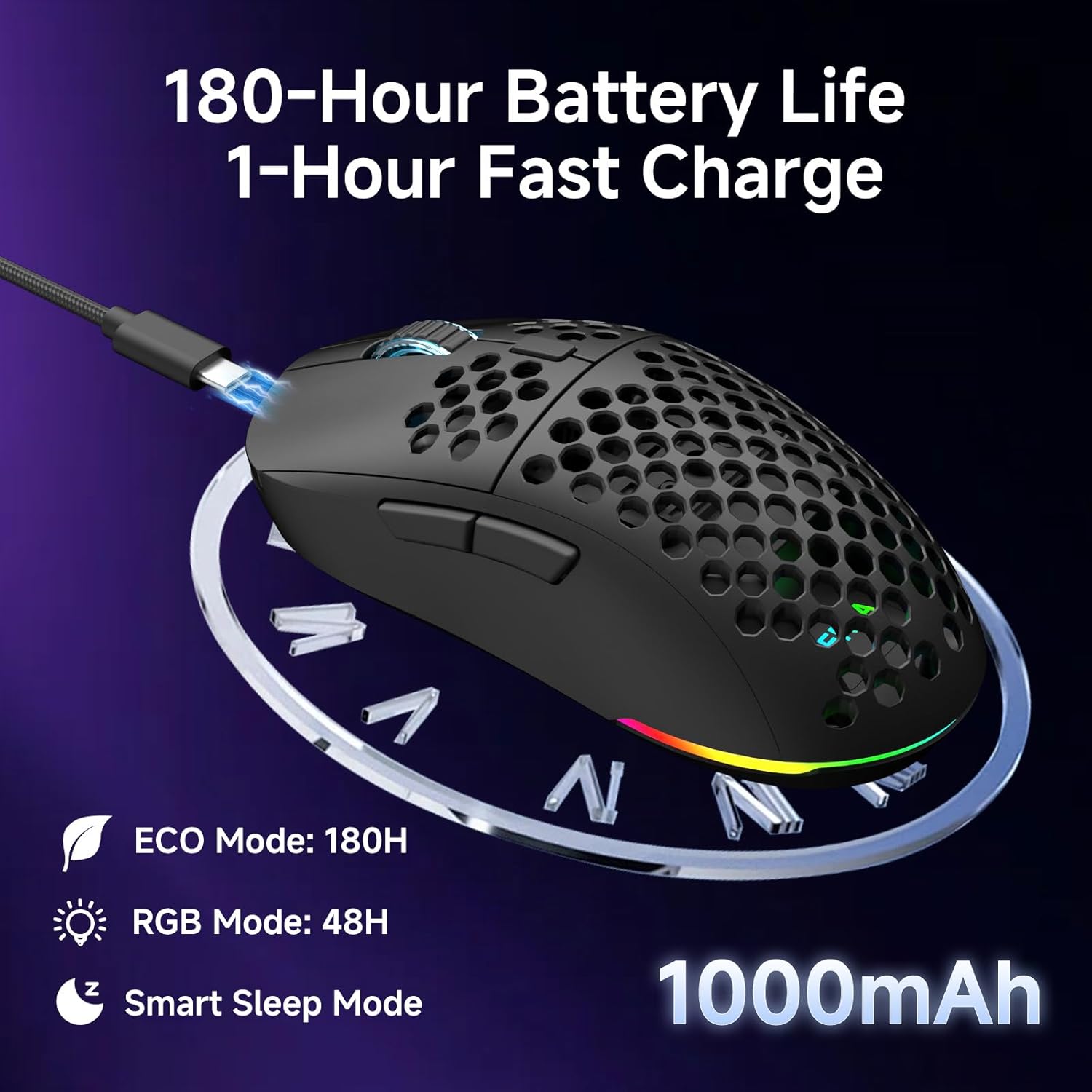
Batteristyring
The mouse is equipped with a 1000mAh rechargeable battery.
- Batterilevetid: Up to 180 hours in ECO mode, or 48 hours with full RGB lighting.
- Opladning: Fast USB-C charging allows a full charge in approximately 1 hour.
- Smart Sleep Modes: The mouse enters intelligent sleep modes after 1 and 5 minutes of inactivity to conserve power. These timers can be customized via software.

Billedbeskrivelse: An image showing the DIERYA M1 mouse connected via USB-C for charging, highlighting its 1000mAh battery, 180-hour ECO mode battery life, 48-hour RGB mode battery life, and smart sleep mode feature.
Software og driver installation
Tilpasningssoftware
To unlock the full potential of your DIERYA M1 mouse, including DPI customization (up to 24,000 DPI), report rate adjustment (125-1000Hz), button remapping, macro creation, RGB lighting effects, and sleep timer settings, download and install the dedicated driver software.
The software allows you to define every detail and save up to 4 device profiles.
Visit the official DIERYA website for the latest software download: www.dierya.com/support (Eksamp(linket, det faktiske link kan variere).

Billedbeskrivelse: A screenshot of the DIERYA M1 mouse driver software interface, showing options for key assignment, DIY macros, customizable RGB lighting, DPI adjustment, report rate adjustment, and profile indlæsning.
Opretholdelse
Rengøring og pleje
- Regularly clean the mouse with a soft, dry cloth.
- Til genstridigt snavs, let dampRengør kluden med vand eller en mild rengøringsopløsning. Undgå skrappe kemikalier.
- Do not immerse the mouse in water or any liquids.
- Keep the PTFE feet clean to ensure smooth gliding.
Opbevaring
- When not in use, store the 2.4G USB receiver in its dedicated compartment on the underside of the mouse.
- Opbevar musen et køligt, tørt sted væk fra direkte sollys og ekstreme temperaturer.
Fejlfinding
Fælles problemer og løsninger
- Musen svarer ikke:
- Sørg for, at musen er tændt.
- Kontroller batteriniveauet og oplad om nødvendigt.
- For 2.4GHz wireless, ensure the USB receiver is securely plugged in.
- For Bluetooth, ensure the mouse is paired and selected in your device's Bluetooth settings.
- Try connecting via USB-C wired mode to confirm functionality.
- Genstart din computer.
- Forsinkelse eller uregelmæssig bevægelse:
- Ensure the mouse is within range of the receiver (for 2.4GHz) or your device (for Bluetooth).
- Tjek for interferens fra andre trådløse enheder.
- Rengør den optiske sensor på undersiden af musen.
- Sørg for, at musen bruges på en passende overflade (ikke meget reflekterende eller gennemsigtig).
- Update mouse drivers via the software.
- DPI ændrer sig ikke:
- Press the DPI adjustment button firmly.
- Ensure the mouse software is installed and running correctly if custom DPI settings are configured.
- RGB-belysning virker ikke:
- Check the Power & Light Switch position.
- Sørg for, at batteriet har tilstrækkelig opladning.
- Adjust lighting settings through the driver software.
Specifikationer
Tekniske detaljer
| Feature | Detalje |
|---|---|
| Model | M1 |
| Forbindelse | 2.4 GHz trådløs, Bluetooth 5.2, USB-C kablet |
| DPI rækkevidde | 200 - 24,000 dpi |
| Afstemningsfrekvens | 125-1000Hz |
| Sporingshastighed | 300 IPS |
| Acceleration | 35G |
| Batterikapacitet | 1000mAh |
| Batterilevetid | Up to 180 hours (ECO mode), 48 hours (RGB on) |
| Opladningstid | Ca. 1 time |
| Vægt | 90 gram |
| Dimensioner | 125 x 63 x 41 mm |
| Afbrydere | Huano Micro Switches (20 million clicks) |
| Fødder | PTFE |
| RGB belysning | 16.8 Million Colors, 13 Effects |
| Programmerbare knapper | 6 |
| Kompatibilitet | PC, Mac, Laptop, iPad, Chromebook |
Garanti og support
Produktgaranti
DIERYA products typically come with a limited warranty. Please refer to the warranty card included in your package or visit the official DIERYA webwebstedet for detaljerede garantivilkår og -betingelser. Gem din købsbevis til garantikrav.
Kundesupport
If you encounter any issues or have questions regarding your DIERYA M1 Wireless Gaming Mouse, please contact DIERYA customer support.
- Webwebsted: www.dierya.com/support (Eksamplinket, det faktiske link kan variere)
- E-mail: Se produktemballagen eller webwebsted for support e-mailadresse.
When contacting support, please provide your product model (M1) and a detailed description of the issue.


