1. Introduktion
This user manual provides comprehensive instructions for the Crelander 10.1 Inch Android 15 Tablet, Model W30 PRO. It covers initial setup, operational guidelines, maintenance tips, and troubleshooting solutions to ensure optimal performance and longevity of your device. Please read this manual thoroughly before using your tablet.
2. Pakkens indhold
Når du pakker ud, skal du kontrollere, at alle følgende varer er inkluderet i pakken:
- Crelander 10.1 Inch Android 15 Tablet (W30 PRO)
- Beskyttende etui
- Bluetooth tastatur
- Trådløs mus
- Stylus pen
- Strømadapter
- USB opladningskabel
- USB-C to USB-A Adapter (OTG Cable)
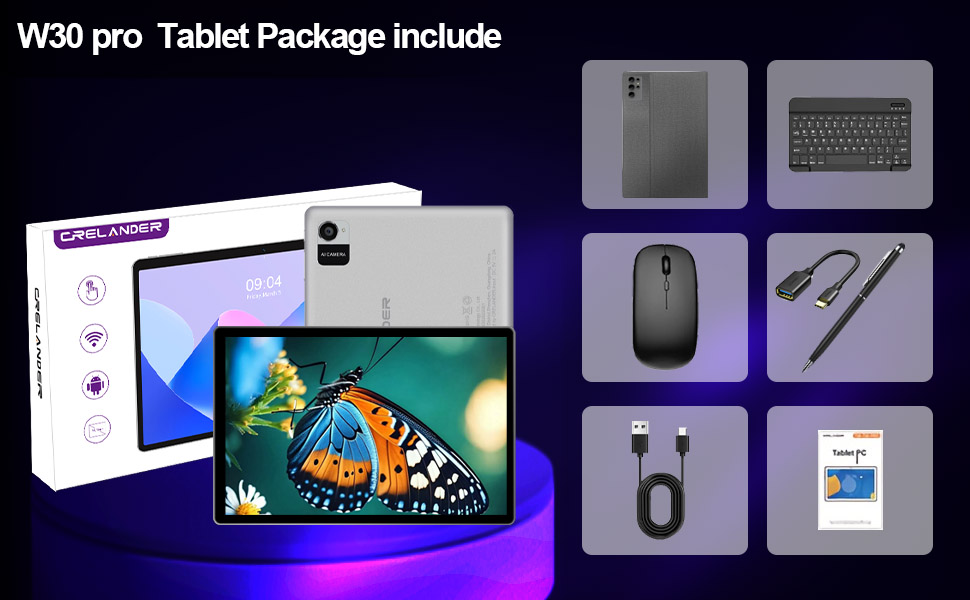
Figure 2.1: All items included in the Crelander W30 PRO Tablet package.
3. Produktet er slutview
3.1 Crelander W30 PRO Tablet
The Crelander W30 PRO is a 10.1-inch Android 15 tablet designed for versatile use, from entertainment to productivity. It features a high-definition IPS touchscreen and a powerful octa-core processor.

Figure 3.1: Crelander W30 PRO Tablet and accessories.
- Vise: 10.1-inch 1280x800 IPS HD touchscreen for vibrant colors and sharp visuals.
- Operativsystem: Latest Android 15 for a smooth user experience.
- Præstation: Octa-core T310 processor with 12GB RAM (4GB physical + 8GB expandable virtual RAM) and 128GB internal storage.
- Forbindelse: Supports Bluetooth and 2.4G+5G WiFi.
- Batteri: 5000mAh batteri til længere tids brug.
- Kameraer: 13MP Rear Camera and 5MP Front Camera.
- Multimedier: Widevine L1-understøttelse af HD-streaming.
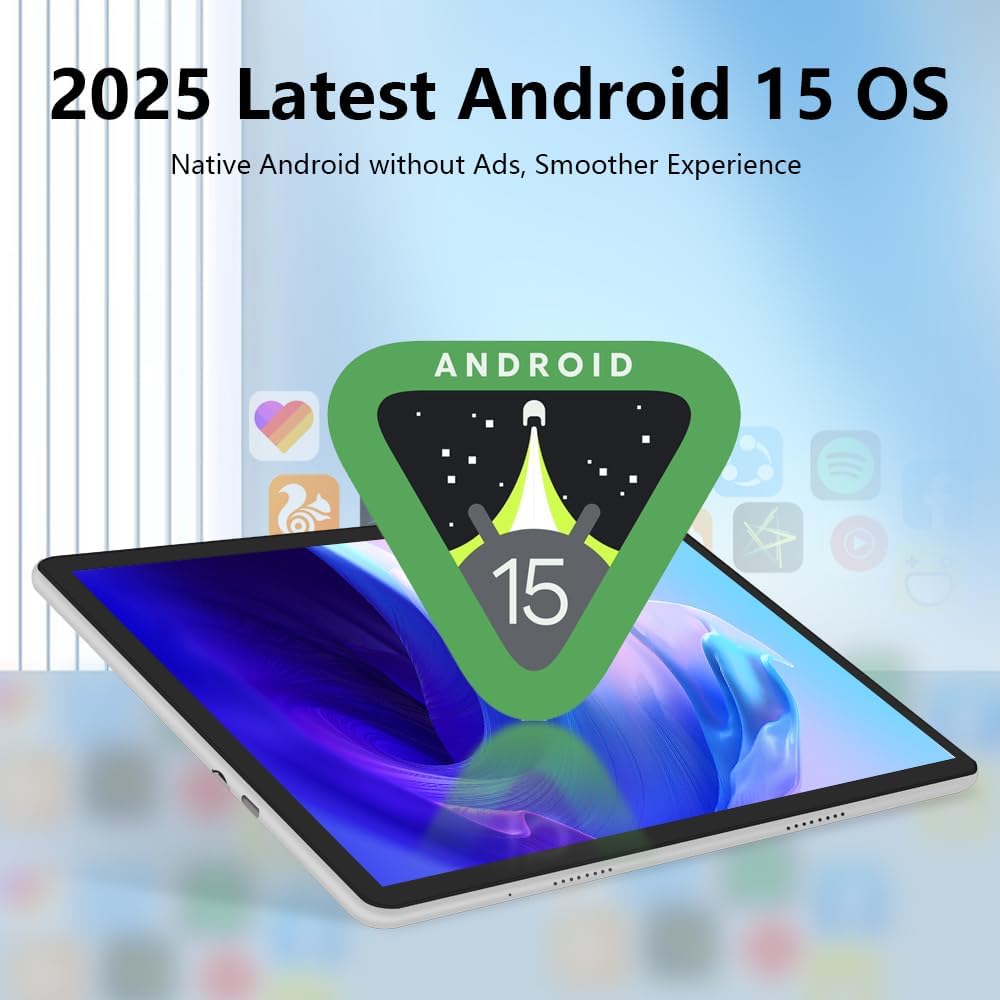
Figure 3.2: The tablet runs on the latest Android 15 operating system.

Figure 3.3: The 10.1-inch IPS HD touchscreen provides clear visuals.
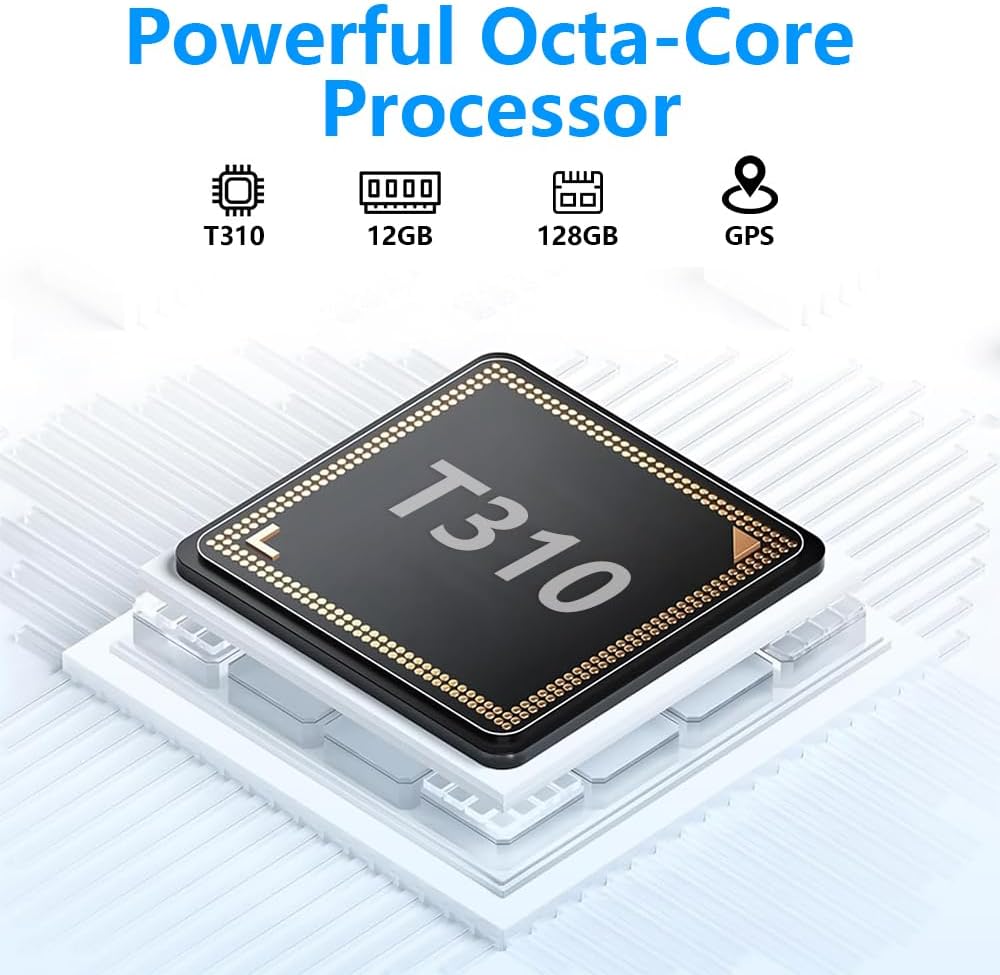
Figure 3.4: The tablet is powered by a powerful Octa-Core T310 Processor.

Figure 3.5: The tablet offers 128GB of internal storage and up to 12GB of expandable memory.

Figure 3.6: The tablet is equipped with a 13MP rear camera and a 5MP front camera.
3.2 Beskyttelsesetui
The included protective case safeguards your tablet from scratches and minor impacts. It also functions as a stand, allowing for comfortable viewing vinkler.
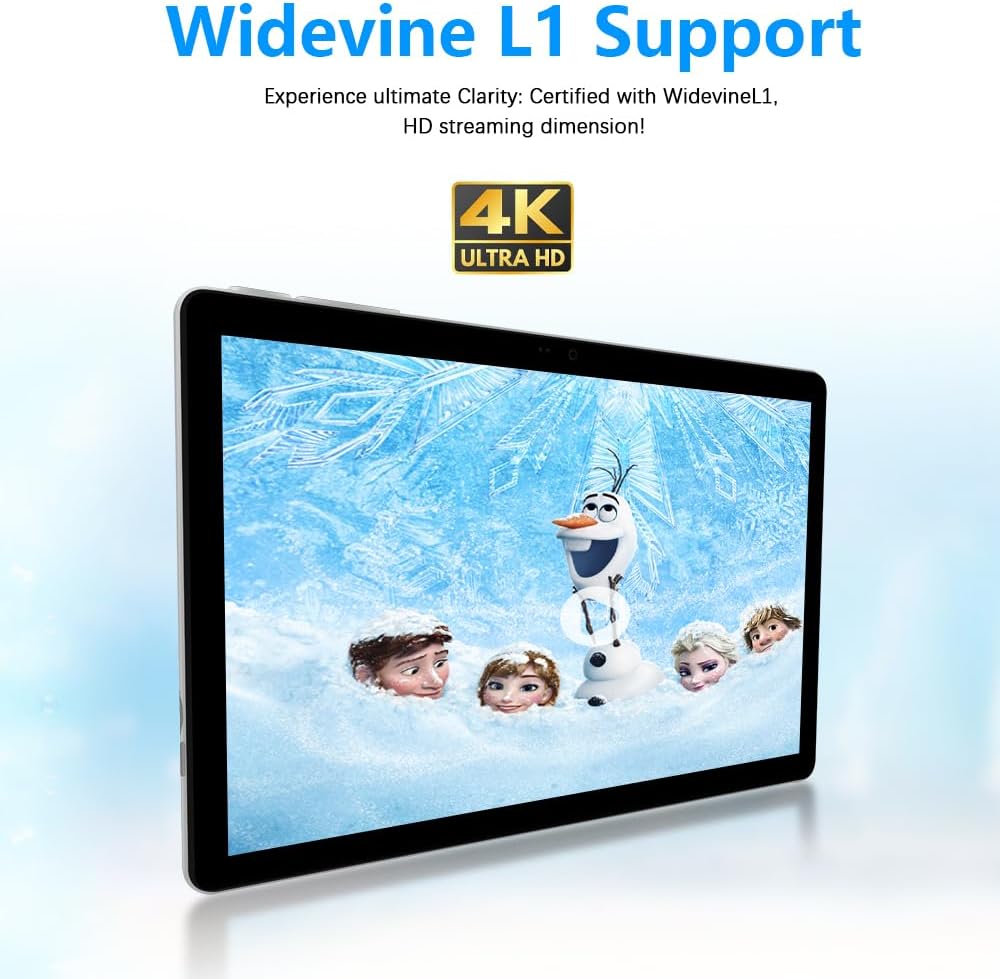
Figure 3.7: The tablet supports Widevine L1 for high-definition streaming.
3.3 Bluetooth Keyboard and Mouse
The wireless Bluetooth keyboard and mouse provide a desktop-like experience, enhancing productivity for typing and navigation.
3.4 Stylus Pen
The stylus pen offers precise input for drawing, note-taking, and navigating the touchscreen.
4. Opsætning
4.1 Indledende opladning
Before first use, fully charge your tablet using the provided power adapter and USB charging cable. A full charge typically takes several hours.
- Tilslut USB-opladerkablet til tablettens opladningsport.
- Sæt strømadapteren i en stikkontakt.
- The charging indicator on the tablet will illuminate.
4.2 Tænd/sluk
- For at tænde: Press and hold the Power button on the side of the tablet until the screen lights up.
- For at slukke: Tryk og hold tænd/sluk-knappen nede, og vælg derefter "Sluk" fra de muligheder, der vises på skærmen.
- For at genstarte: Tryk og hold tænd/sluk-knappen nede, og vælg derefter "Genstart" fra valgmulighederne.
4.3 Tilslutning af tilbehør
The tablet comes with a protective case, Bluetooth keyboard, and wireless mouse. Follow these steps to set them up:
- Attaching the Protective Case: Carefully insert the tablet into the protective case, ensuring all ports and buttons are accessible. The case can be folded to act as a stand.
- Parring af Bluetooth-tastaturet:
- Tænd for tastaturet.
- Gå til din tablet på Indstillinger > Tilsluttede enheder > Bluetooth.
- Aktiver Bluetooth og søg efter tilgængelige enheder.
- Select the keyboard from the list (it may appear as "Bluetooth Keyboard" or a similar name) and follow the on-screen pairing instructions.
- Pairing the Wireless Mouse:
- Ensure the mouse has batteries and is turned on.
- Gå til din tablet på Indstillinger > Tilsluttede enheder > Bluetooth.
- Aktiver Bluetooth og søg efter tilgængelige enheder.
- Select the mouse from the list and follow the on-screen pairing instructions.
- Using the Stylus Pen: The stylus pen does not require pairing. Simply use it directly on the tablet screen for navigation or drawing.
Video 4.1: En overview of the Crelander W30 PRO Tablet and its accessories, demonstrating the unboxing and initial setup of the tablet with its case, keyboard, and mouse.
5. Betjeningsvejledning
5.1 Grundlæggende navigation
- Berøringsbevægelser: Tryk for at vælge, swipe for at rulle, knib for at zoome.
- Startskærm: Stryg til venstre eller højre for at få adgang til forskellige startskærme.
- Meddelelsespanel: Stryg nedad fra toppen af skærmen for at få adgang til notifikationer og hurtigindstillinger.
- App Skuffe: Stryg op fra bunden af skærmen til view alle installerede applikationer.
5.2 Wi-Fi-forbindelse
Sådan opretter du forbindelse til et Wi-Fi-netværk:
- Gå til Indstillinger > Netværk og internet > Internettet.
- Slå Wi-Fi til "Til".
- Vælg det ønskede netværk fra listen, og indtast adgangskoden, hvis du bliver bedt om det.
5.3 Bluetooth-enheder
To connect other Bluetooth devices (e.g., headphones, speakers):
- Sørg for, at Bluetooth-enheden er i parringstilstand.
- Gå til din tablet på Indstillinger > Tilsluttede enheder > Par ny enhed.
- Select the device from the list and follow the on-screen instructions.
5.4 Kamerabrug
To take photos or record videos:
- Åbn Kamera anvendelse.
- Tryk på udløserknappen for at tage et billede eller på optageknappen for at starte/stoppe videooptagelse.
- Skift mellem forreste og bageste kamera ved hjælp af kameraskifterikonet.
5.5 Lagerstyring
Sådan administrerer du din tablets lagerplads:
- Gå til Indstillinger > Opbevaring til view lagerbrug.
- You can clear cached data or uninstall apps to free up space.
- The tablet supports expandable memory; you may insert a microSD card (not included) for additional storage.
6. Vedligeholdelse
Proper maintenance ensures the longevity and optimal performance of your Crelander tablet.
- Rensning: Brug en blød, fnugfri klud til at rengøre skærmen og kabinettet. Undgå slibende rengøringsmidler eller opløsningsmidler.
- Batteripleje: Undgå ekstreme temperaturer. Lad ikke batteriet aflades helt for ofte. Ved langtidsopbevaring skal batteriet oplades til ca. 50%.
- Softwareopdateringer: Tjek regelmæssigt efter og installer systemopdateringer for at sikre, at din tablet har de nyeste funktioner og sikkerhedsrettelser. Gå til Indstillinger > System > Systemopdatering.
- Data backup: Regularly back up important data to a cloud service or external storage device to prevent data loss.
7. Fejlfinding
Hvis du støder på problemer med din tablet, kan du se følgende almindelige problemer og løsninger:
| Problem | Mulig årsag/løsning |
|---|---|
| Tabletten tænder ikke. | Batteriet er muligvis afladet. Tilslut det til opladeren, og lad det oplade i mindst 30 minutter, før du forsøger at tænde det igen. |
| Skærmen reagerer ikke. | Restart the tablet by holding the Power button for 10-15 seconds until it reboots. Ensure the screen is clean and dry. |
| Kan ikke oprette forbindelse til Wi-Fi. | Ensure Wi-Fi is enabled in settings. Check if the router is working correctly. Try restarting both the tablet and the router. |
| Bluetooth-tilbehør parres ikke. | Ensure Bluetooth is enabled on the tablet and the accessory is in pairing mode. Move devices closer. Try unpairing and re-pairing. |
| Tabletten kører langsomt. | Close unnecessary background applications. Clear cached data. Uninstall unused apps. Consider a factory reset if issues persist (backup data first). |
| Batteriet aflades hurtigt. | Reduce screen brightness. Close background apps. Disable Wi-Fi/Bluetooth when not in use. Limit usage of power-intensive applications. |
8. Specifikationer
Detailed technical specifications for the Crelander W30 PRO Tablet:
| Feature | Detalje |
|---|---|
| Mærke | Crelander |
| Modelnavn | W30 PRO |
| Operativsystem | Android 15 |
| Skærmstørrelse | 10.1 tommer |
| Max skærmopløsning | 1280x800 Pixels (IPS HD Touchscreen) |
| Processor mærke | T310 (Octa-Core) |
| Flash Memory Size (RAM) | 12 GB (4GB physical + 8GB expandable virtual RAM) |
| Memory Storage Capacity (ROM) | 128 GB |
| Bagkamera | 13 MP |
| Forreste kamera | 5 MP |
| Batterikapacitet | 5000mAh |
| Forbindelse | Bluetooth, Wi-Fi (2.4G+5G) |
| Farve | Grå |
| Varens vægt | 2.86 pund |
| Produktmål (LxBxH) | 10 x 0.3 x 7 tommer |
9. Garanti og support
Crelander provides dedicated after-sales support for any inquiries or issues you may encounter with your W30 PRO Tablet.
- For warranty information, please refer to the documentation included with your purchase or contact Crelander customer service.
- For technical support or assistance, please visit the official Crelander store on Amazon: Crelander Store.


