1. Introduktion
Thank you for choosing the javiscam 4G LTE Dual 2K Dash Cam. This device is designed to provide comprehensive vehicle monitoring and security, featuring dual 2K cameras for front and interior recording, 4G LTE connectivity for remote access, 24/7 parking protection, and various smart features. This manual will guide you through the setup, operation, and maintenance of your dash cam to ensure optimal performance and peace of mind.

The javiscam 4G LTE Dual 2K Dash Cam, showcasing its compact design, included 64GB SD card, and a smartphone displaying the live view interface.
2. Pakkens indhold
Kontroller venligst, at alle nedenstående varer er inkluderet i din pakke:
- 4G Dash Camera with 64GB Memory Card
- OBD -kabel
- Installationsværktøj
- Hurtig guide
- Brugermanual
- Kabelclips (5 stk.)
- Plast Pry Tool
- Electrostatic Films (2 pieces)
- SIM-kort
- Kortnål
An illustration of all items included in the product package, such as the dash cam, OBD cable, tools, and documentation.
3. Produktet er slutview
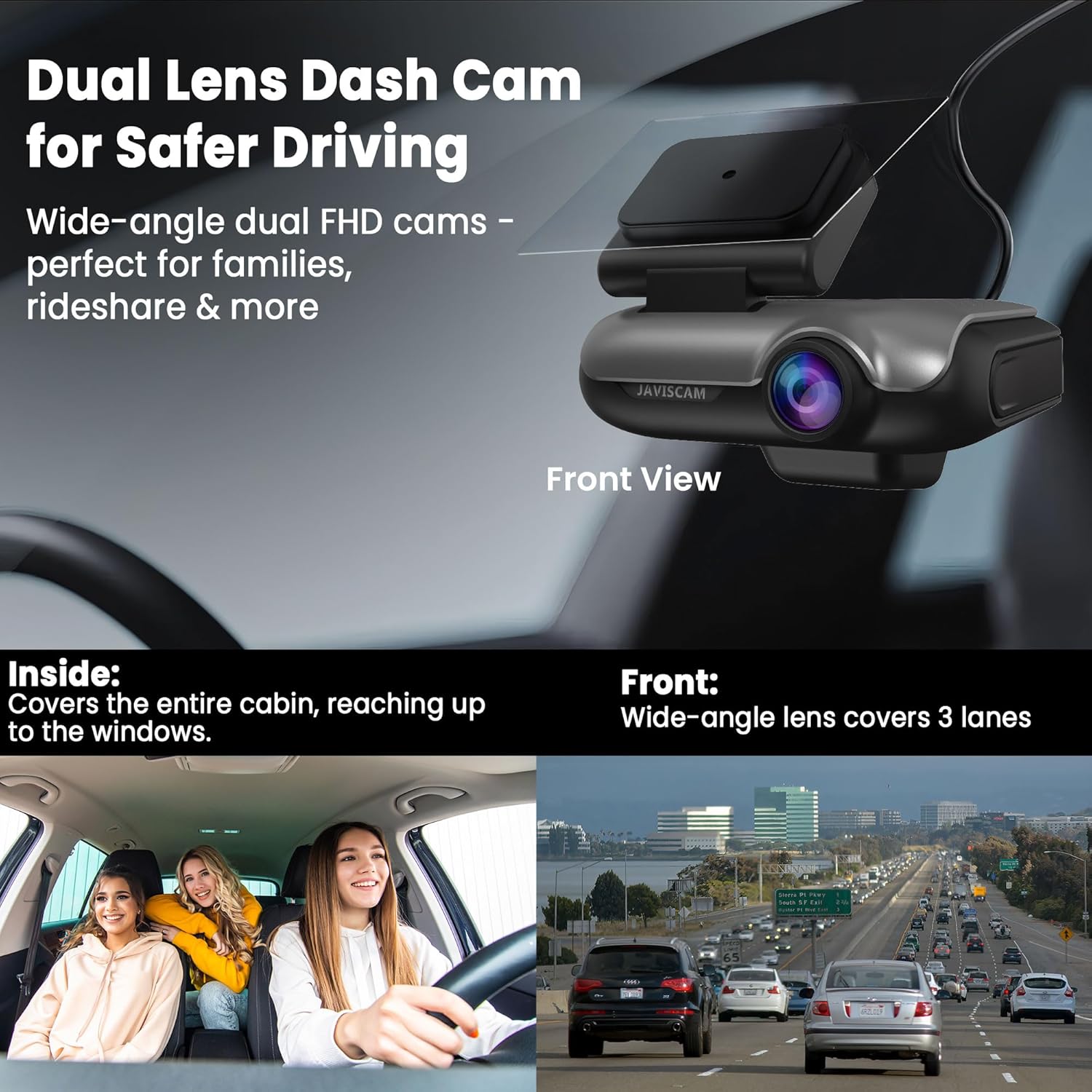
The javiscam dash cam features a compact design with integrated front and interior cameras, a GPS module, and control buttons for easy operation. Key components include:
- Forreste kamera: Captures a wide-angle view af vejen forude.
- Interiørkamera: Records the vehicle's cabin, equipped with 4 infrared lights for enhanced night vision.
- GPS-modul: Provides accurate location tracking and speed data.
- PM Button: Activates Privacy Mode to disable the interior camera and microphone.
- AP Button: Locks the current video clip to prevent overwriting and uploads it to the cloud (if activated).
- LED-indikatorer: Display device status, network connectivity, and recording status.
- MicroSD -kortplads: For local storage of recordings.
- USB-C-port: For power connection during initial setup.

The dash cam mounted on a windshield, illustrating its dual lens design for both front and interior recording.
4. Opsætning og installation
4.1 Indledende opsætning
- Use a 5V 2A adapter with the included Type-C cable to power on the dash cam for initial setup.
- Download the companion mobile application from your device's app store.
- Follow the in-app instructions to pair your dash cam. If app pairing fails, scan the QR code located on the bottom of the device.
- If issues persist, reset the device as per the manual's instructions and attempt pairing again.
4.2 Installation i køretøj
The dash cam is designed for windshield mounting. Ensure a clear line of sight for both cameras and the GPS module.
- Rengør det valgte område på din forrude grundigt.
- Apply the electrostatic film to the windshield before attaching the dash cam mount for easier removal and repositioning.
- Securely attach the dash cam to the windshield using its adhesive mount.
- Connect the provided OBD cable to the dash cam and route it discreetly along the vehicle's interior trim to the OBD-II port.
- Plug the OBD cable into your vehicle's OBD-II port.
- If the OBD light does not illuminate after pairing, start the engine and switch the 'V' button on the OBD cable to 11.6V or 23.6V, then reconnect.

A visual guide demonstrating the proper placement of the dash cam on the windshield and the routing of the OBD cable for power.
5. Driftstilstande
5.1 Driving Mode: Continuous Recording
When your vehicle is in operation, the dash cam automatically enters Driving Mode, continuously recording footage from both front and interior cameras. The G-sensor detects sudden impacts or events, automatically locking and protecting relevant video segments from being overwritten.

The dash cam actively recording while the vehicle is in motion, capturing both external and internal views.
5.2 Parking Mode: 24/7 Sentry Protection
Once your vehicle is parked and the engine is off, the dash cam transitions to Sentry Mode. In this mode, radar and motion sensors activate, monitoring for suspicious activity. If motion or impact is detected, the camera will automatically record and send real-time alerts to your connected app, providing evidence of theft, hit-and-runs, or vandalism.
Note: If false alarms occur frequently, access the live view in the app, go to Settings > Activity Detection > False Alarm Detection, and select "Human Detection" to limit alerts to nearby human movement only.

The dash cam actively monitoring the vehicle while parked, with illustrations of motion detection zones.
5.3 Privatlivstilstand
For moments when you desire privacy within the vehicle, you can disable the interior camera and microphone. Simply press and hold the PM button on the dash cam for 3 seconds to activate Privacy Mode. This will stop the interior camera from recording and mute the internal microphone.
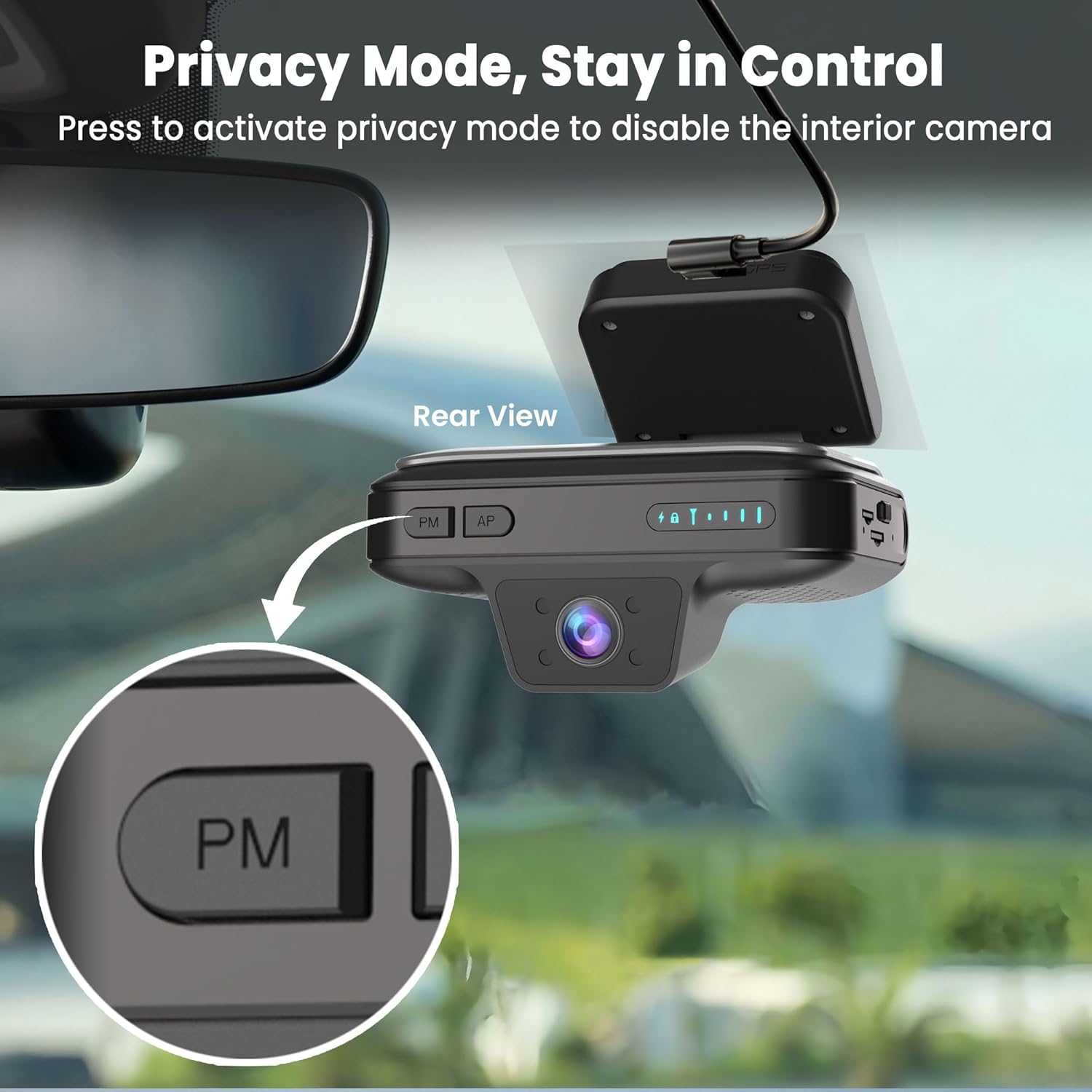
En detaljeret view of the dash cam's PM (Privacy Mode) button, indicating its function to disable the interior camera.
5.4 Tovejslyd
The dash cam supports two-way audio communication, allowing you to speak with occupants in your vehicle remotely via the app. This feature is useful for checking in with family members or communicating with ride-share passengers.

An image depicting the two-way audio feature, showing a person communicating with someone in the car via the dash cam.
5.5 GPS-sporing
With built-in GPS, you can pinpoint your vehicle's exact location in real-time through the companion app. This feature provides enhanced security and peace of mind, allowing you to track your car anytime, anywhere.

A smartphone screen showing the real-time GPS location of a vehicle on a map.
5.6 Lagringsmuligheder
The javiscam dash cam offers flexible storage solutions:
- Local Storage (SD Card): An included 64GB SD card provides ample local storage for continuous loop recording. The memory card supports saving all videos recorded while driving and parked.
- Cloud Storage: For added security, the dash cam can automatically back up detected recordings (collision events, manually locked videos, motion-detected footage) to the cloud. This ensures your footage is safe even if the camera is lost or damaged. A 30-day free cloud trial is included.

A visual representation of the two available storage options: local storage via an SD card (64GB included) and cloud storage with a 30-day free trial.

An image illustrating the cloud backup feature, where collision events and important footage are automatically uploaded to the cloud for secure access.
6. App funktioner
The companion mobile application provides comprehensive control and monitoring capabilities:
- Remote Live View: Access real-time video feeds from your dash cam anytime, anywhere.
- Realtidsadvarsler: Receive instant notifications on your phone for detected motion, impacts, or suspicious activity.
- Video Playback & Download: Review optaget footage and download important clips directly to your device.
- Settings Management: Adjust dash cam settings, including sensitivity, recording preferences, and privacy options.
- Deling af enhed: Share access to your dash cam's live view and features with trusted family members via the app.

A smartphone screen showing the javiscam app's real-time monitoring interface, allowing users to view their vehicle remotely.

An illustration of real-time notifications received on a smartphone when a collision or activity is detected by the dash cam.

An image showing how the dash cam device can be shared with family members through the mobile application.
7. Data Plans
A 4G data plan is required to utilize remote monitoring, live view, two-way talk, and app notifications. Cloud storage is optional and available through separate subscription plans. The device includes a trial data plan, with options to subscribe affordably or unlock your own SIM card.

A table outlining the various 4G data plans and cloud service options available for the dash cam, including pricing and features.
8. Fejlfinding
- App Pairing Failure: Ensure you are using a 5V 2A adapter with the included Type-C cable for setup. If pairing fails, scan the QR code on the device bottom. If still not working, reset the device per the manual and try again.
- OBD Light Not On: After pairing, if the OBD light doesn’t turn on, start the engine and switch the "V" button on the OBD cable to 11.6V or 23.6V, then reconnect.
- Low Resolution Live View/Downloaded Video: Hvis live view or downloaded video appears low resolution, use a card reader to view the original video files directly from the SD card. The app's live view may display a lower resolution stream for faster transmission.
- Frequent False Alarms in Parking Mode: Gå for at leve view > settings > Activity Detection > False Alarm Detection, and select "Human Detection" to limit alerts to nearby human movement only.
9. Specifikationer
| Feature | Beskrivelse |
|---|---|
| Produktdimensioner | 3 x 4 x 2.6 tommer |
| Varens vægt | 5 ounce |
| Forbindelsesteknologi | Trådløs (4G LTE) |
| Speciel funktion | Dual FHD Cameras, Remote Live View, 24/7 Sentry Mode, GPS, IR Night Vision, Two-Way Audio, App Alerts, Cloud/SD Storage |
| Videooptagelsesopløsning | 2K |
| Inkluderede komponenter | 4G Dash Camera with 64GB Memory Card, Installation Tool, OBD Cable, Quick Guide, User Manual |
| Monteringstype | Forrudemontering |
| Kontrolmetode | App |
| Farve | Space Grey |
| Orientering | Front & Inside |
| Type køretøjstjeneste | MPV, Ride-hailing car, SUV, Sedan, Taxi/Cab |
10. Support og garanti
javiscam is committed to providing reliable customer support. If you encounter any issues with setup, operation, or troubleshooting, please refer to the contact information provided in the physical user manual included with your product. Our team is dedicated to resolving your concerns quickly and professionally.
For information regarding product warranty, please consult the warranty card or contact our customer support team directly using the contact details in your manual.


