1. Introduktion
Thank you for choosing the AULA S99 Pro Wireless Keyboard. This manual provides detailed instructions to help you set up, operate, and maintain your keyboard, ensuring an optimal user experience. The AULA S99 Pro is a versatile gaming keyboard designed for multi-device compatibility and customizable features.
2. Nøglefunktioner
- Dedicated Knob & Display Screen: Supports volume and light adjustments, allowing seamless switching between dynamic RGB-backlit gaming mode and silent typing office mode. The LED screen provides real-time monitoring of battery level, connection status, and system compatibility.
- Multi-enhedsforbindelse: Offers three connectivity modes: Bluetooth 5.0, 2.4GHz wireless, and USB wired mode. Connects up to 5 devices simultaneously with easy switching via FN+ key combinations.
- Custom Keyboard: All keys support macro customization for programming complex actions. Equipped with a dual-mode rotary knob for easy adjustment of volume, audio, and lighting effects.
- Cool RGB Backlit Keyboard: Features 16.8 million RGB light colors with 16 pre-set lighting effects. Lighting brightness and speed are adjustable via the knob or FN+key combinations. Macro software allows for unique lighting setups.
- 99 Keys Membrane Keyboard: Compatible with Windows, Mac, Android, iOS, Xbox, PS4, and PS5 devices. Two-stage brackets adjust keyboard height for ergonomic and stable typing.
3. Pakkens indhold
Sørg for, at alle varer er til stede ved udpakning:
- AULA S99 Pro Wireless Keyboard
- USB kabel
- Brugermanual
- 1 AA-batteri (forudinstalleret)
4. Opsætning
4.1. Forbindelsestilstande
The AULA S99 Pro supports three connection methods:
- 2.4 GHz trådløs tilstand: Insert the USB dongle (located in the keyboard's back compartment) into your device's USB port. Switch the keyboard to 2.4G mode using the dedicated switch or FN+ key combination.
- Bluetooth 5.0-tilstand: Activate Bluetooth on your device. On the keyboard, press FN+1, FN+2, or FN+3 to select a Bluetooth channel. The display screen will show BT1, BT2, or BT3. Søg efter "AULA-S99" on your device's Bluetooth settings and pair.
- USB-kablet tilstand: Connect the provided USB-C cable to the keyboard's Type-C port and the other end to your device's USB port. The keyboard will automatically switch to wired mode.

Figur 1: Tri-Mode-forbindelsesmuligheder
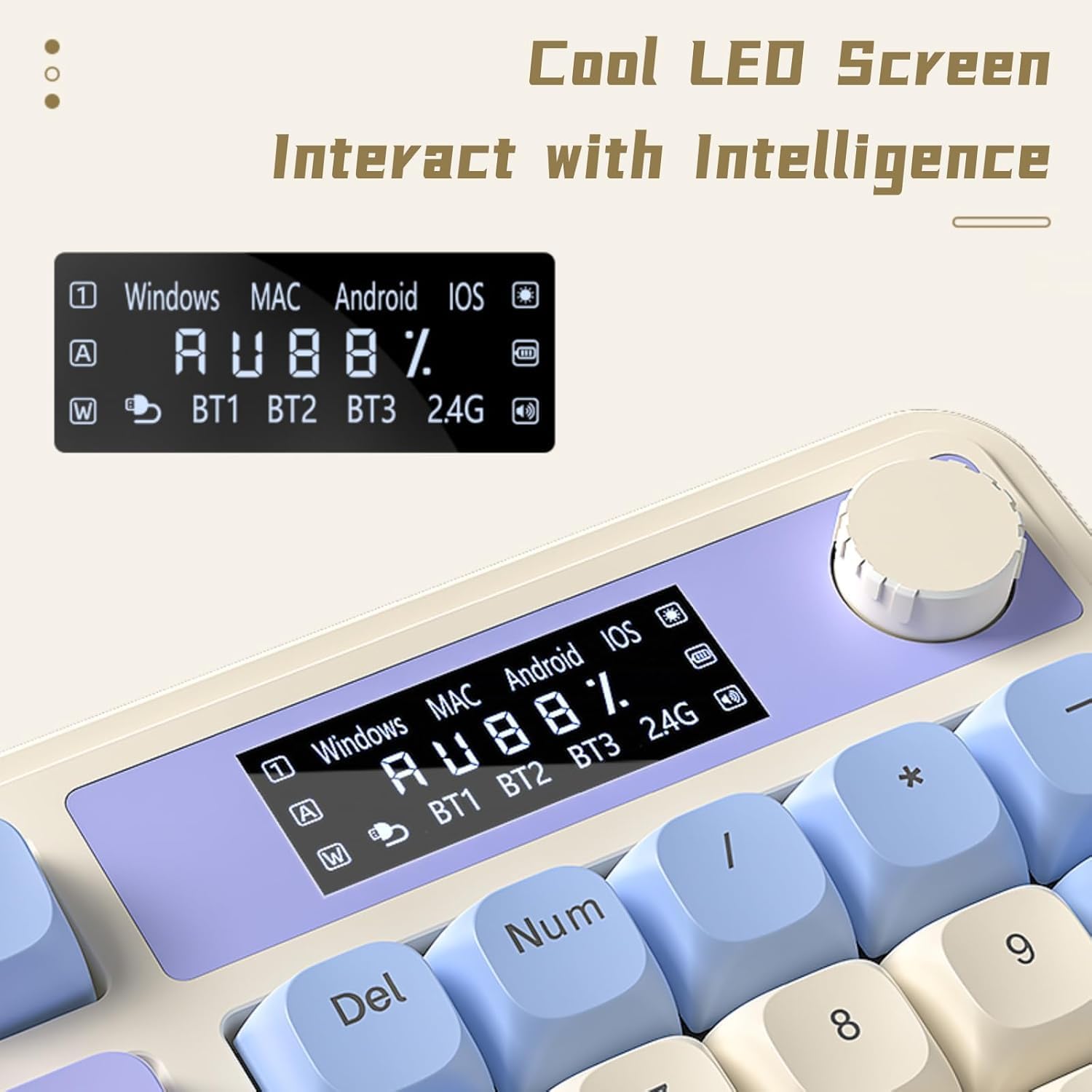
Figure 2: Connectivity Ports and Dongle Storage
4.2. Justerbare fødder
Tastaturet har to-stage adjustable feet on the underside. Flip them out to adjust the typing angle according to your ergonomic preference for comfortable and stable use.

Figure 3: Adjustable Keyboard Feet
5. Betjeningsvejledning
5.1. Dedicated Knob & Display Screen
The multi-functional knob and LED display screen provide quick access to various settings:
- Drej knappen: Adjusts volume or lighting brightness/speed depending on the active mode.
- Tryk på knappen: Toggles lighting effects or sound on/off.
- Langt tryk på knappen: Switches between Gaming Mode (dynamic RGB) and Office Mode (silent typing).
- Skærm: Shows real-time battery level, connection status (BT1/BT2/BT3/2.4G), and system compatibility (Windows/MAC/Android/iOS).

Figure 4: Multi-function Digital Dial

Figure 5: Cool LED Screen Interface
5.2. RGB-baggrundsbelysningskontrol
The keyboard features 16.8 million RGB colors and 16 pre-set lighting effects. Use the FN+ key combinations or the dedicated knob to customize:
- Skift lyseffekter: Press FN + Page Up/Page Down to cycle through different lighting modes.
- Juster lysstyrke: Rotate the knob or use FN + Up/Down arrow keys.
- Juster hastighed: Use FN + Left/Right arrow keys to change the speed of dynamic lighting effects.
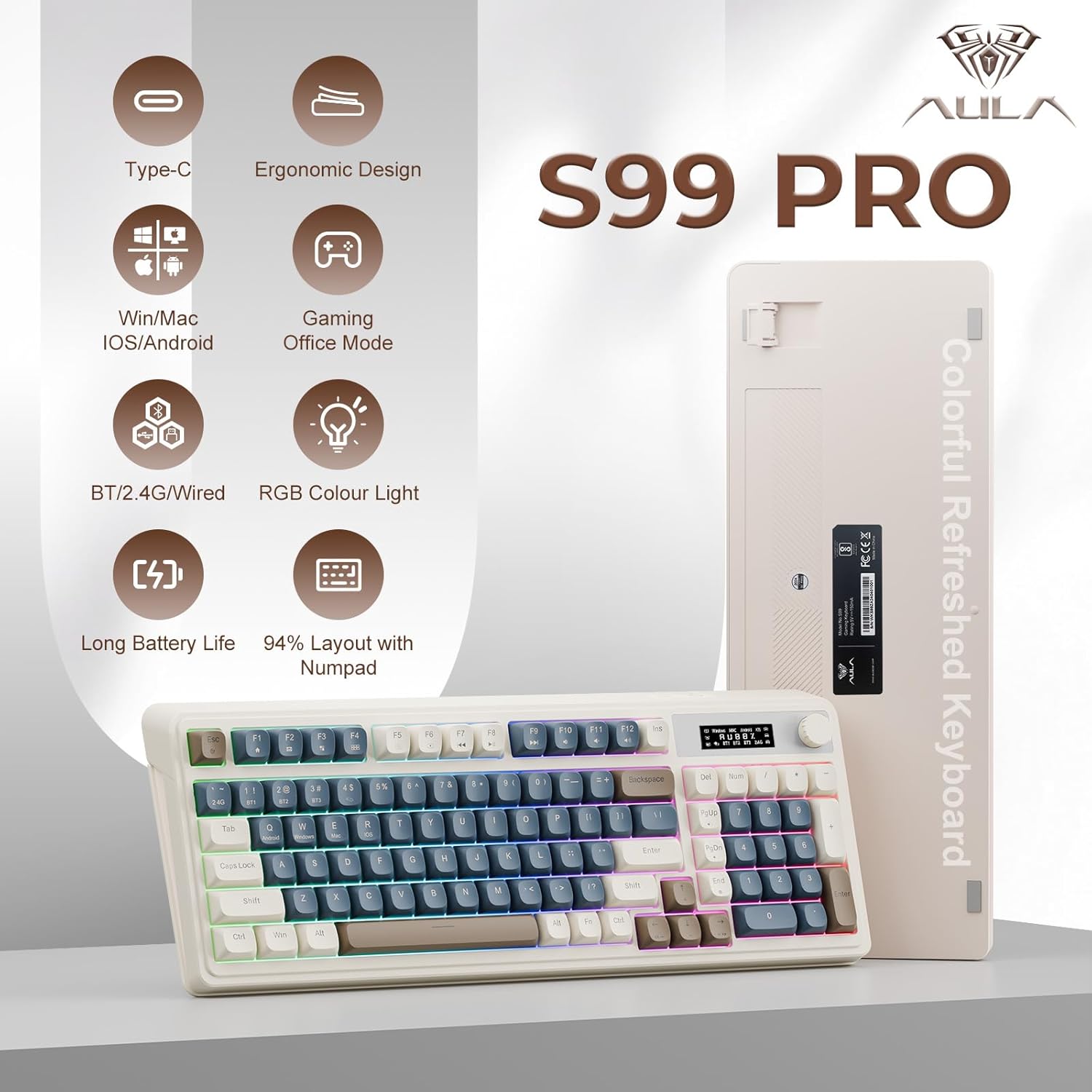
Figure 6: 16.8 Million RGB Backlight
5.3. Makrotilpasning
All keys on the AULA S99 Pro support macro customization. Use the accompanying software (downloadable from aulastar.com) to record and edit macros, programming complex actions into a single key. This is particularly useful for gaming and specific productivity tasks. Ensure the keyboard is in wired mode when running the driver for customization.

Figure 7: Unique Settings and Macro Customization Software
5.4. Systemkompatibilitet
The keyboard is designed for broad compatibility:
- Windows: Full functionality.
- Mac: Full functionality.
- Android: Full functionality.
- iOS: Full functionality.
- Gaming Consoles (Xbox, PS4, PS5): Compatible for seamless use.
Switch between operating systems using FN+Q (Android), FN+W (Windows), FN+E (Mac), FN+R (iOS).
6. Vedligeholdelse
To ensure the longevity and optimal performance of your AULA S99 Pro keyboard, follow these maintenance guidelines:
- Rensning: Brug en blød, fnugfri klud lidt damprengøres med vand eller en mild rengøringsopløsning for at tørre tastaturets overflade af. Undgå for meget fugt.
- Fjernelse af støv: Brug trykluft til at fjerne støv og snavs mellem tasterne.
- Opbevaring: Opbevar tastaturet et køligt, tørt sted væk fra direkte sollys og ekstreme temperaturer.
- Undgå spild: Hold væsker væk fra tastaturet for at forhindre beskadigelse af interne komponenter.
7. Fejlfinding
Hvis du støder på problemer med dit tastatur, kan du bruge følgende almindelige løsninger:
- Tastaturet reagerer ikke: Ensure the keyboard is charged. Check the connection mode (wired, 2.4GHz, Bluetooth) and ensure it matches your device. Try reconnecting or re-pairing.
- Nøgler registreres ikke: Clean the affected keys. Ensure the keyboard is not in sleep mode (press any key to wake).
- Problemer med Bluetooth-forbindelse: Ensure your device's Bluetooth is on and the keyboard is in pairing mode. Remove previous pairings and try again. Ensure no other devices are interfering.
- 2.4GHz wireless issues: Ensure the USB dongle is securely inserted. Try a different USB port.
- RGB-belysning virker ikke: Check brightness settings via the knob or FN+key combinations. Ensure the keyboard is not in office mode (long press knob to switch).
- Lag eller forsinket input: Ensure the keyboard is fully charged. For wireless modes, ensure you are within range of your device. Try switching to wired mode to rule out wireless interference.
8. Specifikationer
| Feature | Detalje |
|---|---|
| Produktdimensioner | 16.23 x 7.28 x 2.03 tommer |
| Varens vægt | 2.38 pund |
| Fabrikant | AULA |
| Varemodelnummer | S99Pro |
| Batterier | 1 AA batteri påkrævet (medfølger) |
| Kompatible enheder | Spillekonsol, bærbar computer, pc, smartphone, tablet |
| Forbindelsesteknologi | Bluetooth, USB-C, Wi-Fi (2.4GHz) |
| Tastaturbeskrivelse | Membran |
| Speciel funktion | Backlit, Ergonomic, Rechargeable, Silent, Quiet |
| Tastaturbaggrundsbelysning Farvestøtte | RGB (16.8 millioner farver) |
| Stil | Retro |
9. Garanti og support
For garantioplysninger, teknisk support eller yderligere assistance henvises til den officielle AULA webwebstedet eller kontakt AULA kundeservice. Gem din købskvittering til garantikrav.
10. Officielle produktvideoer
AULA 99 Keys RGB Gaming Keyboard with Media Knob
Denne video giver en overview of the AULA 99 Keys RGB Gaming Keyboard, highlighting its RGB lighting features and the functionality of the media knob. It demonstrates the keyboard's design and key features in action.


