1. Introduktion
This manual provides detailed instructions for the setup, operation, and maintenance of your Transformers GK01 Wireless Mechanical Keyboard. The GK01 is a versatile keyboard featuring tri-mode connectivity (Bluetooth 5.0, 2.4GHz wireless, and USB-C wired), a 101-key layout, RGB backlighting, and hot-swappable switches for a customizable typing experience.

Figure 1.1: Transformers GK01 Wireless Mechanical Keyboard.
2. Pakkens indhold
Kontroller venligst, at alle nedenstående varer er inkluderet i din pakke:
- Transformers GK01 Wireless Mechanical Keyboard
- USB-C til USB-A-kabel
- 2.4 GHz trådløs USB-dongle
- 2-i-1 nøglehætte og aftrækker
- Brugervejledning (dette dokument)
- Reserveafbrydere (2 stk.)
- Keyboard cover
3. Opsætning og tilslutning
3.1. Tri-Mode Connection Overview
The GK01 keyboard supports three connection modes: USB-C wired, 2.4GHz wireless, and Bluetooth 5.0. You can connect to up to five devices simultaneously and switch between them seamlessly.

Figure 3.1: Tri-Mode Connection Capabilities.
3.2. USB-C kablet forbindelse
- Find USB-C-porten på tastaturet.
- Connect one end of the provided USB-C cable to the keyboard.
- Connect the other end of the USB-C cable to an available USB-A port on your computer.
- Tastaturet vil automatisk blive genkendt og klar til brug.
3.3. 2.4 GHz trådløs forbindelse
- Locate the 2.4GHz wireless USB dongle.
- Sæt donglen i en ledig USB-A-port på din computer.
- On the keyboard, ensure the mode switch (usually on the side or back) is set to 2.4GHz mode.
- Tastaturet burde oprette forbindelse automatisk. Hvis ikke, tryk på Fn + R for at starte parring.

Figure 3.2: USB-C Port and 2.4GHz Dongle Location.
3.4. Bluetooth 5.0-forbindelse
Tastaturet understøtter tilslutning til op til tre Bluetooth-enheder (BT1, BT2, BT3).
- On the keyboard, set the mode switch to Bluetooth mode.
- To enter pairing mode for a specific Bluetooth channel, press and hold Fn + Q (til BT1), Fn + W (for BT2), eller Fn + E (for BT3) for 3-5 seconds until the indicator light flashes rapidly.
- On your device (PC, tablet, smartphone), open Bluetooth settings and search for new devices.
- Select "Transformers GK01" from the list of available devices.
- Once connected, the indicator light on the keyboard will stop flashing.
- For at skifte mellem parrede Bluetooth-enheder skal du blot trykke på Fn + Q, Fn + W, eller Fn + E.
4. Grundlæggende betjening
4.1. Keyboard Layout and Anti-Ghosting
The GK01 features a 101-key layout, providing a full set of keys including a numeric keypad. All keys are equipped with anti-ghosting technology, ensuring that every keystroke is registered accurately, even when multiple keys are pressed simultaneously.
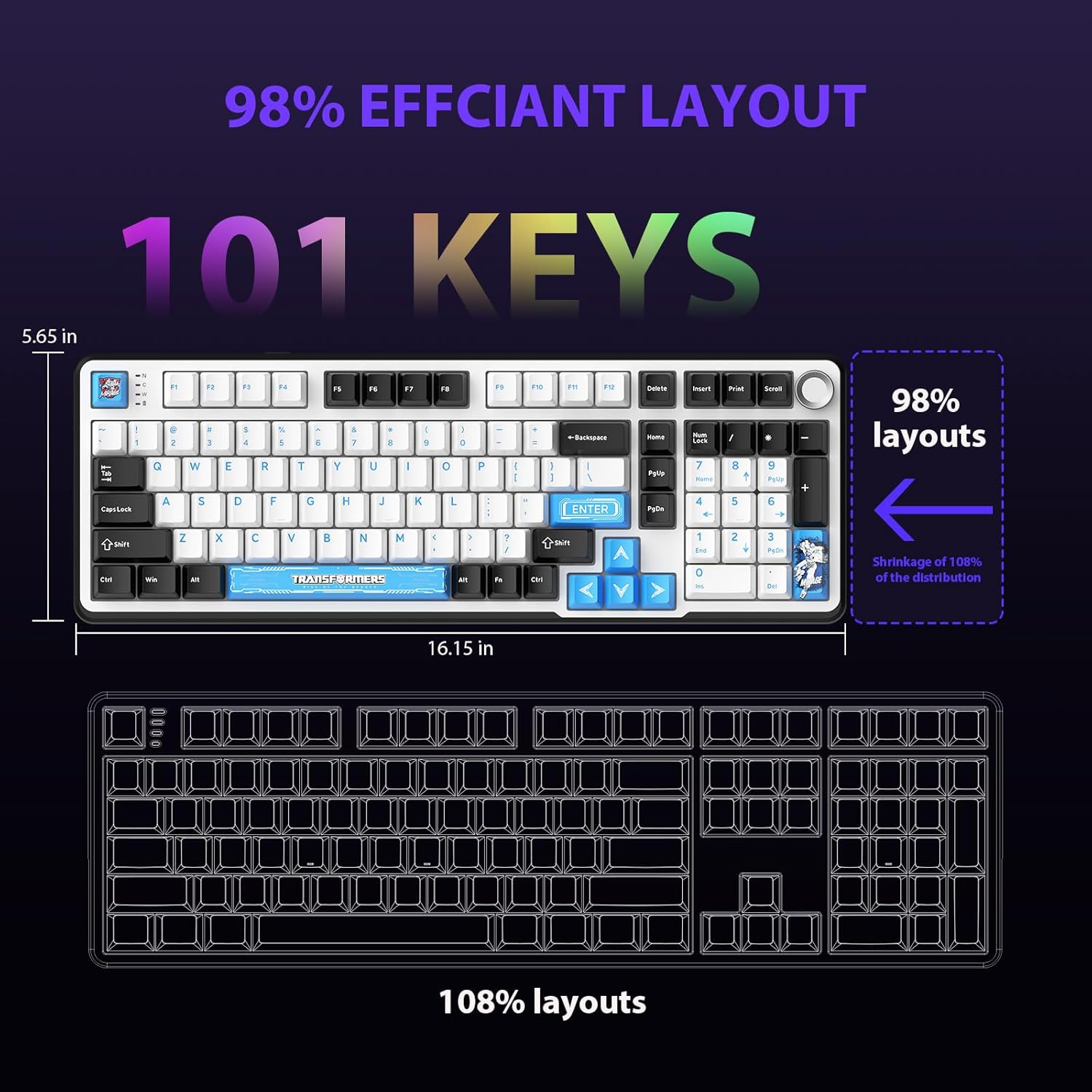
Figure 4.1: 101-Key Layout.
4.2. Multimedia Control Knob
The dedicated knob located on the top right of the keyboard provides convenient multimedia control:
- Roter med uret: Øg volumen.
- Drej mod uret: Sænk volumen.
- Tryk ned: Slå lyd til/fra.
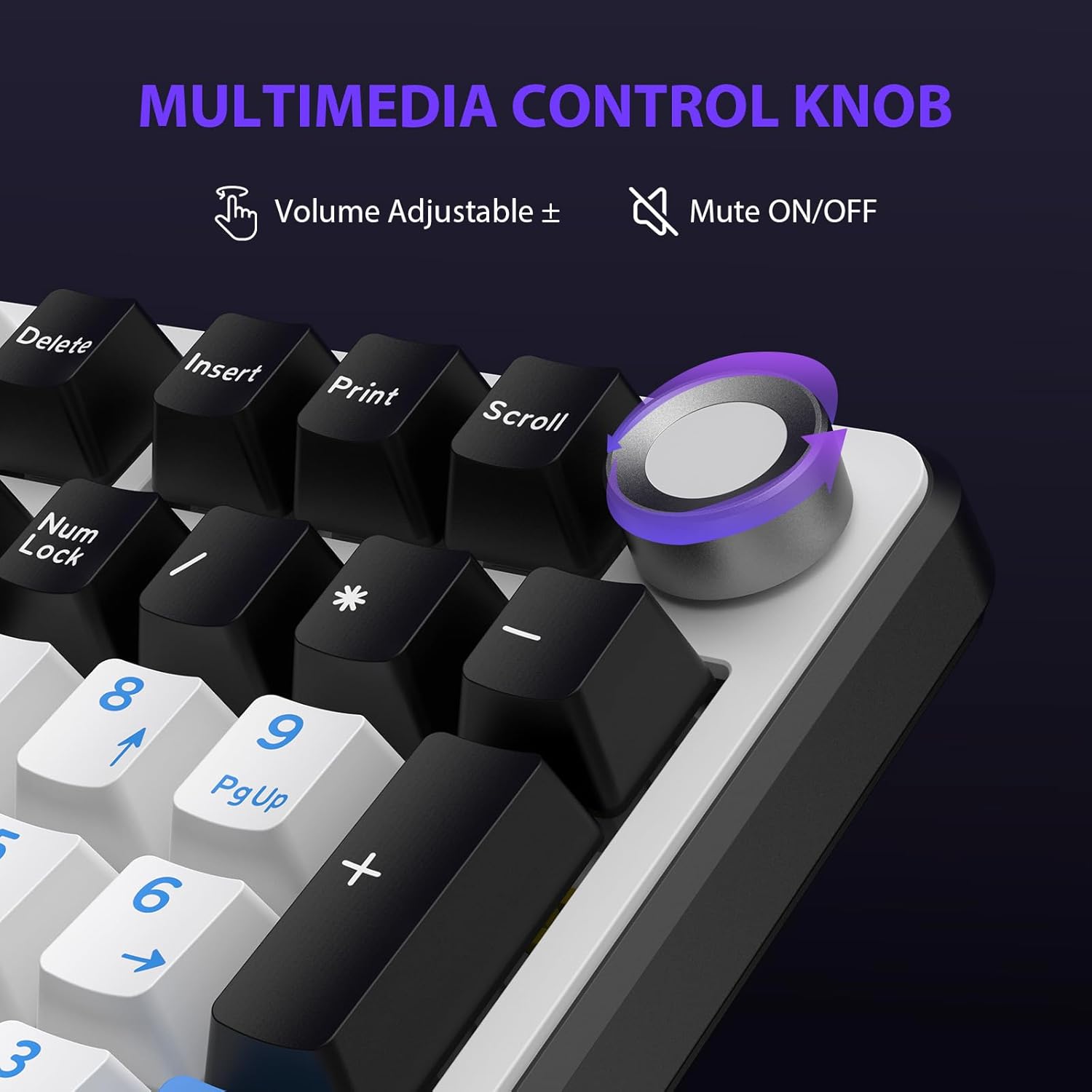
Figure 4.2: Multimedia Control Knob.
4.3. RGB-baggrundsbelysningskontrol
The GK01 keyboard features 16.8 million color RGB backlighting with various effects.
- Fn + [Right Arrow]: Adjust 5 brightness levels.
- Fn + [Left Arrow]: Adjust 5 speed levels for dynamic effects.
- Fn + [Indsæt]: Switch between 20 different backlight modes.
- Fn + [Enter]: Switch color order within certain modes.
- Fn + [X]: Turn off light / activate power-saving mode.
- Fn + [Tilbage]: Switch color order within certain modes.

Figure 4.3: RGB Backlight Controls.
5. Avancerede funktioner
5.1. Hot-swap-kontakter
The GK01 keyboard is equipped with pre-lubricated Cybertron linear switches and supports solder-free hot-swapping. This allows you to easily replace switches with compatible 3-pin or 5-pin mechanical switches without soldering.
Sådan udskifter du en kontakt:
- Using the provided 2-in-1 keycap and switch puller, gently remove the keycap from the desired switch.
- Insert the switch puller onto the switch, ensuring it grips the top and bottom clips of the switch.
- Træk forsigtigt kontakten lige op for at fjerne den fra printkortet.
- Juster stifterne på den nye kontakt med hullerne på printkortet. Sørg for, at stifterne er lige for at undgå at de bøjes.
- Tryk den nye kontakt godt på plads, indtil den klikker.
- Sæt tastaturdækslet på igen.

Figure 5.1: Hot-Swappable Switch Replacement.
5.2. Programmerbar software
The GK01 supports custom software for advanced customization, including key remapping, macro creation, and detailed RGB lighting effects.
- The software is compatible only with the Windows operating system.
- The keyboard must be connected via USB-C wired mode to use the software.
- For driver download, please visit the official Transformers Keyboard website or refer to the link provided in the product packaging.
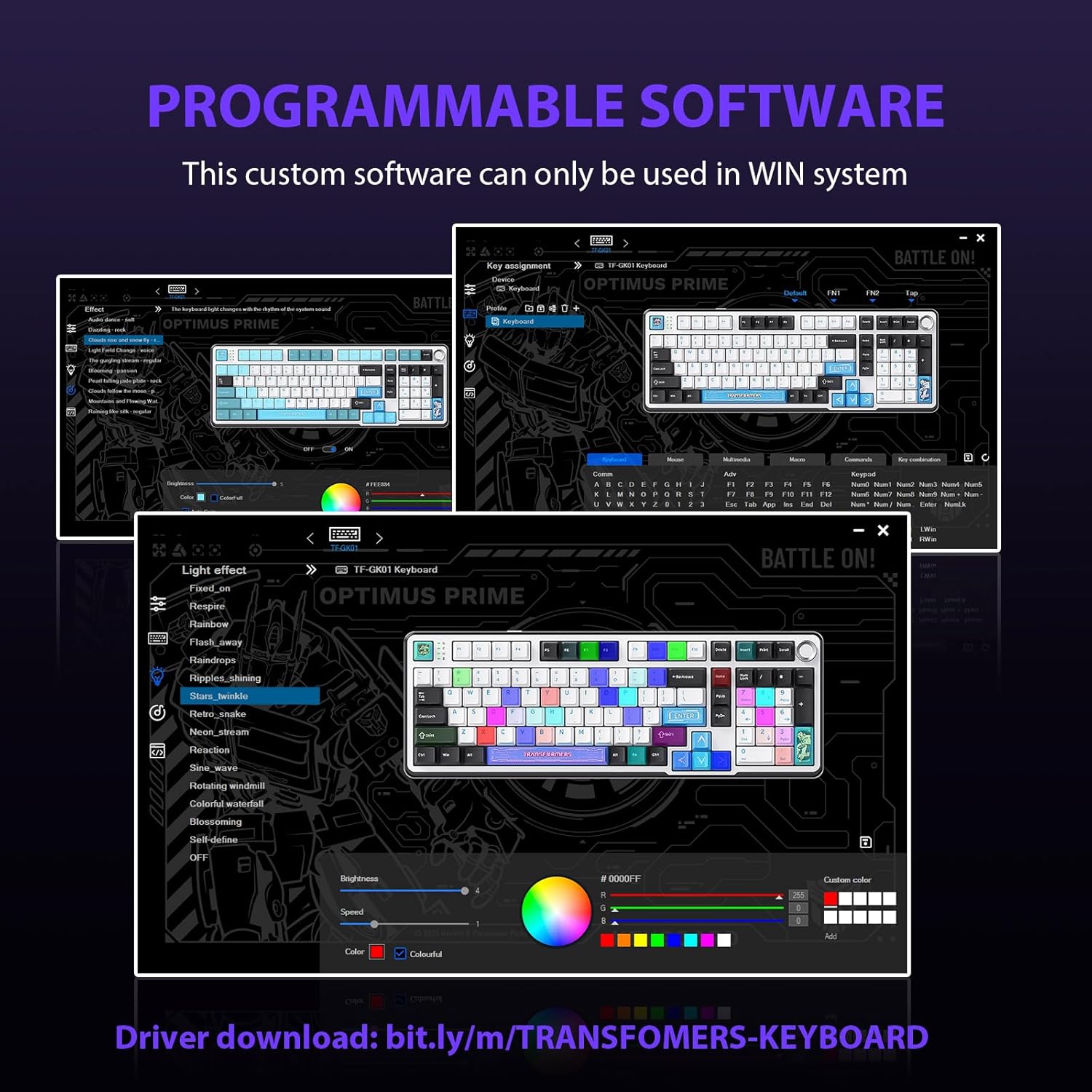
Figure 5.2: Programmable Software Interface.
5.3. Gasket Mounted Structure
The keyboard features a five-layer sound-absorbing and shock-absorbing gasket mounted structure. This design effectively reduces hollow noise and provides a softer, more consistent typing feel by isolating the plate from the case.
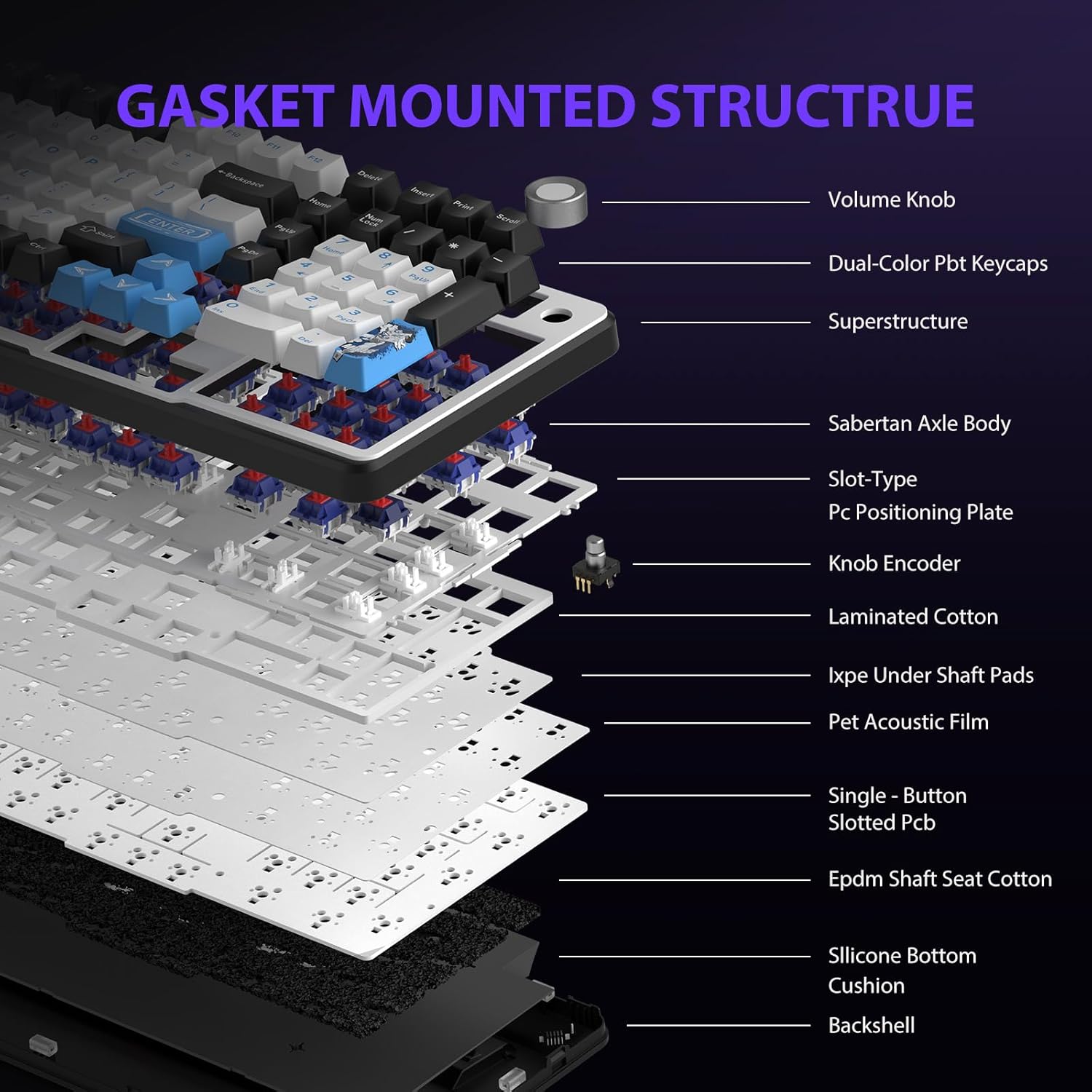
Figure 5.3: Gasket Mounted Structure Components.
6. Batteristyring
The GK01 keyboard is equipped with a 4000mAh rechargeable battery.
- Opladning: Connect the keyboard to a USB power source using the provided USB-C cable. The indicator light will show charging status.
- Batterilevetid: A fully charged battery provides extended usage time. Actual battery life may vary based on usage patterns and RGB lighting intensity.
- Strømbesparende: The keyboard will enter a power-saving sleep mode after a period of inactivity to conserve battery. Press any key to wake it up.
7. Vedligeholdelse
7.1. Rengøring af tastaturet
- Frakobl tastaturet fra alle strømkilder før rengøring.
- Brug en blød, fnugfri klud lidt damprengøres med vand eller en mild rengøringsopløsning til at tørre tastaturerne og kabinettet af.
- Brug trykluft eller en lille børste til at fjerne støv og snavs mellem tasterne.
- Undgå at bruge skrappe kemikalier eller slibende materialer.
7.2. Keycap and Switch Care
- The PBT keycaps are designed for durability and fade resistance.
- Refer to Section 5.1 for instructions on safely removing and replacing keycaps and switches.
- Ensure the keyboard feet are clean and free of debris for stable placement.

Figure 7.1: Adjustable Keyboard Feet.
8. Fejlfinding
| Problem | Mulig årsag | Løsning |
|---|---|---|
| Tastaturet reagerer ikke i trådløs tilstand. | Low battery, incorrect mode selected, dongle not connected, Bluetooth not paired. | Charge the keyboard. Ensure the mode switch is set correctly (2.4GHz or BT). Re-insert the 2.4GHz dongle. Re-pair Bluetooth connection. Try wired mode to confirm keyboard functionality. |
| Nøgler registreres ikke eller dobbelttastes. | Loose switch, software issue, debris under keycap. | Ensure switches are fully seated. Clean under keycaps. If using programmable software, ensure it's updated or try resetting keyboard settings. |
| RGB backlight not working or stuck. | Backlight turned off, software conflict. | Trykke Fn + X to toggle backlight. Check programmable software settings. |
| Kan ikke oprette forbindelse via Bluetooth. | Tastatur ikke i parringstilstand, enhed Bluetooth slukket, interferens. | Ensure keyboard is in Bluetooth pairing mode (Fn + Q/W/E long press). Ensure device Bluetooth is on and discoverable. Move closer to the device. |
9. Specifikationer
| Feature | Detalje |
|---|---|
| Modelnummer | TF-GK01 |
| Forbindelse | Bluetooth 5.0, 2.4 GHz trådløs, USB-C kablet |
| Tastaturtype | Mekanisk |
| Layout | 101 Keys (Full-size) |
| Afbrydere | Pre-lubed Cybertron Linear Switches, Hot-Swappable (3-pin/5-pin compatible) |
| tasterne | Heat-sublimated PBT |
| Baggrundsbelysning | RGB (16.8 Million Colors, 20 modes, music rhythm effects via driver) |
| Batterikapacitet | 4000mAh |
| Produktdimensioner | 16.15 x 5.65 x 1.63 tommer (41.02 x 14.35 x 4.14 cm) |
| Varens vægt | 2.24 pund (1.02 kg) |
| Kompatible enheder | Bærbar computer, pc, smartphone, tablet |
| Særlige funktioner | Anti-Ghosting (all keys), Multimedia Control Knob, Programmable Keys (via software), Rechargeable |
10. Garanti og support
For information regarding warranty coverage, technical support, or service inquiries, please refer to the warranty card included with your product or visit the official Transformers Keyboard webwebsted.
Fabrikant: Transformere


