Indledning
Welcome to the user manual for your new VAIO SX-R Laptop. This document provides essential information to help you set up, operate, maintain, and troubleshoot your device. Please read this manual thoroughly to ensure optimal performance and longevity of your laptop.
Produkt overview
The VAIO SX-R is a high-performance laptop designed for productivity and creative tasks. It features an Intel Core Ultra 7 processor, a vibrant 14-inch WQXGA Touch Display, ample hukommelse og hurtig lagring.
Nøglefunktioner
- Processor: Intel Core Ultra 7 (16-Core, AI-Boosted) for enhanced speed and responsiveness.
- Vise: 14-inch WQXGA Touch Display (2560x1600) offering high resolution and wide color gamut.
- Hukommelse: 32GB LPDDR5 RAM for superior multitasking.
- Opbevaring: 1TB PCIe NVMe SSD for fast data access and ample opbevaring.
- Operativsystem: Windows 11 Pro with enterprise-grade security and productivity features.
- Sikkerhed: Integrated IR Camera and Fingerprint Reader for secure login.
- Chassis: Durable Carbon Fiber construction.
Laptop Components and Ports

Figure 1: VAIO SX-R Laptop, illustrating the overall design.
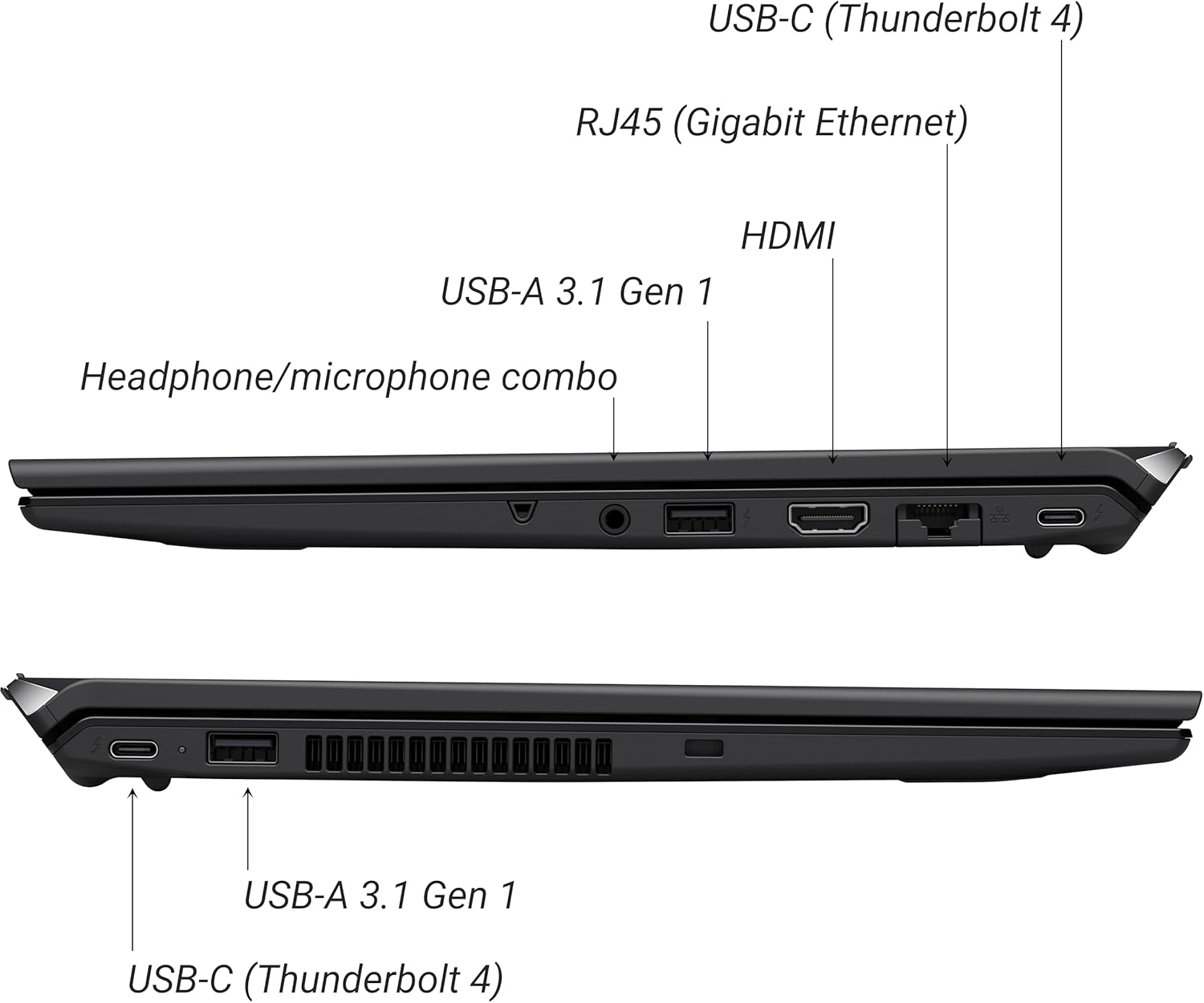
Figure 2: Port layout of the VAIO SX-R Laptop. The left side includes a headphone/microphone combo jack, USB-A 3.1 Gen 1, HDMI, RJ45 (Gigabit Ethernet), and USB-C (Thunderbolt 4). The right side features another USB-C (Thunderbolt 4) and USB-A 3.1 Gen 1 port.
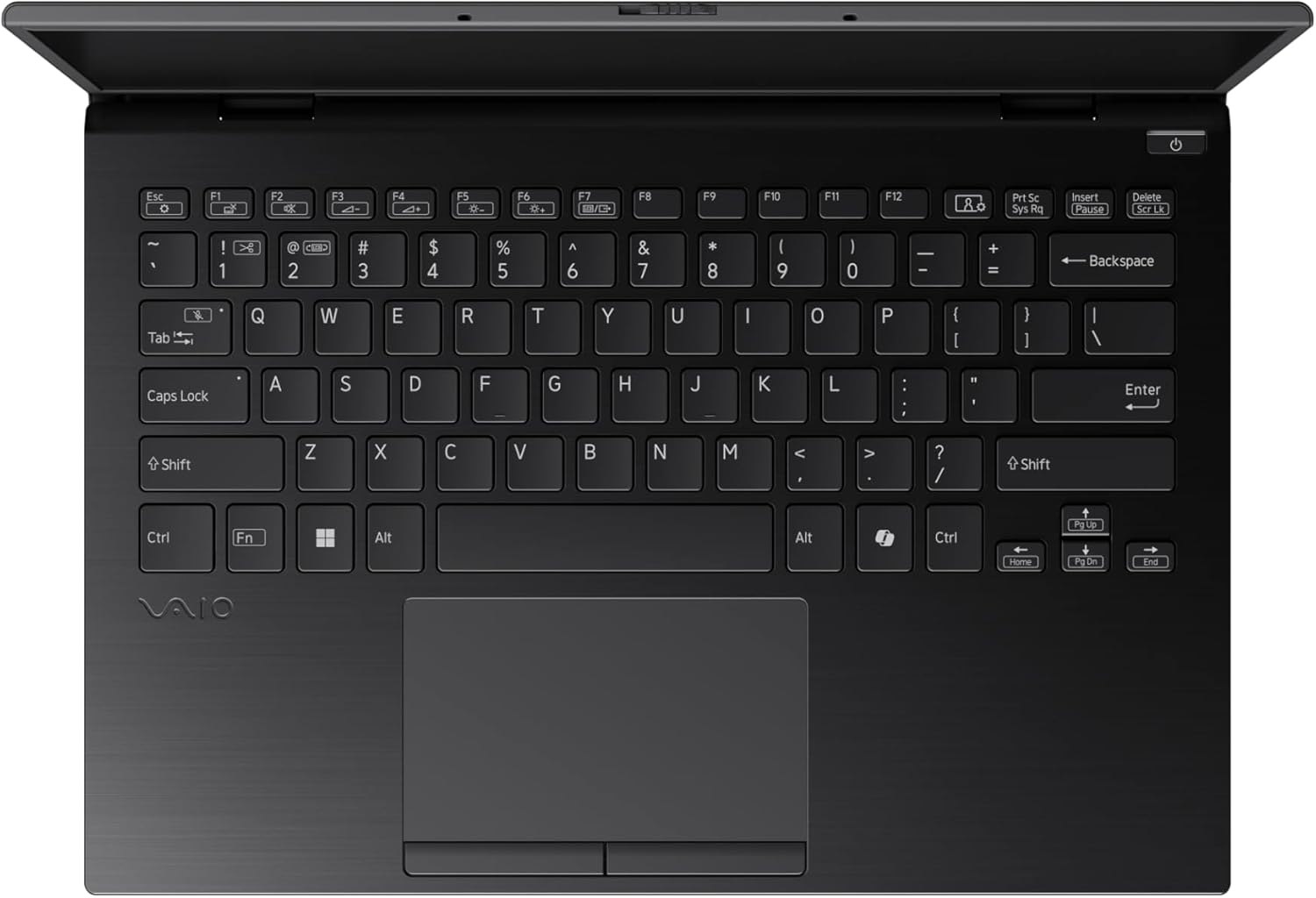
Figure 3: The VAIO SX-R Laptop keyboard and touchpad, featuring a backlit keyboard and integrated fingerprint sensor.
Opsætning
1. Første opstart
- Tilslut strøm: Sæt strømadapteren i den bærbare computers strømport og derefter i en stikkontakt.
- Åben bærbar computer: Åbn forsigtigt låget på den bærbare computer.
- Tænd: Press the power button, typically located on the top right of the keyboard deck. The power indicator light will illuminate.
2. Windows 11 Pro-opsætning
Follow the on-screen instructions to complete the initial Windows 11 Pro setup. This includes:
- Valg af region og tastaturlayout.
- Opretter forbindelse til et Wi-Fi-netværk.
- Accept af licensaftalen.
- Creating or logging in with a Microsoft account.
- Setting up your PIN, fingerprint, or facial recognition (IR Camera).
3. Tilslutning af eksterne enheder
You can connect external devices such as mice, keyboards, external monitors, and USB drives to the available ports as shown in Figure 2.
Drift
1. Grundlæggende brug
- Tastatur: Use the integrated backlit keyboard for typing. Function keys (F1-F12) often have secondary functions accessible via the 'Fn' key.
- Touchpad: Præcisions-touchpad'en understøtter multi-touch-bevægelser til navigation.
- Touchskærm: Interact directly with the 14-inch WQXGA display using touch gestures.
2. Sikkerhedsfunktioner
- Fingeraftrykslæser: Enroll your fingerprints through Windows Settings > Accounts > Sign-in options for quick and secure login.
- IR Camera: Utilize Windows Hello facial recognition for convenient and secure access. Set this up in Windows Settings > Accounts > Sign-in options.
3. Strømstyring
- Sove mode: Close the lid or press the power button briefly to put the laptop to sleep.
- Luk ned: Go to Start > Power > Shut down to turn off the laptop completely.
- Genstart: Go to Start > Power > Restart to reboot the system.
Opretholdelse
1. Rensning
- Skærm: Brug en blød, fnugfri klud lidt damprengøres med vand eller en skærmrens. Undgå skrappe kemikalier.
- Tastatur og kabinet: Brug en blød klud. Til genstridigt snavs, en letamp En klud med mild sæbe kan bruges, så det sikres, at der ikke trænger væske ind i åbningerne.
- Porte: Brug trykluft til forsigtigt at fjerne støv fra portene.

Figure 4: The VAIO SX-R features a water-resistant keyboard, designed to withstand minor spills.
2. Softwareopdateringer
Regularly update your Windows operating system and device drivers to ensure optimal performance, security, and compatibility. Access updates via Windows Settings > Windows Update.
3. Batteripleje
- Undgå ekstreme temperaturer.
- Undgå at aflade batteriet helt ofte.
- Ved langtidsopbevaring skal batteriet oplades til ca. 50-60%.
Fejlfinding
Dette afsnit omhandler almindelige problemer, du kan støde på.
1. Den bærbare computer tænder ikke
- Sørg for, at strømadapteren er korrekt tilsluttet både den bærbare computer og en fungerende stikkontakt.
- Kontroller om stikkontakten fungerer ved at tilslutte en anden enhed.
- Hvis batteriet er helt afladet, skal du lade det oplade i mindst 30 minutter, før du forsøger at tænde det.
2. Problemer med skærm
- Ingen visning: Tilslut en ekstern skærm til HDMI-porten for at kontrollere, om problemet er med den bærbare computers interne skærm.
- Flimrende/forvrænget skærm: Update your graphics drivers. Adjust display resolution and refresh rate in Windows Settings > System > Display.
3. Problemer med Wi-Fi-forbindelse
- Ensure Wi-Fi is enabled in Windows Settings > Network & internet > Wi-Fi.
- Genstart din router og dit modem.
- Kør Windows Netværksfejlfinding.
4. Langsom ydeevne
- Luk unødvendige programmer, der kører i baggrunden.
- Tjek Jobliste (Ctrl+Shift+Esc) for ressourcekrævende processer.
- Ensure your system is up to date and free from malware.
Specifikationer
Below are the detailed specifications for the VAIO SX-R Laptop (Model: VJS4R1X0511B).
| Feature | Specifikation |
|---|---|
| Mærke | VAIO |
| Modelnavn | VAIO SX-R |
| Varemodelnummer | VJS4R1X0511B |
| Operativsystem | Windows 11 Pro |
| Processor | Intel Core Ultra 7 (1.4 GHz) |
| RAM-hukommelse | 32 GB LPDDR5 |
| Harddisk | 1 TB PCIe NVMe SSD |
| Skærmstørrelse | 14 tommer |
| Skærmopløsning | 2560 x 1600 pixels (WQXGA) |
| Grafikkort | Integreret Intel Graphics |
| Trådløs type | 802.11bgn |
| USB 3.0 porte | 3 |
| Gennemsnitlig batterilevetid | 10 timer |
| Varens vægt | 3.1 pund |
| Produktdimensioner | 14.2 x 15 x 3.3 tommer |
| Særlige funktioner | Backlit Keyboard, Fingerprint Reader, HD Audio, Memory Card Slot, Webcam |
Garanti og support
1. Garantioplysninger
Your VAIO SX-R Laptop is covered by a manufacturer's warranty. Please refer to the warranty card included with your product packaging for specific terms, conditions, and duration. Keep your proof of purchase for warranty claims.
2. Teknisk support
For technical assistance, troubleshooting beyond this manual, or service inquiries, please contact VAIO customer support. You can typically find contact information on the official VAIO website or in the documentation provided with your laptop.
- Online support: Visit the official VAIO support website for FAQs, driver downloads, and contact options.
- Telefonsupport: Refer to your product documentation for regional support phone numbers.


