1. Introduktion
This user manual provides detailed instructions for the setup, operation, and maintenance of your MEETION C2000 Wireless Keyboard and Mouse Combo. This versatile combo offers both 2.4GHz wireless and Bluetooth connectivity, designed for seamless use across multiple devices such as PCs, laptops, tablets, and smartphones. Please read this manual thoroughly before using the product to ensure optimal performance and longevity.
2. Pakkens indhold
- MEETION C2000 Wireless Keyboard
- MEETION C2000 Wireless Mouse
- USB Receiver (stored in the mouse or keyboard)
- USB-C ladekabel
- Brugervejledning (dette dokument)
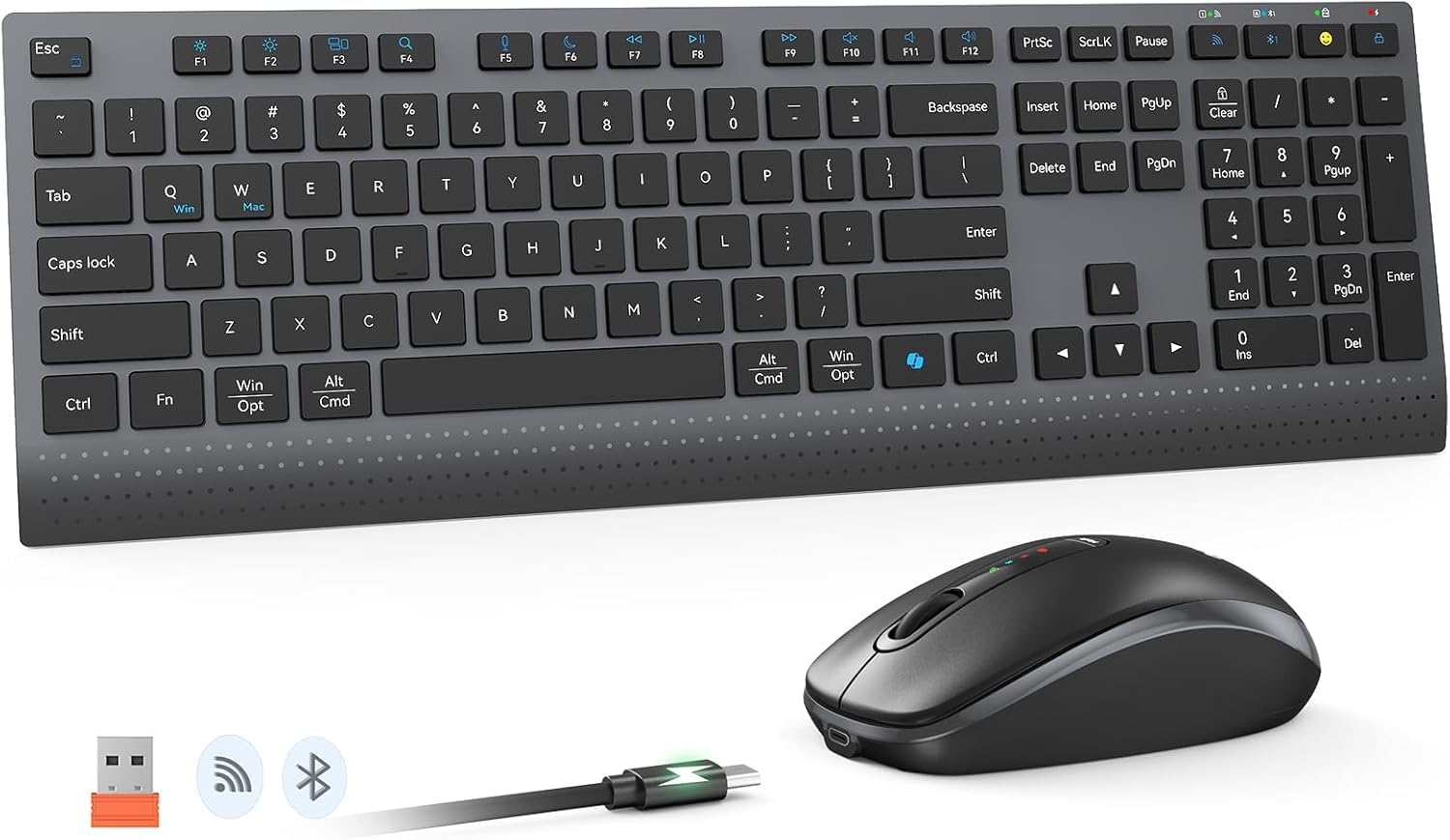
3. Produktet er slutview
3.1 Tastaturkomponenter
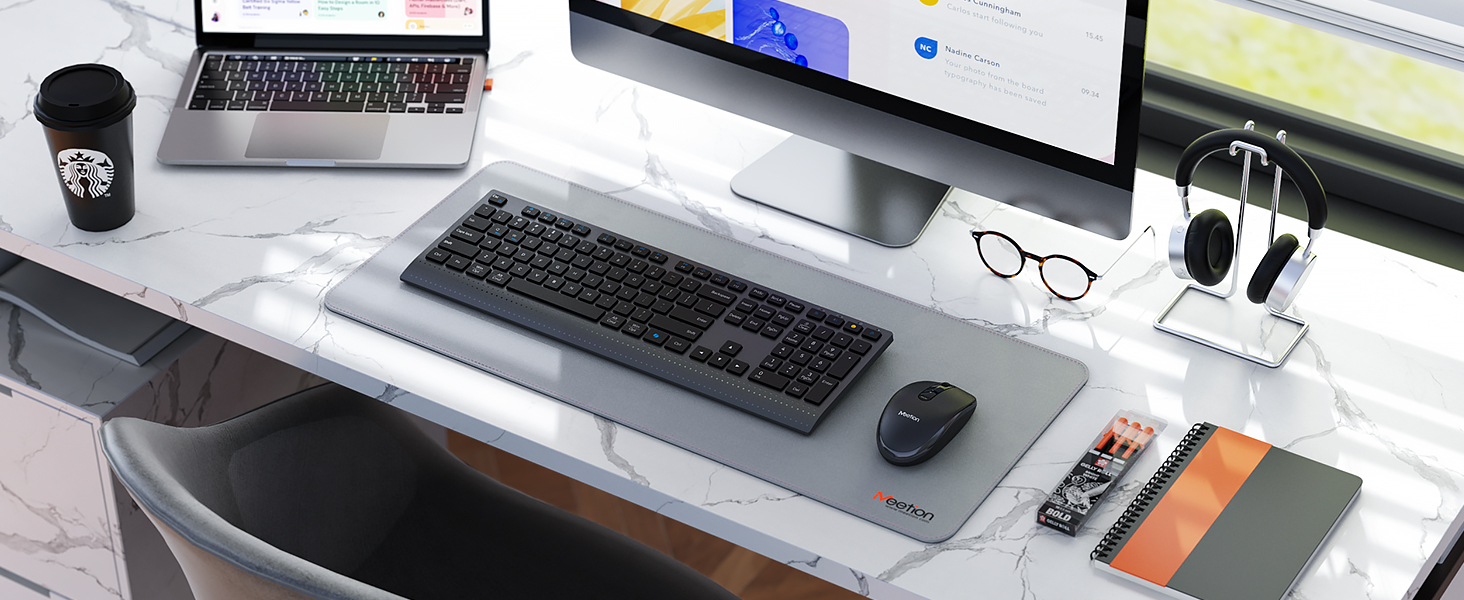
The keyboard features a full-size layout with a numeric keypad. Key components include:
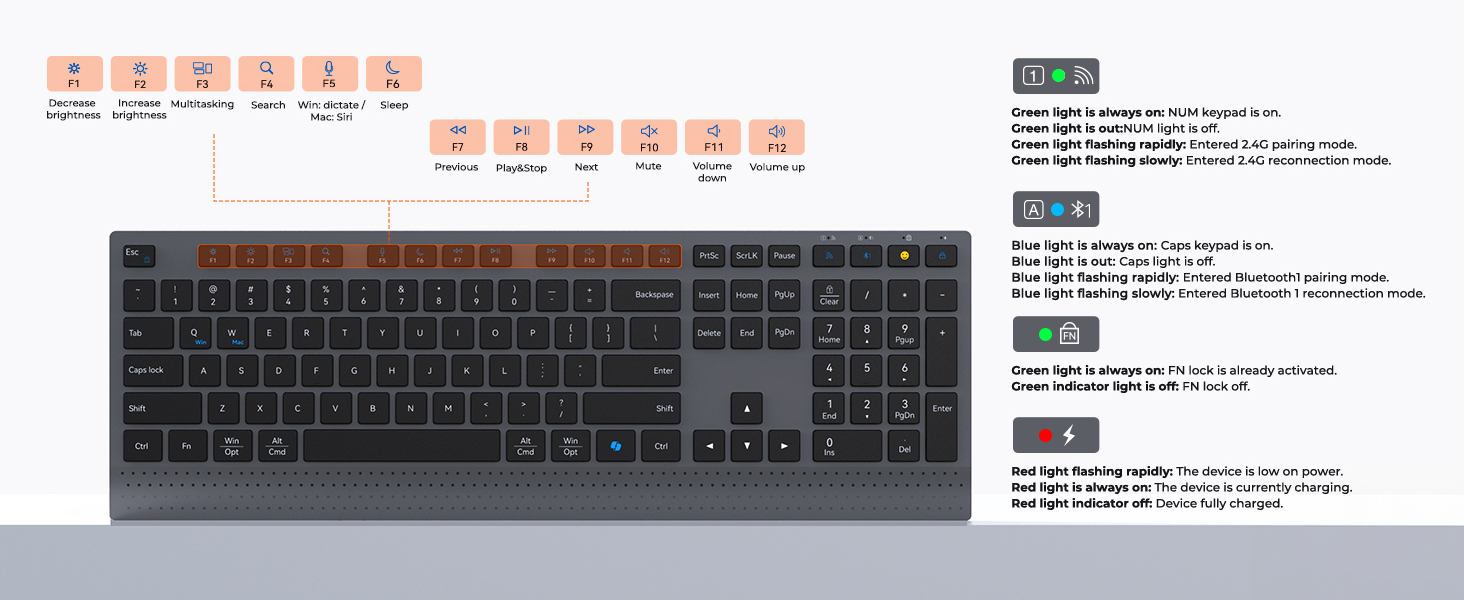
- Funktionstaster (F1-F12): Provide multimedia control and system shortcuts when used with the FN key.
- Indikatorlys:
- Green Light: 2.4G mode indicator (solid for connected, flashing for pairing/reconnection).
- Blue Light: Bluetooth mode indicator (solid for connected, flashing for pairing/reconnection).
- Red Light: Battery status (flashing for low power, solid for charging, off for fully charged).
- Caps Lock/FN Lock Indicators.
- Mode Switching Keys: Dedicated keys to switch between 2.4G and Bluetooth modes.
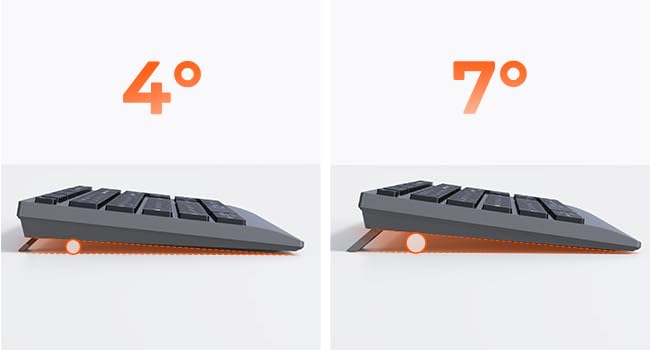
- Adjustable Kickstands: Located on the underside for 4° and 7° tilt angles.
3.2 Musens komponenter
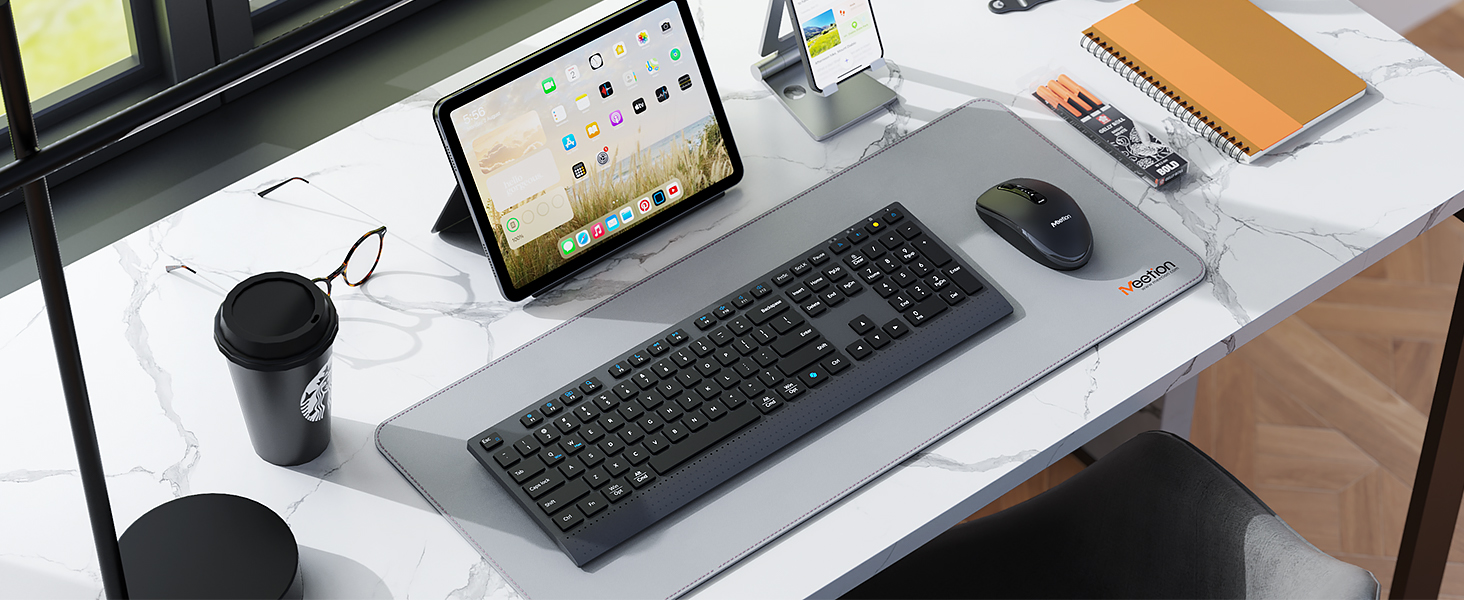
The mouse features a comfortable ergonomic design with silent click buttons. Key components include:
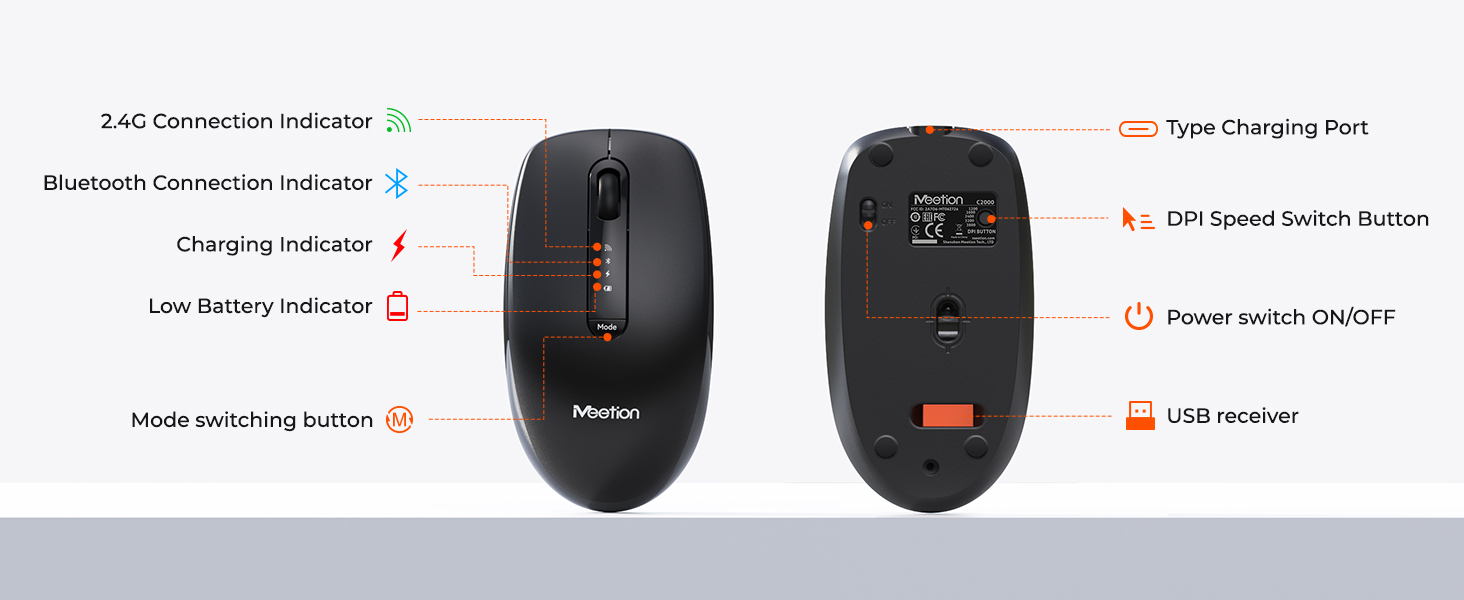
- Venstre/højre klikknapper: Lydløs drift.
- Scrollhjul: For navigation.
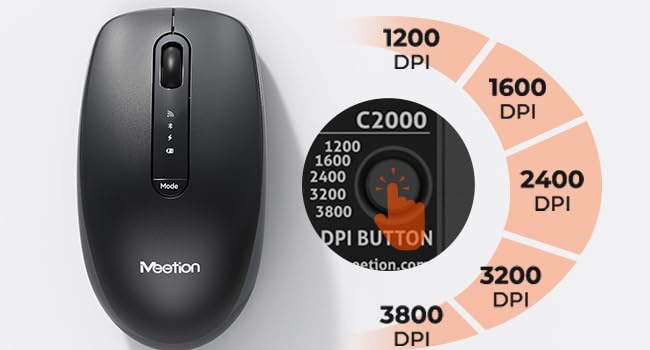
- DPI-hastighedsskiftknap: Adjusts cursor sensitivity (1200/1600/2400/3200/3800 DPI).
- Knap til tilstandsskift: Switches between 2.4G and Bluetooth modes.
- Afbryderen: ON/OFF switch on the underside.
- USB-modtagerlagring: Compartment on the underside for the 2.4GHz USB receiver.
- Type-C opladningsport: Til genopladning af det interne batteri.
- Connection Indicators: Lights for 2.4G, Bluetooth, charging, and low battery.
4. Opsætning
4.1 Opladning af enhederne
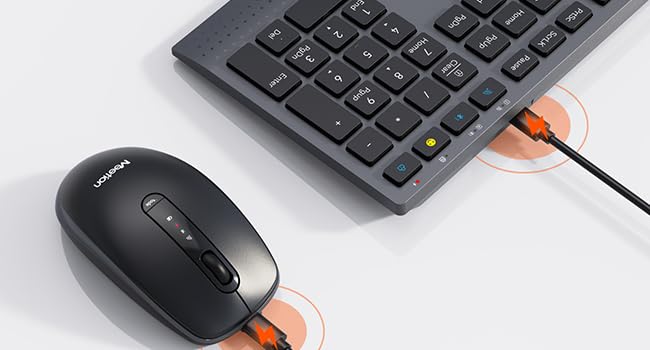
Both the keyboard and mouse are equipped with built-in rechargeable lithium batteries. Use the provided USB-C charging cable to charge them.
- Connect the USB-C end of the charging cable to the charging port on the keyboard (top right) or mouse (front).
- Tilslut USB-A-enden af opladningskablet til en USB-strømkilde (f.eks. en computers USB-port eller en USB-vægadapter).
- The red indicator light on the device will illuminate while charging. It will turn off when fully charged.
A full charge takes approximately 2 hours. The keyboard provides up to 300 hours of use, and the mouse provides up to 150 hours of use on a single charge.
4.2 2.4 GHz trådløs forbindelse
Denne tilstand bruger den medfølgende USB-modtager til en stabil trådløs forbindelse.
- Locate the USB receiver, typically stored in the mouse's battery compartment or a dedicated slot.
- Sæt USB-modtageren i en ledig USB-A-port på din computer eller enhed.
- Til tastatur: Turn the keyboard's power switch (located on the back) to the "ON" position. Press the 2.4G mode switching key (usually indicated by a wireless icon) on the keyboard. The corresponding green indicator light will illuminate.
- Til mus: Toggle the power switch on the underside of the mouse to the "ON" position. Press the "Mode" button on the mouse until the green 2.4G indicator light illuminates.
- The devices should automatically connect. If not, the indicator lights will flash, indicating pairing mode.
4.3 Bluetooth-forbindelse
This mode allows connection to devices without a USB port, such as tablets and smartphones.
- Til tastatur: Turn the keyboard's power switch to the "ON" position. Press the Bluetooth mode switching key (usually indicated by a Bluetooth icon) on the keyboard. The blue indicator light will flash, indicating it's in pairing mode.
- Til mus: Toggle the power switch on the underside of the mouse to the "ON" position. Press the "Mode" button on the mouse until the blue Bluetooth indicator light flashes, indicating pairing mode.
- Gå til Bluetooth-indstillingerne på din enhed (pc, bærbar computer, tablet, smartphone), og søg efter nye enheder.
- Select "Meetion_KB_BT1" (for keyboard) and "Meetion_Mouse_BT1" (for mouse) from the list of available devices.
- Follow any on-screen prompts to complete the pairing process. The blue indicator light will become solid once connected.
The C2000 combo supports multi-device connectivity, allowing you to switch between up to three devices (one 2.4G and two Bluetooth) effortlessly using the mode switching keys.
5. Betjeningsvejledning
5.1 Tastaturfunktioner
The keyboard offers various functions accessible via the FN key combinations:
| Nøglekombination | Fungere |
|---|---|
| FN + F1 | Formindsk lysstyrke |
| FN + F2 | Øg lysstyrken |
| FN + F3 | Multitasking |
| FN + F4 | Søg |
| FN + F5 | Win Dictate / Mac Siri |
| FN + F6 | Sove |
| FN + F7 | Forrige spor |
| FN + F8 | Afspil/pause |
| FN + F9 | Næste spor |
| FN + F10 | Stum |
| FN + F11 | Lydstyrke ned |
| FN + F12 | Lydstyrke op |
| FN + Q/W/E | Switch between connected devices (PC, laptop, tablet, phone). |
| Dedicated Copilot Key | Instant access to AI tools (Windows only). |
| Dedicated Smiley Face Key | Easily insert emojis (supports Windows, macOS, iPadOS, Android Samsung; not iPhone iOS). |
The keyboard also features dual kickstands on the underside, allowing you to adjust the typing angle to 4° or 7° for improved ergonomics and comfort during long typing sessions.
5.2 Musens funktioner
The mouse offers precise control and quiet operation:
- DPI-justering: Press the DPI button (located near the scroll wheel) to cycle through five sensitivity settings: 1200, 1600, 2400, 3200, and 3800 DPI. Choose the setting that best suits your needs for smooth and precise cursor control.
- Modeskift: Use the "Mode" button on the mouse to switch between 2.4G wireless and Bluetooth connections.
- Lydløse klik: The mouse buttons are designed for quiet operation, reducing noise in quiet environments.
6. Vedligeholdelse
To ensure the longevity and optimal performance of your MEETION C2000 combo, follow these maintenance guidelines:
- Rensning:
- Brug en blød, tør og fnugfri klud til at tørre overfladerne på tastaturet og musen af.
- Til genstridigt snavs, let dampRengør kluden med vand eller et mildt, ikke-slibende rengøringsmiddel. Undgå for meget fugt.
- Do not spray cleaning solutions directly onto the devices.
- Use compressed air to remove dust and debris from between the keyboard keys.
- Opbevaring:
- When not in use for extended periods, turn off both the keyboard and mouse to conserve battery life.
- Opbevar enhederne et køligt, tørt sted, væk fra direkte sollys og ekstreme temperaturer.
- Keep the USB receiver stored in its designated slot in the mouse to prevent loss.
- Batteripleje:
- Avoid fully discharging the batteries frequently. Recharge them when the low battery indicator appears.
- Do not expose the devices to extreme heat or cold, as this can affect battery life.
7. Fejlfinding
If you encounter issues with your MEETION C2000 combo, please refer to the following common solutions:
| Problem | Mulig løsning |
|---|---|
| Tastatur/mus reagerer ikke |
|
| Lag eller intermitterende forbindelse |
|
| Musemarkøren er uregelmæssig eller bevæger sig ikke jævnt |
|
| Tastaturtaster virker ikke |
|
| Kan ikke skifte mellem enheder |
|
8. Specifikationer
| Feature | Detalje |
|---|---|
| Modelnummer | C2000 |
| Forbindelse | 2.4 GHz trådløs, Bluetooth 5.2 |
| Tastaturlayout | Full Size with Numeric Keypad |
| Tastaturets batterilevetid | Up to 300 hours (on 2-hour charge) |
| Mus DPI-indstillinger | 1200 / 1600 / 2400 / 3200 / 3800 DPI |
| Musens batterilevetid | Up to 150 hours (on 2-hour charge) |
| Opladningsport | USB-C |
| Kompatible enheder | Windows, macOS, Laptop, PC, Desktop, iPad, Phone (Android) |
| Tastaturmål | Cirka 17.2 x 5.8 x 1 tommer |
| Musens dimensioner | Cirka 4.4 x 2.4 x 1.49 tommer |
| Varens vægt | 2.18 pund (kombination) |

9. Garanti og support
MEETION products are designed for reliability and performance. For warranty information and technical support, please refer to the following:
- Garanti: This product comes with a standard manufacturer's warranty. Please retain your proof of purchase for warranty claims. Specific warranty terms and duration may vary by region.
- Teknisk support: For assistance with setup, troubleshooting, or any other product-related inquiries, please visit the official MEETION webwebsted eller kontakt deres kundesupport.
- Online ressourcer: Additional FAQs and support resources may be available on the MEETION brand store page on Amazon or the manufacturer's webwebsted.
Note: As per the provided data, specific warranty details or direct contact information for support are not available. Please refer to the manufacturer's official channels for the most up-to-date support information.


