1. Introduktion
This manual provides detailed instructions for the MCHOSE X75 V2 Wireless Mechanical Keyboard and M7 Ultra Wireless Gaming Mouse. It covers setup, operation, maintenance, and troubleshooting to ensure optimal performance and longevity of your devices. Please read this manual thoroughly before using the products.
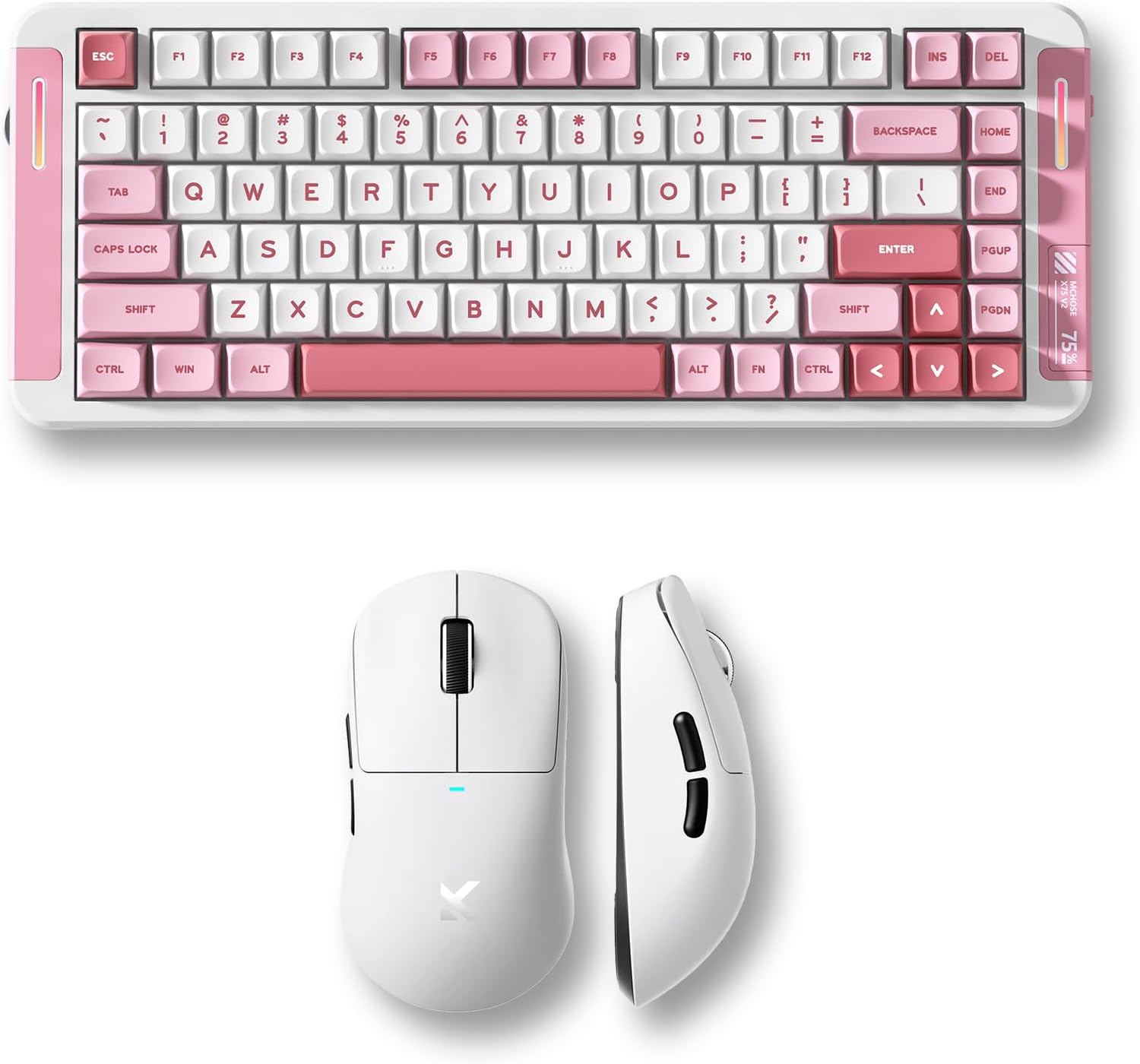
Image 1.1: MCHOSE X75 V2 Wireless Mechanical Keyboard (pink) and M7 Ultra Wireless Gaming Mouse (white) bundle.
2. Produktet er slutview
2.1 MCHOSE X75 V2 Wireless Mechanical Keyboard
The MCHOSE X75 V2 is a 75% layout mechanical keyboard designed for both gaming and productivity. It features tri-mode connectivity, hot-swappable switches, and an ergonomic design.

Billede 2.1: Overview of MCHOSE X75 V2 Mechanical Keyboard features, including 75% layout, full RGB backlit, 3 modes, 8000mAh battery, hot-swappable switches, 5-layer gasket, ergonomic design, MCHOSE HUB compatibility, and a multi-media knob.
Nøglefunktioner:
- 75% kompakt layout: 82 keys, saving desktop space while retaining essential keys.
- Tri-mode-tilslutning: Bluetooth 5.0, 2.4GHz wireless, and USB wired connection.
- Hot-Swappable PCBA: Giver mulighed for nem udskiftning af kontakten uden lodning.
- 8000mAh batteri: High-capacity battery for extended wireless use.
- Embedded Multimedia Knob: For convenient media control.
- Ergonomisk design: Optimized typing angle for comfort.

Billede 2.2: Detaljeret view of the MCHOSE X75 V2 Keyboard's ergonomic design, highlighting Type-C ports, embedded multimedia knob, USB receiver container, two-stage adjustable tilt legs, and 360-degree immersive lighting.

Image 2.3: Illustration of the MCHOSE X75 V2 Keyboard's hot-swappable PCBA, showing Hyacinth Linear Switches and compatibility with 3/5-pin switches and south-facing LEDs.
2.2 MCHOSE M7 Ultra Wireless Gaming Mouse
The MCHOSE M7 Ultra is a lightweight gaming mouse featuring TOPSPEED wireless technology and an 8K polling rate for precise and responsive control.

Billede 2.4: Overview of MCHOSE M7 Ultra Gaming Mouse features, including 8K Hz Hyperpolling, Realtek Premium Processor, 55g ultra-lightweight design, PAW 3950 Sensor, MCHOSE Pro Optical Switches, 500mAh battery, ergonomic design, tri-mode connectivity, and MCHOSE CUSTOM DRIVER compatibility.
Nøglefunktioner:
- TOPSPEED Wireless Technology: Ensures low latency wireless transmission.
- Dobbelt 8K pollinghastighed: Wired 1K and wireless 8K polling for ultra-low latency (0.125ms).
- 55g Ultra Lightweight: Ergonomic design for comfortable extended use.
- PAW 3950-sensor: High-precision optical sensor.
- MCHOSE Pro Optical Switches: Durable and responsive switches.
- 500mAh batteri: Provides reliable power for gaming sessions.

Image 2.5: Diagram illustrating the MCHOSE M7 Ultra Mouse's six programmable buttons: Left, Right, Middle, Mode Switch, Forward, Back, along with the Indicator Light, DPI Switch, and USB Dongle storage location.

Billede 2.6: Eksploderet view of the MCHOSE M7 Ultra Mouse, showing internal components such as MCHOSE Pro Optical Switches, Realtek Premium Processor, PAW 3950 Sensor, and 500mAh battery.

Image 2.7: MCHOSE M7 Ultra Mouse highlighting its 8K Hz Hyperpolling Rate and TOPSPEED Wireless Technology, with the NANO Wireless 8K Receiver shown.
3. Opsætningsvejledning
Before first use, ensure both the keyboard and mouse are fully charged.

Image 3.1: Illustration of the tri-mode connection options (BT 5.0, Wireless 2.4G, Type-C) and wide compatibility with various devices including phones, tablets, Switch, Xbox, and PS5.
3.1 MCHOSE X75 V2 Keyboard Setup
- Opladning: Connect the keyboard to a USB power source using the provided Type-C cable. The indicator light will show charging status.
- Valg af tilstand: Use the switch on the keyboard to select your desired connection mode:
- USB-kablet: Connect the Type-C cable directly to your computer.
- 2.4 GHz trådløs: Insert the 2.4GHz USB receiver (located in the keyboard's storage compartment) into your computer's USB port. Switch the keyboard to 2.4G mode.
- Bluetooth: Switch the keyboard to BT mode. Press and hold FN + 1/2/3 to enter pairing mode. The indicator light will flash. Select 'MCHOSE X75 V2' from your device's Bluetooth settings.
- Indledende brug: Once connected, the keyboard is ready for use.
3.2 MCHOSE M7 Ultra Mouse Setup
- Opladning: Connect the mouse to a USB power source using the provided Type-C cable. The indicator light will show charging status.
- Valg af tilstand: Use the switch on the bottom of the mouse to select your desired connection mode:
- USB-kablet: Connect the Type-C cable directly to your computer.
- 2.4 GHz trådløs: Remove the 2.4GHz USB dongle from its storage compartment on the mouse's underside and insert it into your computer's USB port. Switch the mouse to 2.4G mode.
- Bluetooth: Switch the mouse to BT mode. The indicator light will flash. Select 'MCHOSE M7 Ultra' from your device's Bluetooth settings.
- DPI-justering: Press the DPI switch button on the bottom of the mouse to cycle through preset DPI levels.
- Driftstilstande: The M7 series offers two operating modes: Game-Enhancement Mode and Esports Mode. Refer to the operating instructions for switching between these modes.
4. Betjeningsvejledning
4.1 MCHOSE X75 V2 Keyboard Operation
- Multimedia Knob: Rotate to adjust volume. Press to play/pause media. Specific functions may vary based on operating system.
- Function Keys (FN Combinations):
- FN + F1-F12: Access various multimedia and system functions. Refer to the keycap legends for specific actions.
- FN + Backlight Key: Cycle through RGB lighting effects.
- FN + Piletaster: Adjust backlight brightness and speed.
- FN + 1/2/3: Skift mellem parrede Bluetooth-enheder.
- Tilpasning: Download the MCHOSE HUB software from the official MCHOSE website for advanced key remapping, macro creation, and RGB lighting customization.
4.2 MCHOSE M7 Ultra Mouse Operation
- DPI-skift: Press the dedicated DPI button on the underside of the mouse to cycle through predefined DPI settings. The indicator light may change color to reflect the current DPI level.
- Driftstilstande: The M7 Ultra features Game-Enhancement Mode and Esports Mode. The mode switch button (if present, refer to Image 2.5) or specific software settings can be used to toggle between these modes for optimized performance.
- Programmerbare knapper: The six buttons (Left, Right, Middle, Mode Switch, Forward, Back) can be customized using the MCHOSE CUSTOM DRIVER software.
- Tilpasning: Download the MCHOSE CUSTOM DRIVER software from the official MCHOSE website to customize button assignments, DPI levels, polling rate, and other performance settings.
5. Vedligeholdelse
Proper maintenance ensures the longevity and performance of your MCHOSE devices.
- Rensning: Use a soft, dry cloth to wipe the surfaces of the keyboard and mouse. For stubborn dirt, a slightly damp en klud med mild sæbe kan bruges, så det sikres, at der ikke kommer væske ind i enheden. Undgå barske kemikalier eller slibende materialer.
- Keycap Cleaning (Keyboard): Keycaps can be carefully removed for deeper cleaning. Use a keycap puller to avoid damage. Clean keycaps with water and mild soap, then dry thoroughly before reattaching.
- Sensor Cleaning (Mouse): Brug en vatpind letampened with isopropyl alcohol to gently clean the optical sensor on the underside of the mouse.
- Batteripleje: Avoid fully discharging the battery frequently. For long-term storage, charge the devices to about 50% and store them in a cool, dry place.
- Opbevaring: Store devices in a clean, dust-free environment when not in use.
6. Fejlfinding
If you encounter issues with your MCHOSE keyboard or mouse, refer to the following common solutions:
6.1 Fejlfinding af tastatur
- Tastaturet reagerer ikke:
- Sørg for, at tastaturet er opladet.
- Check the connection mode switch (USB, 2.4G, BT) and ensure it matches your connection method.
- For 2.4 GHz skal du sørge for, at USB-modtageren er tilsluttet korrekt.
- For Bluetooth, re-pair the device.
- Prøv at tilslutte via USB-kabel for at udelukke problemer med den trådløse forbindelse.
- Nøgler registreres ikke:
- Check for physical obstructions under the keycap.
- If hot-swappable, ensure the switch is properly seated.
- Update keyboard firmware via MCHOSE HUB software.
- RGB-belysning virker ikke:
- Ensure lighting is enabled via FN combinations or MCHOSE HUB software.
- Check battery level; low battery may disable lighting.
6.2 Mouse Troubleshooting
- Mouse not moving/responding:
- Sørg for, at musen er opladet.
- Check the connection mode switch (USB, 2.4G, BT) and ensure it matches your connection method.
- For 2.4 GHz skal du sørge for, at USB-donglen er korrekt tilsluttet.
- For Bluetooth, re-pair the device.
- Rengør den optiske sensor.
- Prøv at tilslutte via USB-kabel for at udelukke problemer med den trådløse forbindelse.
- Inkonsekvent sporing:
- Rengør den optiske sensor.
- Use on a clean, uniform mouse pad.
- Juster DPI-indstillingerne.
- Knapper virker ikke:
- Check button assignments in MCHOSE CUSTOM DRIVER software.
- Ensure no physical obstruction.
7. Specifikationer
7.1 MCHOSE X75 V2 Wireless Mechanical Keyboard
| Feature | Specifikation |
|---|---|
| Layout | 75 % (82 nøgler) |
| Forbindelse | Tri-Mode (USB-C, 2.4GHz Wireless, Bluetooth 5.0) |
| Afbrydere | Hot-swap (3/5-bens kompatibel) |
| Batterikapacitet | 8000mAh |
| Baggrundsbelysning | Fuld RGB |
| Afstemningsfrekvens | Standard (wired/wireless) |
| Særlige funktioner | Multimedia Knob, 5-Layer Gasket Structure, Ergonomic Design |
7.2 MCHOSE M7 Ultra Wireless Gaming Mouse
| Feature | Specifikation |
|---|---|
| Vægt | 55 g (ca.) |
| Sensor | PAW 3950 Optisk Sensor |
| Afbrydere | MCHOSE Pro Optical Switches |
| Forbindelse | Tri-Mode (USB-C, 2.4GHz Wireless, Bluetooth) |
| Afstemningsfrekvens | Wired 1K, Wireless 8K Hz Hyperpolling |
| Batterikapacitet | 500mAh |
| Særlige funktioner | TOPSPEED Wireless Technology, Ergonomic Design, Programmable Buttons |
8. Garanti og support
MCHOSE products come with a limited warranty. For detailed warranty information, please refer to the warranty card included with your product or visit the official MCHOSE website. For technical support, driver downloads, or further assistance, please visit the MCHOSE official support page or contact customer service.
Official MCHOSE Webwebsted: MCHOSE Store on Amazon


