1. Introduktion
Thank you for choosing the MageGee Captain87 Rapid Trigger Magnetic Switch Keyboard. This 75% wired mechanical gaming keyboard features adjustable actuation, a CNC aluminum frame, hot-swappable switches, and RGB lighting. This manual provides detailed instructions to help you set up, operate, and maintain your keyboard for optimal performance.

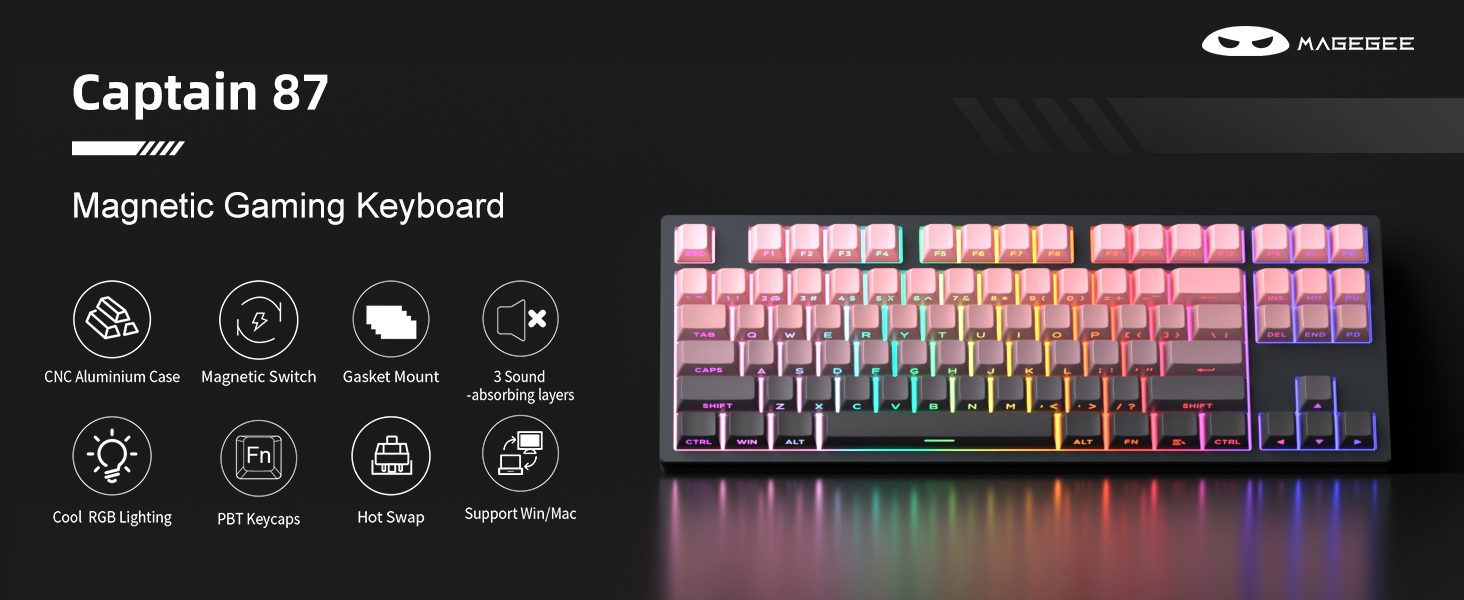
Image: The MageGee Captain87 Rapid Trigger Magnetic Switch Keyboard in Scarlet Dusk color, showcasing dens kompakte 75% layout og RGB-baggrundsbelysning.
2. Hvad er der i æsken
Upon unboxing your MageGee Captain87 keyboard, please verify that all the following items are included:
- MageGee Captain87 Rapid Trigger Keyboard
- Keycap aftrækker
- Type-C USB-kabel
- Brugermanual
- Brugervejledning
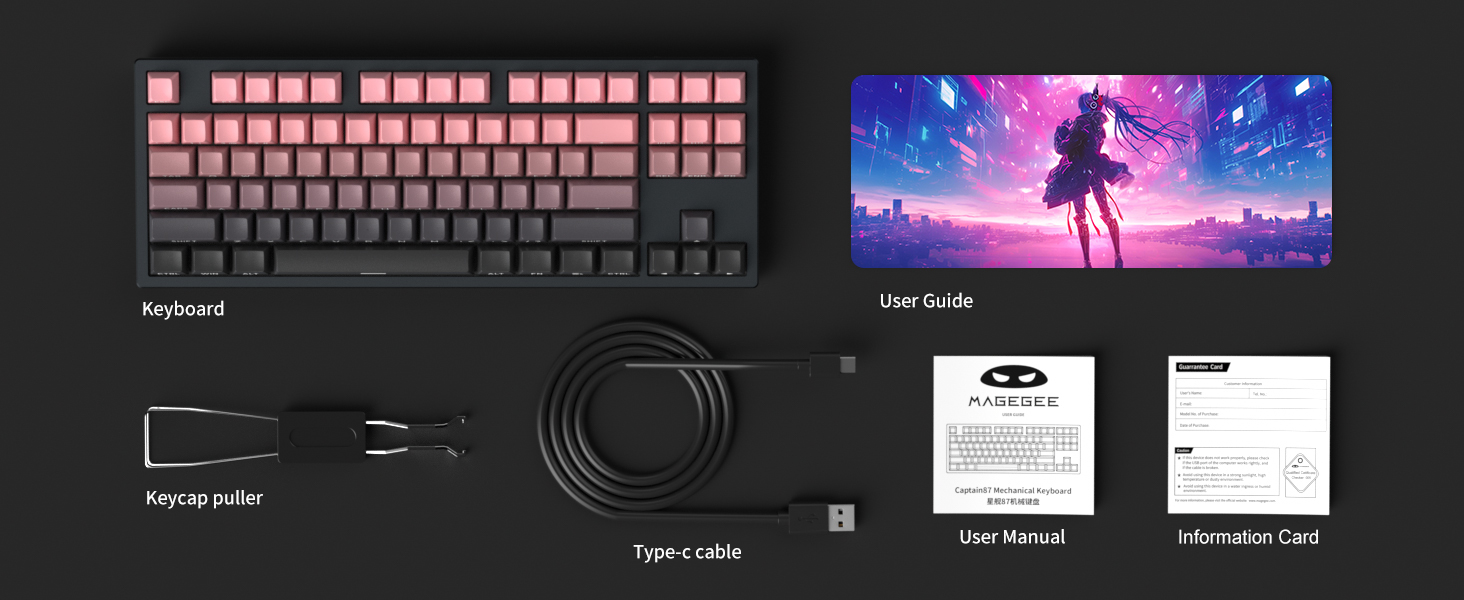
Image: An illustration showing the contents of the product box, including the keyboard, keycap puller, USB-C cable, user manual, and user guide.
3. Opsætningsvejledning
3.1 Tilslutning af tastaturet
- Locate the USB-C port on the back of the MageGee Captain87 keyboard.
- Connect one end of the provided Type-C USB cable to the keyboard's USB-C port.
- Connect the other end of the USB cable to an available USB port on your computer (Laptop or PC).
- The keyboard will automatically be recognized by your operating system (Windows or Mac OS).
3.2 Driverinstallation (kun Windows)
For full customization options, including RGB settings, key remapping, macros, and adjustable trigger ranges, download and install the MageGee proprietary driver.
- Besøg den officielle MageGee website to download the Captain87 driver.
- Følg instruktionerne på skærmen for at fuldføre installationen.
- Note: The Captain87 driver only supports Windows operating systems.
Billede: Et nærbillede view of the keyboard highlighting its durable aluminum alloy top enclosure.
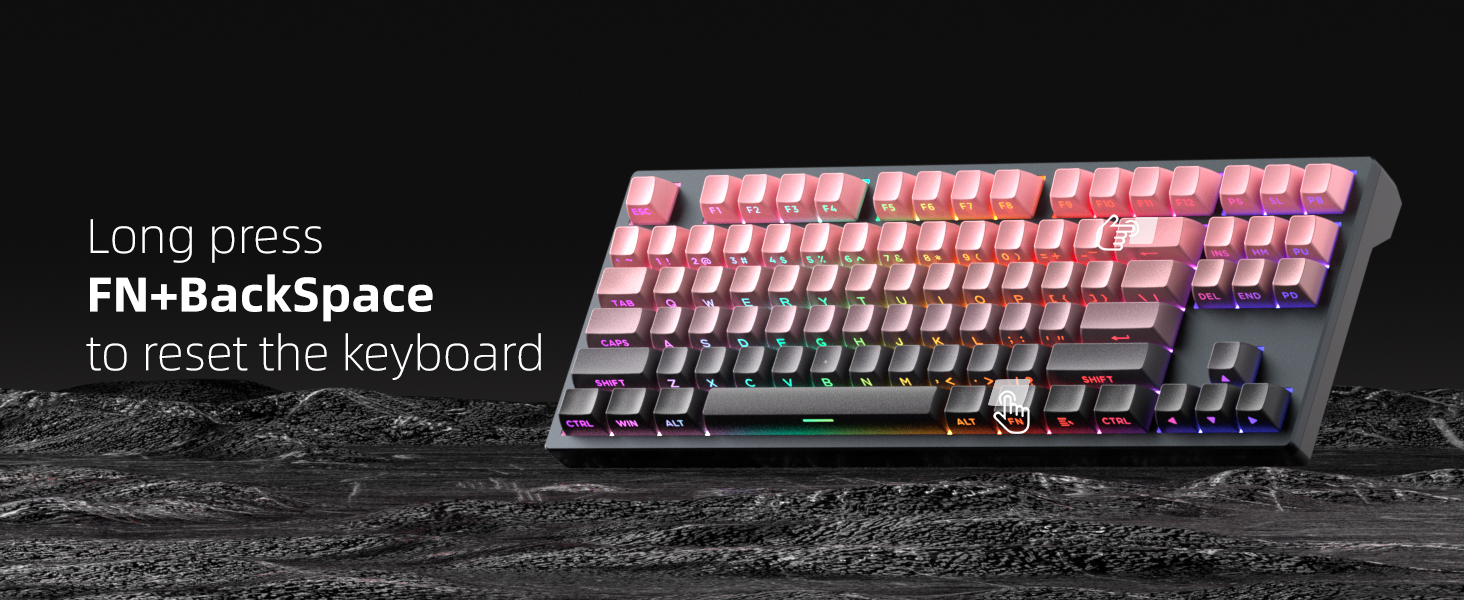
Image: Screenshot of the MageGee driver software interface, showing options for key customization, macros, and lighting settings.
4. Betjeningsvejledning
4.1 Hurtig udløser og justerbar aktivering
The Captain87 keyboard features magnetic switches with Rapid Trigger technology, allowing for extremely fast response times and adjustable actuation points. This is particularly beneficial for gaming, enabling quicker key presses and lifts.
- Adjustable Trigger Point: The trigger distance can be set individually for each key from 0.1 mm to 4 mm, with an accuracy of 0.1 mm. This customization is done via the MageGee driver software.
- Preset Key Travel Modes: The keyboard includes three preset modes for different scenarios: Komfort, Følsom, og Spil. These can be switched directly on the keyboard.
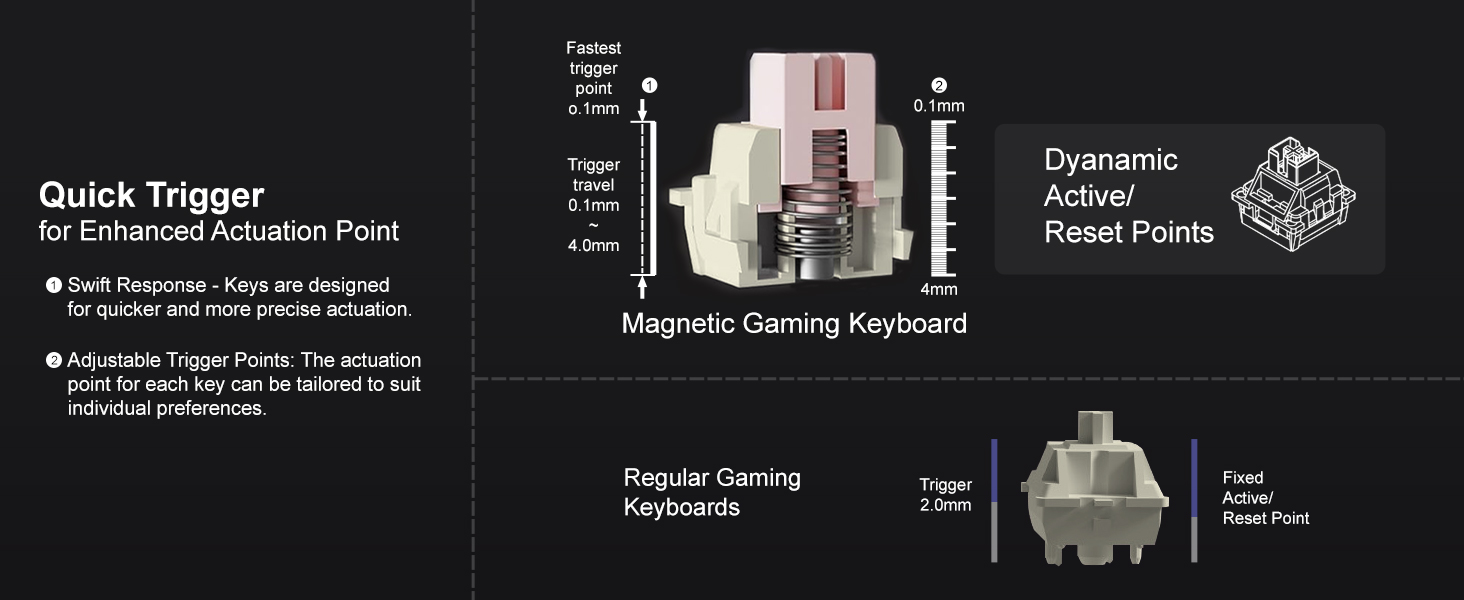
Image: A diagram illustrating the rapid trigger mechanism and adjustable actuation points of the magnetic switches, showing trigger travel from 0.1mm to 4.0mm.
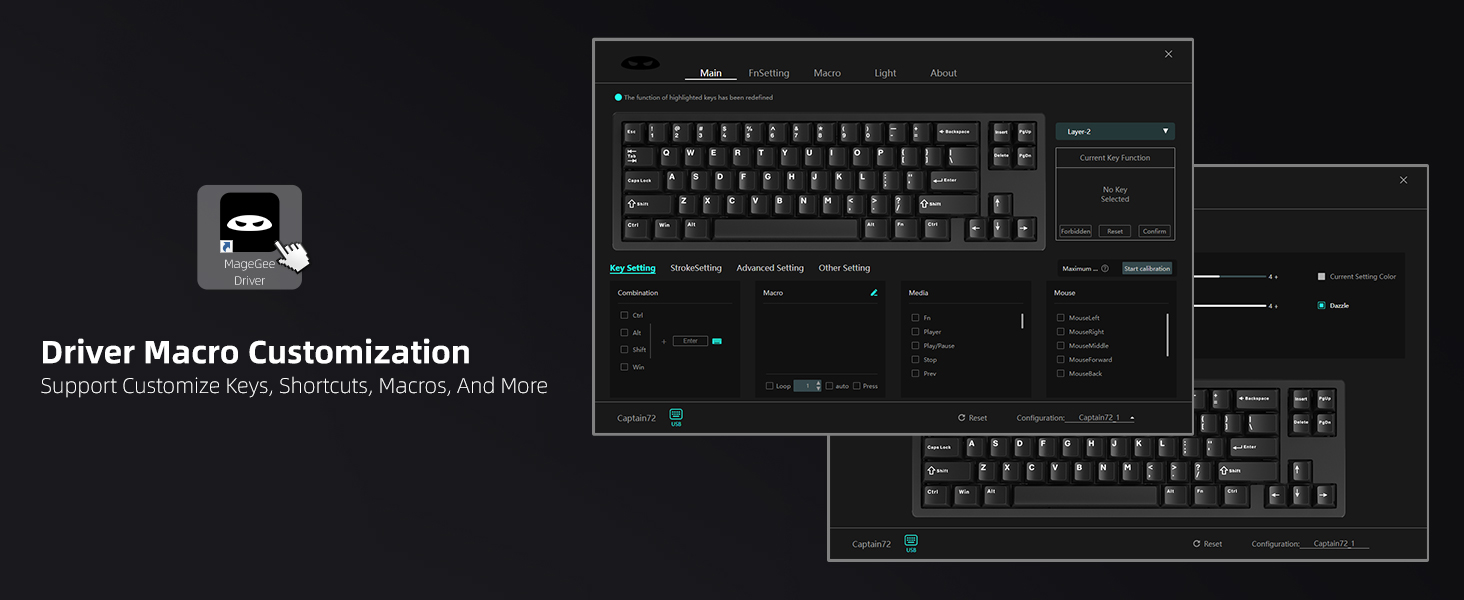
Image: Detailed specifications of the Fairy Rabbit Magnetic Switch, including total travel, work travel, work force, and magnetic flux values.
4.2 RGB-baggrundsbelysning
The Captain87 features south-facing RGB backlighting with various pre-programmed modes and color choices.
- Ændring af tilstande/farver: Use function key combinations (Fn + specific keys) to cycle through lighting modes and adjust brightness/speed. Refer to the included User Guide for specific key combinations.
- Tilpasning: Further customization of RGB settings can be done through the MageGee driver software.

Image: The MageGee Captain87 keyboard showcasing its vibrant RGB backlighting, illuminating the side-printed PBT keycaps.
4.3 Programmable Software (Windows Only)
The MageGee proprietary driver allows for extensive customization:
- Nøgleomlægning: Assign new functions to individual keys.
- Makrooptagelse: Create and edit complex macros for automated tasks.
- Trigger Range Adjustment: Fine-tune the actuation point for each key.
- RGB Settings: Tilpas lyseffekter og farver.
To restore default settings, click the 'Reset' button within the driver software.
Billede: En detaljeret view of the MageGee driver software, demonstrating its capabilities for key remapping, macro creation, and lighting control.
5. Vedligeholdelse
5.1 Rengøring af tastaturet
- Frakobl tastaturet fra computeren, før du rengør det.
- Brug en blød, fnugfri klud lidt damprengøres med vand eller en mild rengøringsopløsning til at tørre tastaturerne og rammen af.
- Brug trykluft eller en lille børste til at fjerne støv og snavs mellem tasterne.
- Avoid using harsh chemicals or abrasive materials, as they may damage the keyboard's finish.
5.2 Hot-swap-kontakter
The Captain87 keyboard features hot-swappable magnetic switches, allowing for easy replacement without soldering. Note that this keyboard is only compatible with OUTEMU magnetic switches.
- Fjern forsigtigt den ønskede tastaturhætte ved hjælp af den medfølgende tastaftrækker.
- Using a switch puller (not included, but often comes with replacement switches), carefully grip the switch and pull it straight up to remove it.
- Align the pins of the new OUTEMU magnetic switch with the holes on the PCB.
- Gently press the new switch into place until it clicks securely. Ensure it is fully seated.
- Sæt tastaturdækslet på igen.
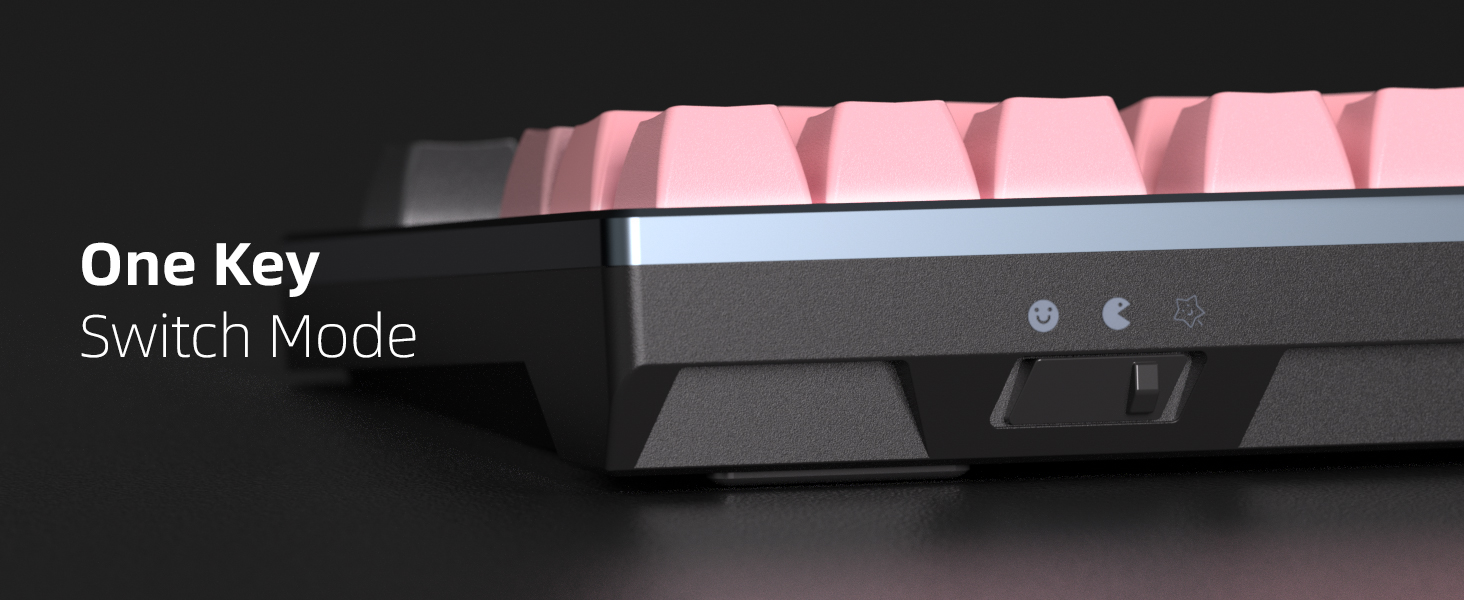
Image: A visual representation of the hot-swappable feature, showing switches being removed and inserted into the keyboard's PCB.
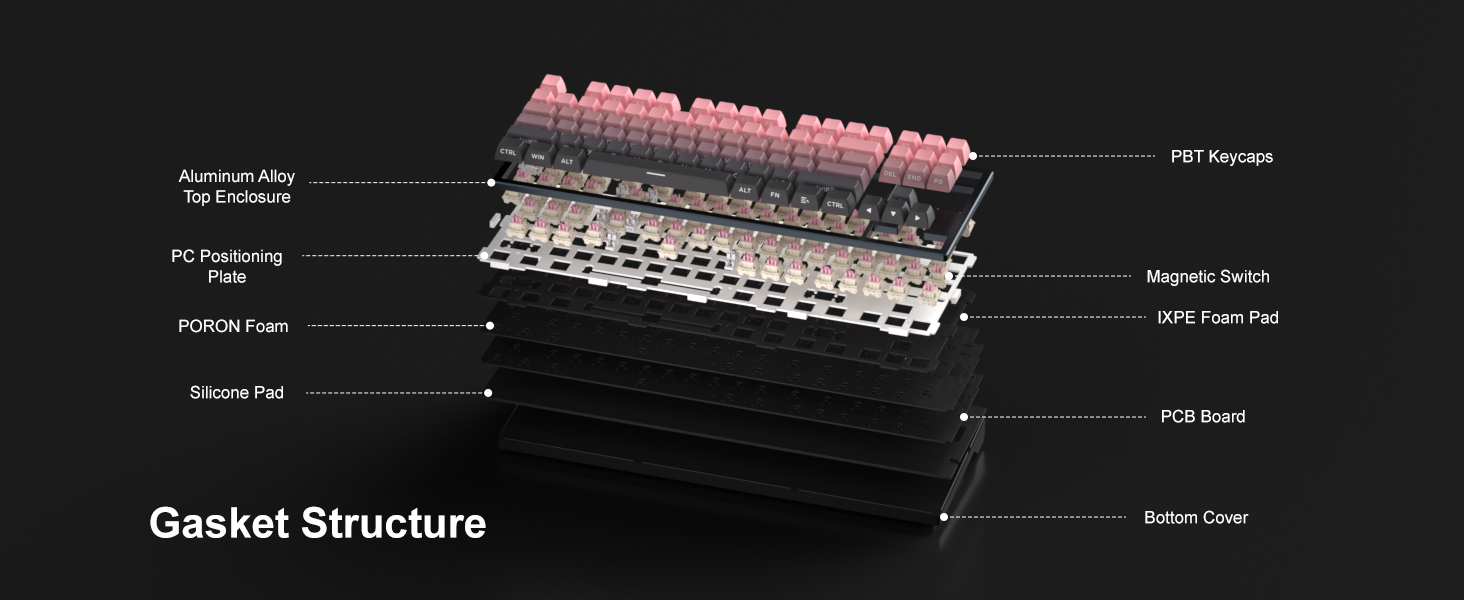
Billede: En eksploderet view diagram illustrating the gasket-mounted structure of the keyboard, showing layers like the aluminum alloy top enclosure, magnetic switches, gasket mount, PC positioning plate, IXPE foam pad, PORON foam, PCB board, silicone pad, and bottom cover.
6. Fejlfinding
| Problem | Mulig årsag | Løsning |
|---|---|---|
| Tastaturet svarer ikke. | Løs kabelforbindelse; Problem med USB-port; Driverproblem. | Ensure USB-C cable is securely connected to both keyboard and computer. Try a different USB port. Restart your computer. Reinstall the driver if applicable. |
| RGB lighting not working or incorrect. | Lighting mode settings; Software conflict. | Use Fn key combinations to cycle through lighting modes. Check RGB settings in the MageGee driver software. Ensure no other lighting software is interfering. |
| Nøgler registreres ikke eller dobbelttastes. | Incorrect actuation setting; Loose switch; Software glitch. | Adjust actuation point in the driver software. Ensure switches are fully seated. Try resetting the keyboard (Long press FN+BackSpace). |
| Driver software not detecting keyboard. | Driver not installed correctly; Compatibility issue. | Ensure you are running Windows OS. Re-download and reinstall the latest driver from the official MageGee website. Run the driver as administrator. |
6.1 Resetting the Keyboard
If you encounter persistent issues, you can reset the keyboard to its factory default settings:
- Tryk længe på FN + BackSpace keys simultaneously for several seconds.
- The keyboard's lights may flash to indicate a successful reset.
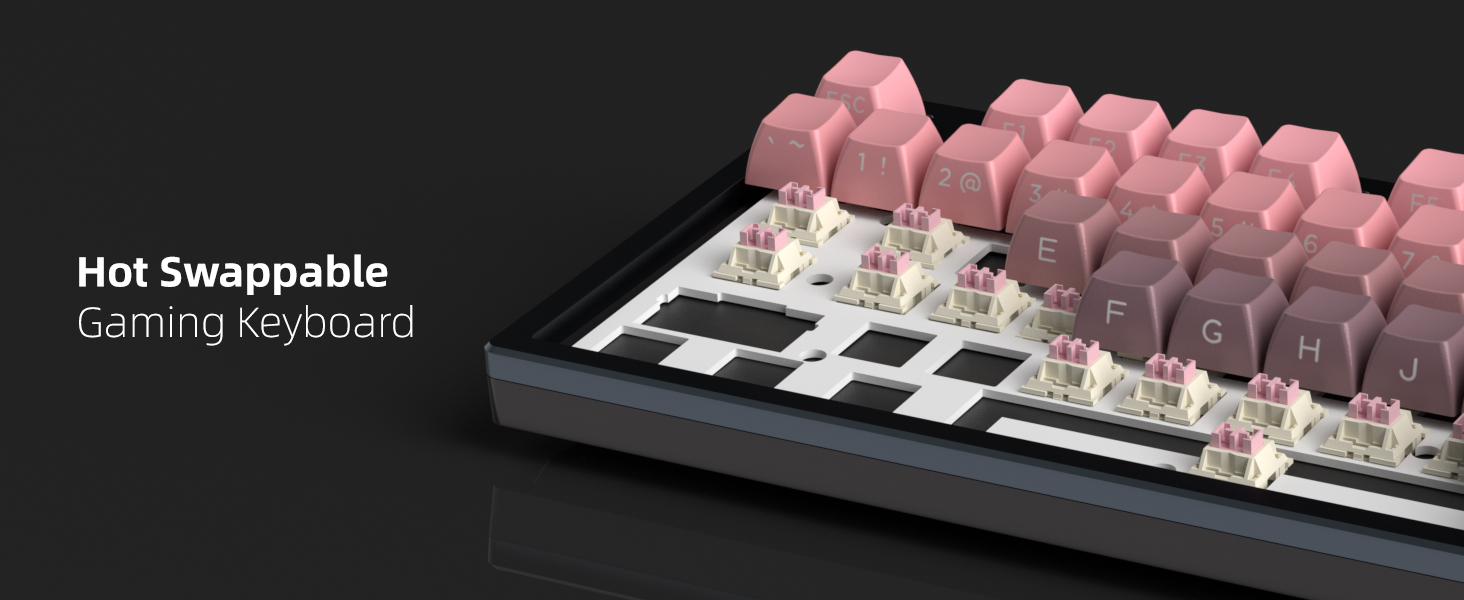
Image: A visual guide showing the FN and BackSpace keys to be pressed simultaneously for resetting the keyboard.
7. Specifikationer
| Feature | Detalje |
|---|---|
| Model | Kaptajn87 |
| Tastaturtype | 75% Wired Mechanical Gaming Keyboard |
| Switch Type | Rapid Trigger Magnetic Switches (Hall Effect) |
| Aktiveringsområde | 0.1 mm to 4 mm (adjustable) |
| Rammemateriale | CNC Aluminum Alloy Top Cover |
| tasterne | Side-Printed PBT Keycaps |
| Monteringsstil | Pakningsmonteret struktur |
| Baggrundsbelysning | South-Facing RGB Backlit |
| Forbindelse | USB-C |
| Kompatibilitet | Windows, Mac OS (Driver for Windows only) |
| Dimensioner | 15.75 x 7.01 x 2.48 tommer (pakke) |
| Vægt | 2.88 pund |
8. Garanti og support
8.1 Garantioplysninger
MageGee products are designed and manufactured to the highest quality standards. For specific warranty terms and conditions, please refer to the warranty card included in your product packaging or visit the official MageGee webwebsted.
8.2 Kundesupport
If you encounter any issues or have questions regarding your MageGee Captain87 keyboard, please contact MageGee customer support through the following channels:
- Officiel Webwebsted: www.magegee.com (Se kontaktoplysninger til support, ofte stillede spørgsmål og driverdownloads)
- E-mail support: Refer to your product documentation for the specific support email address.
When contacting support, please have your product model (Captain87) and purchase details ready.


