1. Introduktion
This manual provides essential information for the safe and effective operation of your GROVIEW Native 1080P Bluetooth Projector. Please read it thoroughly before use and retain it for future reference. This projector is designed to deliver a high-quality visual experience for home theater, gaming, and presentations.
2. Sikkerhedsoplysninger
- Strømforsyning: Brug kun den angivne strømadapter. Sørg for, at lydstyrkentage matcher din lokale strømforsyning.
- Ventilation: Bloker ikke ventilationsåbningerne. Sørg for tilstrækkelig luftgennemstrømning omkring projektoren for at forhindre overophedning.
- Varme: Projektoren lamp generates heat. Avoid touching the lens or vents during operation.
- Fugtighed: Do not expose the projector to rain, moisture, or immerse it in water.
- Rensning: Afbryd strømmen før rengøring. Brug en blød, tør klud. Brug ikke flydende rengøringsmidler eller aerosolrengøringsmidler.
- Placering: Placer projektoren på en stabil, plan overflade. Undgå at placere den i direkte sollys eller i nærheden af varmekilder.
- Øjenbeskyttelse: Se ikke direkte ind i projektorlinsen, når lamp er tændt, da det skarpe lys kan forårsage øjenbelastning eller skade.
3. Pakkens indhold
Bekræft at alle varer er til stede i din pakke:
- GROVIEW Mini projektor
- Brugermanual
- Fjernbetjening
- HDMI kabel
- Rengøringssæt
4. Produktet er slutview
4.1 Projektorkomponenter
Familiarize yourself with the main parts of your projector.

4.2 Input/output porte
Projektoren har forskellige porte til tilslutning af eksterne enheder.

- HDMI-port: Connects to devices such as laptops, gaming consoles (PS5, Xbox), TV sticks, and Blu-ray players.
- USB-porte (USB1, USB2): Til tilslutning af USB-drev for at afspille medier files.
- Lydudgang (3.5 mm): Tilsluttes eksterne højttalere eller hovedtelefoner.
- Strømindgang: Tilslutter strømadapteren.
5. Opsætning
5.1 Indledende placering
Place the projector on a stable surface. Ensure the projector lens is facing the projection surface (wall or screen). For optimal image quality, position the projector perpendicular to the screen.
5.2 Strømtilslutning
- Tilslut strømadapteren til projektorens strømindgang.
- Sæt strømadapteren i en stikkontakt.
- Strømindikatorlampen på projektoren vil lyse.
6. Betjeningsvejledning
6.1 Tænd/sluk
- Tænd: Tryk på tænd/sluk-knappen på projektoren eller fjernbetjeningen. Projektoren starter, og lamp vil tænde.
- Sluk: Press the power button again. Confirm shutdown if prompted. Allow the fan to run briefly to cool down the lamp before completely disconnecting power.
6.2 Menunavigation
Use the arrow buttons on the projector or remote control to navigate through the on-screen menu. The 'OK' or 'Enter' button confirms selections, and the 'Back' or 'Exit' button returns to the previous menu.
7. Forbindelse
7.1 HDMI-forbindelse
Connect your HDMI-enabled device (e.g., laptop, game console, streaming stick) to the projector's HDMI port using the provided HDMI cable. Select the corresponding HDMI input source from the projector's input menu.
7.2 USB-medieafspilning
Insert a USB flash drive into one of the projector's USB ports. Navigate to the media player function in the projector's menu to browse and play supported video, audio, or image files.
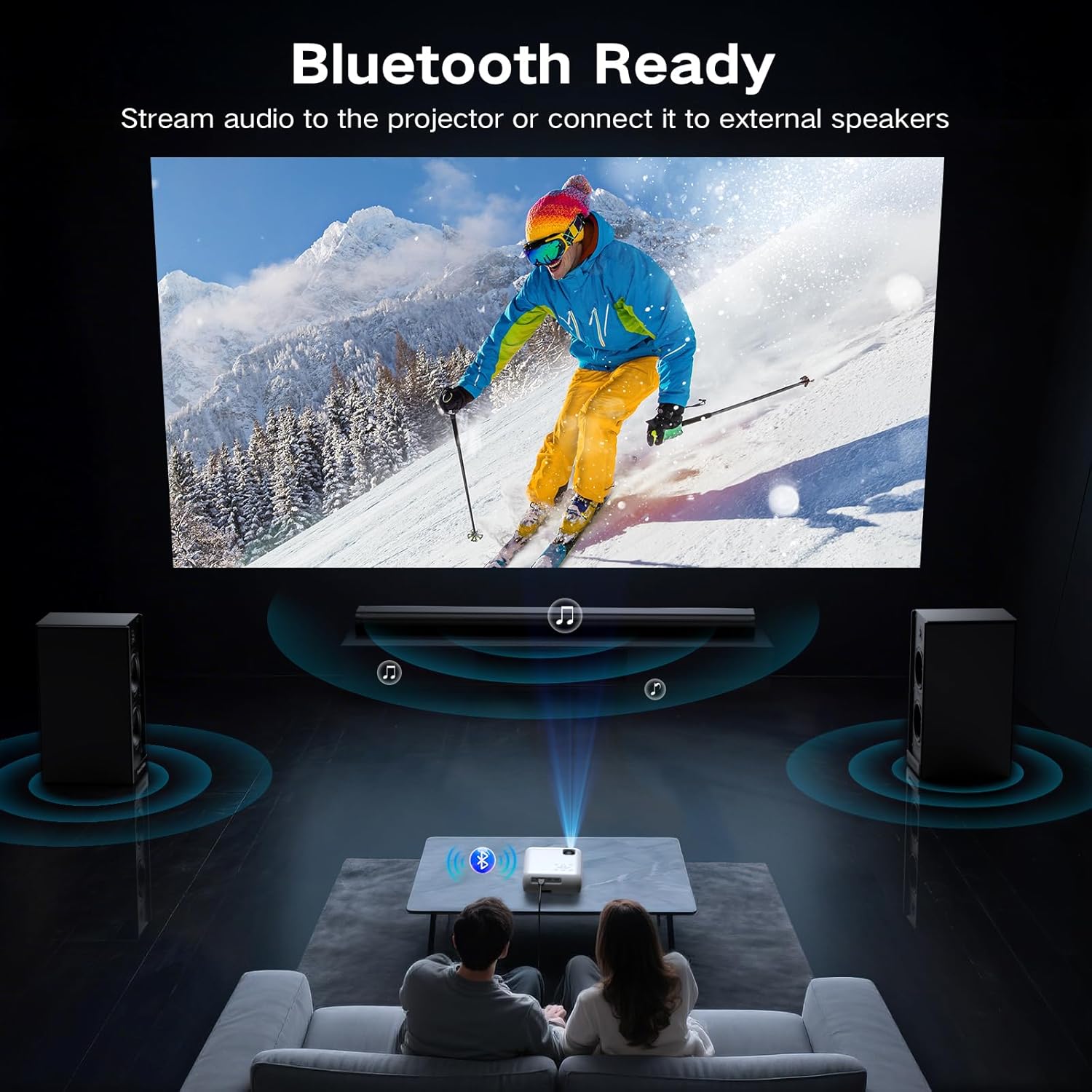
7.3 Bluetooth Connection (Audio)
The projector supports Bluetooth 5.0 for connecting to external Bluetooth speakers or headphones. This allows for enhanced audio output.

- Aktiver Bluetooth på din eksterne lydenhed, og indstil den til parringstilstand.
- Naviger til Bluetooth-indstillingerne på projektoren.
- Vælg din lydenhed fra listen over tilgængelige enheder, der skal parres.
7.4 Smartphone Connection
To connect a smartphone, an additional adapter (not included) is required:
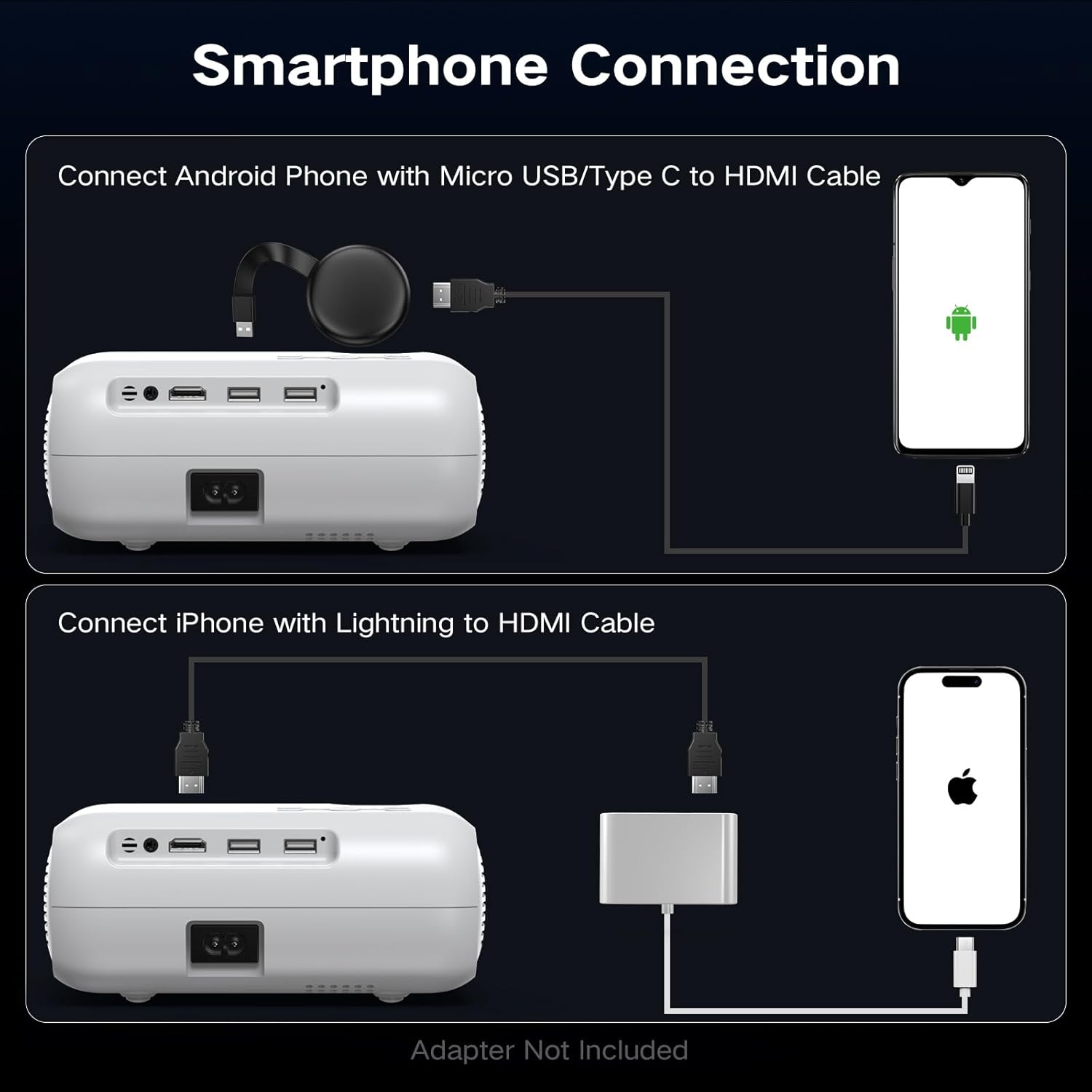
- Til Android-telefoner: Use a Micro USB/Type C to HDMI cable.
- Til iPhones: Use a Lightning to HDMI cable.
Connect the adapter to your phone and then to the projector's HDMI port. Select the HDMI input source.
8. Billedjustering
8.1 Fokusjustering
Rotate the focus ring on the projector lens until the projected image appears sharp and clear. This is a manual adjustment.
8.2 Digital Vertical Keystone Correction
The projector features digital vertical keystone correction to adjust image distortion when the projector is not perfectly perpendicular to the screen. This helps achieve a rectangular image.
Access the keystone settings in the projector's menu and use the arrow buttons to adjust the vertical angle until the image is properly aligned.
8.3 Zoomfunktion
The projector includes a digital zoom function, allowing you to reduce the size of the projected image without moving the projector. Access this feature in the display settings menu.
9. Lydindstillinger
The projector has built-in HiFi stereo speakers for direct audio output. You can adjust the volume using the remote control or the projector's control panel. For a more immersive experience, connect external speakers via the 3.5mm audio out port or Bluetooth (see Section 7.3).

10. Vedligeholdelse
10.1 Rengøring af linsen
Use a soft, lint-free cloth specifically designed for optical lenses. Gently wipe the lens in a circular motion. Avoid using abrasive materials or harsh chemicals.
10.2 Rengøring af projektorhuset
Tør projektorens yderside af med en blød, tør klud. Ved genstridige mærker kan du bruge en let tør klud.amp en klud kan bruges, efterfulgt af en tør klud. Sørg for, at der ikke kommer væske ind i ventilationsåbningerne.
10.3 Air Filter Cleaning (if applicable)
Refer to the specific model's design for air filter maintenance. If an accessible air filter is present, clean it regularly to ensure proper ventilation and prevent dust buildup.
10.4 Opbevaring
When not in use for extended periods, store the projector in a cool, dry, dust-free environment. Use the original packaging or a protective case to prevent damage.
11. Fejlfinding
| Problem | Mulig årsag | Løsning |
|---|---|---|
| Intet billede projiceret | Power not connected; Incorrect input source; Device not connected properly | Check power cable; Select correct HDMI/USB input; Ensure source device is on and connected. |
| Billedet er sløret | Focus not adjusted; Projector too far/close; Lens dirty | Adjust the focus ring; Reposition projector; Clean the lens. |
| Billedet er forvrænget (trapezformet) | Projector not perpendicular to screen; Keystone not adjusted | Adjust Digital Vertical Keystone Correction in settings. Try to position the projector as straight as possible. |
| Ingen lyd | Volume too low; Muted; Incorrect audio output selected; Bluetooth not paired | Increase volume; Unmute; Check audio settings; Re-pair Bluetooth device. |
| Ventilatorstøjen er høj | Normal operation; Blocked vents | Ensure proper ventilation; Fan noise is typical for projectors. |
| Fjernbetjening virker ikke | Lave/døde batterier; Blokering mellem fjernbetjening og projektor | Replace batteries; Ensure clear line of sight to the IR receiver. |
12. Specifikationer
| Feature | Specifikation |
|---|---|
| Mærke | Groview |
| Model | Native 1080P Bluetooth-projektor |
| Skærmopløsning | 1920 x 1080 (oprindelig 1080P) |
| Lysstyrke | 400 ANSI Lumens |
| Forbindelsesteknologi | HDMI, USB, Bluetooth 5.0 |
| Særlige funktioner | Digital Keystone Correction, Two-way Bluetooth, Zoom |
| Anbefalede anvendelser | Home Cinema, Gaming, Business, Education |
| Produktdimensioner | 7.13 x 6.33 x 3.15 tommer |
| Varens vægt | 1.9 pund |
| Indbygget højttaler | Yes (HiFi Stereo) |
| Maksimal skærmstørrelse | Op til 200 tommer |
13. Garanti og support
The GROVIEW Native 1080P Bluetooth Projector comes with a 2-year customer service and replacement policy. For any technical assistance, warranty claims, or support inquiries, please contact GROVIEW customer service through the retailer where the product was purchased or visit the official GROVIEW webwebsted for kontaktoplysninger.
Gem venligst din købsbevis for at validere garantien.


