1. Introduktion
This manual provides essential information for the safe and efficient use of your UMIDIGI G1 Tab Tablet. Please read this manual thoroughly before using your device to ensure proper operation and to familiarize yourself with its features.
2. Pakkens indhold
Bekræft, at alle varer er til stede i din produktpakke:
- UMIDIGI G1 Tab Tablet (x1)
- Protective Film (pre-applied) (x1)
- Strømadapter (x1)
- USB Type-C-kabel (x1)
- Hurtig startguide (x1)
3. Enhed overview
The UMIDIGI G1 Tab Tablet features a 10.1-inch HD display, dual cameras, and various connectivity options. Familiarize yourself with the physical components and key features.

Billede: Forside og bagside view of the UMIDIGI G1 Tab Tablet, highlighting its sleek design and dual camera module.
3.1 Nøglefunktioner
- Vise: 10.1-inch HD (1280x800 pixels) screen for clear visuals.
- Processor: Up to 2.0 GHz for smooth performance.
- Hukommelse og opbevaring: 8GB (4GB physical + 4GB virtual) RAM and 64GB internal storage, expandable up to 1TB via microSD card.
- Batteri: 6000mAh high-capacity battery for extended usage.
- Kameraer: Dual cameras (front and rear) for photos and video calls.
- Forbindelse: Supports 2.4G/5G Wi-Fi 6 and Bluetooth 5.0 for fast and stable connections.
- Lyd: Stereo dual speakers and a 3.5mm headphone jack.
- Operativsystem: Android 13.

Image: The 10.1-inch HD display of the UMIDIGI G1 Tab, showcasing its resolution and visual clarity.

Image: Visual representation of the 6000mAh high-capacity battery and its charging status.
4. Opsætning
4.1 Indledende tænding
- Press and hold the Power button located on the side of the tablet until the UMIDIGI logo appears.
- Følg vejledningen på skærmen for at vælge dit sprog og din region og acceptere vilkårene og betingelserne.
4.2 Wi-Fi-forbindelse
- During initial setup or via Indstillinger > Netværk og internet > Internet, select your desired Wi-Fi network.
- Enter the Wi-Fi password if prompted and tap Forbinde.
4.3 Opsætning af Google-konto
- Sign in with your existing Google account or create a new one. This is necessary to download apps from the Google Play Store and access Google services.
- Follow the prompts to configure Google services, backup options, and security settings.
5. Betjening af tabletten
5.1 Grundlæggende navigation
- Startskærm: Stryg til venstre eller højre for at få adgang til forskellige startskærme.
- App Skuffe: Stryg op fra bunden af skærmen til view alle installerede applikationer.
- Notifikationer og hurtige indstillinger: Swipe down from the top of the screen to access notifications and quick settings toggles (Wi-Fi, Bluetooth, brightness, etc.).
5.2 Virtual Memory Expansion
The UMIDIGI G1 Tab supports virtual RAM expansion. To enable or adjust this feature:
- Gå til Settings > Memory & Expansion.
- Follow the on-screen instructions to allocate virtual memory, which can enhance multitasking performance.
5.3 Split-Screen Function
To use two applications simultaneously:
- Åbn den første applikation.
- Tap the recent apps button (usually a square icon) to view åbne applikationer.
- Tap and hold the icon of the first app at the top of its card, then select Opdelt skærm.
- Choose the second application from the recent apps list or app drawer to occupy the other half of the screen.

Image: The split-screen function on the UMIDIGI G1 Tab, demonstrating how two applications can be used side-by-side for enhanced productivity.
5.4 Kids Space and Family Link
The tablet supports Google Kids Space and Family Link for parental controls and a child-friendly environment.
- Kids Space: Provides a curated selection of apps, books, and videos for children.
- Family Link: Allows parents to manage app usage, screen time, and device location from their own device.
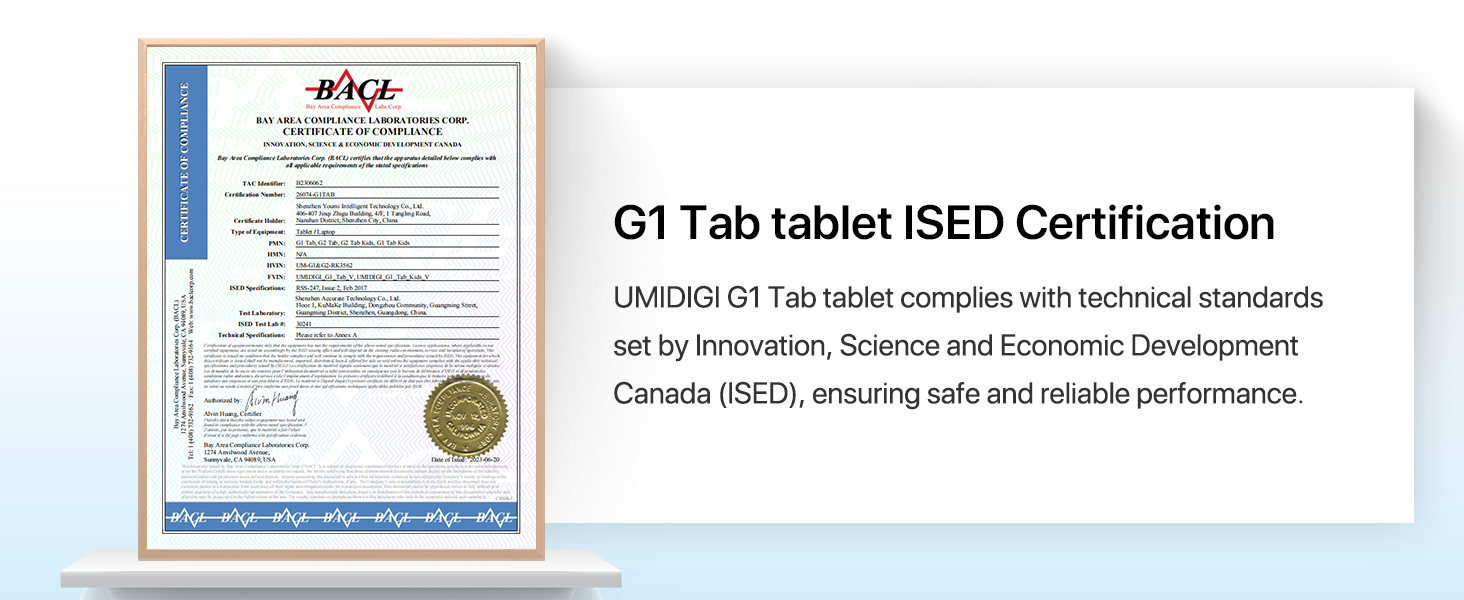
Image: Illustration of Google Kids Space and Family Link interfaces on the UMIDIGI G1 Tab, showing parental control options and child-friendly content.
6. Vedligeholdelse
6.1 Pleje af batterier
- Undgå at udsætte tabletten for ekstreme temperaturer.
- Use only the provided charger and USB Type-C cable.
- Lad ikke batteriet aflades helt ofte.
6.2 Softwareopdateringer
Søg regelmæssigt efter og installer softwareopdateringer for at sikre optimal ydeevne og sikkerhed.
- Gå til Indstillinger > System > Systemopdatering.
- Tryk på Tjek for opdatering og følg instruktionerne, hvis en opdatering er tilgængelig.
6.3 Rengøring
- Brug en blød, fnugfri klud til at rengøre skærmen og tablettens kabinet.
- Undgå at bruge skrappe kemikalier eller slibende materialer.
7. Fejlfinding
7.1 Tablet tænder ikke
- Sørg for, at batteriet er opladet. Tilslut tabletten til opladeren i mindst 30 minutter.
- Tryk og hold tænd/sluk-knappen nede i 10-15 sekunder for at udføre en tvungen genstart.
7.2 Langsom ydeevne
- Luk unødvendige baggrundsapplikationer.
- Clear cache data for frequently used apps (Indstillinger > Apps > [Appnavn] > Lagerplads og cache > Ryd cache).
- Consider enabling virtual memory expansion (see Section 5.2).
- Sørg for, at der er tilstrækkelig opbevaringsplads.
7.3 Problemer med Wi-Fi-forbindelse
- Genstart din Wi-Fi-router og tabletten.
- Glem netværket og genopret forbindelsen (Settings > Network & internet > Internet > [Network Name] > Forget).
- Sørg for, at du er inden for Wi-Fi-signalets rækkevidde.
8. Specifikationer
| Feature | Specifikation |
|---|---|
| Model | G1 Tab |
| Operativsystem | Android 13 |
| Skærmstørrelse | 10.1 tommer |
| Skærmopløsning | 1280 x 800 pixels |
| Processor | Op til 2.0 GHz |
| VÆDDER | 8 GB (4 GB fysisk + 4 GB virtuel) |
| Intern opbevaring | 64 GB |
| Udvidelig opbevaring | Op til 1 TB via microSD-kort |
| Batterikapacitet | 6000mAh |
| Trådløs type | 802.11ax (Wi-Fi 6), 2.4G/5G Dual Band |
| Bluetooth | Bluetooth 5.0 |
| Varens vægt | 7 ounce |
| Produktdimensioner | 9.6 x 0.3 x 6.3 tommer |
9. Garanti og support
9.1 Garantioplysninger
UMIDIGI offers a one-year warranty for the G1 Tab Tablet. For warranty claims or detailed terms, please refer to the official UMIDIGI webwebsted eller kontakt kundesupport.

Image: Certified battery report for the UMIDIGI G1 Tab, indicating compliance with international safety standards.

Image: ISED Certification for the UMIDIGI G1 Tab, confirming compliance with Canadian technical standards for safe and reliable performance.
9.2 Kundesupport
If you encounter any issues or have questions regarding your UMIDIGI G1 Tab Tablet, please contact UMIDIGI customer support through their official webwebstedet eller kontaktoplysningerne i din hurtigstartguide.


