1. Introduktion
This manual provides comprehensive instructions for the setup, operation, maintenance, and troubleshooting of your EPOMAKER EA75 75% RGB Gaming Mechanical Keyboard. Please read this manual thoroughly to ensure proper use and to maximize your keyboard's potential.
The EPOMAKER EA75 is a compact 75% layout mechanical keyboard featuring 81 keys and a rotary knob. It supports tri-mode connectivity (Bluetooth, 2.4GHz wireless, and USB-C wired), dynamic RGB backlighting, hot-swappable switches, and a gasket-mounted structure for a comfortable typing experience.
2. Pakkens indhold
Bekræft at alle varer er til stede i din pakke:
- EPOMAKER EA75 Mechanical Keyboard
- USB-C kabel
- 2.4 GHz trådløs modtager (USB-dongle)
- Keycap aftrækker
- Brugervejledning (dette dokument)
3. Produktet er slutview
The EPOMAKER EA75 keyboard features a compact 75% layout, integrating essential keys while maintaining a smaller footprint. It includes a multi-function rotary knob and RGB lighting for both keys and side bars.
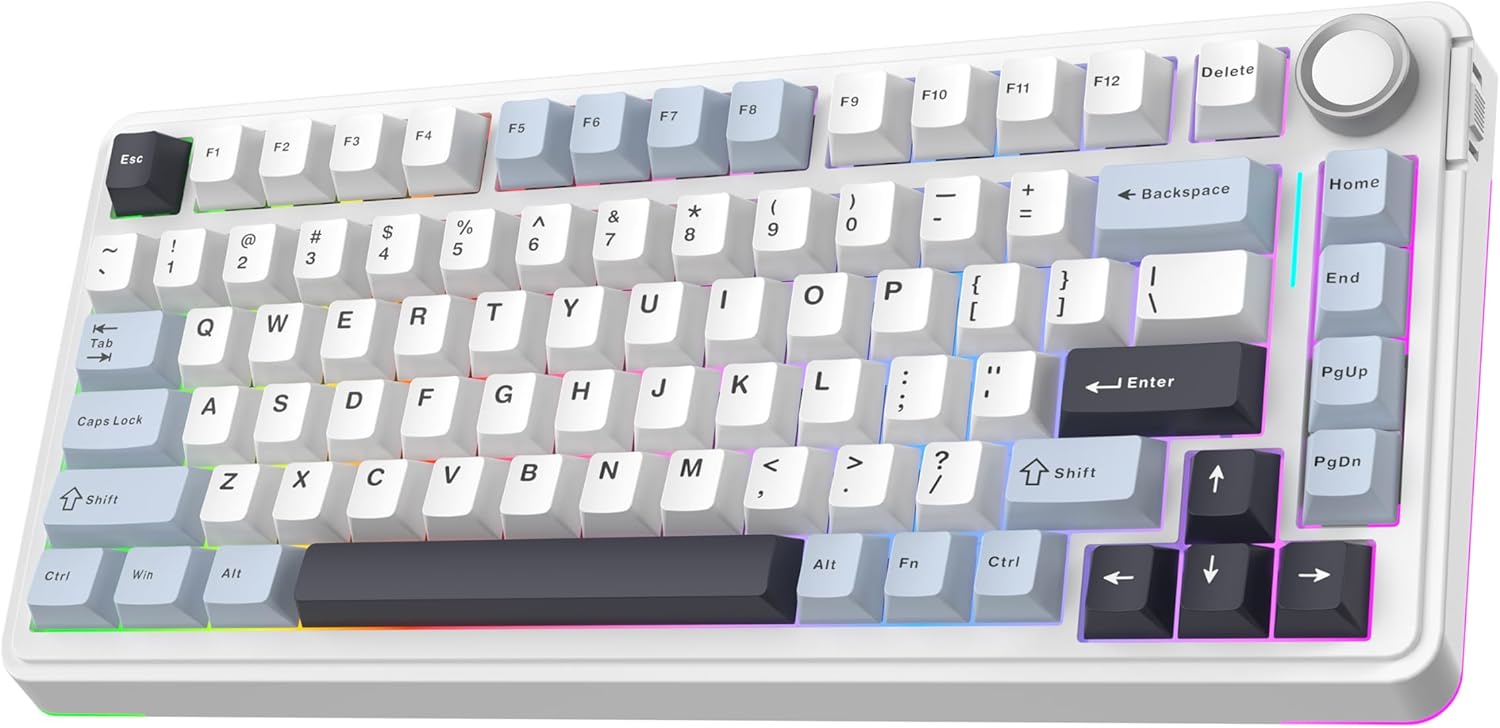
Billede: Hovedbillede view of the EPOMAKER EA75 mechanical keyboard, showcasing its 75% layout with white and light blue keycaps, a rotary knob, and RGB lighting.

Billede: Overview highlighting key features of the EA75 keyboard, including 3 modes connection, hot-swappable switches, full RGB backlit, gasket structure, PBT keycaps, and custom software.
3.1 nøglekomponenter
- 81-tasters layout: Standard alphanumeric keys, function row, navigation cluster, and arrow keys.
- Drejeknap: Located in the top right corner, primarily for volume and backlight control.
- Connectivity Toggle: A switch on the side to select between Bluetooth, 2.4GHz wireless, and wired modes.
- USB-C-port: Til kabelforbindelse og opladning.
- Adjustable Kickstands: Tre-stage adjustable feet for ergonomic typing angles.

Image: Illustrates the sleek design and dimensions of the EA75 keyboard (33.3cm width, 14.7cm depth), along with close-ups of the volume/backlight control knob, RGB side light, and adjustable kickstand.
4. Opsætning
4.1 Opladning af tastaturet
Before first use, it is recommended to fully charge the keyboard. Connect the supplied USB-C cable to the keyboard's USB-C port and the other end to a powered USB port on your computer or a wall adapter. The keyboard is equipped with a 4000mAh battery.

Image: Shows the keyboard with an overlay indicating a 4000mAh battery, offering up to 260 hours of usage in standby mode with RGB backlight off, and 20 hours with RGB backlight on.
4.2 Tilslutning af tastaturet
The EA75 supports three connection modes: USB-C wired, 2.4GHz wireless, and Bluetooth. Use the toggle switch on the side of the keyboard to select your desired mode.

Image: Illustrates the tri-mode wireless capabilities of the EA75 keyboard, supporting USB-C, 2.4GHz, and Bluetooth connections, compatible with tablets, laptops, PCs, and phones.
4.2.1 USB-C kablet forbindelse
- Set the connectivity toggle switch to the 'Wired' position.
- Tilslut USB-C-kablet til tastaturet og din computer.
- Tastaturet vil automatisk blive genkendt af dit system.
4.2.2 2.4 GHz trådløs forbindelse
- Set the connectivity toggle switch to the '2.4G' position.
- Plug the 2.4GHz wireless receiver (USB dongle) into an available USB port on your computer.
- The keyboard should connect automatically. The '~' key will act as an indicator light.
4.2.3 Bluetooth-forbindelse
The EA75 can connect to up to three Bluetooth devices. The '1', '2', and '3' keys serve as intuitive connection indicator lights.
- Set the connectivity toggle switch to the 'BT' position.
- On your keyboard, press and hold Fn + 1 (eller Fn + 2, Fn + 3) for 3-5 seconds until the corresponding key's backlight flashes rapidly, indicating pairing mode.
- Aktiver Bluetooth på din enhed (pc, bærbar computer, smartphone, tablet) og søg efter nye enheder.
- Select 'EPOMAKER EA75' from the list of available devices to pair.
- Once paired, the key's backlight will stop flashing and remain steadily lit.
- For at skifte mellem parrede Bluetooth-enheder skal du blot trykke på Fn + 1, Fn + 2, eller Fn + 3.
5. Betjeningsvejledning
5.1 Grundlæggende tastaturfunktioner
- N-nøgleoverførsel (NKRO): The keyboard supports NKRO, allowing multiple keys to be pressed simultaneously without ghosting or missed inputs. This is active in 2.4GHz and wired modes.
- Anti-ghosting: Ensures accurate registration of every key press, even during rapid typing or gaming.

Image: Highlights the ergonomic design for a superior typing experience and the N-Key Rollover feature, ensuring accurate key registration even during heavy use.
5.2 Drejeknapfunktionalitet
The rotary knob on the top right corner controls multimedia and lighting settings:
- Rotere: Adjusts system volume by default.
- Trykke: Mutes/unmutes audio by default.
- The knob's function can be customized using the EPOMAKER software.
5.3 RGB-baggrundsbelysning
The EA75 features dynamic RGB backlighting with per-key LEDs and two side light bars. You can adjust various lighting parameters:
- Lysstyrke: Juster baggrundsbelysningens intensitet.
- Hastighed: Control the animation speed of dynamic lighting effects.
- Hue/Saturation: Fine-tune the color output.
- Specific key combinations (e.g., Fn + ←/→) are typically used to cycle through lighting effects and colors. Refer to the quick start guide or software for detailed key commands.
5.4 Hot-swap-kontakter
The EA75 keyboard is hot-swappable, allowing you to change mechanical switches without soldering. It supports 3-pin and 5-pin mechanical switches.

Image: Demonstrates the hot-swappable feature of the EA75 keyboard, showing a switch being removed with a switch puller. Insets show south-facing LEDs, a lubed switch, hot-swappable PCB, and fine-tuned stabilizers.
5.4.1 Udskiftning af afbrydere
- Sluk tastaturet, eller afbryd forbindelsen til din enhed.
- Brug den medfølgende tasteaftrækker til forsigtigt at fjerne tastehætten fra den switch, du vil udskifte.
- Use a switch puller (not included, but often bundled with switches or available separately) to gently grip the top and bottom clips of the switch.
- Træk kontakten lige op for at fjerne den fra printkortet.
- Juster stifterne på den nye kontakt med hullerne på printkortet. Sørg for, at stifterne er lige for at undgå at de bøjes.
- Tryk forsigtigt den nye kontakt på plads, indtil den klikker sikkert.
- Sæt tastaturdækslet på igen.
5.5 Programmeringssoftware
The EPOMAKER EA75 can be customized using dedicated software. This software allows for:
- Nøgleomlægning: Tildel forskellige funktioner til individuelle taster.
- Makroredigering: Create and assign complex sequences of key presses.
- Tilpasning af baggrundslys: Advanced control over RGB effects, colors, and patterns.
- Tastaturindstillinger: Adjust polling rate and other performance parameters.
Download the latest software from the official EPOMAKER webwebsted.
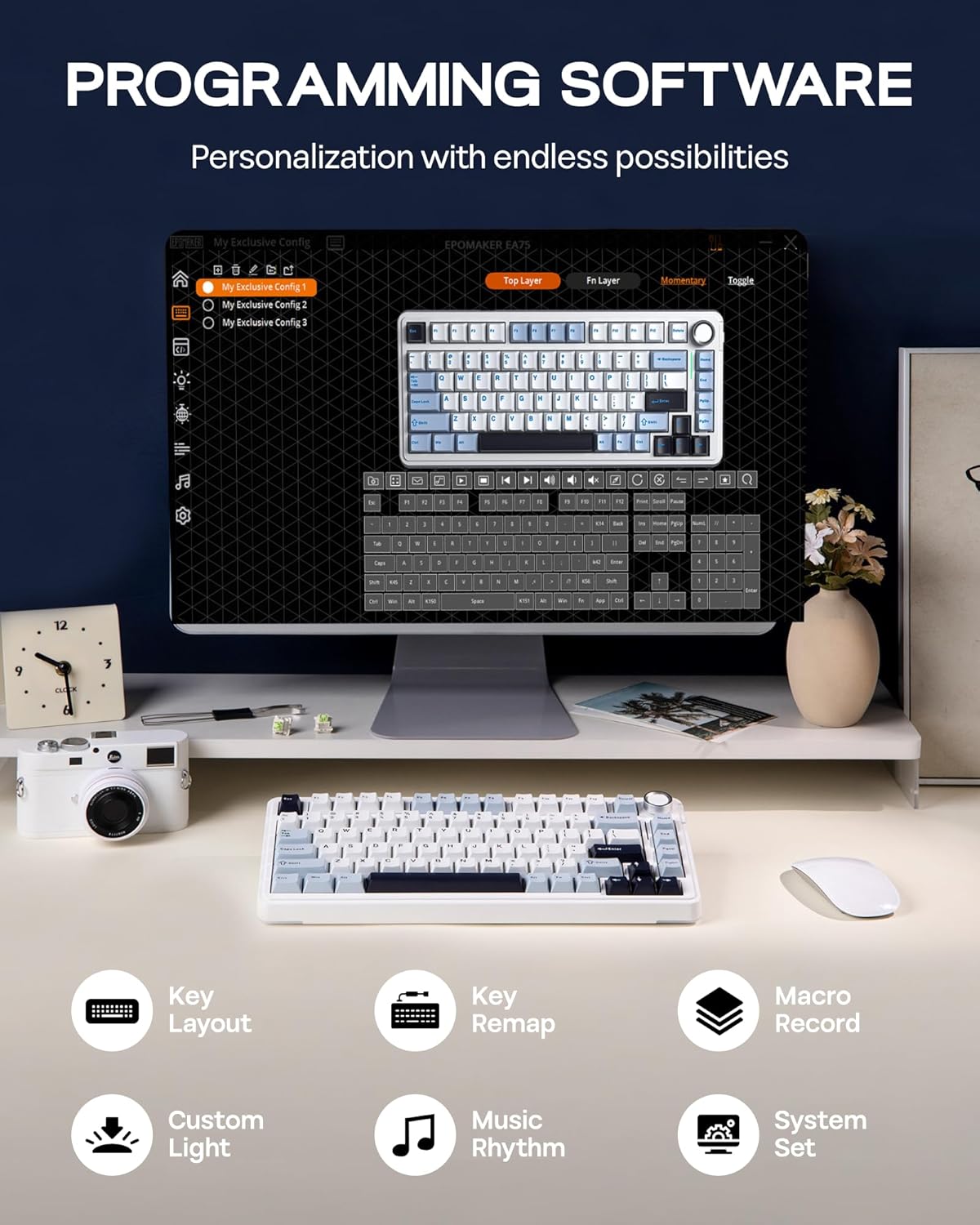
Image: Displays the user interface of the EPOMAKER programming software, showing options for key layout, key remapping, macro recording, custom light effects, music rhythm, and system settings, enabling extensive personalization.
6. Vedligeholdelse
6.1 Rengøring af tastaturet
Regular cleaning helps maintain the keyboard's performance and appearance:
- Frakobl tastaturet fra alle strømkilder.
- Brug en dåse med trykluft til at fjerne støv og snavs mellem tasterne.
- For surface cleaning, gently wipe the keycaps and chassis with a soft, lint-free cloth dampened with a small amount of water or a mild, non-abrasive cleaning solution.
- Undgå at sprøjte væsker direkte på tastaturet.
6.2 Vedligeholdelse af taster og kontakter
The PBT keycaps are durable, but can be removed for deeper cleaning or replacement. Refer to section 5.4.1 for instructions on removing switches and keycaps.
7. Fejlfinding
If you encounter issues with your EPOMAKER EA75 keyboard, refer to the following common problems and solutions:
- Tastaturet reagerer ikke:
- Sørg for, at tastaturet er opladet.
- Check the connectivity toggle switch is in the correct position (Wired, 2.4G, or BT).
- Prøv en anden USB-port eller et andet kabel for en kablet forbindelse.
- For 2.4GHz, ensure the dongle is securely plugged in and try re-pairing.
- For Bluetooth, ensure the keyboard is paired correctly (Fn + 1/2/3) and your device's Bluetooth is enabled. Try re-pairing.
- Nøgler registreres ikke eller dobbelttastes:
- This could indicate a faulty switch. Since the keyboard is hot-swappable, try replacing the problematic switch (refer to section 5.4.1).
- Sørg for, at kontakten er helt indsat i printkortet.
- RGB-belysningen virker ikke eller er forkert:
- Check the brightness settings using the rotary knob or keyboard shortcuts.
- Ensure the keyboard is not in a low-power mode that disables lighting.
- Use the programming software to reset or reconfigure lighting effects.
- 2.4GHz or Bluetooth connection unstable:
- Ensure there are no strong interferences (e.g., other wireless devices, large metal objects) between the keyboard and the receiver/device.
- Flyt tættere på modtageren/enheden.
- Try updating your computer's wireless drivers.
8. Specifikationer
| Feature | Specifikation |
|---|---|
| Modelnummer | EA75 |
| Layout | 75% (81 Keys + 1 Knob) |
| Forbindelse | 2.4 GHz trådløs, Bluetooth, USB-C kablet |
| Afbrydere | Hot-Swappable (3/5-pin mechanical switches) |
| tasterne | PBT, Cherry Profile |
| Baggrundsbelysning | Full RGB with Side Light Bars |
| Batterikapacitet | 4000mAh Lithium Ion |
| Produktdimensioner | 5.79 x 13.11 x 1.34 tommer (14.7 x 33.3 x 3.4 cm) |
| Varens vægt | 2.88 pund (1.3 kg) |
| Kompatible enheder | PC, Mac, Laptop, Smartphone, Tablet, Gaming Console |
| Fabrikant | EPOMAKER |
9. Garanti og support
For garantioplysninger og teknisk support henvises til den officielle EPOMAKER-side. webwebstedet eller kontakt deres kundeservice direkte. Gem din købskvittering til garantikrav.
Besøg EPOMAKER-butik på Amazon for flere produkter og information.


