Indledning
This manual provides detailed instructions for the setup, operation, and maintenance of your SANSUI 27 Inch Curved 160Hz Gaming Monitor. Designed for an immersive gaming experience, this monitor features a 1500R curvature, a high 160Hz refresh rate, and a rapid 1ms MPRT response time. Please read this manual thoroughly before using the monitor to ensure optimal performance and longevity.
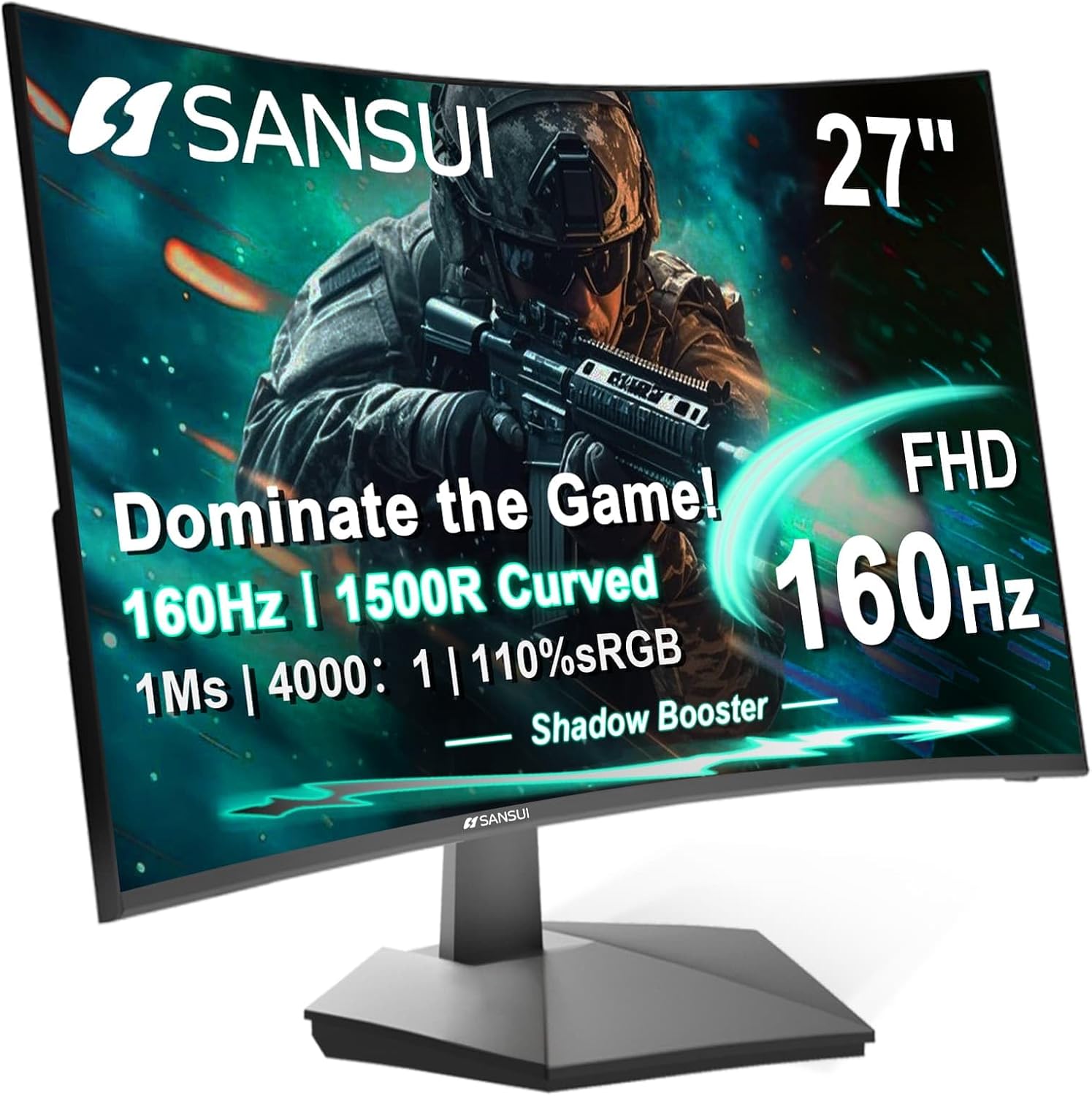
Front view of the SANSUI 27 Inch Curved 160Hz Gaming Monitor, showcasing its immersive curved display.
Pakkens indhold
Før du fortsætter med opsætningen, skal du kontrollere, at alle nedenstående varer er til stede i din pakke:
- Overvåge
- Monitor Stand
- Strømadapter
- HDMI kabel
- Brugermanual
Opsætningsinstruktioner
1. Samling af stativet
- Tag forsigtigt skærmens og stativets komponenter ud af emballagen.
- Fastgør stativets base til stativets hals med de medfølgende skruer.
- Juster den samlede stander med monteringshullet på bagsiden af skærmen.
- Secure the stand to the monitor by pushing it firmly until it clicks into place, or by tightening the designated screws.

Illustration of the monitor with its stand, ready for assembly.
2. Tilslutning til en enhed
The monitor supports multiple input options. Choose the appropriate cable for your device:
- HDMI: Connect one end of the HDMI cable to the HDMI port on your computer or gaming console, and the other end to the HDMI port on the monitor. Supports up to 160Hz refresh rate.
- DisplayPort (DP): Connect one end of the DP cable to the DisplayPort on your computer, and the other end to the DP 1.4 port on the monitor. Supports up to 160Hz refresh rate.
- Lydstik: For audio output, connect headphones or external speakers to the 3.5mm audio jack on the monitor. Note: The monitor does not have built-in speakers.
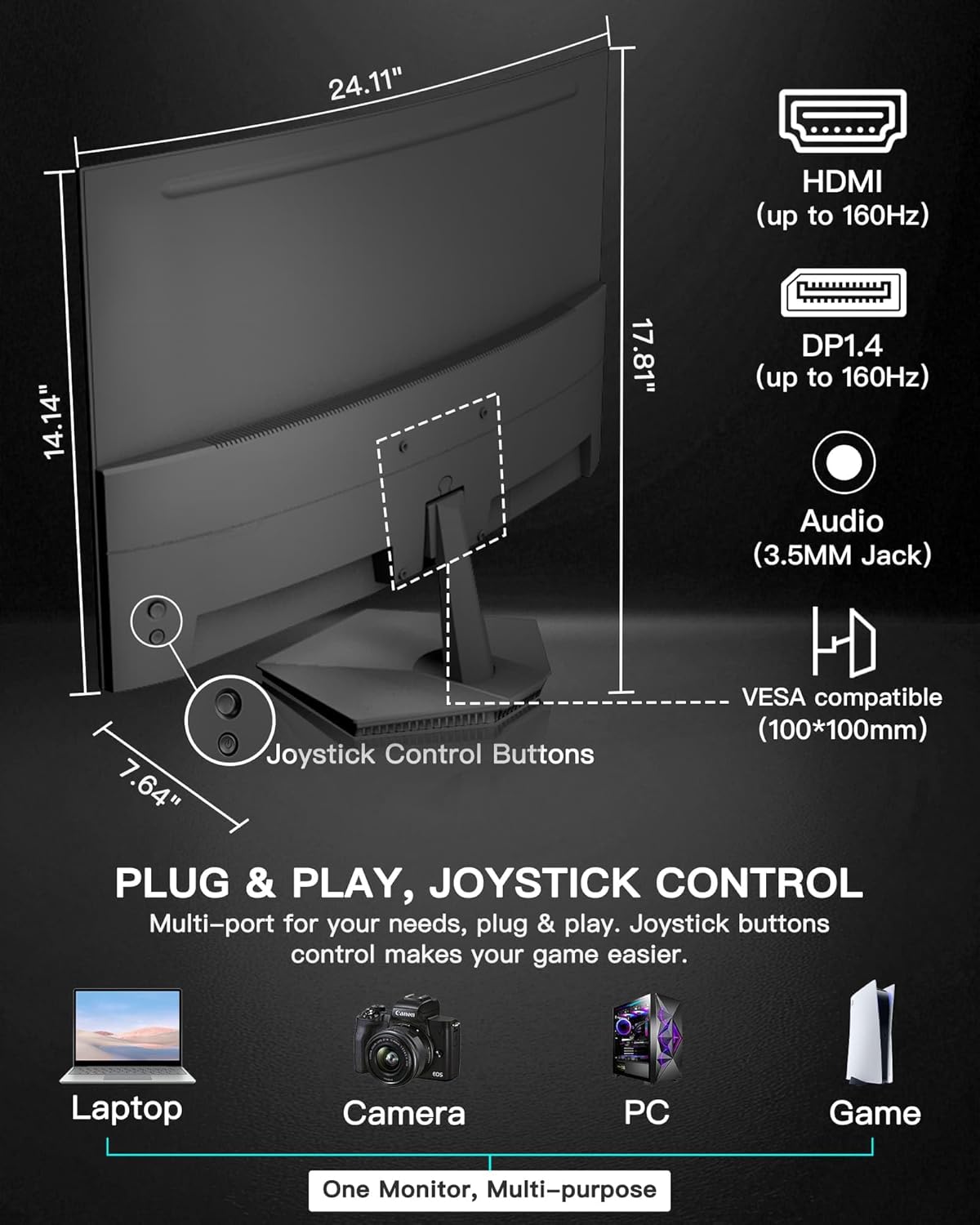
Bag view of the monitor highlighting the HDMI, DisplayPort, and Audio Jack connections, along with the joystick control.
3. Tænder
- Tilslut strømadapteren til skærmens strømindgang.
- Sæt strømadapteren i en stikkontakt.
- Press the power button (integrated into the joystick control) on the back of the monitor to turn it on.
Betjening af monitoren
Joystick kontrol
The monitor's settings are controlled via a single 5-way joystick located on the back. This joystick allows for intuitive navigation through the On-Screen Display (OSD) menu.
- Tryk på knappen: Confirms selection or enters menu. Also functions as Power On/Off.
- Op: Navigates up in menus, increases Brightness.
- Ned: Navigates down in menus, decreases Volume.
- Venstre: Navigates left in menus, decreases Contrast, returns/exits.
- Højre: Navigates right in menus, increases Contrast, selects input source.
On-Screen Display (OSD) menu
To access the OSD menu, press the joystick button. Use the joystick to navigate and adjust settings.
- Billedindstillinger: Juster lysstyrke, kontrast, skarphed og farvetemperatur.
- Farvekontrol: Fine-tune color saturation and hue. Features 110% sRGB color coverage and 4000:1 contrast ratio for accurate color expression.
- Skærmindstillinger: Adjust aspect ratio and input source.
- OSD-indstillinger: Konfigurer OSD-sprog, gennemsigtighed og timeout.
- Lydindstillinger: Adjust volume for connected audio devices.
- Andre indstillinger: Access advanced features and reset to factory defaults.
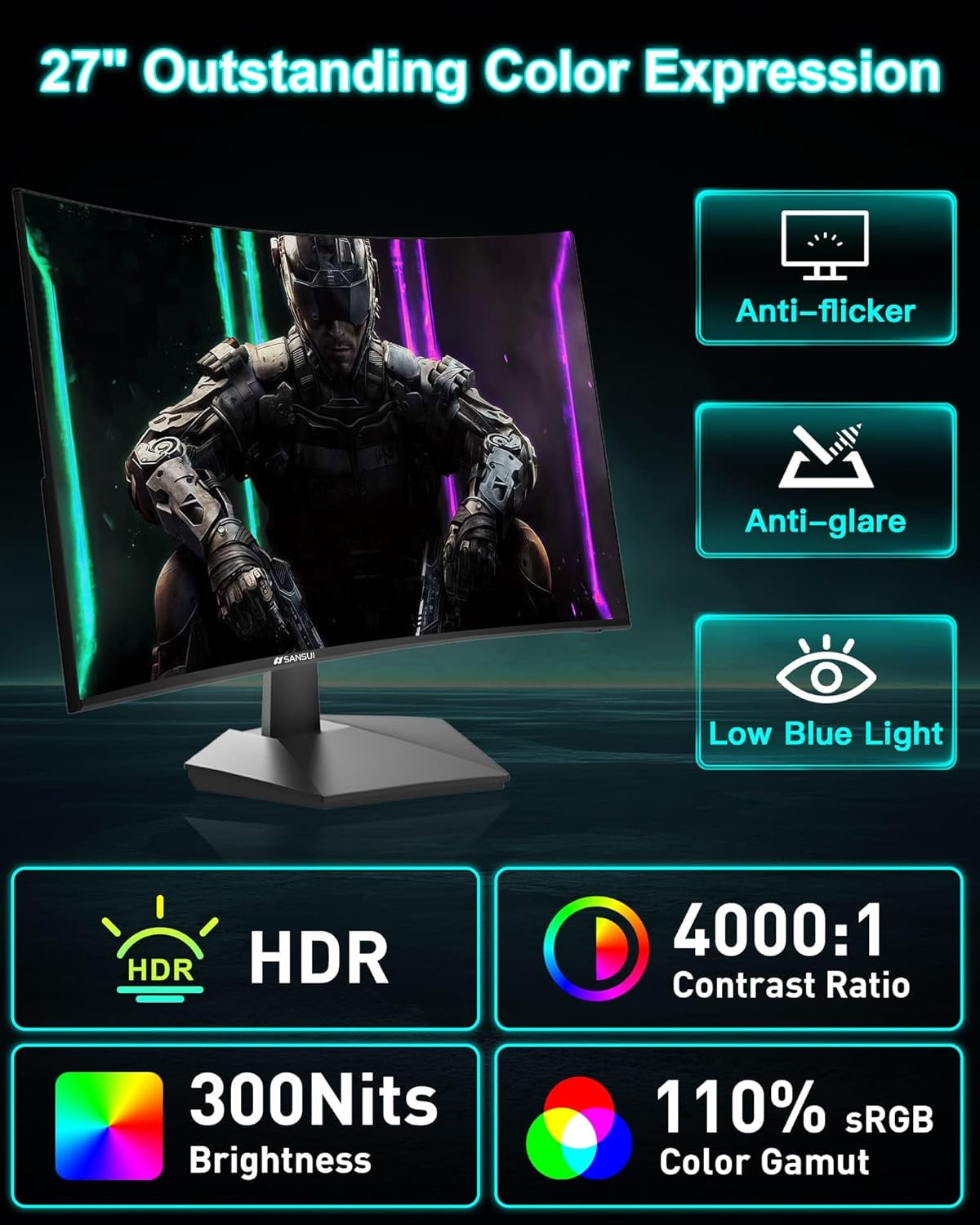
The monitor's display showcasing its color expression capabilities and eye-care features.
Spilfunktioner
- 160Hz opdateringshastighed og 1ms MPRT: Experience ultra-smooth visuals and minimal motion blur, crucial for fast-paced gaming.
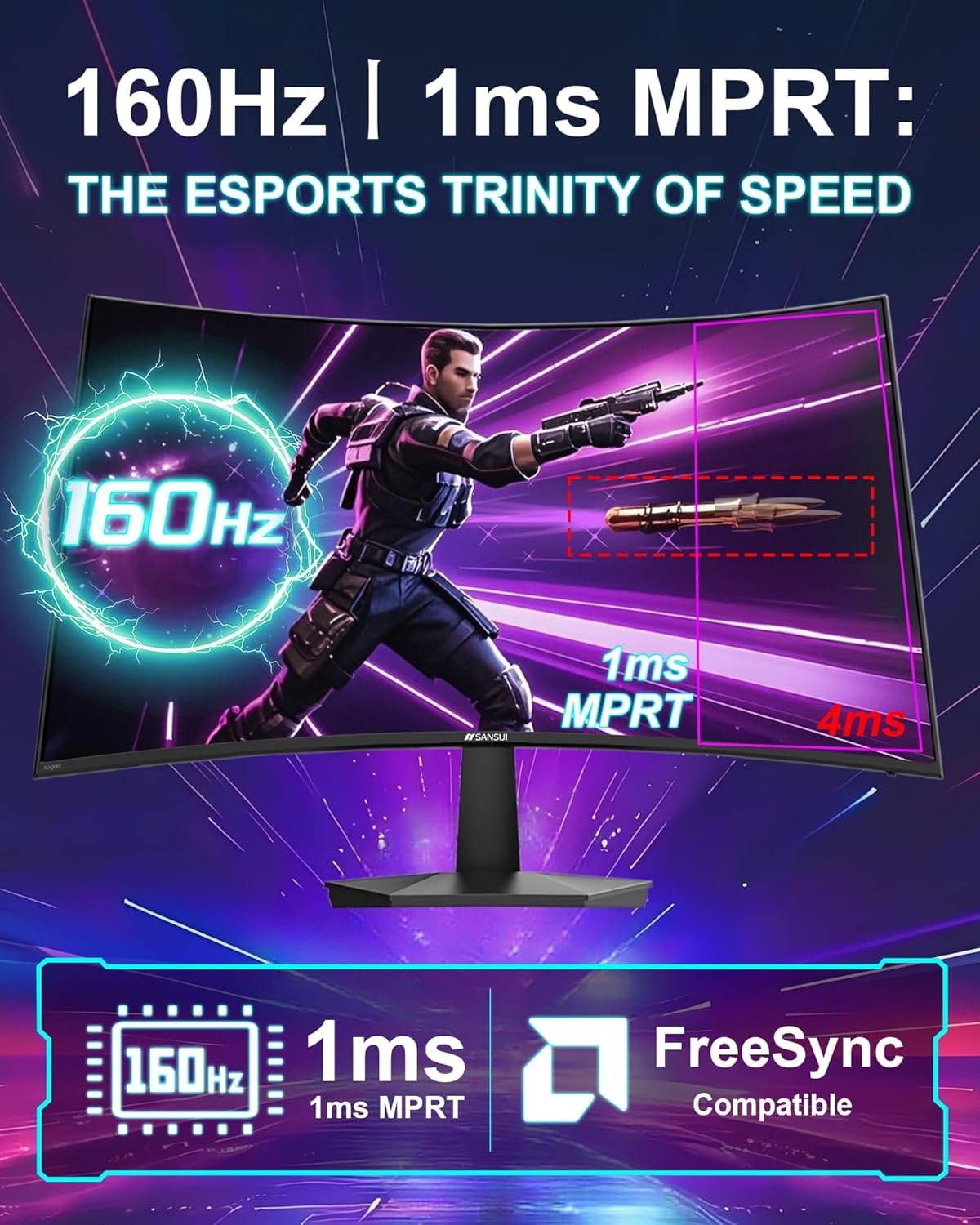
Visual representation of the monitor's high refresh rate and fast response time, essential for competitive gaming.
- FreeSync Support: Synkroniserer skærmens opdateringshastighed med din GPU's billedhastighed, hvilket eliminerer skærmrivning og hakken, så du får et flydende gameplay.

Comparison illustrating the visual benefits of FreeSync technology, reducing tearing and latency.
- Game Assistant:
- Black Level Adjustment (Shadow Booster): Enhances visibility in dark areas of games, allowing you to spot hidden enemies.
- Hårkors: Giver et trådkors på skærmen for forbedret sigtepræcision.
- Timer: Viser en nedtællingstimer på skærmen.
- tæller: Displays a real-time refresh rate counter.
- Forudindstillede tilstande: Optimize display settings for specific game genres (FPS, RTS, Racing) or other uses (Movie, Office).
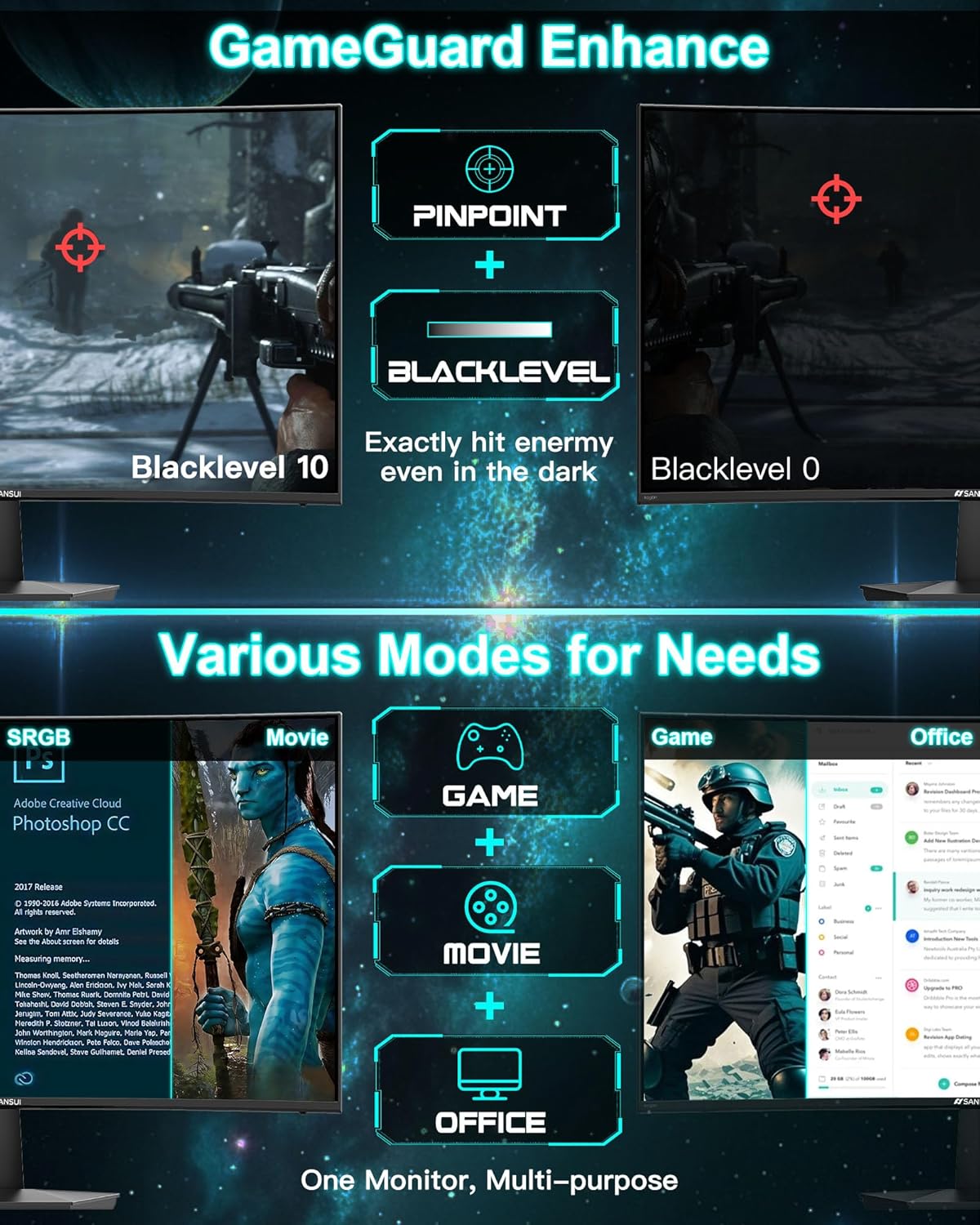
Overview of GameGuard Enhance features and multiple display modes for different applications.
Øjenplejefunktioner
- Lavt blåt lys: Reduces harmful blue light emissions to minimize eye strain during prolonged use.
- Anti-flimmer: Eliminerer skærmflimmer og giver en mere behagelig oplevelse viewoplevelse.
- Anti genskin: Reduces reflections on the screen, improving visibility in brightly lit environments.
Opretholdelse
Korrekt vedligeholdelse sikrer din skærms levetid og optimale ydeevne.
- Rengøring af skærmen: Tør forsigtigt skærmen af med en blød, fnugfri klud. Fjern genstridige mærker ved atampen the cloth slightly with water or a non-abrasive, monitor-safe cleaning solution. Do not spray liquid directly onto the screen.
- Rengøring af Casing: Brug en blød, tør klud til at rengøre skærmens casing. Undgå at bruge barske kemikalier eller slibende materialer.
- Opbevaring: Hvis skærmen opbevares i længere tid, skal alle kabler frakobles og opbevares et køligt og tørt sted, helst i originalemballagen, for at beskytte den mod støv og fysiske skader.
Fejlfinding
Hvis du støder på problemer med din skærm, kan du se følgende almindelige problemer og løsninger:
| Problem | Mulig årsag | Løsning |
|---|---|---|
| Intet billede på skærmen | Strømkabel frakoblet; Videokabel frakoblet; Forkert indgangskilde valgt. | Ensure power cable is securely connected. Check video cable connections (HDMI/DP). Use the joystick to select the correct input source. |
| Billedet er sløret eller forvrænget | Forkert opløsning; Problem med videokablet. | Set the display resolution to 1920 x 1080 pixels. Try a different video cable. |
| Skærmen flimrer | Uoverensstemmelse mellem opdateringshastighed; Kabelproblem; FreeSync-indstilling. | Ensure your graphics card drivers are updated. Check if FreeSync is enabled and compatible with your GPU. Try a different video cable. |
| Ingen lyd | Headphones/speakers not connected; Volume too low; Incorrect audio output selected on PC. | Ensure external audio devices are properly connected to the 3.5mm audio jack. Adjust monitor volume via OSD. Verify audio output settings on your computer. |
If the problem persists after trying these solutions, please contact SANSUI customer support for further assistance.
Specifikationer
| Feature | Detalje |
|---|---|
| Produktdimensioner | 7.64 x 24.09 x 17.8 tommer |
| Varens vægt | 7.7 pund |
| Fabrikant | EXPRESS LUCK INDUSTRIAL(ZHONGSHAN)LIMITED |
| ASIN | B0F2T7WLFK |
| Varemodelnummer | ES-G27C1L |
| Stående skærm displaystørrelse | 27 tommer |
| Aspektforhold | 16:9 |
| Opløsning | 1920 x 1080 pixels (FHD 1080p) |
| Billedlysstyrke | 300 Candela (nitter) |
| Beskrivelse af skærmoverfladen | Mat |
| Opdateringshastighed | 160 Hz |
| Svartid | 1 ms (MPRT) |
| Krumning | 1500R |
| Kontrastforhold | 4000:1 |
| Farveskala | 110 % sRGB |
| VESA-support | 100x100 mm |
| Tilt justering | -5° to 15° (±2°) |
Garanti og support
SANSUI provides comprehensive support for your monitor:
- Money-back and free replacement: Tilgængelig inden for 30 dage efter købet.
- Kvalitetsgaranti: A 1-year quality warranty covers manufacturing defects and performance issues.
- Livsvarig teknisk support: SANSUI offers lifetime technical support for your product.
For any product problems or technical assistance, please contact SANSUI service support directly. Refer to the contact information provided on the SANSUI official webwebstedet eller din købsdokumentation.
Gem venligst dit købsbevis for garantikrav.


