1. Introduktion
Thank you for choosing the TABWEE T80 10-inch Android Tablet. This manual provides essential information for setting up, operating, and maintaining your device. Please read it thoroughly before use to ensure optimal performance and safety.
The TABWEE T80 is a versatile Wi-Fi tablet featuring the latest Android 15 operating system with integrated AI capabilities. It boasts a vibrant 10.5-inch Incell IPS display, ample storage with 12GB RAM and 64GB ROM (expandable up to 2TB), and a long-lasting 6000mAh battery. With GMS certification, dual-band Wi-Fi, Bluetooth 5.0, and GPS, it is designed for both productivity and entertainment.
2. Sikkerhedsoplysninger
- Udsæt ikke enheden for ekstreme temperaturer, direkte sollys eller høj luftfugtighed.
- Undgå at tabe tabletten eller udsætte den for kraftige stød.
- Brug kun den medfølgende oplader og tilbehør.
- Forsøg ikke selv at adskille eller reparere enheden. Kontakt kundesupport for at få hjælp.
- Keep the tablet away from children and pets to prevent damage or injury.
3. Pakkens indhold
Tjek venligst pakken for følgende varer:
- TABWEE T80-tablet
- AC Adapter
- USB Type-C-kabel
- Brugermanual
4. Produktet er slutview
Familiarize yourself with the components of your TABWEE T80 tablet.

Figur 4.1: Forside og bagside view of the TABWEE T80 tablet, highlighting its sleek design and rear camera module.
Fysiske komponenter:
- 10.5-inch Incell IPS Display: High-definition screen for vivid visuals.
- Frontkamera (2 MP): Located on the top bezel for video calls and selfies.
- Bagkamera (5 MP): Located on the back for capturing photos and videos.
- Power knap: On the side, used to turn the tablet on/off or wake/sleep the screen.
- Lydstyrkeknapper: On the side, to adjust audio volume.
- USB Type-C-port: Til opladning og dataoverførsel.
- 3.5 mm hovedtelefonstik: For connecting wired headphones or external speakers.
- MicroSD -kortplads: Til lagerudvidelse op til 2 TB.
- Dobbelte højttalere: Located on the bottom edge for enhanced audio experience.
5. Opsætning
5.1 Indledende opladning
Before first use, fully charge your tablet. Connect the USB Type-C cable to the tablet's charging port and the AC adapter to a power outlet. The battery indicator on the screen will show charging status.
5.2 Tænd/sluk
- For at tænde: Tryk på tænd/sluk-knappen, og hold den nede, indtil TABWEE-logoet vises.
- For at slukke: Tryk på tænd/sluk-knappen og hold den nede, indtil menuen med strømindstillinger vises, og vælg derefter "Sluk".
- At sove/vågne: Tryk kort på Power-knappen.
5.3 Wi-Fi-forbindelse
Sådan opretter du forbindelse til internettet:
- Gå til Indstillinger > Netværk og internet > Wi-Fi.
- Tænd Wi-Fi. Tabletten vil scanne efter tilgængelige netværk.
- Vælg det ønskede netværk fra listen.
- Indtast adgangskoden, hvis du bliver bedt om det, og tryk derefter på Forbinde.
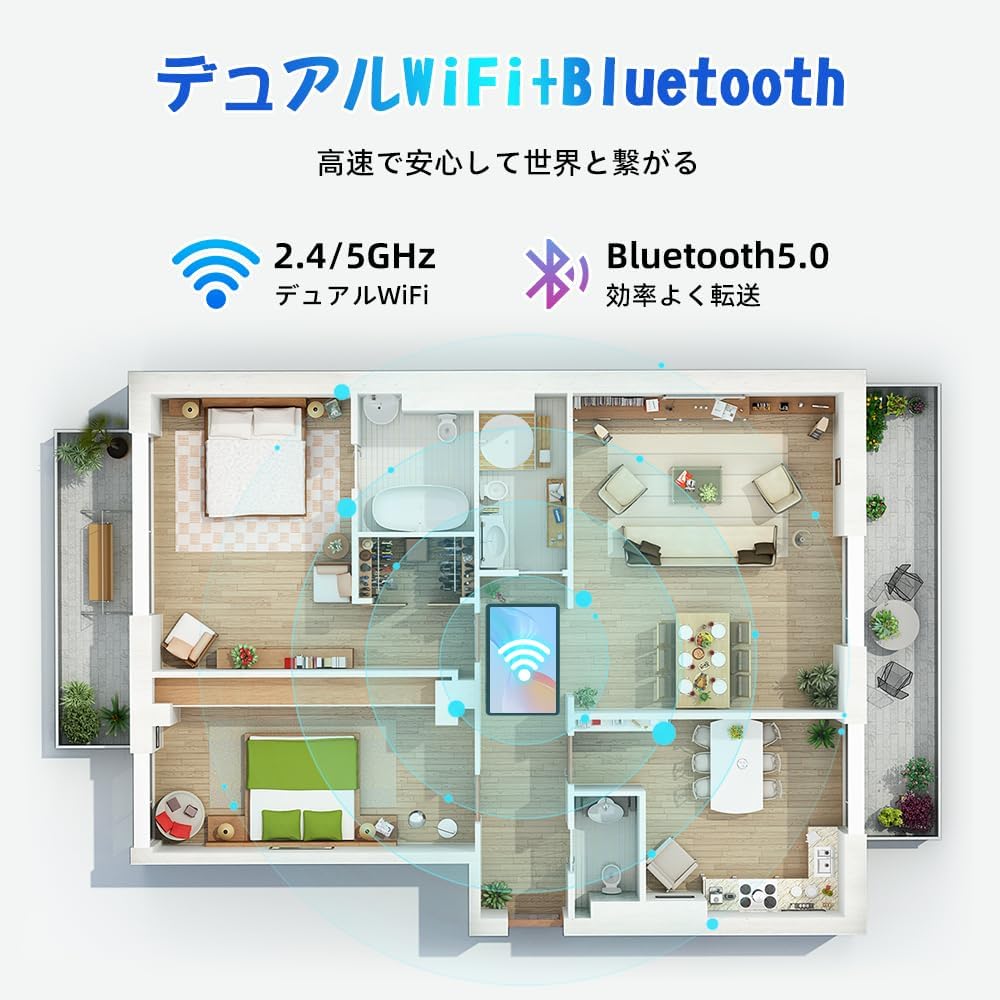
Figure 5.1: Diagram illustrating the tablet's dual-band 2.4G/5G Wi-Fi and Bluetooth 5.0 connectivity, ensuring fast and reliable connections throughout your home or office.
5.4 Opsætning af Google-konto
As a GMS certified device, you can access Google Play Store and other Google services. During initial setup, you will be prompted to sign in with your Google account or create a new one. This is essential for downloading apps and syncing data.
5.5 Installation af microSD-kort
Sådan udvider du lagerpladsen op til 2 TB:
- Find MicroSD-kortstikket på siden af tabletten.
- Insert the MicroSD card into the slot with the gold contacts facing down until it clicks into place.
- You may be prompted to format the card for use with the tablet.

Figure 5.2: Visual representation of the tablet's 12GB RAM and 64GB ROM, with support for up to 2TB MicroSD card expansion, allowing for vast storage of photos, videos, and music.
6. Betjeningsvejledning
6.1 Android 15-funktioner
Your tablet runs on Android 15, offering an intuitive and enhanced user experience with improved security, customization, and AI capabilities.

Figur 6.1: Overview of Android 15 features, including enhanced security and privacy, expanded customization options, improved AI functions, and new gesture controls for a smoother operation.
6.2 Skærm og Viewi tilstande
The 10.5-inch Incell IPS display provides vibrant colors and wide viewing angles. Optimize your viewing experience and reduce eye strain with various display modes:

Figure 6.2: The 10.5-inch Incell IPS display offers a 1280x800 resolution and a 16:10 aspect ratio for a wide and efficient viewoplevelse.

Figure 6.3: The tablet supports 1080P Full HD content, providing an immersive visual experience for movies and dramas from platforms like YouTube, Prime Video, Hulu, and HBO.

Figur 6.4: Visuelt eksempelamples of different screen modes: Night mode for reduced blue light, Dark mode for eye comfort in low light, and Reader mode for a black-and-white paper-like display.
- Nattilstand: Reducerer udledning af blåt lys for komfortabel komfort viewing in low light conditions. Access via Quick Settings or Display settings.
- Mørk tilstand: Changes the system UI and supported apps to a dark theme, reducing eye strain and saving battery on OLED screens. Access via Display settings.
- Læsertilstand: Optimizes the display for reading, often by converting to grayscale and adjusting contrast. Access via Display settings or specific reading apps.
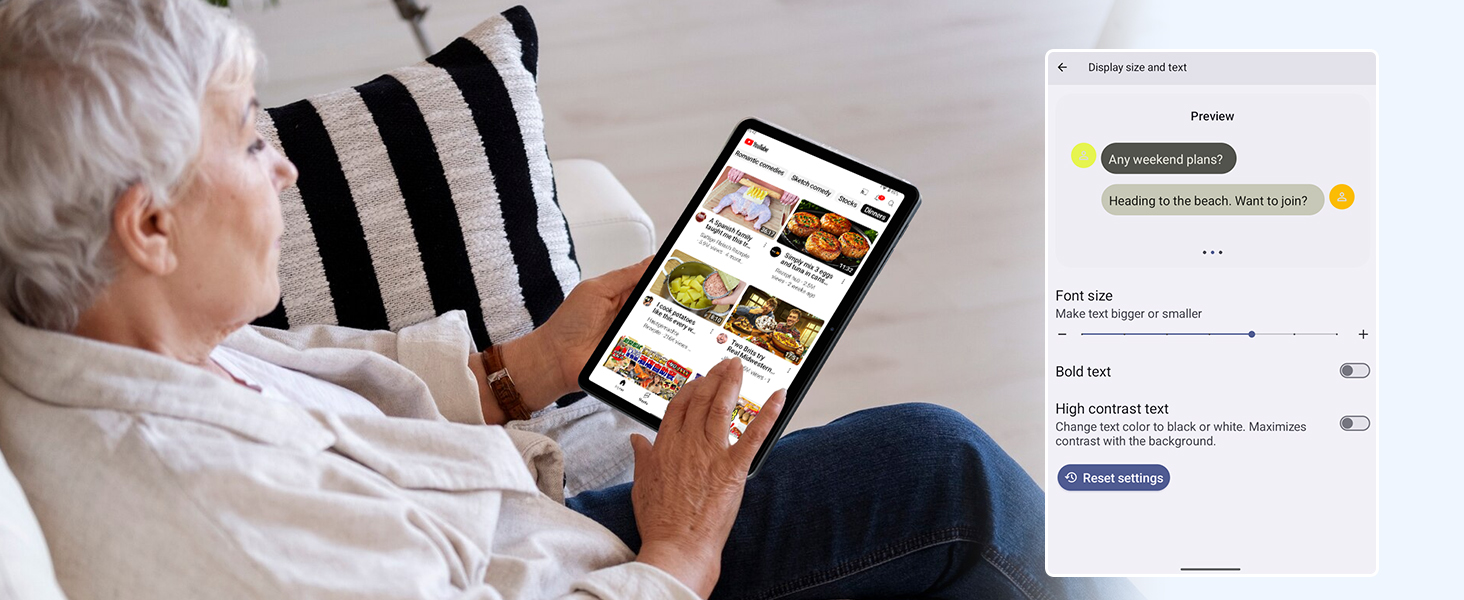
Figure 6.5: Screenshot showing display settings for adjusting text size and bold text, allowing users to customize readability.
6.3 Ydelse
The TABWEE T80 is powered by a Unisoc T310 processor, ensuring smooth operation for daily tasks and multimedia consumption.
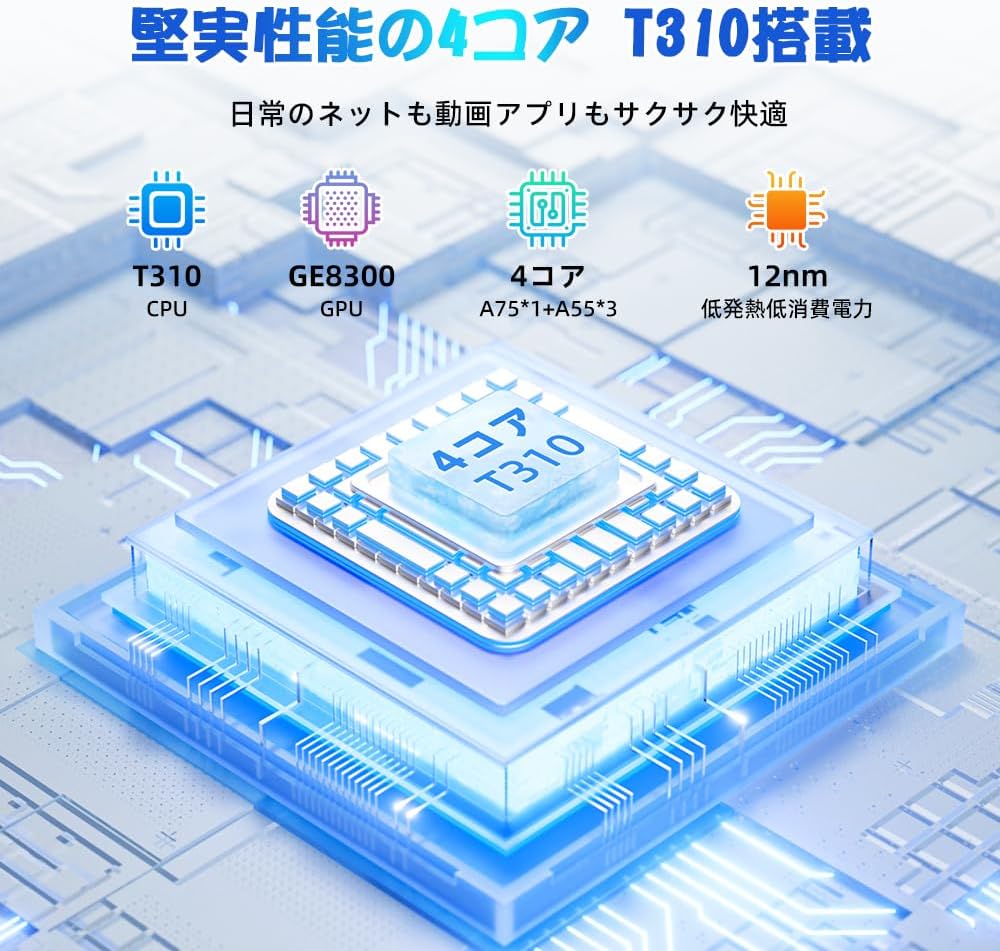
Figure 6.6: Diagram illustrating the T310 quad-core CPU architecture, featuring A75 and A55 cores, designed for efficient performance and low power consumption.

Figure 6.7: Comparison showing the Unisoc T310 processor's improved speed (up to 2.0 GHz) and lower power consumption compared to previous generation products.
6.4 Multitasking og delt skærm
For enhanced productivity, the tablet supports split-screen mode, allowing you to run two applications side-by-side.

Figure 6.8: Demonstration of the split-screen feature, allowing users to comfortably multitask by viewing two applications simultaneously, such as reading an e-book while checking messages.
- To activate split screen: Open an app, then swipe up slightly from the bottom and hold to reveal recent apps. Drag one app to the top or bottom of the screen, then select another app for the remaining space.
6.5 AI Features (Gemini AI)
Leverage the power of Gemini AI for enhanced productivity and convenience.

Figure 6.9: Visuals demonstrating Gemini AI 2.0 capabilities, including AI text-to-image generation, AI voice response, AI smart control, AI real-time conversation, and AI full-screen smart assistance.
Gemini AI can assist with real-time translation, smart text suggestions, and optimizing performance based on your usage habits. Explore AI-enhanced multi-tasking for learning, office work, and entertainment.
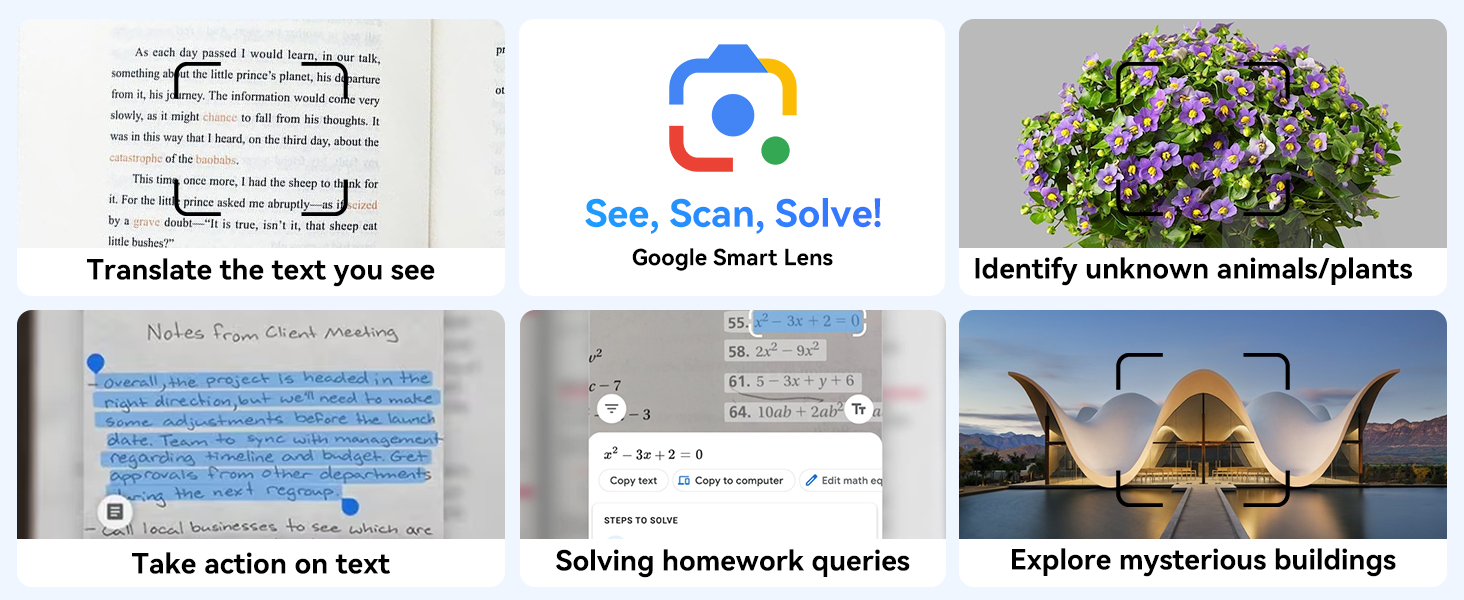
Figur 6.10: Eksamples of Google Smart Lens functions: translating text, identifying unknown objects/plants, taking action on text, solving homework queries, and exploring mysterious buildings.
6.6 Parental Controls (Kids Mode)
The tablet includes parental control features to ensure a safe environment for children.

Figure 6.11: Icons representing parental control features: usage time limits, break time settings, app usage restrictions, and content restrictions, all designed to protect children.
You can set time limits, restrict app access, and filter content. Navigate to Indstillinger > Digital velvære og forældrekontrol to configure these features.
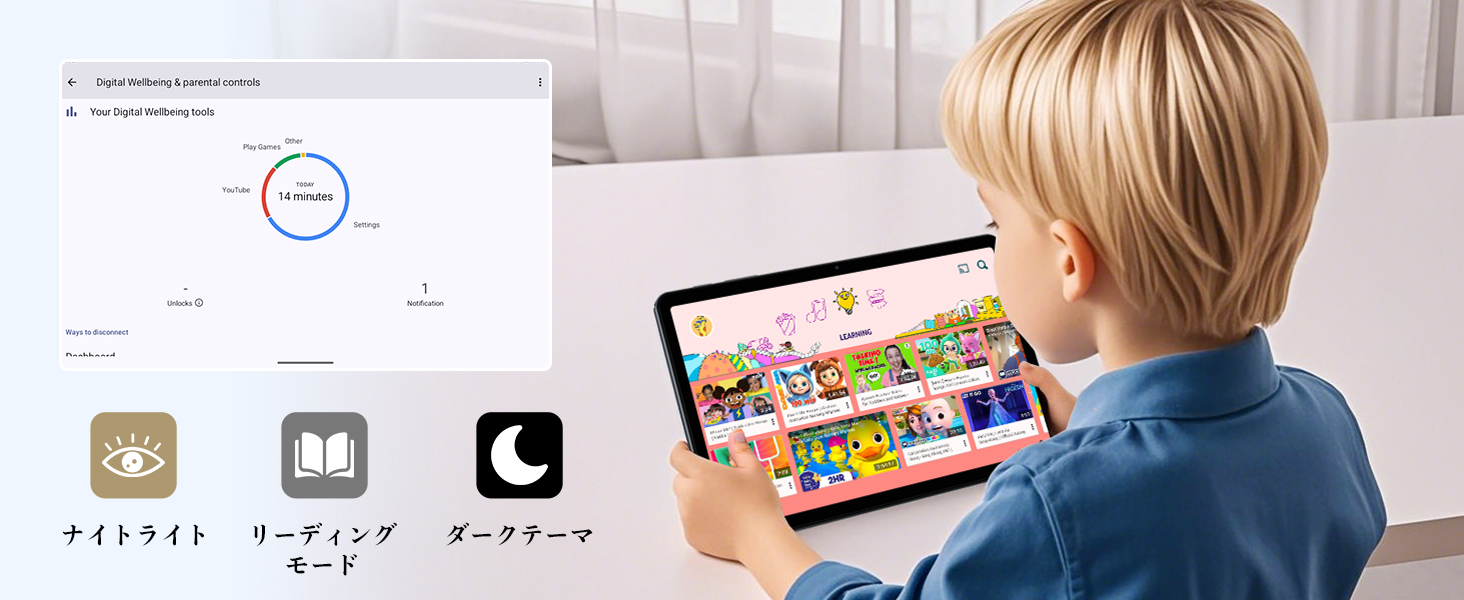
Figure 6.12: Screenshot of the Digital Wellbeing and parental controls interface, showing usage statistics and options for managing screen time and app access for children.
6.7 Trådløs projektion
Mirror your tablet's screen to a compatible TV or monitor wirelessly.
- Ensure your TV/monitor supports wireless display (e.g., Miracast, Chromecast built-in).
- Gå til din tablet på Indstillinger > Tilsluttede enheder > Forbindelsespræferencer > Cast.
- Select your display device from the list to begin mirroring.
6.8 Kamerabrug
Tabletten er udstyret med et 2MP frontkamera og et 5MP bagkamera.

Figure 6.13: Illustration of the tablet's 2-megapixel front camera and 5-megapixel rear camera, capable of autofocus for clear photos and video calls.
Open the Camera app to take photos or record videos. Tap the shutter button to capture an image or the record button to start/stop video recording. You can switch between front and rear cameras using the camera switch icon.
6.9 Lyd
The tablet features dual speakers for an immersive audio experience and a 3.5mm headphone jack for private listening.

Figure 6.14: Diagram showing the location of the two powerful speakers on the TABWEE T80, providing a deep and immersive audio experience.
Adjust volume using the physical volume buttons on the side of the tablet or through the on-screen volume slider.
6.10 GPS-navigation
The integrated GPS system allows for accurate location tracking and navigation. Use pre-installed map applications or download your preferred navigation app from the Google Play Store.
7. Vedligeholdelse
7.1 Rengøring
Use a soft, lint-free cloth to clean the screen and body of the tablet. Do not use abrasive cleaners or solvents, as they may damage the surface.
7.2 Softwareopdateringer
Regularly check for system updates to ensure your tablet has the latest features and security patches. Go to Indstillinger > System > Systemopdatering.
7.3 Pleje af batterier
For at forlænge batterilevetiden:
- Undgå at aflade batteriet helt ofte.
- Lad ikke tabletten oplade i længere tid ad gangen, efter den er fuldt opladet.
- Store the tablet in a cool, dry place when not in use for long periods.

Figure 7.1: Battery life estimates for the 6000mAh battery: 5 hours of web browsing, 4 hours of video playback, 4 hours of gaming, 21 hours of music, and 648 hours of standby time, supported by AI power-saving algorithms.
8. Fejlfinding
| Problem | Mulig årsag | Løsning |
|---|---|---|
| Tabletten tænder ikke. | Lavt batteri; systemnedbrud. | Oplad tabletten i mindst 30 minutter. Tryk på tænd/sluk-knappen og hold den nede i 10-15 sekunder for at tvinge genstart. |
| Kan ikke oprette forbindelse til Wi-Fi. | Forkert adgangskode; routerproblem; uden for rækkevidde. | Bekræft Wi-Fi-adgangskoden. Genstart din router. Flyt tættere på Wi-Fi-routeren. |
| Apps er langsomme eller går ned. | For mange apps kører; lav lagerplads. | Close background apps. Clear app cache. Free up storage space. |
| Skærmen reagerer ikke. | Midlertidig softwarefejl. | Tving genstart af tabletten ved at holde tænd/sluk-knappen nede. |
9. Specifikationer
| Feature | Detalje |
|---|---|
| Mærke | TABWEE |
| Modelnavn | T80 Tablet Tabwee |
| Operativsystem | Android 15 (GMS-certificeret) |
| Skærmstørrelse | 10.5 inches Incell IPS |
| Skærmopløsning | 1280x800 pixels |
| CPU Brand | Unisoc |
| CPU hastighed | 2 GHz |
| GPU-mærke | ARM Mali-G57 |
| VÆDDER | 12GB (4GB+8GB expansion) |
| Intern opbevaring | 64 GB |
| Udvidelig opbevaring | Op til 2 TB via MicroSD-kort |
| Batterikapacitet | 6000mAh Lithium-ion Polymer |
| Forreste kamera | 2 MP |
| Bagkamera | 5 MP |
| Forbindelse | 2.4G/5G Wi-Fi (802.11ac), Bluetooth 5.0, GPS |
| Havne | USB Type-C, 3.5 mm hovedtelefonstik |
| Dimensioner | 32.79 x 19.9 x 4.1 cm |
| Vægt | 910 g |
10. Garanti og support
Your TABWEE T80 tablet comes with a 2 års producentgaranti.
If you encounter any issues with your product, please contact us via email. We strive to respond promptly to ensure your satisfaction.
Sådan kontakter du support:
- Through your Amazon account: Go to Ordrehistorik > Select the relevant order > Click Kontakt sælger.
- Through the product page: On the product page, click on the seller's name (TABWEE Official Store) below the "Add to Cart" button, then click "Ask a question" on the top right.
Support hours: 9:00 AM - 6:00 PM (excluding holidays). We will reply as soon as possible.

Figure 10.1: Image representing customer support availability for assistance.


