1. Introduktion
This manual provides essential information for setting up, operating, and maintaining your HP OMEN 31.5 inch UHD 144Hz Smart Gaming Monitor. This monitor is designed to deliver an immersive visual experience with its 4K UHD display, high refresh rate, and smart features.
Key features include a 4K UHD (3840 x 2160) IPS panel, 144Hz refresh rate, VESA DisplayHDR 400, 1ms GtG response time with Overdrive, and NVIDIA G-SYNC compatibility. It also offers smart functionalities for streaming and multi-device connectivity.
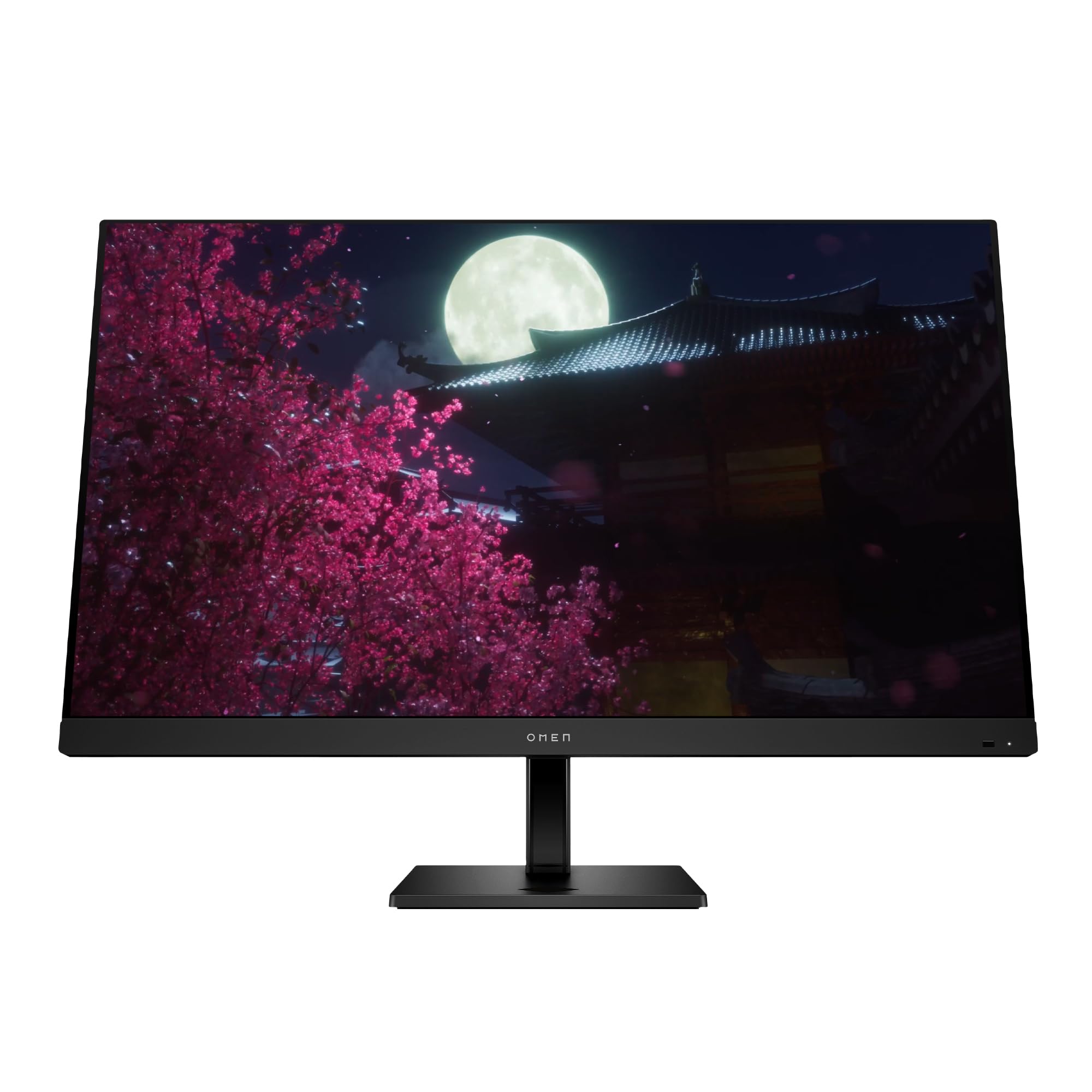
Image 1.1: The HP OMEN 31.5 inch UHD 144Hz Smart Gaming Monitor, highlighting its 4K UHD display, VESA DisplayHDR 400, integrated 3W speakers, and NVIDIA G-SYNC compatibility.
2. Hvad er der i æsken
Kontroller, at alle komponenter er til stede i emballagen, før du fortsætter med opsætningen.
- HP OMEN 31.5 inch UHD 144Hz Smart Gaming Monitor
- Monitorstativ (base og hals)
- DisplayPort kabel
- HDMI kabel
- USB Type-C til Type-C kabel
- AC strømkabel
- IR and Bluetooth remote control
- 2 x AAA-batterier (til fjernbetjening)
- Kabelholder
- Hurtig opsætningsplakat
- Documentation (including Warranty card)

Image 2.1: Visual representation of the items included in the product packaging, such as the monitor, cables, remote, and documentation.
3. Opsætning
3.1 Samling af skærmstativet
- Tag forsigtigt skærmens og stativets komponenter ud af emballagen.
- Fastgør stativets hals til skærmpanelet, og sørg for, at den klikker sikkert på plads.
- Attach the stand base to the stand neck, tightening any screws if necessary.
- Placer den samlede skærm på en stabil, plan overflade.
3.2 Tilslutning af skærmen
Tilslut de nødvendige kabler til skærmen og din computer eller andre enheder.
- Magt: Connect the AC power cable to the monitor's power input and then to a wall outlet.
- Videoindgang: Connect either the DisplayPort cable, HDMI cable, or USB Type-C cable from your computer/device to the corresponding port on the monitor. The monitor supports 2 HDMI 2.1 ports, 1 DisplayPort 1.4, and 1 USB Type-C port.
- USB-enheder: Connect USB peripherals to the 2 USB 2.0 Type-A ports on the monitor.
- Lydudgang: If desired, connect external speakers or headphones to the 3.5 mm Audio Jack (Audio Out).
- Netværk: For smart features, connect an Ethernet cable to the RJ-45 port (100 Mbps, for Android TV OS use only).

Image 3.1: The rear panel of the monitor, illustrating the location of the 2 HDMI 2.1 ports, USB Type-C port, 2 USB 2.0 Type-A ports, 3.5 mm Audio Jack, DisplayPort 1.4, and RJ-45 port.
3.3 Indledende tænding
- Sørg for, at alle kabler er korrekt tilsluttet.
- Press the power button on the monitor or use the remote control to turn on the monitor.
- Follow any on-screen prompts for initial setup, such as language selection and network connection for smart features.
4. Betjening af monitoren
4.1 Basic Controls and OSD Navigation
The monitor can be controlled using the physical buttons located on the monitor or the included IR and Bluetooth remote control. The On-Screen Display (OSD) menu allows you to adjust various settings.
- Use the remote control's directional buttons to navigate the OSD menu.
- Press the 'OK' or 'Enter' button to select an option.
- Brug knappen 'Tilbage' eller 'Afslut' for at vende tilbage til den forrige menu eller afslutte OSD-menuen.
4.2 Skærmindstillinger og -funktioner
Optimer din viewoplevelse ved at justere følgende indstillinger:
- Opløsning: The monitor supports 4K UHD (3840 x 2160) resolution. Ensure your connected device is configured to output at this resolution for optimal clarity.
- Opdateringshastighed: Set your device's display settings to 144Hz for smooth motion and responsive gameplay.
- VESA DisplayHDR 400: Enable HDR settings on your device and in the monitor's OSD for enhanced contrast and color depth in compatible content.
- NVIDIA G-SYNC-kompatibel: For NVIDIA graphics card users, enable G-SYNC in your NVIDIA Control Panel to synchronize the monitor's refresh rate with your GPU's frame rate, reducing screen tearing and stuttering.
- Dolby Vision og Dolby Atmos: Experience enhanced visuals and immersive audio with Dolby support. Ensure your content and connected devices are compatible.
- HP Eye Ease with Eyesafe Certification: This feature reduces blue light emissions to help minimize eye strain during extended use, without compromising color accuracy.

Image 4.1: The monitor features HP Eye Ease with Eyesafe Certification, designed to provide comfortable viewing by reducing blue light while maintaining color quality.
4.3 Smarte funktioner og tilslutningsmuligheder
The OMEN 32x monitor offers advanced smart functionalities:
- multi-View: Split your screen to display content from two different sources simultaneously. For example, use a wired connection on one side and wireless casting on the other.
- Multi-Platform Streamer Honors: Stream content directly from your screen to multiple platforms. Refer to the monitor's smart OS interface for configuration.
- Shared Keyboard/Mouse (KB/M): Easily switch your keyboard and mouse control between multiple connected devices, simplifying your setup.
- Home Panel Integration: Control smart home devices like lights and thermostats, view doorbell notifications, and full-screen camera feeds directly from the monitor's home panel.

Image 4.2: The monitor's capability to live stream to multiple platforms and utilize a split-screen Multi-View feature for enhanced multitasking.

Image 4.3: The monitor's smart home panel, allowing control of lights, temperature, and displaying doorbell notifications and full-screen camera views.
4.4 Ergonomiske justeringer
Juster skærmen for optimal viewkomfort:
- Højdejustering: The stand allows for a 100mm height adjustment range.
- Vip: The monitor can be tilted from -5° to +20° to find your preferred viewvinkel.

Image 4.4: Illustration of the monitor's ergonomic adjustments, including its tilt range (-5° to +20°) and 100mm height adjustable range.
5. Vedligeholdelse
5.1 Rengøring af monitoren
- Sluk altid skærmen og tag netledningen ud, inden rengøring.
- Brug let en blød, fnugfri klud damprengøres med vand eller et ikke-slibende skærmrensemiddel.
- Sprøjt ikke rengøringsmiddel direkte på skærmen.
- Undgå at bruge skrappe kemikalier, opløsningsmidler eller slibende materialer, da disse kan beskadige skærmen ellerasing.
5.2 Generel pleje
- Undgå at placere tunge genstande på skærmen eller dens kabler.
- Do not block ventilation openings on the monitor.
- Hold skærmen væk fra direkte sollys, varmekilder og overdreven fugtighed.
6. Fejlfinding
Hvis du støder på problemer med din skærm, kan du bruge følgende almindelige løsninger:
| Problem | Mulig løsning |
|---|---|
| Ingen strøm | Ensure the power cable is securely connected to both the monitor and a working power outlet. Check if the power button is pressed. |
| Intet signal / Blank skærm | Verify that the video cable (DisplayPort, HDMI, or USB-C) is correctly connected to both the monitor and your computer. Ensure the correct input source is selected in the monitor's OSD menu. Try restarting your computer. |
| Billedflimmer eller forvrængning | Check the video cable for damage. Ensure your graphics drivers are up to date. Adjust the refresh rate in your computer's display settings. Disable G-SYNC temporarily to see if the issue persists. |
| Farverne ser forkerte ud | Adjust color settings in the OSD menu. Perform a factory reset of the monitor settings. Ensure your graphics card color settings are correctly configured. |
| Fjernbetjening virker ikke | Check and replace the AAA batteries. Ensure there are no obstructions between the remote and the monitor's IR receiver. Re-pair the Bluetooth remote if necessary. |
If the problem persists after trying these solutions, contact HP customer support.
7. Specifikationer
| Feature | Detalje |
|---|---|
| Modelnummer | 99Z68AA#ABA |
| Skærmstørrelse | 31.5 tommer |
| Paneltype | IPS |
| Opløsning | 4K UHD (3840 x 2160) |
| Opdateringshastighed | 144 Hz |
| Svartid | 1ms GtG (with Overdrive) |
| HDR-understøttelse | VESA DisplayHDR 400 |
| G-SYNC-kompatibilitet | NVIDIA G-SYNC kompatibel |
| Kontrastforhold | 1000:1 |
| Lysstyrke | 400 nits (peak) |
| Viewi vinkler | 178° (H) / 178° (V) |
| Højttalere | Four integrated 3W speakers |
| Videoindgangsporte | 2 x HDMI 2.1, 1 x DisplayPort 1.4, 1 x USB Type-C |
| USB-porte | 2 x USB 2.0 Type-A (Battery Charging 1.2) |
| Lydudgang | 3.5 mm Audio Jack |
| Netværksport | 1 x RJ-45 (100 Mbps, for Android TV OS only) |
| Ergonomi | Height adjustable (100mm), Tilt (-5° to +20°) |
| Dimensioner (BxDxH) | 28.11 x 9.58 x 16.93 cm (med stativ) |
| Vægt | 23.3 pund (med stativ) |
| Farve | Sort |
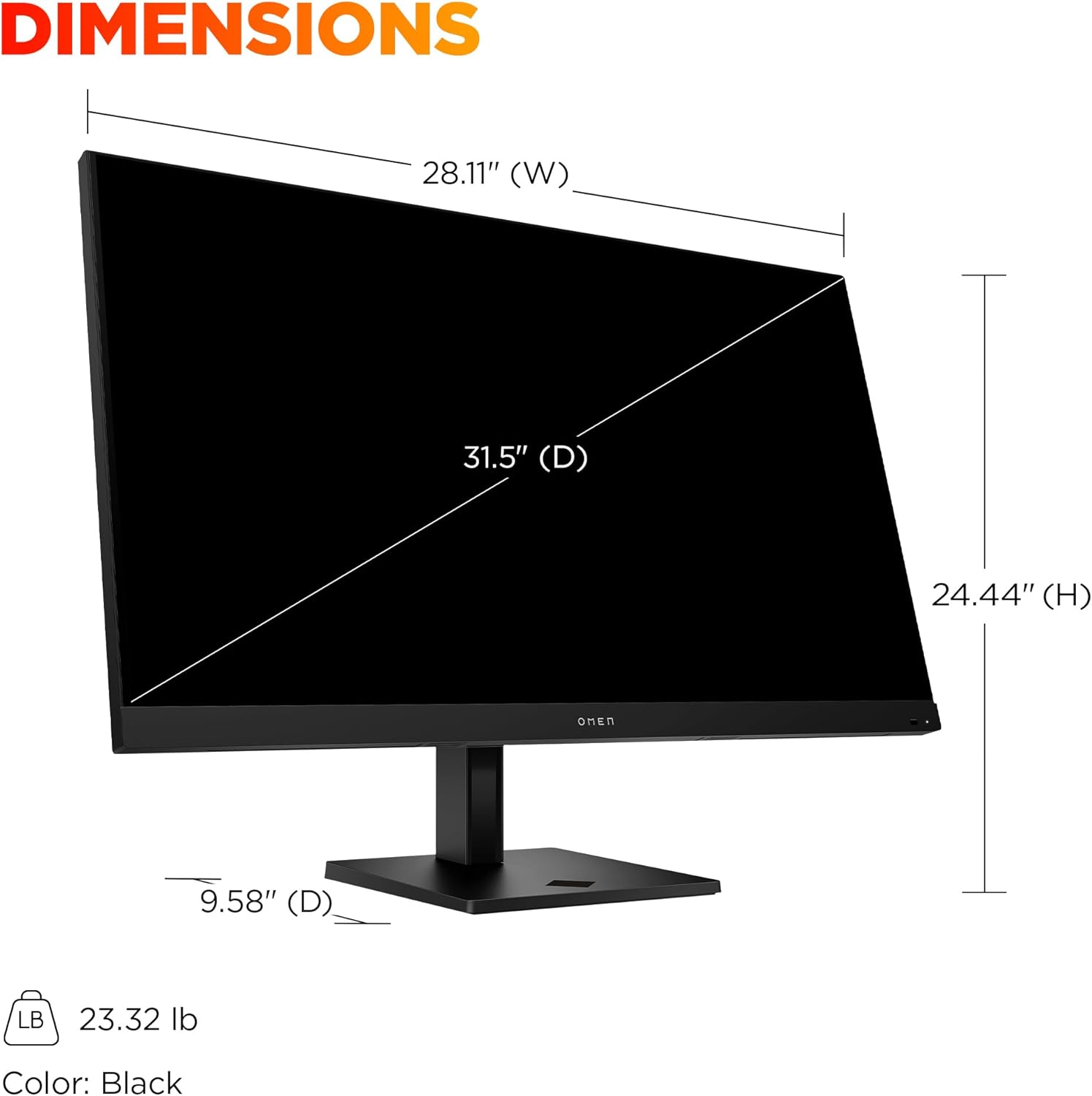
Image 7.1: Detailed dimensions of the HP OMEN 31.5 inch monitor, including width, height, and depth, along with its weight.
8. Garanti og support
8.1 Garantioplysninger
This HP OMEN monitor comes with a HP 3-year limited warranty. Please refer to the warranty card included in your product packaging for full terms and conditions. Keep your proof of purchase for warranty claims.
8.2 Kundesupport
For technical assistance, troubleshooting beyond this manual, or warranty service, please contact HP customer support. You can find support contact information on the official HP website or through the documentation provided with your monitor.
Online resources, drivers, and FAQs may also be available on the HP Support webwebsted.