1. Introduktion
Welcome to the user manual for your new MESWAO 15.6-inch Android Tablet. This guide provides essential information on setting up, operating, maintaining, and troubleshooting your device to ensure a seamless and enjoyable experience. Please read this manual thoroughly before using your tablet.

Figure 1: MESWAO 15.6-inch Android Tablet (Dark Gray)
2. Produktfunktioner
The MESWAO 15.6-inch Android Tablet is designed for both productivity and entertainment, offering a powerful and versatile user experience. Key features include:
- Expansive 15.6-inch Full HD Display: Ideal for work and entertainment, providing vivid images and videos with 1920x1080 resolution. The large screen is approximately twice the size of a 12-inch tablet, enhancing multitasking and e-book reading.
- Latest Android 14 Operating System: Enjoy an enhanced user experience with improved privacy protection, optimized performance, AI-powered customization, and advanced security features.
- Powerful MediaTek Helio G99 Processor: An 8-core mobile processor offering balanced processing power for daily use, smooth web browsing, and app launches. The ARM Mali-G57 GPU supports gaming and graphic processing.
- AmpHukommelse og lagring: Features 6GB of physical RAM plus 2GB of virtual RAM (total 8GB), 128GB of built-in storage, expandable up to 1TB via microSD card (FAT32 format) for storing a vast amount of media and documents.
- Langtidsholdbart 12000mAh batteri: Provides up to 10 hours of continuous use, even at maximum volume, ensuring extended enjoyment of novels, comics, and games. Supports PD15W fast charging.
- High-Resolution Cameras: Equipped with a 5-megapixel front camera and a 32-megapixel rear camera for clear photos and video calls.
- Forbedret lyd: Features four speakers for an immersive audio experience.
- Forbindelse: Supports Wi-Fi 5 (802.11ac) and Bluetooth 5.0 for seamless wireless connections.
- GMS Certified: Ensures full access to Google Mobile Services, including the Google Play Store for a wide range of applications.
- Multitasking Capabilities: Supports split-screen operation for displaying and operating multiple applications simultaneously, boosting productivity.

Figure 2: The 15.6-inch display offers an immersive visual experience, ideal for media consumption and productivity.
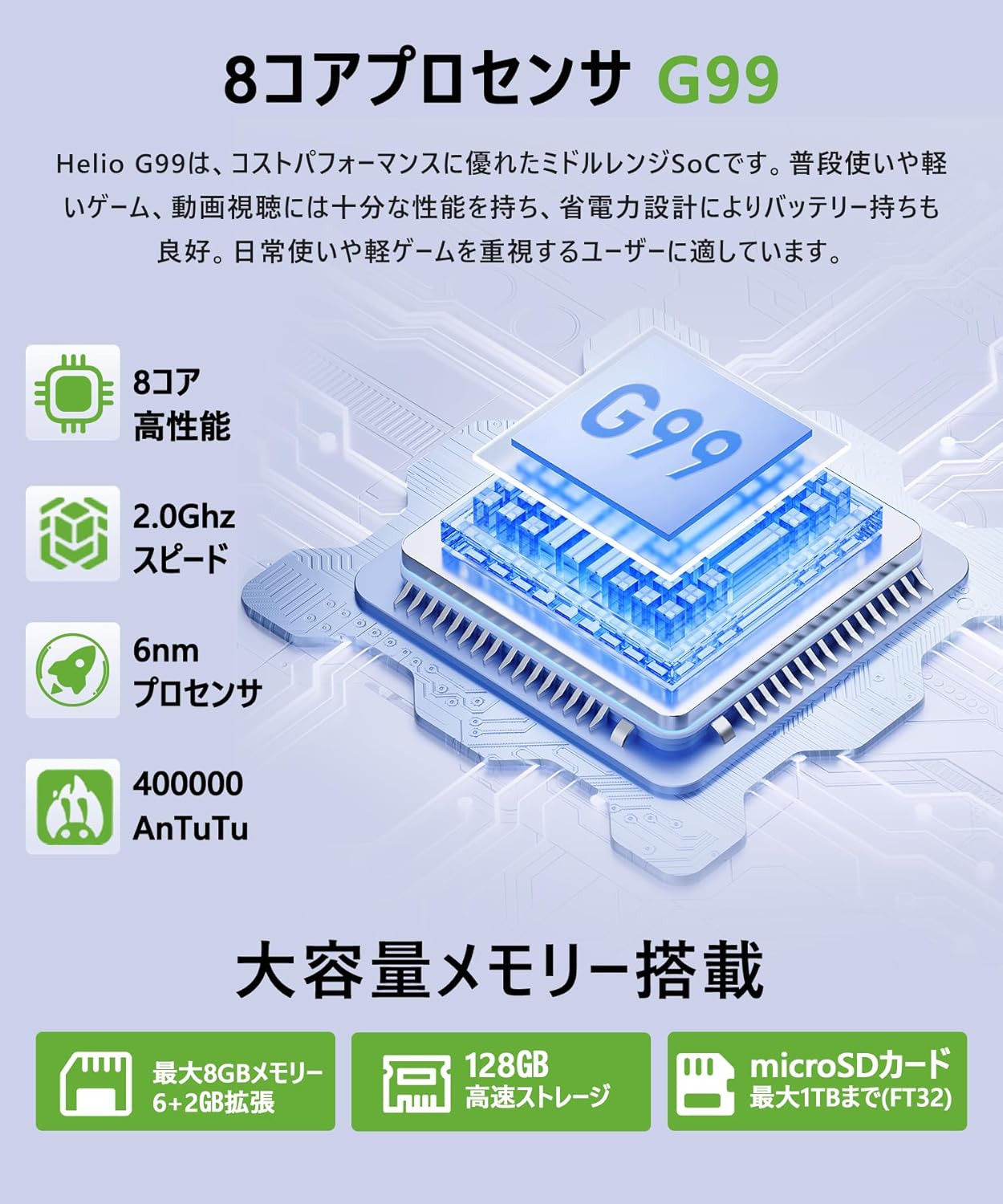
Figure 3: The tablet is powered by the MediaTek Helio G99 8-core processor and features 8GB RAM with 128GB internal storage, expandable up to 1TB.
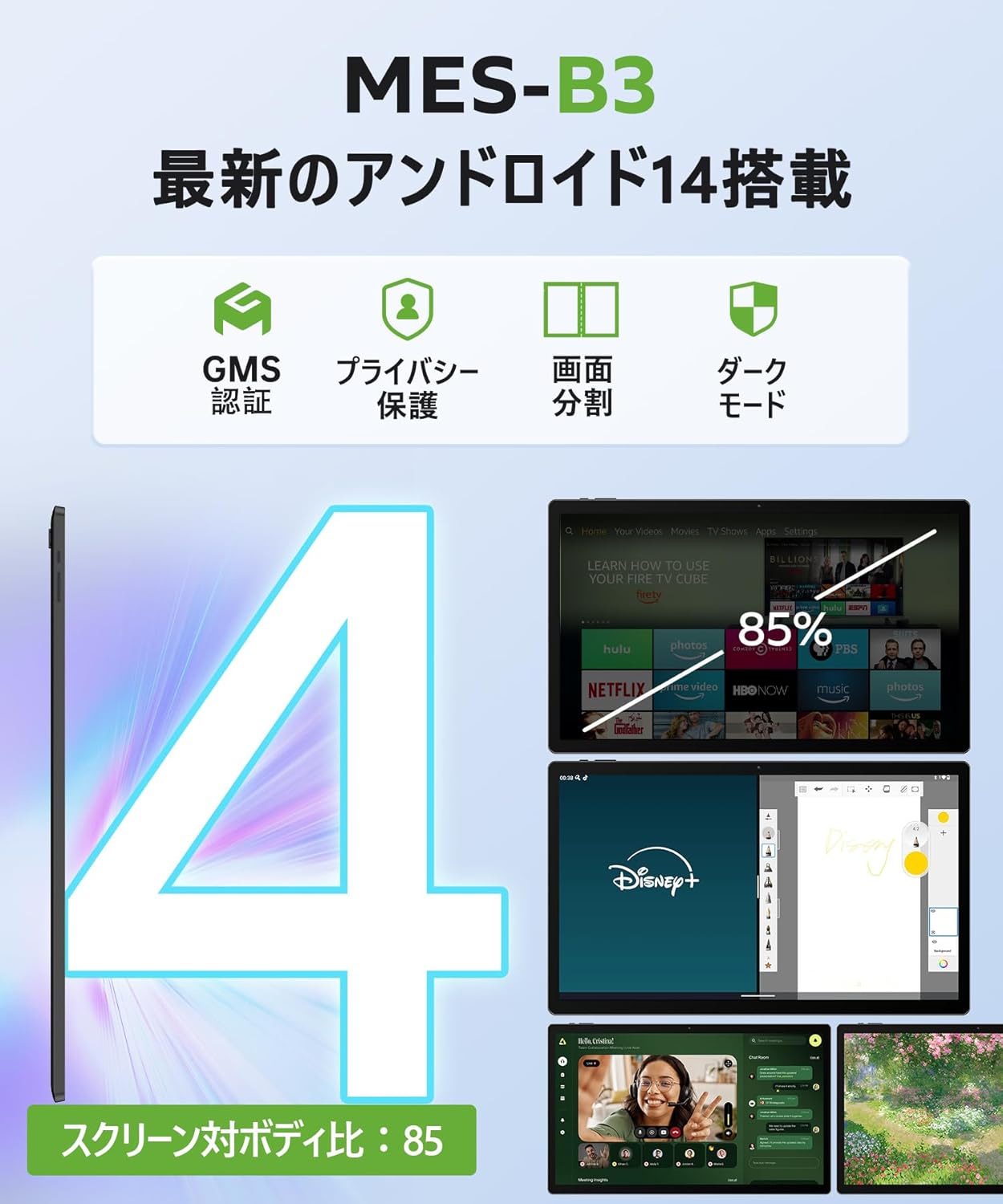
Figure 4: Running on Android 14, the tablet supports GMS certification, enhanced privacy, screen split, and dark mode for an optimized user experience.
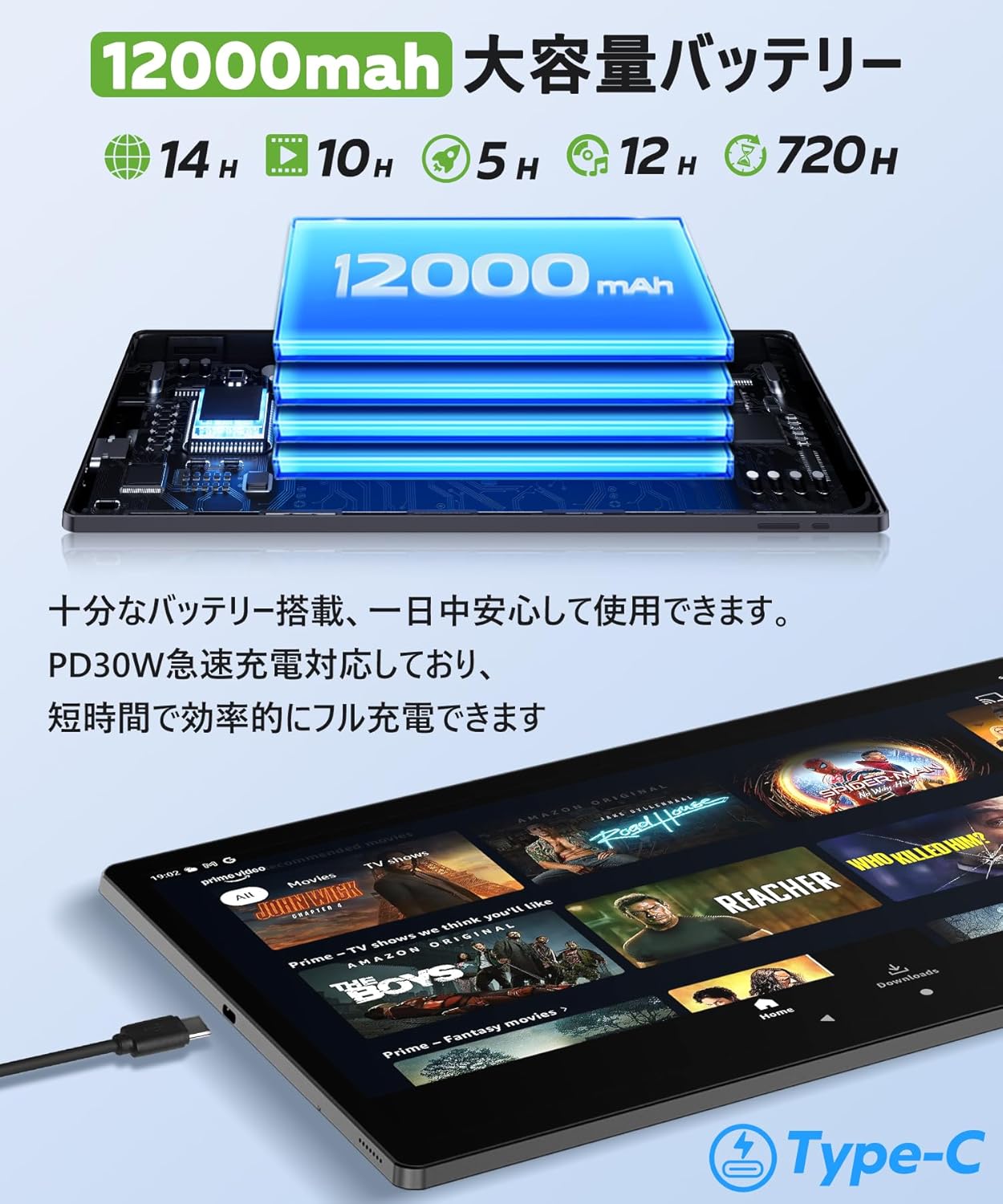
Figure 5: Equipped with a 12000mAh large-capacity battery and supporting Type-C PD15W fast charging for extended use.

Figure 6: Features a 32MP main camera, 5MP front camera, and four speakers for high-quality photos and immersive audio.
3. Opsætningsvejledning
3.1 Udpakning og første inspektion
Carefully remove all components from the packaging. Verify that all items listed in the package contents are present and undamaged. If any items are missing or damaged, please contact customer support.
3.2 Opladning af tabletten
Before first use, fully charge the tablet. Connect the provided Type-C cable to the tablet's charging port and the other end to a compatible power adapter (PD15W recommended). The charging indicator will show the charging status. A full charge typically takes several hours.
3.3 Tænd/sluk
- For at tænde: Press and hold the Power button (usually located on the side) for a few seconds until the MESWAO logo appears on the screen.
- For at slukke: Tryk på tænd/sluk-knappen og hold den nede, indtil menuen med strømindstillinger vises. Vælg "Sluk", og bekræft.
- For at genstarte: Fra menuen med strømindstillinger skal du vælge "Genstart".
3.4 Guide til indledende opsætning
Når tabletten tændes første gang, vil den guide dig gennem en indledende opsætningsguide. Følg instruktionerne på skærmen for at:
- Vælg dit sprog.
- Opret forbindelse til et Wi-Fi-netværk.
- Log ind med din Google-konto, eller opret en ny.
- Konfigurer skærmlås (pinkode, mønster, adgangskode).
- Review and accept Google services and privacy settings.
3.5 Indsættelse af et MicroSD-kort (valgfrit)
To expand storage, locate the microSD card slot (refer to the device diagram in the quick start guide). Gently insert a FAT32 formatted microSD card (up to 1TB) into the slot until it clicks into place. Ensure the tablet is powered off before inserting or removing the card.
4. Betjeningsvejledning
4.1 Grundlæggende navigation
- Berøringsbevægelser: Tryk for at vælge, swipe for at rulle, knib for at zoome.
- Startskærm: Access apps, widgets, and shortcuts.
- Meddelelsespanel: Stryg ned fra toppen af skærmen til view notifikationer og hurtigindstillinger.
- App Skuffe: Stryg opad fra bunden af skærmen for at få adgang til alle installerede apps.
4.2 Wi-Fi- og Bluetooth-forbindelse
- Wi-Fi: Go to Settings > Network & internet > Wi-Fi. Turn on Wi-Fi and select your desired network. Enter the password if prompted.
- Bluetooth: Go to Settings > Connected devices > Connection preferences > Bluetooth. Turn on Bluetooth and pair with compatible devices like headphones or speakers.
4.3 Brug af kameraer
The tablet features a 5MP front camera and a 32MP rear camera. Open the Camera app to take photos or record videos. You can switch between front and rear cameras, adjust settings, and apply filters within the app.
4.4 Lagerstyring
Til view and manage your tablet's storage, go to Settings > Storage. You can see how much space is used by apps, photos, videos, and other files. Regularly clear unnecessary files for at optimere ydeevnen.
4.5 Multitasking med delt skærm
To use split-screen mode, open an app, then swipe up from the bottom of the screen and hold to reveal recent apps. Tap the app icon at the top of one app's card and select "Split screen." Choose another app from the recent apps or app drawer to open it in the second pane. This allows you to view and interact with two apps simultaneously.

Figure 7: Multitask efficiently using the split-screen feature to display multiple applications simultaneously.
4.6 GMS Certification and App Downloads
Your MESWAO tablet is GMS (Google Mobile Services) certified, meaning you have full access to the Google Play Store. Open the Play Store app to download and install millions of applications, games, movies, and books.

Figure 8: With GMS certification, you can freely download apps from the Google Play Store.
4.7 Andre funktioner
- OTG (på farten): Supports connecting USB devices like flash drives, keyboards, or mice via an OTG adapter (not included).
- FM-radio: Use the built-in FM radio feature for local broadcasts.
- Lyssensor: The tablet features a light sensor that automatically adjusts screen brightness based on ambient light conditions for optimal viewing.
- Trådløs projektion: Cast your tablet's screen to a larger display like a TV for a shared viewoplevelse.

Figure 9: The light sensor automatically adjusts screen brightness for optimal visibility in any environment.

Figure 10: Enjoy content on a larger screen with wireless projection, sharing happiness with family and friends.
5. Vedligeholdelse
5.1 Pleje af batterier
- Undgå at aflade batteriet helt ofte.
- Udsæt ikke tabletten for ekstreme temperaturer.
- Brug kun de medfølgende eller certificerede opladere og kabler.
5.2 Rengøring
Brug en blød, fnugfri klud til at rengøre skærmen og tablettens kabinet. Tør let ved genstridige pletter.ampRengør kluden med vand eller et skærmrensemiddel. Undgå at bruge skrappe kemikalier eller slibende materialer.
5.3 Softwareopdateringer
Søg regelmæssigt efter og installer softwareopdateringer for at sikre, at din tablet har de nyeste funktioner, sikkerhedsrettelser og forbedringer af ydeevnen. Gå til Indstillinger > System > Systemopdatering.
6. Fejlfinding
6.1 Tablet tænder ikke
- Sørg for, at batteriet er opladet. Tilslut opladeren, og vent et par minutter, før du forsøger at tænde.
- Tryk og hold tænd/sluk-knappen nede i mindst 10-15 sekunder for at fremtvinge en genstart.
6.2 Skærmen reagerer ikke
- Genstart tabletten.
- Sørg for, at skærmen er ren og fri for snavs.
6.3 Problemer med Wi-Fi-forbindelse
- Toggle Wi-Fi off and on in settings.
- Genstart din Wi-Fi-router.
- Glem netværket og genopret forbindelsen.
6.4 Apps der går ned eller fryser
- Luk og åbn appen igen.
- Ryd appens cache og data (Indstillinger > Apps > [Appnavn] > Lagerplads og cache).
- Opdater appen fra Google Play Butik.
6.5 Langsom ydeevne
- Luk ubrugte apps, der kører i baggrunden.
- Ryd cache og unødvendige files.
- Sørg for tilstrækkelig ledig opbevaringsplads.
- Genstart tabletten regelmæssigt.
7. Specifikationer
| Feature | Specifikation |
|---|---|
| Mærke | MESWAO |
| Modelnavn | MES-B3 |
| Operativsystem | Android 14 |
| Skærmstørrelse | 15.6 tommer |
| Skærmopløsning | 1920x1080 pixels (FHD) |
| CPU Brand | MediaTek |
| CPU model | Helio G99 (8-Core) |
| CPU hastighed | 2.2 GHz |
| GPU | ARM Mali-G57 MC2 |
| VÆDDER | 8 GB (6 GB fysisk + 2 GB virtuel) |
| Intern opbevaring | 128 GB |
| Udvidelig opbevaring | Up to 1TB via microSD (FAT32) |
| Bagkamera | 32 MP |
| Forreste kamera | 5 MP |
| Batterikapacitet | 12000mAh (18 watt timer) |
| Batterilevetid (typisk) | 10 timer |
| Opladningsport | Type-C (PD15W Fast Charging) |
| Trådløs type | 802.11ac (Wi-Fi 5) |
| Bluetooth | Bluetooth 5.0 |
| Højttalere | 4 højttalere |
| Dimensioner | 40.29 x 26.4 x 5.9 cm |
| Varens vægt | 1.05 kilo |
| Farve | Mørkegrå |
8. Garanti og support
MESWAO tablets come with a et års kvalitetsgaranti. If you encounter any product defects or issues, please do not hesitate to contact our customer support via email. We commit to responding promptly within 24 hours to address your concerns. Returns and refunds are also available for customer convenience.
For support, please refer to the contact information provided with your purchase or visit the official MESWAO webwebsted.


