1. Introduktion
This manual provides essential information for setting up, operating, and maintaining your Philips 24B2U3301 24-inch Full HD monitor. This monitor is designed for business efficiency, offering a 120 Hz refresh rate, SoftBlue technology, Flicker-Free viewing, and a versatile VESA mount compatible stand. Please read this manual thoroughly before using your monitor to ensure proper installation and operation.
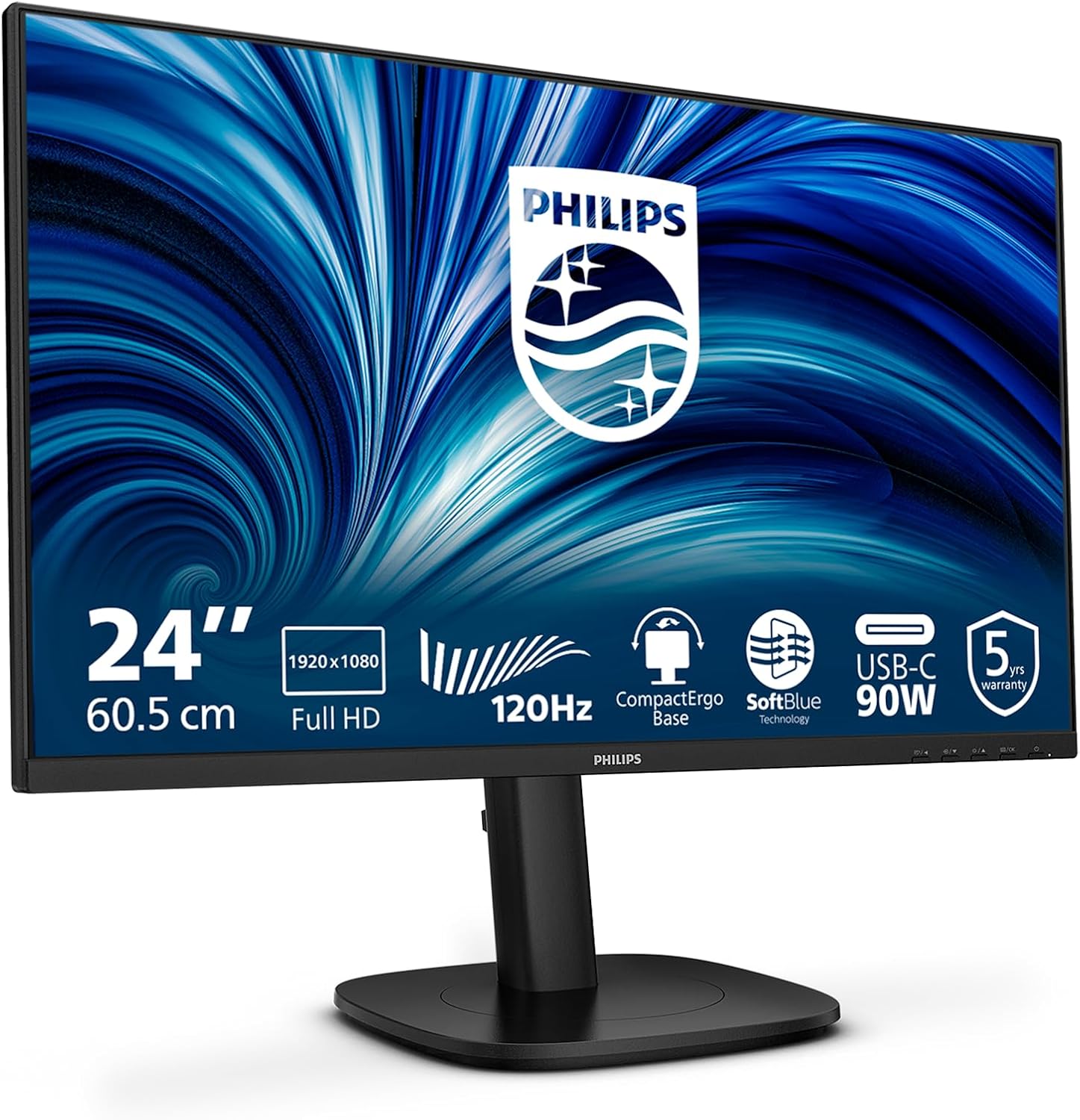
Billede 1.1: Forside view af Philips 24B2U3301-skærmen, vistasing dets slanke design og smalle rammer.
2. Sikkerhedsoplysninger
Observe the following safety precautions to prevent damage to the monitor and ensure your personal safety:
- Placer altid skærmen på en stabil, plan overflade.
- Bloker ikke ventilationsåbninger.
- Brug kun den strømadapter og de kabler, der er leveret af producenten.
- Hold skærmen væk fra vand, fugt og ekstreme temperaturer.
- Forsøg ikke selv at åbne eller servicere skærmen. Overlad al service til kvalificeret personale.
- Tag skærmen ud af stikkontakten før rengøring.
3. Pakkens indhold
Bekræft at alle varer er til stede i din pakke:
- Philips 24B2U3301 Monitor
- Monitorstativ (base og hals)
- Strømkabel
- HDMI kabel
- DisplayPort (DP)-kabel
- USB-C til USB-C kabel
- Hurtig startvejledning
4. Opsætning
4.1 Samling af stativet
- Tag forsigtigt skærmens og stativets komponenter ud af emballagen.
- Fastgør stativets hals til skærmpanelet. Sørg for, at den klikker sikkert på plads, eller at den er fastgjort med skruer, hvis de medfølger.
- Attach the stand base to the stand neck and tighten the thumb screw at the bottom of the base.

Billede 4.1: Illustration af monteringsprocessen for skærmstativet.
4.2 Tilslutning af skærmen
Connect the necessary cables to the monitor and your computer. Refer to the port diagram below for connection points.
- Strømtilslutning: Connect the power cable to the monitor's AC input and then to a power outlet.
- Videoforbindelse: Vælg en af følgende muligheder:
- HDMI: Connect one end of the HDMI cable to the monitor's HDMI input and the other end to your computer's HDMI output.
- DisplayPort (DP): Connect one end of the DP cable to the monitor's DP input and the other end to your computer's DP output.
- USB-C: Connect the USB-C cable to the monitor's USB-C input and your computer's USB-C port. This single cable can provide video, data, and power delivery (up to 90W).
- USB-hub-forbindelse: If using HDMI or DP for video, connect a USB-A to USB-B cable (not always included, check package contents) from your computer to the monitor's USB upstream port to enable the monitor's USB hub. If using USB-C, this connection is automatic.
- RJ45 Ethernet: Connect an Ethernet cable from your router/modem to the monitor's RJ45 port to provide network connectivity to your connected laptop via USB-C.
- Lydudgang: Connect external speakers or headphones to the Audio Out jack if desired.

Billede 4.2: Bagside view på skærmen, der fremhæver de forskellige input- og outputporte.

Image 4.3: Close-up diagram illustrating the HDMI, DisplayPort, USB-C, RJ45, USB Hub, and Audio Out ports.
5. Betjeningsvejledning
5.1 Tænd/sluk
Press the power button located on the monitor's bezel to turn the monitor on or off.
5.2 On-Screen Display (OSD) menu
OSD-menuen giver dig mulighed for at justere forskellige skærmindstillinger. Brug kontrolknapperne (normalt placeret nederst til højre eller bag på skærmen) til at navigere i menuen.
- Menu-knap: Åbner OSD-menuen.
- Navigationsknapper: Bruges til at bevæge sig op/ned eller til venstre/højre gennem menupunkter.
- OK/Vælg knap: Bekræfter et valg.
- Afslut-knap: Afslutter den aktuelle menu eller OSD.
5.3 Almindelige OSD-indstillinger
- Billede: Juster lysstyrke, kontrast, skarphed og farvetemperatur.
- Lyd: Control volume and mute settings for built-in speakers or audio output.
- Input: Manually select the video input source (HDMI, DP, USB-C).
- OSD-indstillinger: Juster OSD-sprog, gennemsigtighed og timeout.
- Opsætning: Access factory reset options and information about the monitor.
5.4 Ergonomiske justeringer
The monitor stand offers multiple adjustments for optimal viewkomfort:
- Højdejustering: Raise or lower the monitor by up to 130mm.
- Vip: Adjust the screen's vertical angle (-5° to 30°).
- Drejelig: Rotate the monitor horizontally (-/+ 180°).
- Pivot: Drej skærmen 90° for portrættilstand viewing (-/+ 90°).
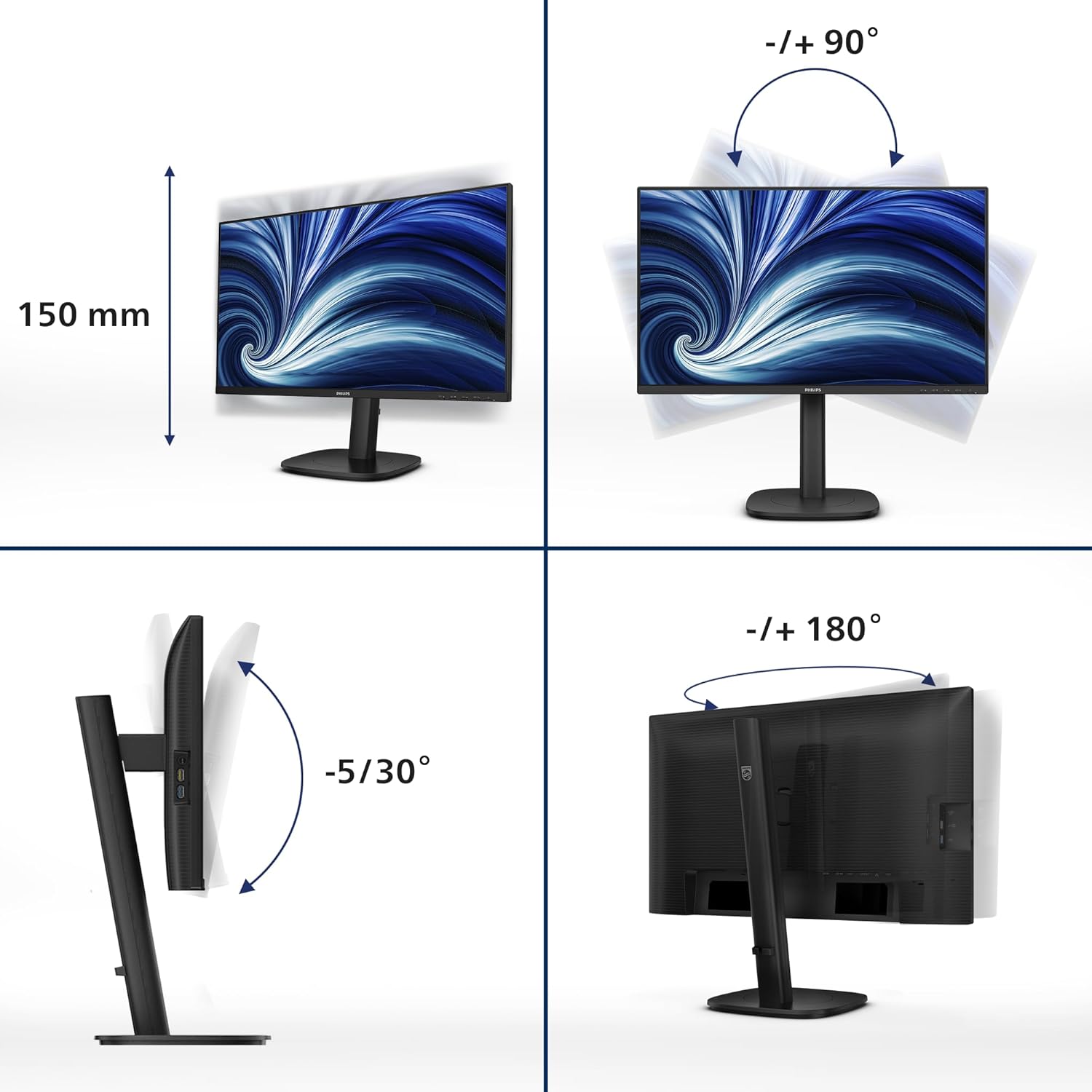
Image 5.1: Demonstrates the monitor's height, tilt, swivel, and pivot adjustments for ergonomic positioning.
6. Nøglefunktioner
- 120 Hz opdateringshastighed: Provides ultra-smooth and brilliant images, reducing motion blur for a more fluid visual experience.
- 1ms MPRT Fast Response: Delivers crisp images and smooth gameplay, minimizing ghosting and blurring in fast-paced scenes.
- SoftBlue-teknologi: Reduces harmful blue light emissions without compromising color accuracy, helping to minimize eye strain during extended use.
- Flimmerfri teknologi: Regulates brightness and reduces screen flickering, further enhancing eye comfort.
- USB-C with 90W Power Delivery: A single USB-C cable provides video, data transfer, and powers/charges your compatible laptop (up to 90W).
- USB-hub: Integrated USB hub with multiple ports allows for easy connection of peripherals like keyboards, mice, and external drives.
- RJ45 Ethernet-port: Provides a stable wired network connection to your connected laptop via the USB-C cable, eliminating the need for additional adapters.
- DisplayPort ud: Allows for daisy-chaining multiple monitors from a single DisplayPort connection on your computer.
7. Vedligeholdelse
7.1 Rengøring af skærmen
To clean the monitor screen:
- Sluk skærmen, og tag strømkablet ud.
- Tør forsigtigt skærmen af med en blød, fnugfri klud.
- Til genstridige mærker, dampen the cloth lightly with a mild, non-abrasive screen cleaner. Do not spray cleaner directly onto the screen.
7.2 Rengøring af Casing
Tør skærmen c afasinmed en blød, tør klud. Undgå at bruge stærke rengøringsmidler eller slibende rengøringsmidler.
8. Fejlfinding
Hvis du støder på problemer med din skærm, kan du se følgende almindelige problemer og løsninger:
| Problem | Mulig løsning |
|---|---|
| Intet billede på skærmen |
|
| Billedet er sløret eller forvrænget |
|
| Ingen lyd fra højttalere/lydudgang |
|
| Skærmen flimrer |
|
9. Specifikationer
| Feature | Detalje |
|---|---|
| Modelnummer | 24B2U3301 |
| Skærmstørrelse | 23.8 tommer |
| Paneltype | IPS |
| Opløsning | 1920 x 1080 (Fuld HD) |
| Opdateringshastighed | 120 Hz |
| Svartid | 1 ms (MPRT) |
| Aspektforhold | 16:9 |
| Forbindelse | 1x HDMI 1.4, 1x DisplayPort 1.4, 1x USB-C (90W PD), 1x DisplayPort Out, 1x USB Hub (USB 3.2 Gen 1), 1x RJ45 Ethernet, 1x Audio Out |
| Ergonomiske justeringer | Height (130mm), Tilt (-5°/30°), Swivel (-/+ 180°), Pivot (-/+ 90°) |
| Indbyggede højtalere | Ja |
| Strømforbrug | Se produktetiketten for specifikke værdier |
| Dimensioner (med stativ) | 8.98 x 21.34 x 19.65 tommer (LxBxH) |
| Vægt (med stativ) | 12.58 pund |
10. Garanti og support
10.1 Garantioplysninger
This Philips monitor comes with a 5-års garanti, ensuring peace of mind regarding its quality and performance. Please retain your proof of purchase for warranty claims.

Image 10.1: The TCO Certified Edge 5 Year Warranty logo, indicating extended product assurance.
10.2 Kundesupport
For technical assistance, warranty service, or further inquiries, please visit the official Philips support website or contact their customer service. You can typically find contact information and support resources on the Philips website or in the documentation included with your monitor.
Online support: www.philips.com/support


