1. Introduktion
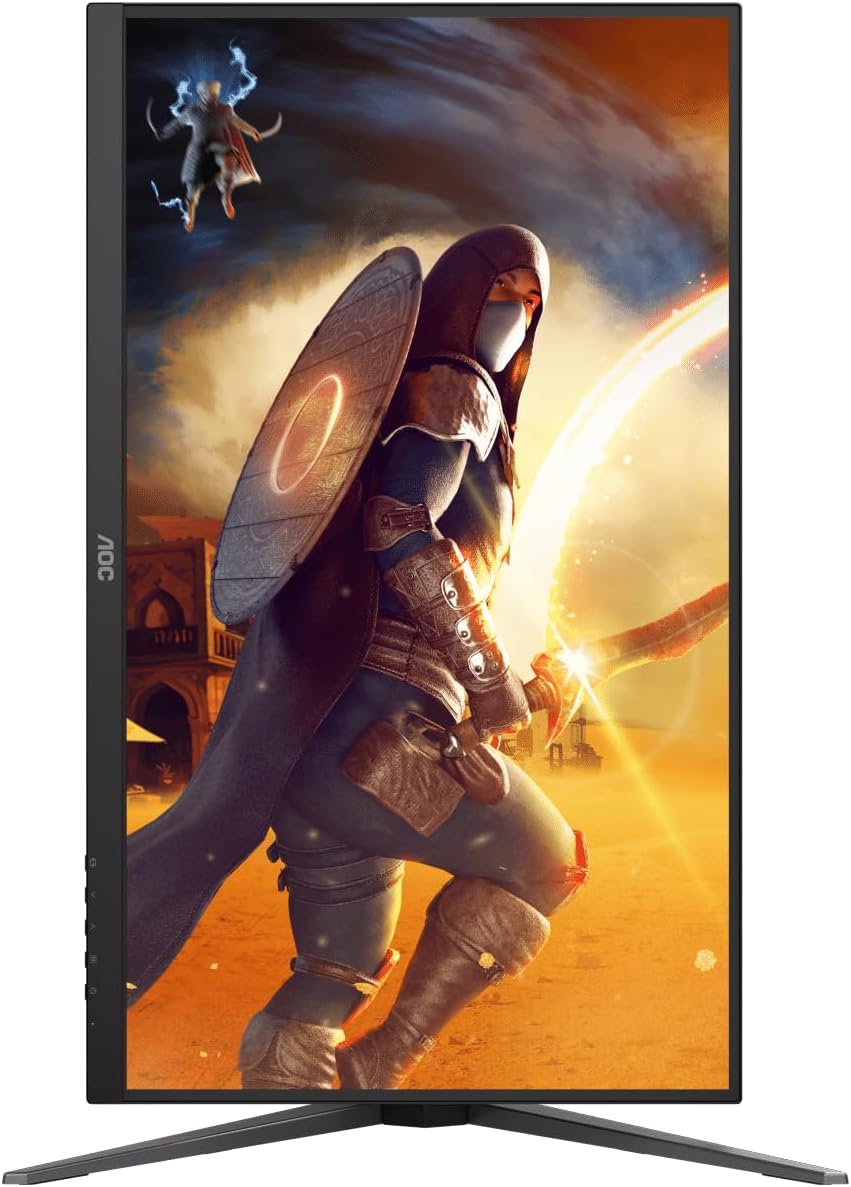
This manual provides comprehensive instructions for the setup, operation, maintenance, and troubleshooting of your AOC U27G42 27" 4K UHD Gaming Monitor. Please read this manual thoroughly before using the product to ensure proper functionality and to prevent damage.
2. Sikkerhedsoplysninger
Always observe the following safety precautions to ensure safe operation and to extend the lifespan of your monitor:
- Udsæt ikke skærmen for regn eller fugt.
- Åbn ikke skærmen casing. Høj volumentagKomponenterne indeni kan forårsage elektrisk stød.
- Sørg for korrekt ventilation omkring skærmen.
- Brug kun den strømadapter, der følger med skærmen.
- Rengør skærmen med en blød, fnugfri klud. Undgå at bruge skrappe kemikalier.
3. Pakkens indhold
Bekræft at alle varer er til stede i pakken:
- AOC U27G42 Monitor Display
- Monitorstativ (base og hals)
- Strømkabel
- HDMI kabel
- DisplayPort-kabel
- Brugervejledning (dette dokument)
- Hurtig startvejledning
4. Opsætning
4.1 Samling af stativet
- Tag forsigtigt skærmens og stativets komponenter ud af emballagen.
- Fastgør stativets hals til skærmpanelet. Sørg for, at den klikker sikkert på plads, eller at den er fastgjort med skruer som angivet i hurtigstartvejledningen.
- Fastgør stativets base til stativets hals. Spænd fingerskruen eller skruerne fra bunden af basen.
- Placer den samlede skærm på en stabil, plan overflade.
Billede: Bagside view of the AOC U27G42 monitor with the stand fully assembled and attached.
4.2 Tilslutning af skærmen
Før du tilslutter, skal du sørge for, at både skærmen og din computer er slukket.
- Strømtilslutning: Tilslut strømkablet til skærmens strømindgang, og sæt derefter den anden ende i en jordet stikkontakt.
- Videoforbindelse:
- DisplayPort: Connect one end of the DisplayPort cable to the monitor's DisplayPort input and the other end to your computer's DisplayPort output. This connection is recommended for optimal performance (160Hz refresh rate, 4K resolution).
- HDMI: Connect one end of the HDMI cable to the monitor's HDMI input and the other end to your computer's HDMI output. Note that HDMI 2.0 may limit refresh rates at 4K resolution.
- Lydudgang: If you wish to use external speakers or headphones, connect them to the monitor's audio output jack. The monitor does not have built-in speakers.

Image: Close-up of the rear panel of the AOC U27G42 monitor, showing the various input ports including HDMI, DisplayPort, and audio out.
5. Betjeningsvejledning
5.1 Tænd/sluk
Tryk på tænd/sluk-knappen nederst til højre på skærmen for at tænde eller slukke den. Strømindikatorlampen lyser, når skærmen er tændt.
5.2 On-Screen Display (OSD) menu
The OSD menu allows you to adjust various monitor settings. Use the joystick or buttons located on the bottom right of the monitor to navigate the menu.
Almindelige OSD-menuindstillinger:
- Luminans: Juster lysstyrke, kontrast og gamma.
- Farveopsætning: Select color temperature, adjust RGB levels, or choose preset color modes.
- Billedforstærkning: Forbedr bestemte områder af skærmen.
- OSD-opsætning: Juster OSD-position, gennemsigtighed og timeout.
- Spilindstilling: Access game mode presets, G-Menu, Low Input Lag, AdaptiveSync, and other gaming-specific features.
- Ekstra: Input selection, reset settings, information.
5.3 Optimering af skærmindstillinger
For the best experience, ensure your computer's display settings are configured correctly:
- Opløsning: Set to 3840 x 2160 (4K UHD).
- Opdateringshastighed: Set to 160Hz (requires DisplayPort connection and compatible graphics card).
- AdaptiveSync: Enable AdaptiveSync in your graphics card control panel (e.g., NVIDIA Control Panel, AMD Radeon Software) and on the monitor's OSD menu for tear-free gaming.
- HDR: Enable HDR in Windows Display Settings and on the monitor's OSD menu to utilize DisplayHDR 400.
6. Vedligeholdelse
6.1 Rengøring af monitoren
- Tag altid stikket ud af stikkontakten før rengøring.
- Brug en blød, fnugfri klud lidt dampened with water to clean the screen. Do not spray liquid directly onto the screen.
- For stubborn marks, use a specialized screen cleaning solution, applied to the cloth, not directly to the screen.
- Tør skærmen c afasing with a soft, dry cloth. Avoid abrasive cleaners.
6.2 Opbevaring
Hvis skærmen opbevares i længere tid, skal alle kabler frakobles og opbevares et køligt og tørt sted, helst i originalemballagen, for at beskytte den mod støv og fysiske skader.
7. Fejlfinding
| Problem | Mulig årsag | Løsning |
|---|---|---|
| Intet billede på skærmen | Power cable disconnected; Video cable disconnected or loose; Incorrect input selected. | Check power and video cable connections; Press the OSD button to select the correct input source. |
| Billedet er sløret eller forvrænget | Forkert opløsning; Problem med grafikdriveren. | Set display resolution to 3840 x 2160; Update graphics card drivers. |
| Skærmflimmer eller -rivning | AdaptiveSync not enabled; Refresh rate mismatch. | Enable AdaptiveSync in OSD and graphics card settings; Ensure refresh rate is set to 160Hz (DisplayPort). |
| Ingen lyd fra lydudgangen | External speakers/headphones not connected; Volume too low; Incorrect audio output selected on PC. | Verify audio device connection; Adjust volume; Select monitor's audio output in PC sound settings. |
| Skærmen tænder ikke | No power; Faulty power cable or adapter. | Check power outlet and cable connections; Try a different power outlet. |
8. Specifikationer
| Feature | Detalje |
|---|---|
| Modelnavn | U27G42 |
| Panelstørrelse | 27 tommer |
| Paneltype | Næsten IPS |
| Opløsning | 3840 x 2160 (4K UHD) |
| Opdateringshastighed | 160 Hz |
| Svartid | 0.5 ms (MPRT) |
| HDR-understøttelse | Display HDR 400 |
| Adaptiv synkronisering | Ja |
| Forbindelse | HDMI, DisplayPort, Audio Out |
| Dimensioner (med stativ) | 61 x 41 x 25 cm |
| Vægt (med stativ) | 8.38 kg |
9. Garanti og support
9.1 Garantioplysninger
AOC monitors typically come with a limited warranty covering manufacturing defects. The specific warranty period and terms may vary by region. Please refer to the warranty card included with your product or visit the official AOC webwebstedet for detaljerede garantioplysninger.
9.2 Teknisk support
For technical assistance, driver downloads, or further support, please visit the official AOC support website or contact their customer service. You may need your monitor's serial number, which is usually located on a label on the back of the monitor.
Officiel AOC Webwebsted: www.aoc.com


