1. Introduktion
This user manual provides detailed instructions for the operation and maintenance of your COMICA EJoy D10 D USB/XLR Dynamic Microphone. Designed for high-quality audio capture, this microphone features versatile connectivity, advanced noise reduction, and customizable lighting effects, making it ideal for gaming, streaming, podcasting, and recording across various platforms.

Figure 1: COMICA EJoy D10 D Dynamic Microphone
2. Produktet er slutview
2.1. Pakkens indhold
Bekræft at alle varer er til stede i pakken:
- Mikrofon x 1
- 2 in 1 Audio Cable x 1
- Desktop Mic Stand x 1
- Brugervejledning x 1
- Garantikort x 1
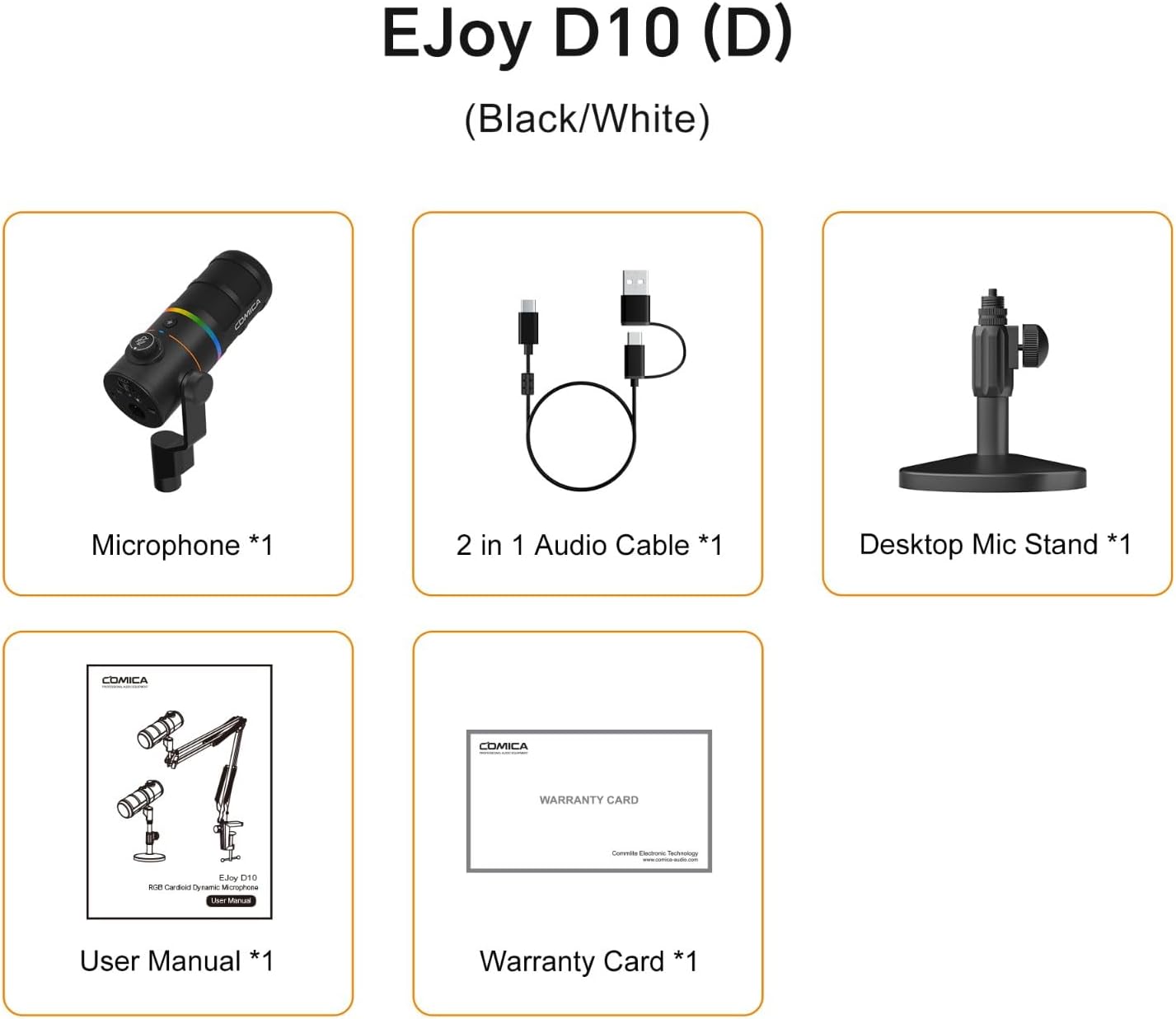
Figur 2: Pakkens indhold
2.2. Nøglefunktioner
- Kardioid polært mønster: Focuses on capturing sound sources directly in front of the microphone, effectively reducing ambient noise.
- Anti-noise Large Diaphragm Dynamic Mic: Designed to pick up a wide range of frequencies, delivering rich and delicate sound with clarity even in complex environments.
- XLR/USB-C Digital/Analog Outputs: Offers broad compatibility with smartphones, computers, and audio interfaces.
- 48kHz/24bit Recording: Provides lossless sound quality suitable for high-demand post-production.
- One-key CalMix Denoise: Utilizes Comica's audio processing algorithm to precisely identify human voice and filter out redundant noises.
- 4-level Gain Control: Allows adjustment of microphone input sensitivity.
- Overvågning i realtid: Integrated 3.5mm headphone jack for direct audio monitoring.
- Dynamic Radiant RGB Light: Features 6 optional lighting effects to enhance live stream atmosphere.
- 3 EQ-tilstande: Customizable equalization settings (Deep, Nature, Bright) to adapt to different recording styles.
2.3. Microphone Components
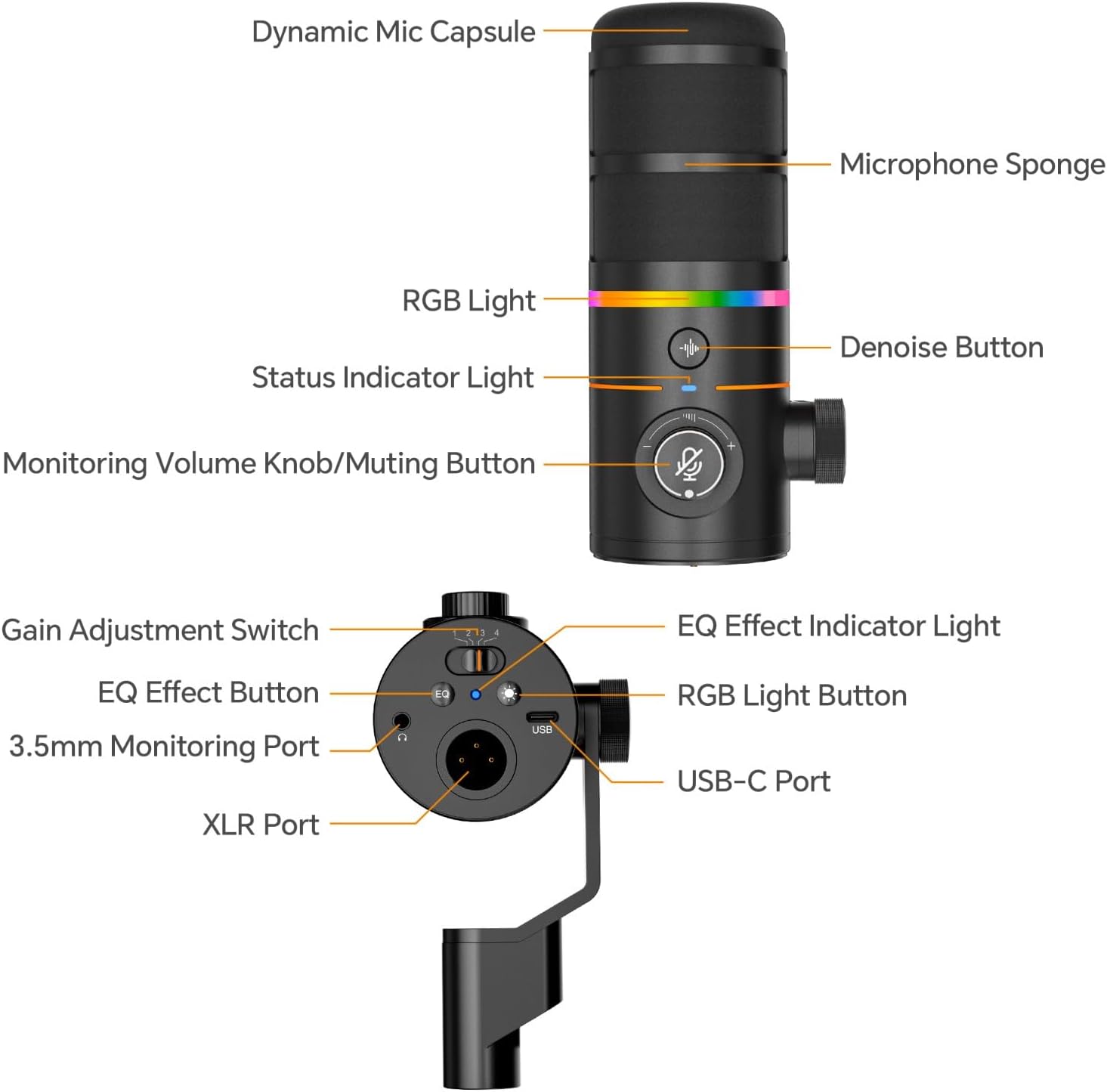
Figure 3: Microphone Component Diagram
3. Opsætning
The COMICA EJoy D10 D microphone offers flexible connectivity options for various devices.
3.1. Connecting to a Computer (USB-C)
- Connect the USB-C end of the provided 2-in-1 audio cable to the USB-C port on the microphone.
- Connect the USB-A or USB-C end of the cable to an available USB port on your computer (PC or Mac).
- The microphone should be automatically recognized by your operating system.
- Select "COMICA EJoy D10 D" as your input device in your computer's sound settings or recording software.
3.2. Connecting to an Audio Interface/Mixer (XLR)
- Connect a standard XLR cable (not included) to the XLR port on the microphone.
- Connect the other end of the XLR cable to an XLR input on your audio interface or mixer.
- Ensure your audio interface or mixer is properly configured and powered.
- Adjust gain levels on your audio interface/mixer as needed.

Figur 4: Forbindelsesmuligheder
4. Betjeningsvejledning
4.1. Forstærkningsjustering
The microphone features a 4-level gain adjustment switch. Move the switch to the left or right to select the desired gain level (1-4) to optimize your audio input.

Figure 5: Adjusting Gain Control
4.2. Overvågning i realtid
Plug your 3.5mm headphones into the 3.5mm monitoring port on the microphone to listen to your audio input in real-time without latency.
4.3. Monitoring Volume Adjustment and Muting
Rotate the Monitoring Volume Knob to increase or decrease the monitoring volume. In case of emergency or to temporarily silence the microphone, use the one-click muting function by pressing the knob.
Figure 6: Monitoring Volume and Mute Control
4.4. CalMix Denoise Function
Press the Denoise Button to activate or deactivate the CalMix Denoise function. This feature uses an advanced audio processing algorithm to reduce background noise and enhance vocal clarity.
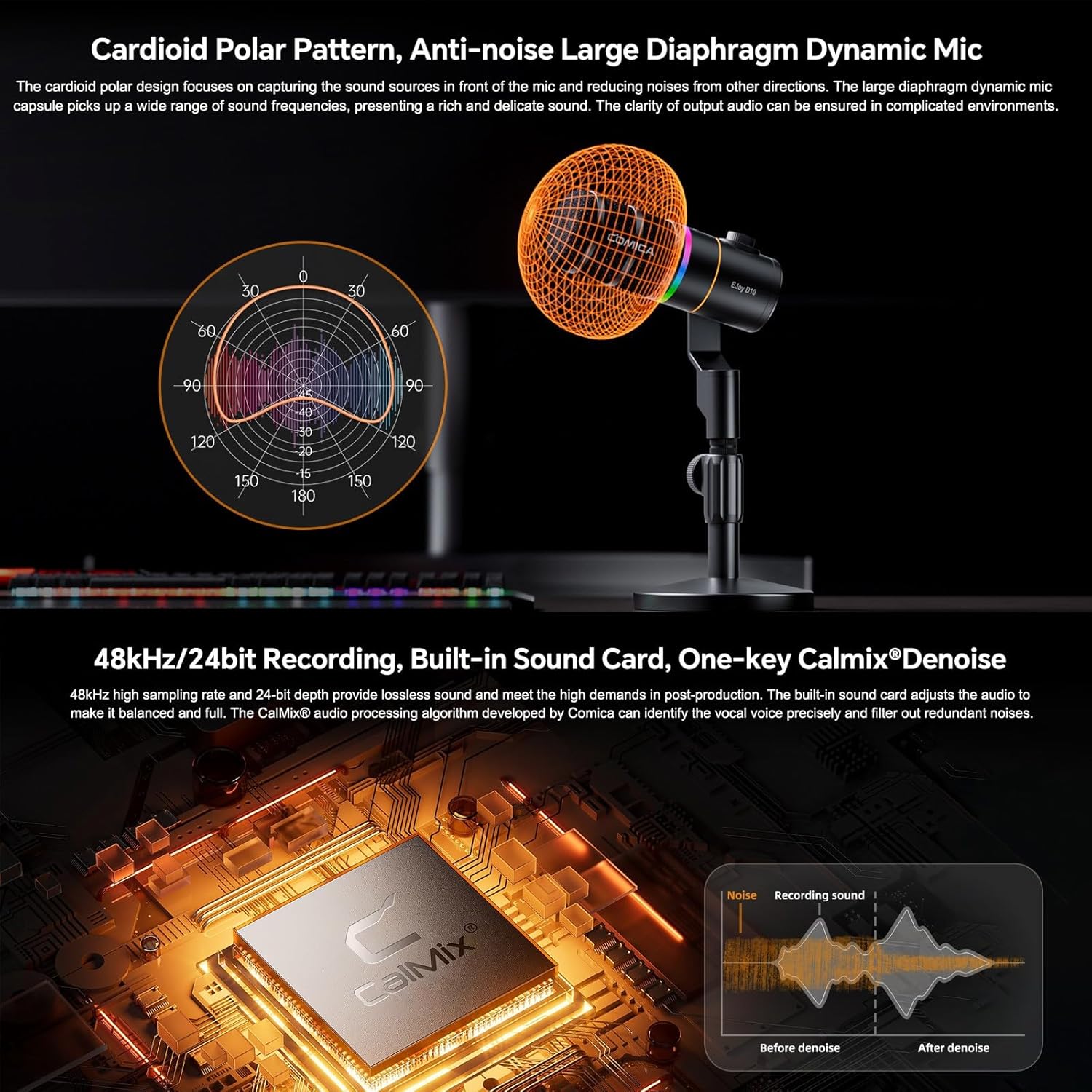
Figure 7: CalMix Denoise Feature
4.5. RGB-lyseffekter
Short press the RGB Light Button to cycle through 6 optional dynamic radiant RGB light effects: Audio Dynamic, Comica Orange, Sea Wave, Colorful Breathing Light, RGB Slow Wave, and Rotating Rainbow. These effects can enhance your streaming or gaming setup.

Figur 8: RGB-lyseffekter
4.6. EQ-tilstande
Long press the EQ Effect Button to turn the EQ effect on or off. Short press to switch between three EQ effects: Deep, Nature, or Bright. These modes allow for customized audio adjustment to suit different recording styles.

Figure 9: EQ Modes for Customized Adjustment
5. Vedligeholdelse
- Keep the microphone clean by wiping it with a soft, dry cloth.
- Undgå at udsætte mikrofonen for ekstreme temperaturer, fugtighed eller direkte sollys.
- Opbevar mikrofonen i et tørt, støvfrit miljø, når den ikke er i brug.
- Do not use harsh chemicals or abrasive cleaners on the microphone.
6. Fejlfinding
| Problem | Mulig årsag | Løsning |
|---|---|---|
| Ingen lydudgang | Incorrect input selection; Loose cable connection; Low gain setting | Ensure "COMICA EJoy D10 D" is selected as input; Check all cable connections; Increase microphone gain. |
| Audio is distorted or too loud | Gain setting too high; Proximity to sound source | Decrease microphone gain; Move microphone further from sound source. |
| Background noise present | Denoise function off; Environmental noise | Activate CalMix Denoise; Reduce ambient noise in recording environment. |
| RGB-lys virker ikke | RGB light function off | Press the RGB Light Button to activate or cycle effects. |
7. Specifikationer
| Feature | Detalje |
|---|---|
| Mærke | KOMIKA |
| Model | Comica D10 D |
| Forbindelsesteknologi | USB, XLR |
| Connector Type | XLR, USB-C |
| Kompatible enheder | Personal Computer, Gaming Console |
| Polar mønster | Envejs (kardioid) |
| Strømkilde | Elektrisk med ledning |
| Signal-støjforhold | 72 dB |
| Frekvensrespons | 55 Hz (Lower limit, typical for dynamic mics) |
| Produktdimensioner | 10.63 x 9.06 x 3.54 tommer |
| Varens vægt | 2.42 pund (1.1 kilo) |
| Farve | Sort |
8. Sikkerhedsadvarsler
- Do not place the product near fire or flammable gases.
- Do not use in rain or humid environments.
- Opbevar produktet utilgængeligt for børn.
- Do not disassemble at will. If repair is required, the product must be sent to an authorized repair center.

Figure 10: Safety Warnings
9. Garanti og support
This product comes with a warranty as detailed in the included Warranty Card. For technical support, service, or warranty claims, please contact COMICA customer service through their official channels or the retailer from whom you purchased the product. Protection plans may also be available for extended coverage.
Manufacturer: Comica


