1. Introduktion
This manual provides detailed instructions for the LinYuvo KS10 Wireless Controller. It covers setup, operation, and maintenance to ensure optimal performance and an enhanced gaming experience across various platforms, including Nintendo Switch, Windows, SteamOS, and iOS devices.
2. Produktet er slutview
The LinYuvo KS10 is a versatile wireless controller designed for a comfortable and responsive gaming experience. It features a transparent design showcasing internal components, enhanced joysticks, and customizable functions.

Figur 2.1: Forside view of the LinYuvo KS10 Wireless Controller, showing its transparent casing and button layout.
Nøglefunktioner:
- Metal Mushroom Head & Honeycomb Design Joysticks: Provides improved operational feedback and anti-slip functionality for precise control.
- Three-Speed Continuous Firing (Turbo): Offers flexible operation for rapid input in games.
- Integrated Six-Axis Gyroscope: Enables immersive motion sensing for compatible games.
- Adjustable Vibration Level: Dual motors provide haptic feedback that can be customized.
- Farverige lyseffekter: Features RGB lighting with various patterns to enhance the gaming atmosphere.
- Back-Key Macro Programming: Allows for personalized macro programming and multi-step combined key output.
- Ergonomisk design: Shaped for comfortable grip during extended gaming sessions.
- Opvågningsfunktion: Ability to wake up the connected console.

Figure 2.2: Close-up of the metal rocker and honeycomb joystick design, highlighting enhanced detection and anti-slip features.
3. Opsætning
3.1. Opladning af controlleren
Before initial use, fully charge the controller using the provided USB-C cable. Connect the cable to the controller's charging port and a compatible USB power source (e.g., a computer USB port or a USB wall adapter). The charging indicator will show the charging status and turn off when fully charged.
3.2. Parring med Nintendo Switch
- Gå til HOME-menuen på din Nintendo Switch-konsol.
- Vælge "Kontrollører", så "Skift greb/orden".
- Tryk og hold på Parringsknap on the top of the LinYuvo KS10 controller for a few seconds until the indicator lights start flashing rapidly.
- Once paired, the controller will appear on the Switch screen, and the indicator light(s) on the controller will remain solid.
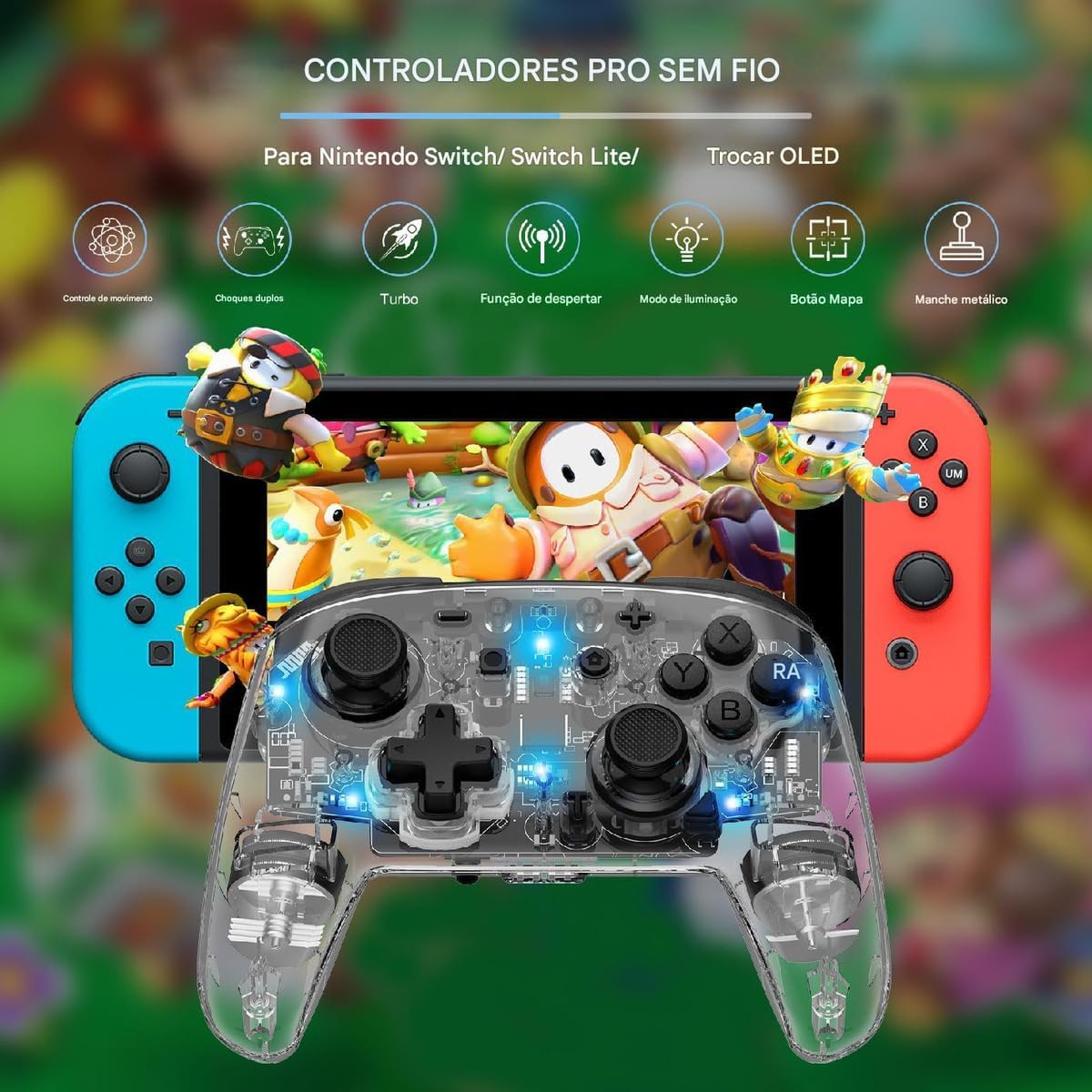
Figure 3.1: The LinYuvo KS10 controller shown alongside a Nintendo Switch console, illustrating its compatibility.
3.3. Pairing with Windows/SteamOS
- Ensure your Windows PC or SteamOS device has Bluetooth enabled.
- Gå til Bluetooth-indstillinger på din enhed, og vælg "Tilføj Bluetooth eller anden enhed".
- Tryk og hold på Parringsknap on the LinYuvo KS10 controller until the indicator lights flash rapidly.
- Select the controller from the list of available devices to complete pairing.
3.4. Pairing with iOS Devices
- På din iOS-enhed skal du gå til Indstillinger > Bluetooth og sørg for, at Bluetooth er slået til.
- Tryk og hold på Parringsknap on the LinYuvo KS10 controller until the indicator lights flash rapidly.
- Look for the controller in the "Other Devices" list and tap to connect.
3.5. Opvågningsfunktion
To activate a connected Switch console from sleep mode, simply press and hold the "HJEM" button on the controller for approximately 3 seconds.

Figure 3.2: The controller's ergonomic design and the instruction to hold the HOME button for 3 seconds to wake up the Switch console.
4. Betjeningsvejledning
4.1. Grundlæggende kontroller
The LinYuvo KS10 controller features standard button layouts including A, B, X, Y buttons, D-pad, Left/Right joysticks, L/R and ZL/ZR shoulder buttons, HOME, SELECT, START, and screenshot buttons. Refer to in-game instructions for specific button functions.
4.2. Turbofunktion
The Turbo function allows for rapid, continuous input of a selected button. It has three adjustable speeds: 5 shots/second, 12 shots/second, and 20 shots/second.
- For at aktivere Turbo: Tryk og hold på Turbo knap (T), then press the desired action button (e.g., A, B, X, Y, L, R, ZL, ZR). The button will now continuously fire when held down.
- Sådan justeres turbohastigheden: Mens du holder Turbo knap (T), tryk på minus (-) button to decrease speed or the Plus (+) button to increase speed. The corresponding light will flash slowly, medium, or fast to indicate the speed level.
- Sådan deaktiverer du Turbo: Tryk og hold på Turbo knap (T), then press the action button again.

Figure 4.1: Visual representation of the adjustable Turbo function with three speed settings (5/s, 12/s, 20/s) and instructions for adjustment.
4.3. Gyroscope Motion Control
The integrated six-axis gyroscope provides motion control capabilities for games that support it. This allows for immersive gameplay where tilting and moving the controller translates into in-game actions.

Figure 4.2: A user demonstrating gyroscope motion control with the LinYuvo KS10 controller in a racing game scenario.
4.4. Adjustable Vibration Feedback
The controller features dual motors for haptic feedback. The vibration intensity can be adjusted to suit personal preference.
- Sådan justerer du vibration: Tryk og hold på Vibration button (UM), og brug derefter Op/Ned directional buttons on the D-pad to increase or decrease intensity.
- Available levels typically include 0%, 30%, 50%, 75%, and 100%.

Figure 4.3: Illustration of the adjustable vibration feedback levels (0%, 30%, 50%, 75%, 100%) provided by the integrated dual motors.
4.5. Farverige lyseffekter
The controller includes customizable RGB lighting to enhance the gaming ambiance. There are various lighting modes and colors.
- To change lighting mode/color: Tryk på Lighting button (often represented by a lightbulb icon or a specific combination) to cycle through different colors (Blue, Red, Yellow, Green, Orange, Purple, Pink) or breathing patterns (e.g., rainbow breathing).
- Sådan justeres lysstyrken: Tryk og hold på Belysningsknap og bruge Y-knap for at justere lysstyrkeniveauer.
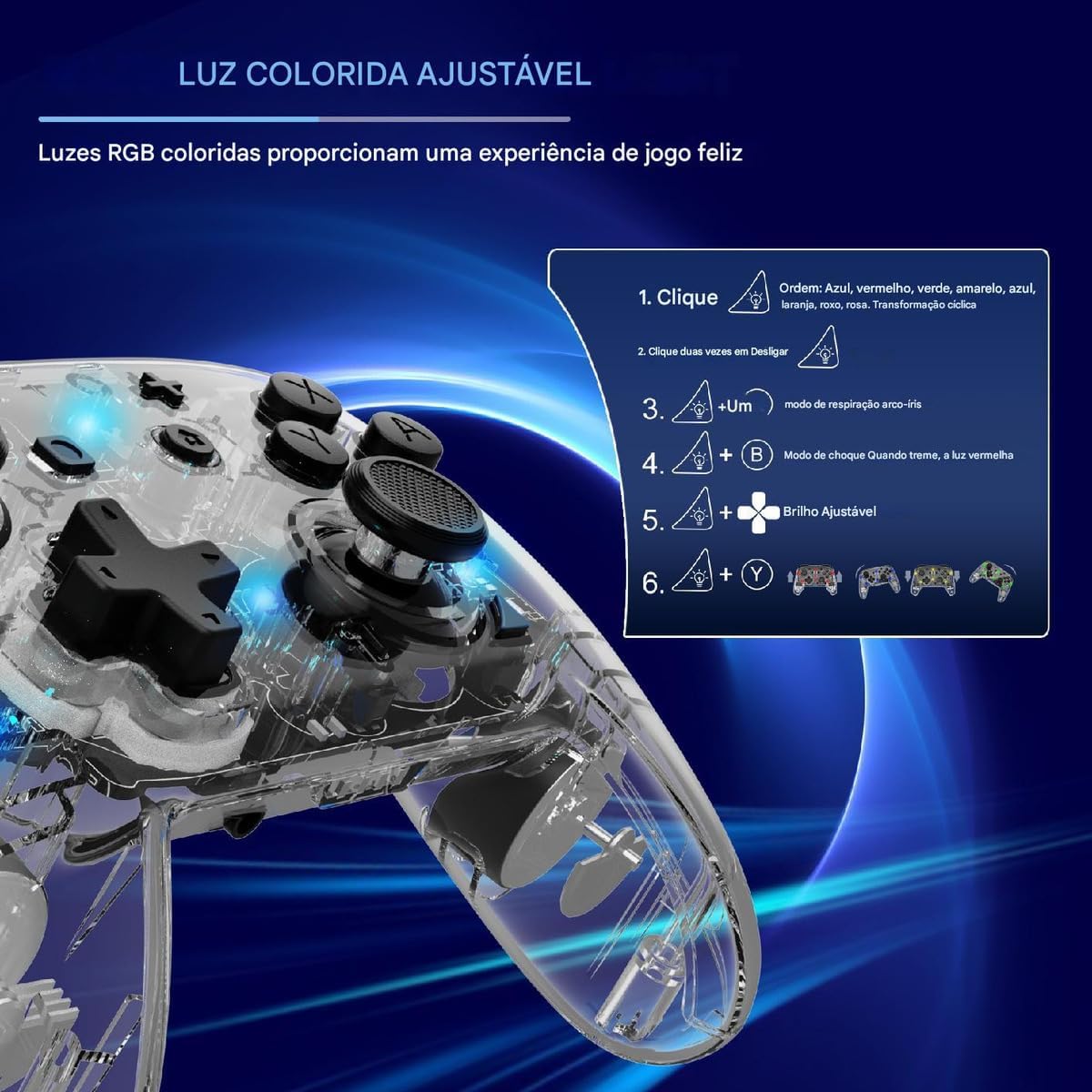
Figure 4.4: Diagram illustrating how to adjust the colorful RGB lighting, including color order and brightness settings.
4.6. Macro Programming (Back-Keys)
The back-keys on the controller can be programmed with custom macros, allowing for complex button sequences to be executed with a single press.
- To enter Macro Programming Mode: Refer to the specific instructions provided with your controller for the exact button combination (e.g., a dedicated Macro button + the back-key you wish to program).
- To record a Macro: While in programming mode, press the sequence of buttons you want to record.
- To save the Macro: Press the Macro button again to save the sequence to the selected back-key.
- To use a Macro: Press the programmed back-key to execute the recorded sequence.
Note: Detailed macro programming steps may vary. Consult the included quick start guide or manufacturer's website for precise instructions.
5. Vedligeholdelse
- Rensning: Brug en blød, tør klud til at rengøre controlleren. Brug ikke skrappe kemikalier eller slibende materialer.
- Opbevaring: Opbevar controlleren et køligt, tørt sted væk fra direkte sollys og ekstreme temperaturer.
- Batteripleje: Undgå at aflade batteriet helt for ofte. Oplad controlleren regelmæssigt, selvom den ikke er i brug i længere perioder, for at opretholde batteriets tilstand.
- Undgå dråber: Beskyt controlleren mod fald og stød, som kan beskadige de interne komponenter.
6. Fejlfinding
| Problem | Mulig årsag | Løsning |
|---|---|---|
| Controlleren tænder ikke. | Lavt batteri. | Oplad controlleren i mindst 30 minutter. |
| Kan ikke parres med enheden. | Bluetooth not enabled; controller not in pairing mode; interference. | Ensure Bluetooth is on. Put controller in pairing mode (flashing lights). Move closer to the device. Restart both devices. |
| Inputforsinkelse eller afbrydelse. | Lavt batteri; for langt fra enheden; trådløs interferens. | Charge controller. Move closer to device. Reduce other wireless activity. |
| Knapper eller joysticks reagerer ikke. | Softwarefejl; fysisk skade. | Restart the controller and the connected device. If problem persists, contact support. |
| Vibrationen virker ikke. | Vibration level set to 0%; game does not support vibration. | Adjust vibration intensity (Section 4.4). Check game settings. |
7. Specifikationer
- Model: KS10
- Forbindelse: Trådløs (Bluetooth)
- Kompatibilitet: Nintendo Switch, Windows, SteamOS, iOS
- Særlige funktioner: Six-axis gyroscope, adjustable vibration, customizable RGB lighting, Turbo function, macro programming back-keys, metal joysticks.
- Strømkilde: Genopladeligt internt batteri
- Opladningsport: USB-C
- Oprindelsesland: Kina
- ASIN: B0F18PLLLF
8. Garanti og support
For warranty information and technical support, please refer to the documentation included with your purchase or contact the retailer. Keep your proof of purchase for any warranty claims.
This product is not an official Nintendo product but is compatible with the Nintendo Switch console.


