1. Introduktion
The xTool M1 Ultra is a versatile 4-in-1 craft machine designed for various creative applications. It integrates laser engraving, blade cutting, inkjet printing, and pen drawing functionalities into a single unit. This manual provides essential information for the safe and effective operation of your xTool M1 Ultra machine.
Nøglefunktioner omfatter:
- 4-i-1 funktionalitet: Combines laser engraving, vinyl cutting, inkjet printing, and pen drawing.
- Easy Swap Design: Allows quick switching between different modules for various processes.
- Begyndervenlig: Pre-assembled design with features like snapshot preview and pinpoint positioning.
- Materiale kompatibilitet: Capable of working with over 1000 materials, including soft, hard, thin, thick, flat, and 3D curved surfaces.
- Softwareintegration: Utilizes XCS software with built-in Artimind AI for design and parameter setting.

Image 1.1: The xTool M1 Ultra 20W machine shown with various crafting accessories and example projects like engraved tumblers, earrings, and wooden puzzles.
2. Sikkerhedsoplysninger
WARNING: Read all safety warnings and instructions before using this product. Failure to follow the warnings and instructions may result in electric shock, fire, serious injury, or property damage.
- Lasersikkerhed: This is a Class I laser engraver. Do not look directly into the laser beam or allow others to do so. Always operate the machine with the protective cover closed.
- Ventilation: Ensure adequate ventilation during operation to dissipate fumes and smoke, especially when engraving or cutting materials that produce strong odors or harmful byproducts. Consider using an external exhaust system or air purifier.
- Materiale kompatibilitet: Only use materials approved for laser processing. Certain materials can produce toxic fumes or catch fire when exposed to a laser. Avoid PVC, vinyl containing chlorine, and other hazardous materials.
- Brandfare: Never leave the machine unattended during operation. Keep a fire extinguisher nearby. Ensure the work area is clear of flammable materials.
- Elektrisk sikkerhed: Connect the machine to a properly grounded power outlet. Do not operate with damaged power cords or plugs. Keep liquids away from the machine.
- Børn og kæledyr: Hold børn og kæledyr væk fra maskinen under drift.
- Opretholdelse: Afbryd strømmen, før du udfører vedligeholdelse eller rengøring.
3. Opsætning
3.1 Udpakning og placering
- Carefully remove the xTool M1 Ultra from its packaging. Retain all packaging materials for future transport or storage.
- Place the machine on a stable, level surface in a well-ventilated area. Ensure there is sufficient space around the machine for operation and heat dissipation.
3.2 Connecting Power and Accessories
- Connect the power adapter to the machine and then to a grounded electrical outlet.
- If using optional accessories like the RA2 Pro rotary attachment or a smoke purifier, connect them according to their respective manuals.
3.3 Softwareinstallation
The xTool M1 Ultra operates with the xTool Creative Space (XCS) software. Download the latest version of XCS from the official xTool webwebsted (www.xtool.com) and follow the on-screen instructions for installation.
3.4 Indledende kalibrering
Upon first use, or if you experience alignment issues, perform a calibration within the XCS software. This ensures accurate positioning for all operations.
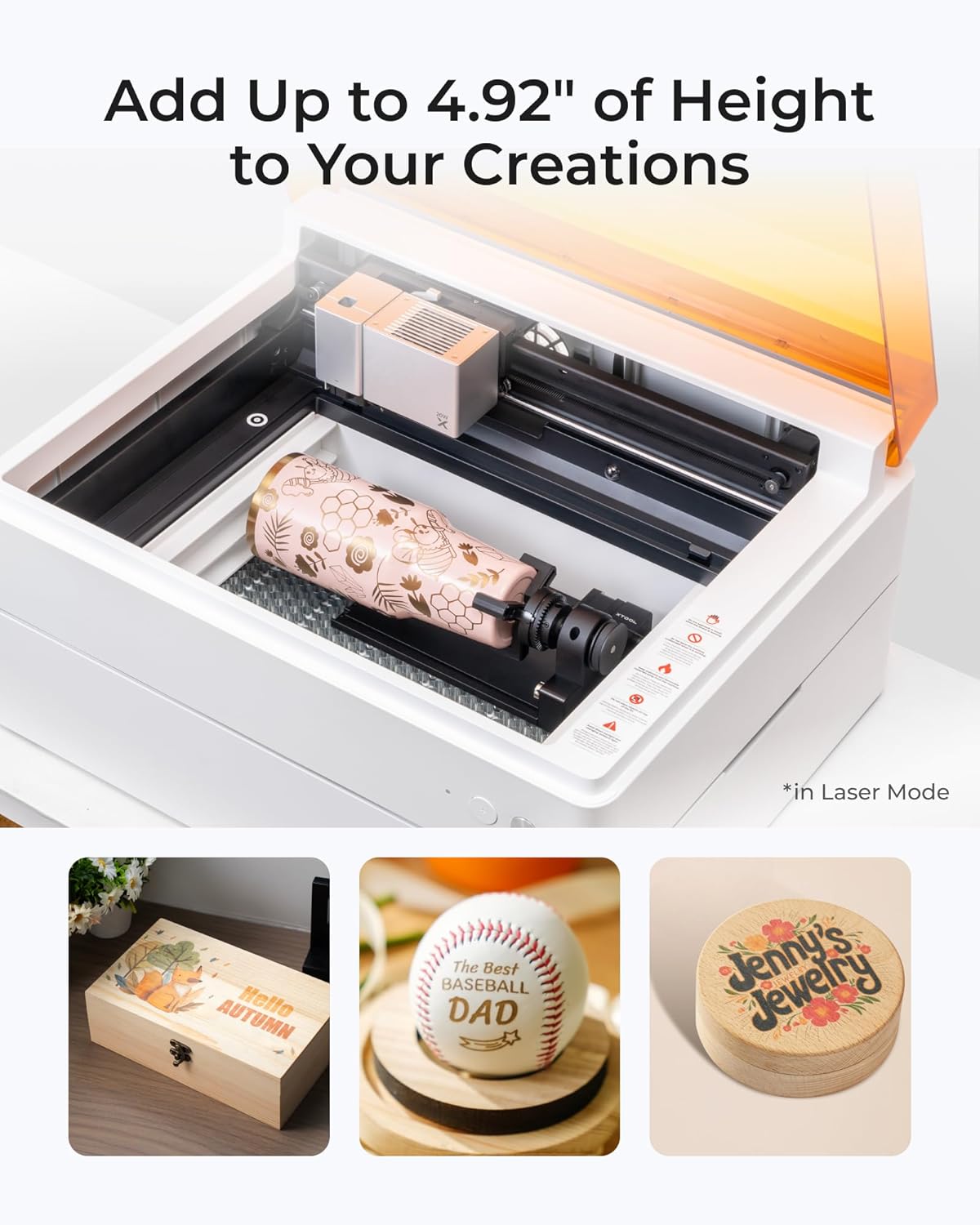
Image 3.1: The xTool M1 Ultra demonstrating rotary engraving on a tumbler, highlighting the machine's capability to handle cylindrical objects with an optional accessory.
4. Betjeningsvejledning
4.1 Overview af driftstilstande
The xTool M1 Ultra supports four primary crafting modes:
- Laser Mode: For engraving and cutting various materials like wood, acrylic, and leather.
- Inkjet Mode: For direct color printing on compatible surfaces.
- Blade Mode: For precise cutting and foiling of materials such as vinyl and paper.
- Pen Mode: For automatic drawing and writing on various materials.

Image 4.1: Visual representation of the four operating modes: Laser for engraving/cutting, Inkjet for direct printing, Blade for cutting/foiling, and Pen for drawing/writing.
4.2 Preparing Your Project
- Materialevalg: Choose a material compatible with your desired mode.
- Materiale placering: Place the material securely on the workbed. For rotary engraving, use the RA2 Pro attachment as per its instructions.
- Modul installation: Install the appropriate module (laser, inkjet, blade, or pen) into the machine. The Easy Swap Design allows for quick changes.
4.3 Using xTool Creative Space (XCS) Software
- Design Import/Creation: Import your design or create one directly within XCS.
- Parameterindstillinger: Select the material type. XCS offers preset parameters for common materials. Adjust power, speed, and passes as needed for optimal results.
- Placering: Utilize the snapshot preview and pinpoint positioning features to accurately place your design on the material.
- Start drift: Once settings are confirmed, initiate the process from the software.

Image 4.2: The xTool Creative Space software interface, illustrating its features including tutorials, preset parameters, easy editing, and AI drawing capabilities.
4.4 Material Compatibility and Applications
The M1 Ultra is compatible with over 1000 materials. Exampapplikationer inkluderer:
- Laser Engraving/Cutting: Wood, acrylic, leather, paper, cardboard, stone, metal (engraving only), silicone, felt, fabric.
- Blade Cutting: Vinyl, paper, cardstock, felt.
- Inkjet Printing: Wood, paper, fabric.
- Pen Drawing: Paper, cardstock.

Image 4.3: A visual guide to the extensive material compatibility of the xTool M1 Ultra, showcasing examples like wood, acrylic, leather, and various finished crafts.
5. Vedligeholdelse
Regular maintenance is essential for optimal performance and longevity of your xTool M1 Ultra machine. Always disconnect the power before performing any maintenance.
5.1 Cleaning the Laser Lens and Protective Cover
- Gently wipe the laser lens with a lint-free cloth and a small amount of isopropyl alcohol.
- Clean the interior of the machine and the protective cover regularly to remove dust and debris.
5.2 Ventilatorvedligeholdelse
The internal fan blades can accumulate debris, affecting ventilation. Periodically, it may be necessary to remove the housing to access and clean the internal fan blades. Refer to the detailed cleaning guide on the xTool support webwebsted for specifikke instruktioner.
5.3 Generel rengøring
Keep the work area and the machine's exterior clean. Use a soft, dry cloth to wipe down surfaces. Avoid abrasive cleaners or solvents.
6. Fejlfinding
This section addresses common issues you might encounter with your xTool M1 Ultra.
6.1 Alignment Issues
If designs are not aligning perfectly with the material, especially when attempting precise cuts or multiple passes:
- Perform a software calibration within XCS.
- Ensure the material is placed flat and securely on the workbed.
- Verify that the machine itself is on a stable, level surface.
6.2 Dårlig graverings-/skærekvalitet
If results are not as expected (e.g., incomplete cuts, faint engravings):
- Check and adjust the power, speed, and pass settings in XCS for your specific material.
- Ensure the laser lens is clean (refer to Section 5.1).
- Verify that the material is within the recommended thickness and type for the chosen operation.
6.3 Machine Not Responding
If the machine does not power on or respond to commands:
- Kontroller alle strømforbindelser.
- Ensure the machine is properly connected to your computer or mobile device.
- Restart the machine and the XCS software.
6.4 Excessive Fumes/Smoke
If you notice an unusual amount of fumes or smoke:
- Sørg for, at arbejdsområdet er godt ventileret.
- Check if the internal fan is clean and operating correctly (refer to Section 5.2).
- Consider using an external smoke purifier or improving your ventilation setup.
For further assistance, refer to the xTool support resources mentioned in Section 8.
7. Specifikationer
| Feature | Specifikation |
|---|---|
| Mærke | xTool |
| Modelnummer | M1 Ultra (MLM-K501-001) |
| Laser udgangseffekt | 20W |
| Laser klasse | Klasse I |
| Produktdimensioner | 19.61 x 11.91 x 24.41 tommer |
| Varens vægt | 73.8 pund |
| Aktivt overfladeareal | 140 (unit not specified, typically mm or cm) |
| Driftstilstand | Manuel |
| Print Media (Inkjet) | Card stock (and other compatible materials) |
8. Garanti og support
8.1 Garantioplysninger
Please refer to the warranty card included with your product packaging or visit the official xTool website for detailed warranty terms and conditions. Warranty coverage typically includes manufacturing defects for a specified period.
8.2 Kundesupport
For technical assistance, troubleshooting, or general inquiries, xTool offers multi-channel support:
- E-mail support: Kontakt via e-mail for detaljerede forespørgsler.
- Live chat: Available on the official xTool website for real-time assistance.
- Telefonsupport: Contact via phone for direct assistance.
- Onlinefællesskab: Join the xTool Facebook group for peer support and shared knowledge.
When contacting support, please have your product model number (M1 Ultra) and purchase information readily available.


