1. Introduktion
This manual provides detailed instructions for the setup, operation, maintenance, and troubleshooting of your Phomemo D520BT Bluetooth Thermal Label Printer. Please read this manual thoroughly before using the device to ensure proper functionality and to extend the product's lifespan.

Figure 1: Phomemo D520BT printer in purple, printing a shipping label, with a smartphone displaying a label design connected via Bluetooth. This image illustrates the printer's compact design and wireless printing capability.
2. Pakkens indhold
Bekræft, at alle nedenstående varer er inkluderet i din pakke. Hvis der mangler eller er beskadigede varer, bedes du kontakte kundesupport.
- Phomemo D520BT Thermal Printer
- Roll Label (sampdet)
- Hurtig startvejledning
- Brugervejledning (dette dokument)
- Strømledning
- USB kabel
- Type-C adapter
- Strømadapter

Figure 2: All components included in the Phomemo D520BT product package.
3. Opsætningsvejledning
3.1 Udpakning
- Tag forsigtigt printeren og alt tilbehør ud af emballagen.
- Remove any protective films or packing materials from the printer.
3.2 Ilægning af etiketter
The Phomemo D520BT supports both roll paper and folding paper labels.
- Open the printer cover by gently lifting it.
- For Roll Paper: Place the label roll into the internal paper holder, ensuring the labels feed from the bottom and the printing side faces upwards. Guide the first label through the output slot until it is slightly visible.
- For Folding Paper: Place the stack of folding labels behind the printer, ensuring the labels feed smoothly into the rear input slot and the printing side faces upwards. Guide the first label through the output slot until it is slightly visible.
- Luk printerdækslet forsvarligt.

Figure 3: The Phomemo D520BT printer supports both folding paper and roll paper labels.
3.3 Tilslutning af printeren
The D520BT offers both USB and Bluetooth connectivity.
3.3.1 USB Connection (Windows, Mac, Chrome OS, Linux)
- Connect one end of the USB cable to the printer and the other end to your computer.
- Tilslut strømadapteren til printeren, og sæt den i en stikkontakt.
- Tænd for printeren.
- Install the necessary printer drivers for your operating system. Drivers can typically be found on the official Phomemo webwebsted.
3.3.2 Bluetooth Connection (Android, iOS, iPad)
- Tilslut strømadapteren til printeren, og sæt den i en stikkontakt.
- Tænd for printeren.
- Download og installer “Labelife” app fra din enheds appbutik.
- Open the Labelife app and follow the in-app instructions to pair your device with the D520BT printer via Bluetooth.

Figure 4: The Phomemo D520BT supports both Bluetooth and USB connectivity for various devices and operating systems.
4. Betjeningsvejledning
4.1 Tænd/sluk
- Tænd: Press the power button located on the printer. The indicator light will illuminate.
- Sluk: Tryk på tænd/sluk-knappen, og hold den nede, indtil indikatorlampen slukker.
4.2 Printing a Label
- Ensure the printer is powered on and connected to your device (computer via USB or mobile device via Bluetooth).
- Open the document or application from which you wish to print.
- Select the Phomemo D520BT as your printer.
- Adjust print settings as needed (e.g., label size, orientation). The printer supports a width range of 1 to 4.6 inches.
- Initiate the print command.
The Labelife app provides various free templates for customizing shipping labels, address labels, barcode labels, and thank-you stickers.
4.3 Nøglefunktioner
- Højhastighedsudskrivning: The D520BT can print up to 72 labels per minute (150mm/s), suitable for high-volume printing tasks.
- Høj opløsning: Prints at 203 DPI, ensuring sharp and precise details on each label.
- Wide Printing Range: Supports label widths from 1 inch to 4.6 inches, accommodating various label types including 4x6 inch shipping labels.
- Ink-Free Thermal Technology: Utilizes direct thermal printing, eliminating the need for ink or toner cartridges.
- Pladsbesparende design: Features a built-in paper holder, reducing the need for external label racks and optimizing desktop space.
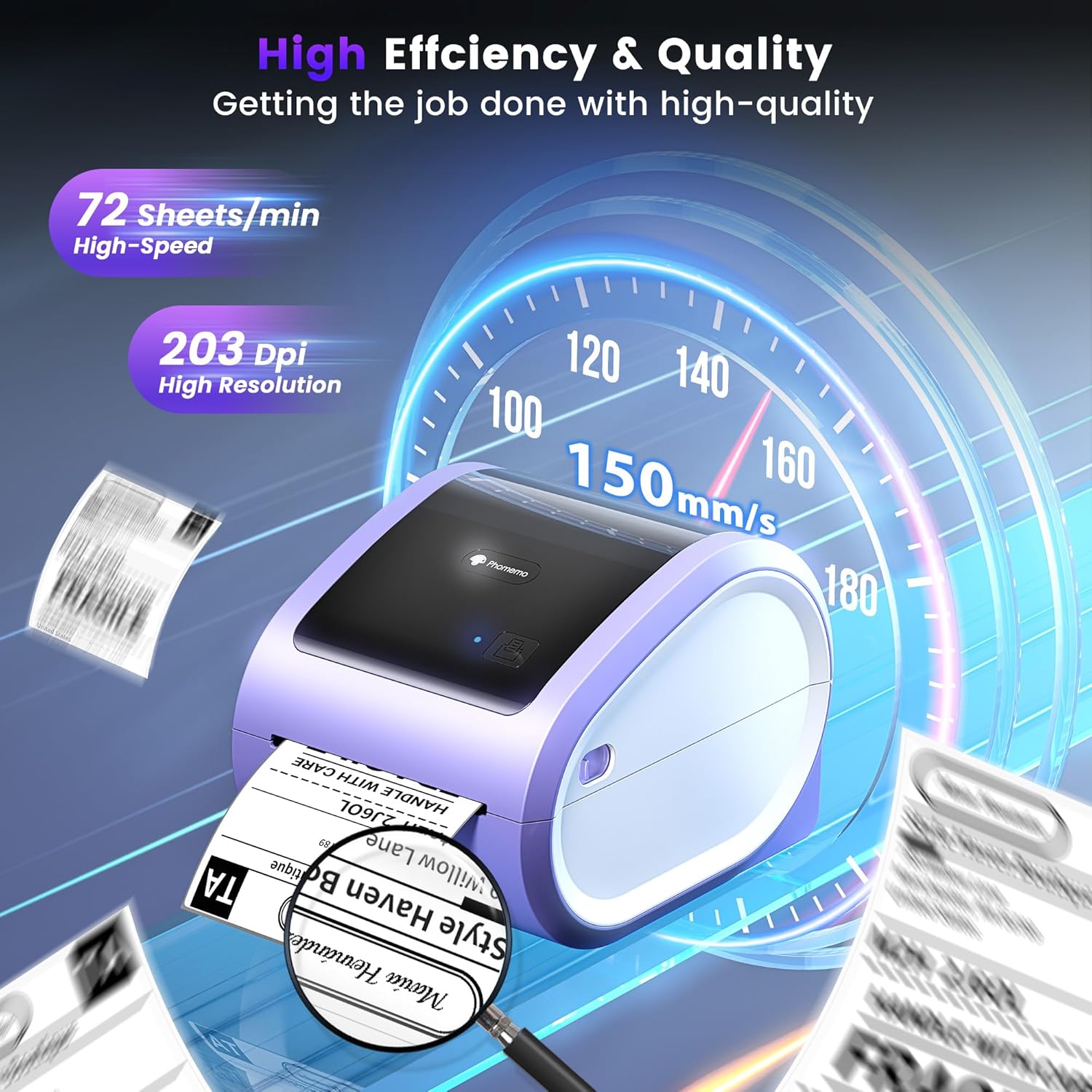
Figure 5: The Phomemo D520BT offers high efficiency and quality with a print speed of 150mm/s and 203 DPI resolution.

Figure 6: The Phomemo D520BT is compatible with various label sizes, from 1 inch to 4.6 inches wide.

Figure 7: The Phomemo D520BT supports multi-scenario applications for various labeling needs.

Figure 8: The Phomemo D520BT is compatible with all major shipping and sales platforms.
5. Vedligeholdelse
5.1 Rengøring af printhovedet
Regular cleaning of the print head ensures optimal print quality and extends the printer's life.
- Sluk printeren, og tag netledningen ud.
- Åbn printerdækslet.
- Gently wipe the print head with an alcohol swab or a soft, lint-free cloth lightly dampafsluttet med isopropylalkohol.
- Allow the print head to dry completely before closing the cover and powering on the printer.
5.2 Opbevaring
Store the printer in a cool, dry place away from direct sunlight and extreme temperatures. Avoid exposing the printer to dust or moisture.
6. Fejlfinding
If you encounter issues with your Phomemo D520BT printer, refer to the following common problems and solutions:
- Printer not powering on:
- Ensure the power adapter is securely connected to both the printer and a working power outlet.
- Check if the power button has been pressed firmly.
- Labels not printing or feeding incorrectly:
- Verify that labels are loaded correctly with the printing side facing up.
- Ensure there are no obstructions in the label path.
- Check if the label roll or stack is depleted.
- Poor print quality (faded, streaky, or blank labels):
- Clean the print head as described in Section 5.1.
- Ensure you are using high-quality thermal labels.
- Check print density settings in your printer preferences.
- Problemer med Bluetooth-forbindelse:
- Ensure Bluetooth is enabled on your mobile device and the printer.
- Genstart både printeren og din mobilenhed.
- Ensure you are within the Bluetooth range.
- Re-pair the printer through the Labelife app.
- USB-forbindelsesproblemer:
- Verify the USB cable is securely connected to both the printer and the computer.
- Ensure the correct printer drivers are installed.
- Prøv en anden USB-port eller et andet kabel.
For further assistance, refer to the detailed video tutorials and user manuals available online, or contact Phomemo customer support.
7. Specifikationer
| Feature | Specifikation |
|---|---|
| Mærke | Phomemo |
| Modelnavn | D520BT |
| Forbindelsesteknologi | Bluetooth, USB |
| Udskrivningsteknologi | Termisk |
| Speciel funktion | Portable, Built-in Holder |
| Printer output | Monokrom |
| Maksimal udskrivningshastighed | 150 mm/s (72 labels/min) |
| Udskriftsopløsning | 203 DPI |
| Maksimal udskrivningsbredde | 4.6 tommer |
| Varens vægt | 2.4 pund |
| Produktdimensioner | 10.31" D x 10.31" B x 7.87" H |
8. Garanti og support
Phomemo provides customer support to assist with any questions or issues you may encounter. For detailed warranty information, please refer to the warranty card included with your product or visit the official Phomemo website. Our customer support team is available via phone, email, or remote support.
For additional resources, including video tutorials and updated user manuals, please visit the Phomemo support page.


