1. Introduktion
This manual provides detailed instructions for the setup, operation, and maintenance of your EPOMAKER Split65 QMK/VIA Programmable Wireless Mechanical Keyboard. Please read this manual thoroughly to ensure proper use and to maximize your keyboard's potential.
2. Pakkens indhold
Bekræft at alle varer er til stede i din pakke:
- EPOMAKER Split65 Keyboard (Left and Right Halves)
- 2.4 GHz trådløs modtager
- Aftageligt USB-C kabel
- Keycap aftrækker
- Extra Mechanical Switches
- Brugervejledning (dette dokument)
3. Opsætning og tilslutning
The EPOMAKER Split65 keyboard offers versatile connectivity options: wired USB-C, 2.4GHz wireless, and Bluetooth 5.0.
3.1 Kabelforbindelse
- Connect the provided USB-C cable to the USB-C port on the keyboard and to an available USB port on your computer.
- Ensure the keyboard's mode switch (located on the right half) is set to 'Wired' mode.
- Tastaturet vil automatisk blive genkendt af dit operativsystem.
3.2 2.4 GHz trådløs forbindelse
- Sæt den trådløse 2.4 GHz-modtager i en ledig USB-port på din computer.
- Set the keyboard's mode switch to '2.4G' mode.
- Trykke Fn + R on the keyboard to activate 2.4GHz pairing. The keyboard's indicator light will flash.
- Tastaturet burde oprette forbindelse automatisk.
3.3 Bluetooth 5.0-forbindelse
The keyboard supports connecting to up to 3 Bluetooth devices.
- Set the keyboard's mode switch to 'Bluetooth' mode.
- Tryk og hold Fn + Q, Fn + W, eller Fn + E for 3-5 seconds to enter pairing mode for the desired channel. The corresponding key's backlight will flash rapidly.
- On your device (PC, Mac, Android Tablet), search for Bluetooth devices and select 'EPOMAKER Split65'.
- Once paired, the key's backlight will stop flashing and remain steadily lit.
- For at skifte mellem parrede Bluetooth-enheder skal du trykke på Fn + Q, Fn + W, eller Fn + E kort.

Image: Multi-mode connectivity of the EPOMAKER Split65, showing connections via USB-C, 2.4GHz wireless, and Bluetooth.
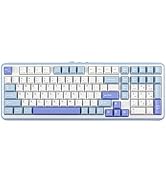
Image: Visual guide for switching between 2.4GHz wireless and Bluetooth modes using Fn key combinations.
3.4 Batteristyring
The keyboard is equipped with a 3000mAh battery. To check the battery level, press Fn+B. The RGB backlighting will indicate the current battery status.

Image: Battery level indication via RGB backlighting when Fn+B is pressed.
4. Nøglefunktioner og betjening
4.1 Ergonomic Split Layout
The Split65 features an innovative ergonomic split 65% layout, allowing the keyboard to be separated into two halves. This design provides flexibility to adjust the angle and distance between the halves, promoting a more natural typing posture and reducing strain on wrists and forearms during extended use.

Image: The EPOMAKER Split65 keyboard showcasing its ergonomic split design.
Video: A demonstration of the EPOMAKER Split65 keyboard's split functionality and typing experience with Wisteria Linear Switches.
4.2 QMK/VIA-kompatibilitet
The Split65 supports QMK/VIA software, enabling comprehensive key remapping, macro creation, and layer management. This allows for extensive customization to suit individual workflow and preferences. For software download and instructions, please visit the official QMK/VIA webwebsted.

Image: The QMK/VIA software interface for customizing the keyboard layout and functions.
4.3 Programmable Rotary Knob
The keyboard features a rotary knob that can be programmed via QMK/VIA to control various functions such as volume adjustment, brightness control, or multimedia playback.
4.4 Hot-swap-printkort
The Split65 is equipped with a hot-swappable PCB, allowing users to easily change mechanical switches without soldering. It is compatible with most 3-pin and 5-pin mechanical switches, offering flexibility to customize typing feel and sound.

Image: Demonstration of the hot-swappable switch feature on the EPOMAKER Split65.

Billede: Eksploderet view of a hot-swappable switch and its components.
4.5 RGB-baggrundsbelysning
The keyboard features per-key RGB backlighting with south-facing LEDs, providing vibrant illumination and a wide range of customizable lighting effects. Adjust brightness, color, and speed to personalize your typing environment.

Image: The EPOMAKER Split65 keyboard displaying its customizable RGB backlighting.
Video: A demonstration of the EPOMAKER Split65 keyboard's RGB backlight effects.
4.6 Lyd Dampening Structure
The keyboard incorporates a top-mounted design with four layers of sound dampening materials (Poron Sandwich Foam, IXPE Switch Pad, PET Pad, and Poron Socket Pad). This construction minimizes harsh shock and eliminates hollow noise, contributing to a quiet and satisfying acoustic profile.

Image: Diagram illustrating the internal sound dampening layers and top-mounted structure.
4.7 PBT-taster
The Split65 features durable PBT keycaps in a Cherry Profile, known for their resistance to shine and comfortable sculpted shape, enhancing the overall typing experience.

Billede: Nærbillede view of the PBT keycaps in Cherry Profile.
4.8 N-nøgleoverførsel (NKRO)
The keyboard supports N-Key Rollover, ensuring that every key press is registered accurately, even when multiple keys are pressed simultaneously. This prevents ghosting and chattering, providing reliable input for fast typing and gaming.
5. Specifikationer
| Feature | Detalje |
|---|---|
| Produktdimensioner | 12.48 x 4.76 x 1.66 tommer |
| Varens vægt | 3.17 pund |
| Forbindelsesteknologi | 2.4Ghz Wireless, Bluetooth 5.0, USB-C |
| Tastaturbeskrivelse | Ergonomic Split Mechanical Keyboard |
| Særlige funktioner | Backlit, Ergonomic, Hot-Swappable, Metal Knob |
| Tastatur baggrundsbelysning | RGB |
| Kompatible enheder | Spillekonsol, bærbar computer, pc, tablet |
| Materiale | Bottom Case Iron, Top Case ABS |
| Batteri | 1 lithium-ion batteri (medfølger) |
6. Vedligeholdelse
6.1 Rengøring
To clean your keyboard, disconnect it from your device. Use a soft, dry cloth to wipe down the keycaps and chassis. For deeper cleaning, remove keycaps using the provided keycap puller and use compressed air to clear debris from between switches. Avoid using harsh chemicals or abrasive materials.
6.2 Udskiftning af kontakt og tastatur
Thanks to the hot-swappable design, switches can be replaced without soldering. Use the keycap puller to gently remove keycaps, then use the switch puller (if provided, or a similar tool) to extract switches. Align new switches carefully with the PCB sockets and press firmly until they click into place. Ensure the pins are not bent before insertion.
7. Fejlfinding
7.1 Tastaturet reagerer ikke
- Kablet tilstand: Sørg for, at USB-C-kablet er korrekt tilsluttet til både tastaturet og computeren. Prøv en anden USB-port eller et andet kabel.
- 2.4 GHz trådløs tilstand: Verify the 2.4GHz receiver is plugged in and the keyboard is in 2.4G mode (Fn+R). Ensure the keyboard is charged.
- Bluetooth-tilstand: Confirm the keyboard is in Bluetooth mode and paired to the correct channel (Fn+Q/W/E). Re-pair if necessary. Ensure the keyboard is charged.
- Batteri: Check battery level (Fn+B) and charge the keyboard if low.
7.2 Problemer med RGB-baggrundsbelysning
- Sørg for, at tastaturet er tændt og ikke i en lav strømtilstand.
- Adjust brightness settings using keyboard shortcuts or QMK/VIA software.
- If specific keys are not lighting up, check if the switches are properly seated or if the LEDs are damaged (for hot-swappable switches, try replacing the switch).
7.3 QMK/VIA-software registrerer ikke tastatur
- Ensure the keyboard is connected via USB-C cable. QMK/VIA typically requires a wired connection for programming.
- Download the latest VIA software or use the web-baseret version.
- Load the correct JSON definition file for the Split65 model into the VIA software. This file can usually be found on the EPOMAKER support webwebsted.
8. Garanti og support
EPOMAKER products come with a standard manufacturer's warranty. For specific warranty terms, technical support, or further assistance, please refer to the official EPOMAKER webwebstedet eller kontakt deres kundeservice direkte. Gem din købskvittering til garantikrav.


