1. Introduktion
This manual provides detailed instructions for the setup, operation, and maintenance of your GIEC G5300 4K Ultra HD Blu Ray Player. Designed for an enhanced home entertainment experience, this player supports true 4K ultra-high-definition picture quality, HDR10, Dolby Vision, BT.2020 color spaces, and Dolby audio decoding for immersive visuals and sound.
2. Sikkerhedsoplysninger
- Sørg for tilstrækkelig ventilation omkring afspilleren for at forhindre overophedning.
- Udsæt ikke enheden for regn eller fugt for at reducere risikoen for brand eller elektrisk stød.
- Avoid placing heavy objects on top of the player.
- Åbn ikke c'enasing; overlad al service til kvalificeret personale.
- Keep the player away from direct sunlight, heat sources, and strong magnetic fields.
- Brug kun den strømadapter, der følger med enheden.
3. Pakkens indhold
Kontroller venligst, at alle nedenstående varer er inkluderet i din pakke:
- GIEC G5300 Blu-ray Player (x1)
- HDMI-kabel (x1)
- Fjernbetjening (x1)
- Brugervejledning (x1)
4. Produktet er slutview
4.1 Frontpanel

Figur 4.1: Forside view of the GIEC G5300 Blu Ray Player, showing the disc tray, display, USB port, and control buttons (power, play/pause, eject).
- Diskbakke: Insert Blu-ray or DVD discs here.
- Skærmpanel: Shows playback status and time.
- USB 3.0-port: Tilslut USB-lagerenheder til medieafspilning.
- Kontrolknapper: Power On/Off, Play/Pause, Eject.
4.2 Bagpanel og tilslutninger

Figur 4.2: Bagside view of the GIEC G5300 Blu Ray Player, highlighting various input/output ports including LAN, HDMI 2.0, HDMI 1.4, USB 3.0, Coaxial, and Optical outputs.
- LAN-port: For network connection (e.g., firmware updates).
- HDMI 2.0 Output (Video/Audio): Primary HDMI output for 4K video and audio.
- HDMI 1.4 Output (Audio Only): Dedicated HDMI output for audio to an AV receiver.
- USB 3.0-indgang: Tilslut USB-lagerenheder til medieafspilning.
- Koaksial udgang: Digital lydudgang.
- Optisk udgang: Digital lydudgang.
5. Opsætning
5.1 Installation af batteri i fjernbetjening
Sæt to AAA-batterier (medfølger ikke) i fjernbetjeningen, og sørg for at polariteten vender korrekt.
Video 5.1: This video demonstrates how to install batteries into the remote control and connect the Blu-ray player to a TV using an HDMI cable.
5.2 Connecting to a Display Device (TV/Projector)
- Tilslut den ene ende af det medfølgende HDMI-kabel til HDMI 2.0 Output (Video/Audio) porten på bagsiden af Blu-ray-afspilleren.
- Connect the other end of the HDMI cable to an available HDMI input port on your TV or projector.
- For separate audio output, connect another HDMI cable from the HDMI 1.4 Output (Audio Only) port to your AV receiver, or use the Coaxial/Optical outputs.
5.3 Strømtilslutning
- Connect the power cable to the power input on the rear of the Blu-ray player.
- Sæt den anden ende af strømkablet i en stikkontakt.
- Turn on your TV/projector and select the correct HDMI input source corresponding to the port you connected the Blu-ray player to.
- Press the Power button on the Blu-ray player or remote control to turn on the unit.
6. Betjeningsvejledning
6.1 Diskafspilning
- Ensure the player is powered on and connected to your display device.
- Tryk på UDSTØDE knappen på frontpanelet eller fjernbetjeningen for at åbne diskskuffen.
- Carefully place a Blu-ray or DVD disc onto the tray with the label side facing up.
- Tryk på UDSTØDE button again to close the tray. The player will automatically begin loading and playing the disc.
- Use the remote control for playback functions such as Play, Pause, Stop, Fast Forward, and Rewind.
6.2 USB-medieafspilning
The GIEC G5300 supports playback of various media files fra en USB-lagerenhed.
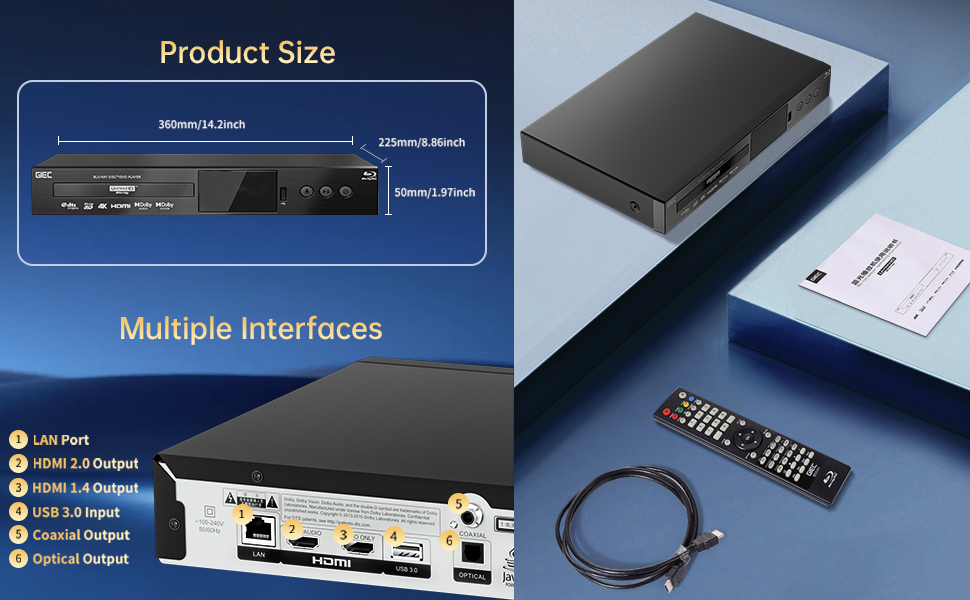
Figure 6.1: Illustration of the multiple disc, video, and audio formats supported by the player.
- Insert your USB storage device into the USB 3.0 port on the front or rear panel.
- Navigate to the "Video," "Music," or "Photo" section on the player's main menu using the remote control.
- Vælg din ønskede file from the USB device to begin playback.
Understøttede formater:
- Disktyper: BD, BD-R, BD-RE, DVD-R/RW, DVD+R/RW, DVD-Video, VCD, CD, CD-R/RW.
- Videoformater: MPEG-1, MPEG-2, MPEG-4, VC1, H.264, MOV, MKV, AVI, TS.
- Lydformater: AAC, APE, CUE, FLAC, OGG, MP3, WAV.
7. Funktioner
- 4K Ultra HD Playback: Experience movies and shows in stunning 4K resolution with clearer images and richer colors.
- HDR10-understøttelse: Enjoy a wider range of brightness and contrast, revealing more detail in both dark and bright scenes.
- Dolby Vision: Enhances image quality by dynamically adjusting brightness and expanding dynamic range for more detailed and vivid pictures.
- BT.2020 Color Spaces: Provides a broader color gamut than standard 1080p Blu-ray, resulting in purer, more natural, and realistic colors.
- Dolby Sound & DTS Decoding: Supports Dolby audio decoding and DTS effects for an immersive 5.1 stereo surround sound experience.
- 3D Blu-ray Playback: Compatible with 3D Blu-ray discs for an immersive three-dimensional viewing experience (requires a 3D-compatible TV and glasses).
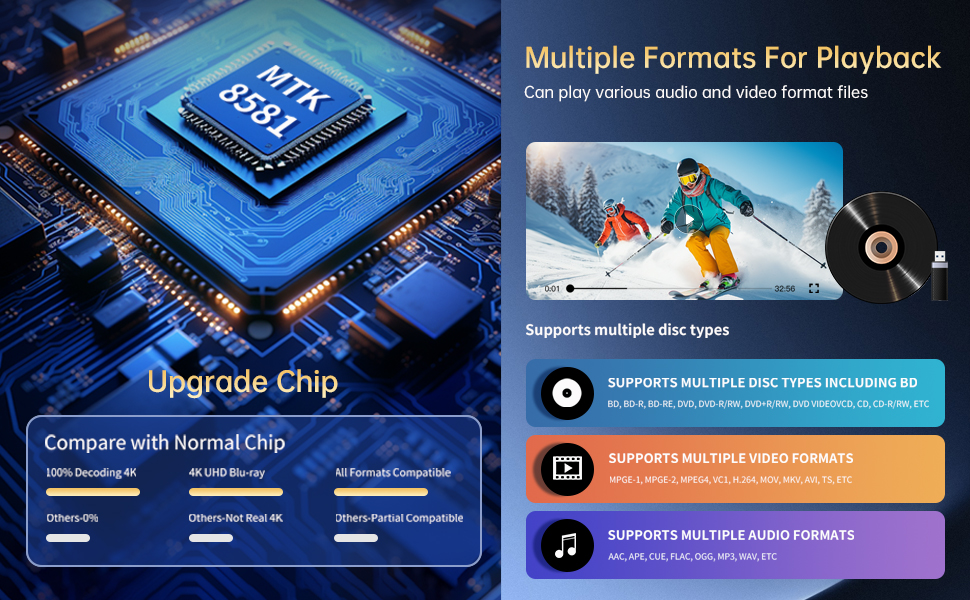
Figure 7.1: Visual comparison illustrating the difference between 8-bit (16.67 million colors) and 10-bit (1.07 billion colors) color depth, highlighting the enhanced detail and delicacy of 10-bit color.

Figure 7.2: The GIEC G5300 Blu Ray Player connected to a TV, showcasing its support for 4K UHD, 3D, HDR, HDR10+, Dolby, and Dolby Vision technologies.
8. Vedligeholdelse
- Rensning: Use a soft, dry cloth to clean the exterior of the player. Do not use liquid or aerosol cleaners.
- Diskpleje: Hold diskene i kanterne. Rengør diskene med en blød, fnugfri klud, og tør dem af fra midten og udad.
- Ventilation: Sørg for, at afspillerens ventilationsåbninger ikke er blokerede for at forhindre overophedning.
9. Fejlfinding
If you encounter issues with your Blu-ray player, please refer to the following common solutions:
- Ingen strøm: Check if the power cable is securely connected to both the player and the power outlet. Ensure the outlet is functional.
- Intet billede/lyd: Verify that the HDMI cable is correctly connected to both the player and the TV/receiver. Ensure the correct HDMI input is selected on your TV/receiver.
- Disken afspilles ikke: Check if the disc is clean and free of scratches. Ensure the disc is inserted correctly with the label side up. The player supports Region A Blu-ray discs and all region DVD discs.
- Fjernbetjeningen virker ikke: Check the batteries in the remote control and replace them if necessary. Ensure there are no obstructions between the remote and the player.
10. Specifikationer
| Feature | Detalje |
|---|---|
| Mærkenavn | GIEC |
| Modelnavn | G5300 |
| Varens vægt | 4.18 pund (1.9 kilo) |
| Produktdimensioner | 14.2 x 8.9 x 2 tommer |
| Farve | Sort |
| Medietype | Blu-ray-disk, DVD |
| Opløsning | 3840x2160 (4K Ultra HD) |
| Særlige funktioner | Anti-Shock, Compact, Dust Proof, Multi-Format Playback, Surround Sound, HDR10, Dolby Vision, BT.2020 Color Spaces |
| Connector Type | HDMI (Dual Outputs), USB 3.0, Coaxial, Optical, LAN |
| Forbindelsesteknologi | HDMI |
11. Garanti og support
For warranty information or technical support, please refer to the documentation included with your purchase or contact GIEC customer service. Keep your proof of purchase for warranty claims.


