1. Introduktion
Thank you for choosing the MEETION C2000 Bluetooth Keyboard and Mouse Combo. This versatile set offers seamless connectivity and ergonomic design for enhanced productivity across various devices. This manual provides detailed instructions for setup, operation, and maintenance to ensure optimal performance.

Image: The MEETION C2000 keyboard and mouse combo, showcasing dets elegante design og den medfølgende USB-modtager og opladningskabel.
2. Pakkens indhold
- MEETION C2000 Wireless Keyboard
- MEETION C2000 Wireless Mouse
- USB 2.4G-modtager
- USB-C ladekabel
- Brugermanual
3. Produktfunktioner
- Dobbelt tilslutning: Supports both USB 2.4G wireless and Bluetooth connections for versatile use.
- Skift mellem flere enheder: Easily switch between connected devices using dedicated mode-switching keys on both keyboard and mouse.
- Genopladelige batterier: Built-in USB-C rechargeable batteries provide up to 300 hours of keyboard use and 150 hours of mouse use on a 2-hour charge.
- Ergonomic Keyboard Design: Features a simple three-zone layout and dual kickstands offering 4° and 7° adjustable typing angles for comfort.
- Precise & Quiet Mouse: Upgraded slim mouse with added weight for a sturdier feel, silent operation, and five adjustable DPI settings (1200/1600/2400/3200/3800).
- Productivity Keys: Includes a dedicated Copilot key for instant AI tool access and a quick-access smiley face key for easy emoji insertion.
- Bred kompatibilitet: Works seamlessly with Windows, Mac, PC, laptop, tablet, and phone.

Image: A desktop setup illustrating the dual USB and Bluetooth connectivity options of the keyboard and mouse, allowing connection to multiple devices simultaneously.
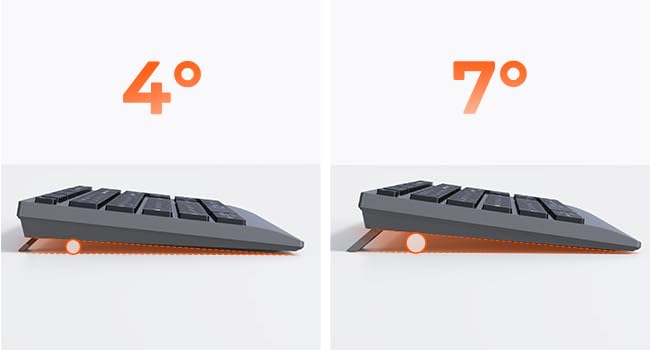
Billede: Nærbillede view of the keyboard's dual kickstands, demonstrating the two adjustable tilt angles (4° and 7°) for ergonomic typing.
4. Opsætning og tilslutning
The MEETION C2000 combo offers both 2.4G wireless and Bluetooth connectivity. Follow the steps below to connect your devices.
4.1. 2.4G trådløs forbindelse (USB-modtager)
- Turn on the power switch on the side of the keyboard.
- Tænd for afbryderen i bunden af musen.
- Insert the USB 2.4G receiver into an available USB-A port on your computer.
- On the keyboard, press the 2.4G button (usually indicated by a wireless icon) once. The corresponding indicator light will illuminate green.
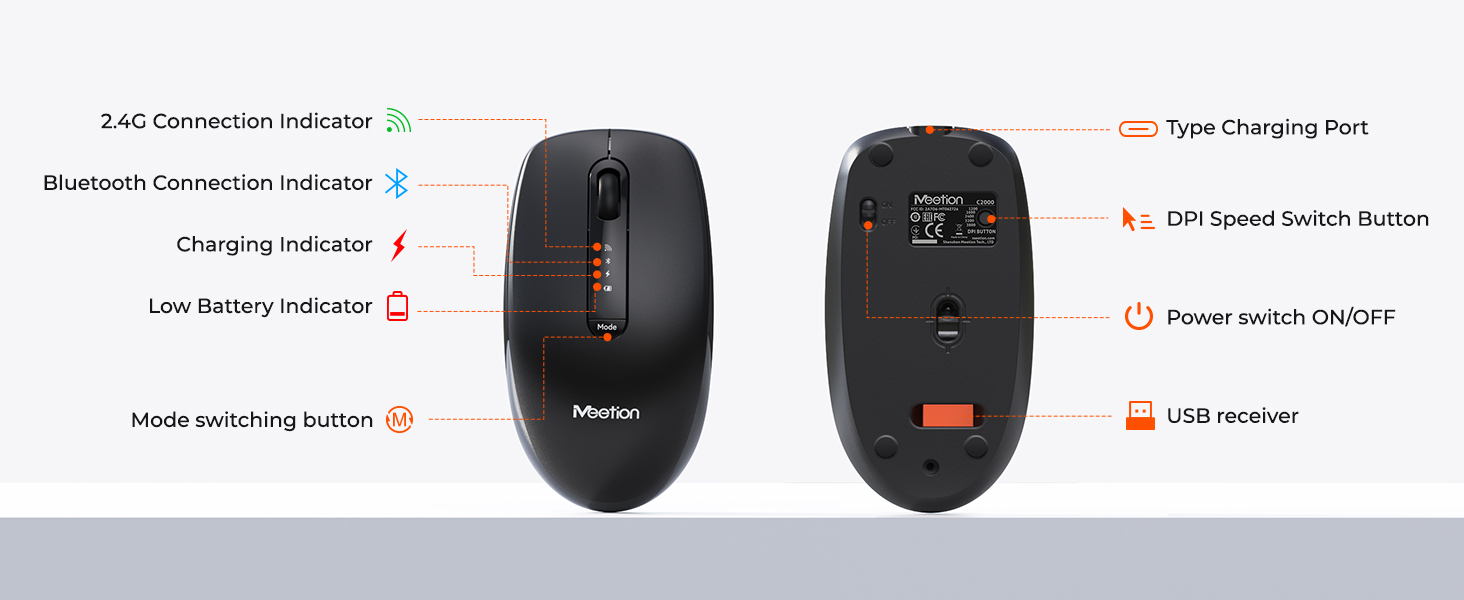
- On the mouse, click the "Mode" button until the green indicator light is on.
- The keyboard and mouse should now be connected.
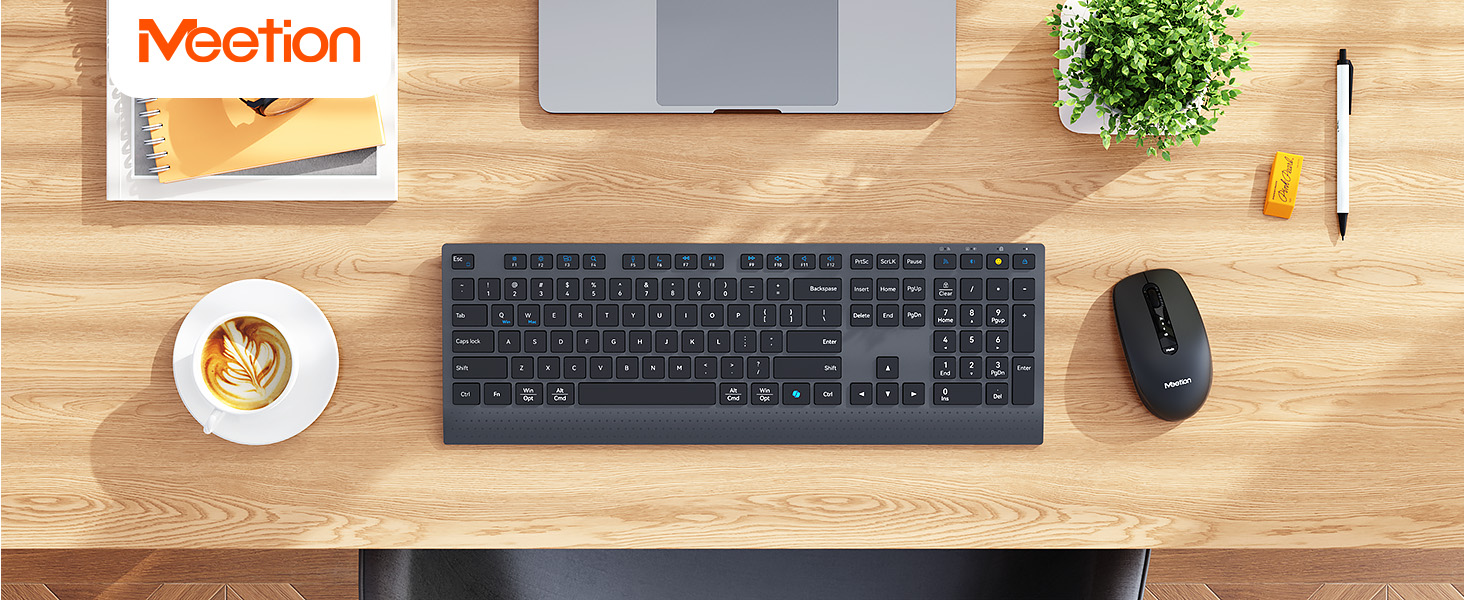
Image: Step-by-step visual guide for connecting the keyboard and mouse using the 2.4G USB receiver.
4.2. Bluetooth-forbindelse (tastatur)
- Turn on the power switch on the side of the keyboard.
- Press the BT1 button (Bluetooth 1) once. The corresponding indicator light will light up blue and start blinking, indicating pairing mode.
- On your device (computer, tablet, phone), open the Bluetooth settings.
- Find and select "Meetion_KB_BT1" from the list of available devices to complete the connection.
4.3. Bluetooth Connection (Mouse)
- Tænd for afbryderen i bunden af musen.
- Click the "Mode" button on the mouse until the Bluetooth indicator light is on.
- Long press the "Mode" button again until the Bluetooth indicator light starts flashing, indicating pairing mode.
- On your device, open the Bluetooth settings.
- Find and select "Meetion_MS_BT1" from the list of available devices to complete the connection.
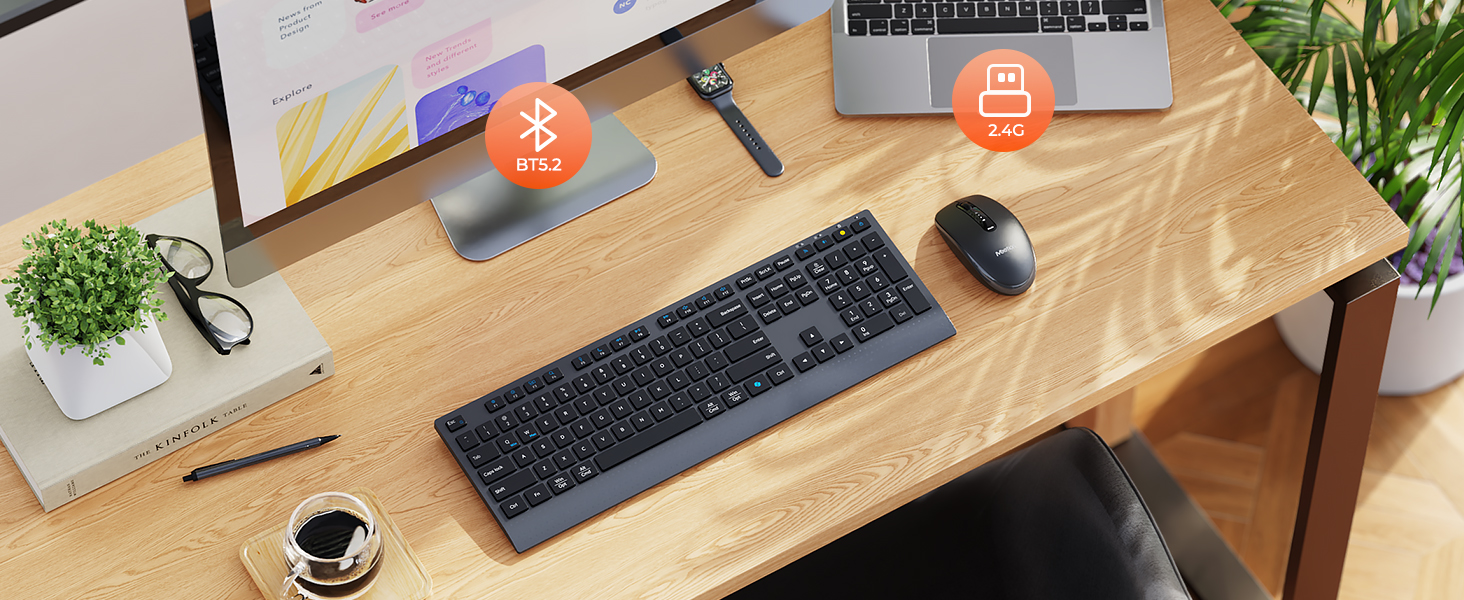
Image: Step-by-step visual guide for connecting the keyboard and mouse via Bluetooth to a tablet device.
4.4. Official Connection Guide Video
Video: A detailed guide demonstrating the connection steps for the MEETION C2000 keyboard and mouse combo, covering both 2.4G wireless and Bluetooth pairing processes.
5. Betjeningsvejledning
5.1. Tastaturfunktioner
- FN + Q/W: Switch between Windows and Mac layouts for optimized key functions.
- Smiley Face Key: Quickly insert emojis into your text.
- Copilot-nøgle: Instant access to AI tools for increased efficiency.
- Multimedietaster (F1-F12): Use with the FN key for various functions like volume control, media playback, and brightness adjustment.
Billede: En overview of the keyboard's function keys (F1-F12) and indicator lights, explaining their various uses and states.
5.2. Justering af musens DPI
The mouse features five adjustable DPI settings to control cursor sensitivity. Press the DPI button (located near the scroll wheel) to cycle through the settings:
- 1200 DPI
- 1600 DPI
- 2400 DPI
- 3200 DPI
- 3800 DPI

Image: The MEETION C2000 mouse highlighting its silent click feature and the DPI adjustment button, with a visual representation of the five available DPI settings.
6. Charging & Battery Indicators
Both the keyboard and mouse are equipped with built-in rechargeable lithium batteries. Use the provided USB-C cable to charge them.
6.1. Keyboard Charging
- When the keyboard battery is low, the red indicator light will flash. Connect the USB-C cable to charge.
- While charging, the red indicator light will stay on.
- Når den er fuldt opladet, slukkes den røde indikatorlampe.
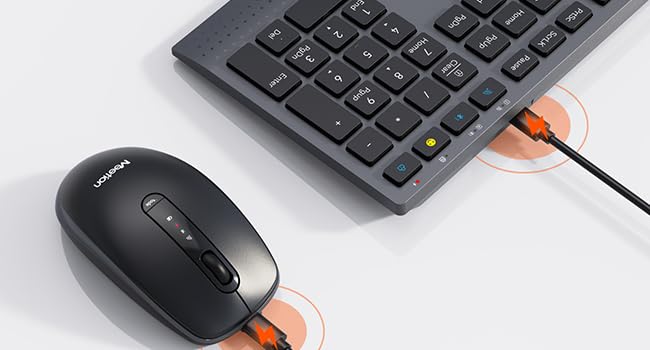
Image: A close-up of the keyboard's charging port and indicator light, showing the red light indicating charging status.
6.2. Mouse Charging
- When the mouse battery is low, the red indicator light will blink. Connect the USB-C cable to charge.
- While charging, the red indicator light will stay on.
- Once fully charged, the green indicator light will turn on.

Image: The mouse connected to its USB-C charging cable, with visual indicators showing the charging status and estimated battery life.
7. Fejlfinding
- Enhed opretter ikke forbindelse:
- Ensure both keyboard and mouse are powered on.
- Verify the correct connection mode (2.4G or Bluetooth) is selected on the devices.
- For 2.4G skal du sørge for, at USB-modtageren er tilsluttet korrekt til en fungerende USB-port.
- For Bluetooth, ensure Bluetooth is enabled on your host device and try re-pairing.
- Check battery levels; recharge if low.
- Forsinkelse eller afbrydelser:
- Move the devices closer to the receiver/host device.
- Avoid interference from other wireless devices (e.g., Wi-Fi routers, other 2.4G devices).
- Ensure no large metal objects are between the devices and the receiver/host.
- Taster/knapper reagerer ikke:
- Kontroller batteriniveauet.
- Sørg for, at enheden er korrekt tilsluttet.
- Clean any debris around the keys/buttons.
- Try restarting the device and reconnecting.
8. Specifikationer

Image: Detailed dimensions of both the MEETION C2000 keyboard and mouse for reference.
| Feature | Detalje |
|---|---|
| Modelnummer | C2000 |
| Forbindelsesteknologi | Bluetooth, USB 2.4G Wireless |
| Tastaturlayout | Full Size, Three-Zone |
| Mus DPI-indstillinger | 1200/1600/2400/3200/3800 DPI |
| Batteritype | Lithium Polymer (genopladelig) |
| Tastaturets batterilevetid | Op til 300 timer (standby) |
| Musens batterilevetid | Op til 150 timer (standby) |
| Opladningsport | USB-C |
| Kompatible enheder | Laptop, Personal Computer, Smartphone, Tablet (Windows/Mac) |
| Varens vægt | 2.18 pund (kombination) |
| Pakkedimensioner | 17.56 x 6.06 x 2.72 tommer |
9. Vedligeholdelse
- Rensning: Brug en blød, tør klud til at rengøre overfladerne på tastaturet og musen. For genstridigt snavs, tør letampRengør kluden med vand eller en mild rengøringsopløsning. Undgå for meget fugt.
- Opbevaring: Opbevar enhederne et køligt, tørt sted væk fra direkte sollys og ekstreme temperaturer.
- Batteripleje: For at forlænge batteriets levetid bør du undgå at aflade enhederne helt ofte. Oplad dem regelmæssigt, selvom de ikke er i konstant brug.
- Håndtering: Avoid dropping the devices or exposing them to strong impacts. Do not attempt to disassemble them.
10. Garanti og support
MEETION products are designed for reliability and performance. For warranty information, technical support, or customer service inquiries, please refer to the contact details provided on the product packaging or visit the official MEETION webwebsted.
Du kan også besøge MØDE Butik på Amazon for yderligere produktinformation og supportressourcer.


