Indledning
This manual provides essential information for setting up, operating, maintaining, and troubleshooting your HP 15-DY58 Slim Laptop. Please read this guide thoroughly to ensure proper use and to maximize the performance and longevity of your device.
Hvad er der i æsken
Upon opening your HP 15-DY58 Slim Laptop package, you should find the following items:
- HP 15-DY58 Slim Laptop
- AC-strømadapter og netledning
- Quick Start Guide (if included separately)
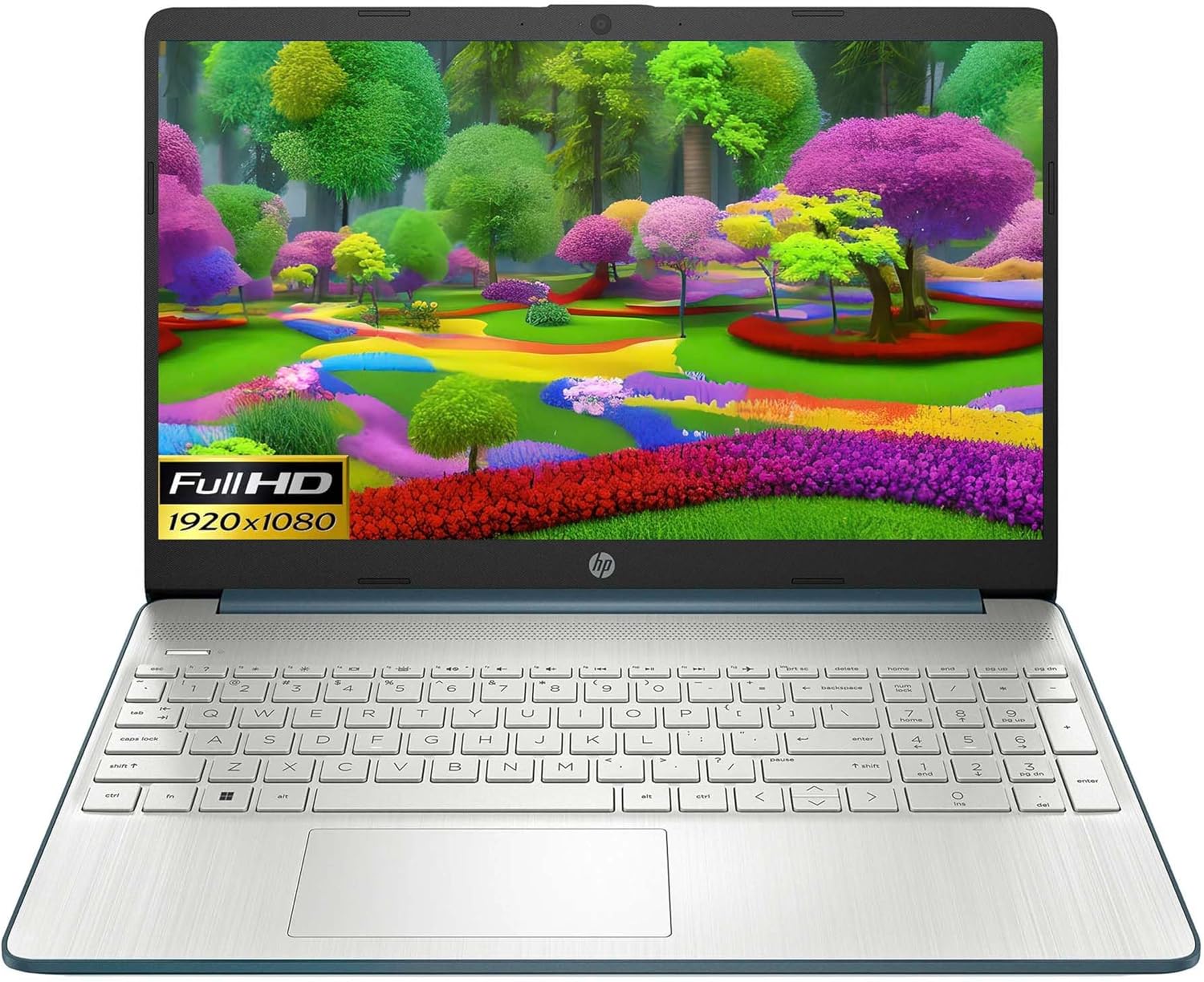
Image: HP 15 Slim Laptop, closed view, showing the blue lid with HP logo.
Opsætning
1. Første opstart
- Tilslut strømadapteren: Plug the AC power adapter into the laptop's AC smart pin port and then into a wall outlet.
- Åbn den bærbare computer: Løft forsigtigt displaylåget.
- Tænd: Press the power button, usually located on the keyboard deck. The laptop will begin the initial Windows 11 setup process.
- Følg instruktionerne på skærmen: Complete the Windows 11 setup, including language selection, network connection, and user account creation.

Image: HP 15 Slim Laptop open, showcasing the Windows 11 operating system interface during initial setup.
2. Tilslutning af eksterne enheder
Your HP 15-DY58 Slim Laptop offers various ports for connecting external devices:
- USB Type-A-porte: Connect USB devices such as mice, keyboards, or external storage drives. There are two SuperSpeed USB Type-A 5Gbps ports.
- USB Type-C-port: Connect compatible USB-C devices. This laptop features one SuperSpeed USB Type-C 5Gbps signaling rate port.
- HDMI-port: Connect an external monitor or TV using an HDMI cable for extended display. The laptop has one HDMI 1.4b port.
- Kombinationsstik til hovedtelefoner/mikrofon: Tilslut hovedtelefoner, eksterne højttalere eller et headset med mikrofon.
- SD Media Card Reader: Indsæt et SD-kort for at overføre fotos og files.

Image: Left side ports including SD card reader, headphone jack, USB-C, AC power, and HDMI.

Image: Right side ports featuring two USB Type-A ports.
Betjening af din bærbare computer
Grundlæggende funktioner
- Power knap: Located on the keyboard deck, use it to turn the laptop on or off, or to put it to sleep.
- Tastatur: The full-size island-style keyboard provides comfortable typing. Familiarize yourself with function keys (Fn) for quick access to settings like volume, brightness, and Wi-Fi.
- Touchpad: Use the integrated touchpad for navigation. It supports multi-touch gestures for scrolling, zooming, and more.

Image: HP 15 Slim Laptop open, showcasing dens skærm og tastatur.
Trådløs forbindelse
- Wi-Fi: Connect to wireless networks using Wi-Fi 5 (802.11ac). Access Wi-Fi settings through the Windows 11 taskbar or Settings app.
- Bluetooth: Pair Bluetooth-enabled devices such as headphones, speakers, or mice using Bluetooth 5. Manage Bluetooth devices in Windows 11 Settings.
Display og lyd
- Vise: The 15.6-inch Full HD (1920 x 1080) micro-edge display offers clear visuals. Adjust brightness and display settings via Windows 11.
- Lyd: The laptop features dual speakers for audio output. The headphone/microphone combo jack allows for private listening or communication.
- Kamera: The HP True Vision 720p HD camera with integrated dual array digital microphones is suitable for video calls and online meetings.
Opretholdelse
Rengøring af din bærbare computer
- Skærm: Brug let en blød, fnugfri klud damprengøres med vand eller en skærmrens. Undgå skrappe kemikalier.
- Tastatur og kabinet: Use a soft cloth to wipe surfaces. Compressed air can remove dust from between keys.
- Porte: Ensure ports are free of dust and debris. Use compressed air if necessary.
Softwareopdateringer
Regularly update your Windows operating system and drivers to ensure optimal performance and security. Access Windows Update through the Settings app.
Batteripleje
- Undgå ekstreme temperaturer.
- Undgå at aflade batteriet helt ofte.
- Ved langtidsopbevaring skal batteriet oplades til ca. 50-70%.
Fejlfinding
This section addresses common issues you might encounter with your HP 15-DY58 Slim Laptop.
Den bærbare computer tænder ikke
- Sørg for, at strømadapteren er korrekt tilsluttet både den bærbare computer og en fungerende stikkontakt.
- Kontroller om stikkontakten fungerer ved at tilslutte en anden enhed.
- Hvis batteriet er helt afladet, skal du lade det oplade i et par minutter, før du forsøger at tænde det.
Visningsproblemer
- Ingen visning: If the laptop powers on but the screen remains black, try connecting an external monitor via the HDMI port to check if the issue is with the laptop's internal display.
- Dim display: Adjust screen brightness using the function keys (usually F2/F3 or similar, look for sun icons) or through Windows 11 display settings.
Forbindelsesproblemer (Wi-Fi/Bluetooth)
- Wi-Fi: Ensure Wi-Fi is enabled in Windows 11 settings. Restart your router and modem. Run the Windows Network Troubleshooter.
- Bluetooth: Ensure Bluetooth is enabled. Try unpairing and re-pairing the device. Update Bluetooth drivers if necessary.
Specifikationer
| Feature | Detalje |
|---|---|
| Model | HP 15-DY58 Slim Laptop |
| Processor | Intel 12th Gen Core i5-1235U (up to 4.2 GHz, 10-core) |
| Grafik | Integreret Intel Iris Xe-grafik |
| Operativsystem | Windows 11 Home (64-bit) |
| Hukommelse (RAM) | 8 GB DDR4 |
| Opbevaring | 256 GB PCIe NVMe M.2 SSD |
| Vise | 15.6-inch Full HD (1920 x 1080), Micro-edge, Anti-glare, 250 nits |
| Trådløs forbindelse | Wi-Fi 5 (802.11ac), Bluetooth 5 |
| Havne | 1x SuperSpeed USB Type-C 5Gbps, 2x SuperSpeed USB Type-A 5Gbps, 1x HDMI 1.4b, 1x AC Smart Pin, 1x Headphone/Microphone Combo, 1x Multi-format SD Media Card Reader |
| Kamera | HP True Vision 720p HD Camera with Integrated Dual Array Digital Microphones |
| Lyd | Dobbelte højtalere |
| Tastatur | Full-size Island-style Keyboard |
| Dimensioner (LxBxH) | 14 x 10 x 1 tommer |
| Vægt | 3.3 pund |

Image: HP 15 Slim Laptop, emphasizing its energy efficiency certifications.
Garanti og support
For detaljerede garantioplysninger henvises til garantikortet, der fulgte med dit produkt, eller besøg den officielle HP-supportside. webHP tilbyder forskellige supportressourcer, herunder:
- Online support: Access drivers, software updates, and troubleshooting guides.
- Teknisk support: Contact HP customer service for assistance with technical issues.
- Produktregistrering: Registrer dit produkt for at modtage opdateringer og support.
Besøg support.hp.com for mere information.