Indledning
The iVANKY FusionDock 2 is a versatile 12-in-2 vertical docking station designed to expand the connectivity and enhance the workspace for compatible MacBook models. This manual provides essential information for setting up, operating, maintaining, and troubleshooting your docking station.
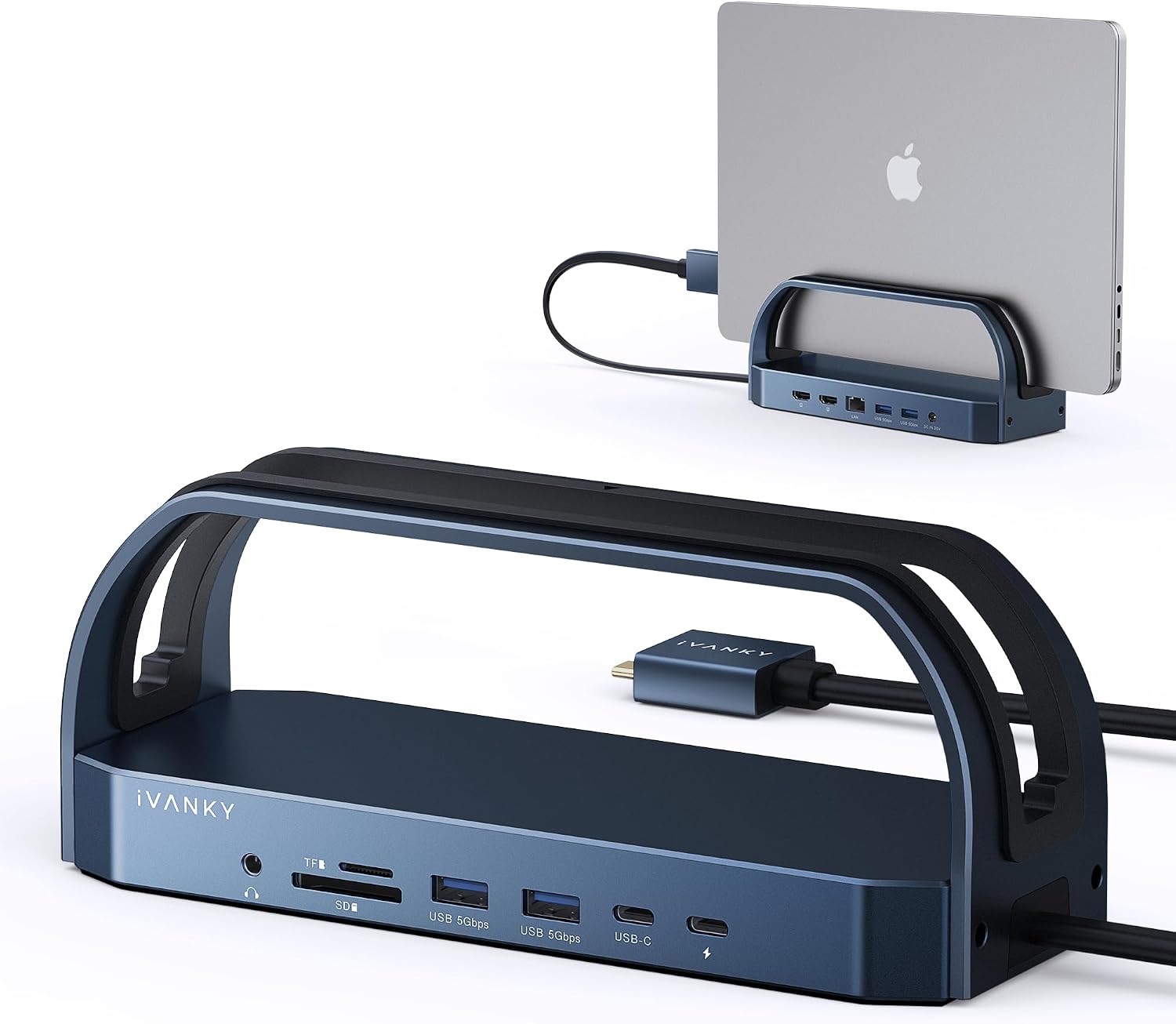
Image: The iVANKY FusionDock 2, showcasing its vertical design and a MacBook securely placed within it, ready for connection to external peripherals.
Pakkens indhold
- iVANKY FusionDock 2 Vertical Docking Station
- 150W strømadapter
- USB-C to USB-C Cable (for connecting to MacBook)
- Brugervejledning (dette dokument)
Nøglefunktioner
- 12-i-2-tilslutning: Expands your MacBook's ports with a comprehensive selection.
- Dual 4K@60Hz Display Support: Connect two external monitors for extended desktop (compatibility notes apply).
- Høj effekt levering: Features a 150W power adapter, providing up to 96W charging for laptops and 18W for USB-C devices.
- Højhastighedsdataoverførsel: Equipped with 4x USB 3.0 ports (5Gbps) and 2x USB-C 3.0 ports (5Gbps).
- gigabit ethernet: Ensures stable and fast wired network connectivity (1000Mbps).
- SD/TF-kortlæser: Supports data transfer up to 104Mb/s for memory cards.
- Lydstik: Integrated 3.5mm audio port for headphones or speakers.
- Space-Saving Vertical Design: Keeps your MacBook upright and organized on your desk.

Billede: En detaljeret view of the iVANKY FusionDock 2, highlighting its 12-in-2 port configuration, including USB-C, USB-A, HDMI, Ethernet, SD/TF card slots, and audio jack.
Kompatibilitet
The iVANKY FusionDock 2 is designed for specific MacBook models and macOS versions:
Kompatible enheder:
- MacBook Intel-serien (2016-2020)
- MacBook M1 Pro / M1 Max
- MacBook M2 Pro / M2 Max
- MacBook M3 / M4 Series
Kompatible operativsystemer:
- macOS 10.12 og nyere
Important Notes on Display Compatibility:
- Dual 4K@60Hz Support: Only 15'' MacBook Pro (2017/2018/2019), 16'' MacBook Pro (2019), MacBook Pro with M1/M2 Pro/Max chips (2021/2023), MacBook M3/M4 series, and MacBook 2020 Intel series support dual 4K@60Hz.
- Andre modeller: Other compatible models may support dual 4K@60Hz + 30Hz.
- M1/M2 Base Chip Limitation: Due to inherent limitations, 2020 M1 and 2022 M2 MacBook models are ikke capable of supporting dual displays through this dock.

Image: A visual guide illustrating the universal compatibility of the FusionDock 2 with various MacBook models and macOS versions, along with a list of incompatible devices.
Opsætningsinstruktioner
- Tilslut strøm: Plug the provided 150W power adapter into the DC IN port on the back of the FusionDock 2, then connect the adapter to a power outlet.
- Connect to MacBook: Use the included USB-C to USB-C cable to connect the FusionDock 2 to your MacBook's Thunderbolt/USB-C port. Ensure a secure connection.
- Insert MacBook: Carefully place your MacBook into the vertical slot of the docking station. For optimal performance and dual display functionality, ensure your MacBook is closed and properly seated in the dock.
- Tilslut ydre enheder:
- Monitorer: Connect your external monitors to the HDMI 2.0 ports on the FusionDock 2 using HDMI cables.
- USB-enheder: Plug in your USB-A and USB-C peripherals (keyboards, mice, external drives, etc.) into the available USB 3.0 ports.
- Netværk: For en kablet internetforbindelse skal du tilslutte et Ethernet-kabel fra din router/modem til RJ45 Gigabit Ethernet-porten.
- Lyd: Tilslut hovedtelefoner eller højttalere til 3.5 mm lydstikket.
- Hukommelseskort: Indsæt SD- eller TF-kort i de respektive slots for at få adgang til data.
- Driver Update (Ethernet): If you experience issues with the Ethernet connection, ensure you have updated the RJ45 Ethernet driver for your macOS.

Image: A setup demonstrating the iVANKY FusionDock 2 enabling dual 4K@60Hz monitor output from a MacBook, emphasizing the requirement for the MacBook lid to be closed.
Betjening af dockingstationen
Once set up, the FusionDock 2 operates automatically. Your MacBook will recognize the connected peripherals and displays. The docking station provides power delivery and data transfer seamlessly.
Strømforsyning:
The 150W power adapter ensures your MacBook receives up to 96W of charging power, while also providing 18W Power Delivery to connected USB-C devices like smartphones.

Image: An illustration detailing the power distribution capabilities of the FusionDock 2, showing 150W input power, 96W output for a 16-inch MacBook Pro, and 18W for an iPhone.
Dataoverførsel:
Utilize the USB 3.0 ports for high-speed data transfer up to 5Gbps. The SD/TF card slots allow quick access to media files at up to 104Mb/s. The Gigabit Ethernet port provides a stable and fast wired network connection at 1000Mbps.

Image: A graphic demonstrating the high-speed data transfer capabilities of the FusionDock 2, including 5Gbps for USB, 1000Mbps for LAN Ethernet, and 104Mbps for SD/TF cards.
Opretholdelse
- Rensning: Brug en blød, tør klud til at rengøre dockingstationens yderside. Undgå flydende rengøringsmidler eller slibende materialer.
- Havnepleje: Ensure ports are free of dust and debris. Avoid forcing connectors into ports.
- Ventilation: Ensure the docking station is placed in a well-ventilated area to prevent overheating. The vertical design aids in heat dissipation.
- Kabelstyring: Organize cables to prevent strain on ports and to maintain a tidy workspace.

Image: A comparison showing a cluttered desk setup (Before) and an organized, clean workspace (After) achieved by using the iVANKY FusionDock 2 to manage cables and peripherals.
Fejlfinding
| Problem | Mulig årsag/løsning |
|---|---|
| Ingen skærmoutput eller flimrende skærm. |
|
| USB-enheder genkendes ikke. |
|
| Problemer med Ethernet-forbindelse. |
|
| MacBook not charging or charging slowly. |
|
Specifikationer
| Feature | Detalje |
|---|---|
| Modelnavn | FusionDock 2 |
| Havne | 2x HDMI 2.0 (4K@60Hz), 4x USB 3.0 (5Gbps), 2x USB-C 3.0 (5Gbps), 1x RJ45 Gigabit Ethernet (1000Mbps), 1x SD Card Slot (104Mb/s), 1x TF Card Slot (104Mb/s), 1x 3.5mm Audio Jack, 1x DC IN (Power) |
| Strømindgang | 150W strømadapter |
| Laptop Charging (PD) | Op til 96W |
| USB-C PD udgang | Op til 18W |
| Dimensioner (L x B x H) | 9.06 x 5.31 x 4.8 tommer |
| Varens vægt | 3.21 pund |
| Kompatibel OS | macOS 10.12 og nyere |
Garanti og support
The iVANKY FusionDock 2 comes with a 24 måneders garanti from the date of purchase. This warranty covers manufacturing defects and ensures responsive customer service.
For technical support, warranty claims, or any inquiries regarding your iVANKY product, please contact iVANKY customer service through their official webwebstedet eller de kontaktoplysninger, der følger med din produktemballage.
If you encounter any problems with the dock, iVANKY will be glad to assist with replacement or troubleshooting.


