1. Introduktion
The Square Kiosk for iPad (USB-C) transforms your compatible iPad into a versatile self-service ordering and payment station. This device integrates contactless and chip payment capabilities, offering a streamlined experience for both businesses and customers. Its design allows for various mounting options, making it adaptable to diverse business environments. This manual provides essential information for setting up, operating, maintaining, and troubleshooting your Square Kiosk.
Nøglefunktioner
- Versatile iPad-based Kiosk: Converts your iPad into a complete kiosk solution with integrated payments.
- Fleksible monteringsmuligheder: Can be affixed to a wall, countertop, or any 100x100mm VESA-compatible mount. All necessary mounting hardware is included.
- Integrated Payment Processing: Supports tap, dip, and swipe payments (with an additional Square Reader for magstripe).
- Efficient Self-Service: Designed to reduce wait times and streamline the ordering process through the Square Kiosk app.
- Enkel opsætning: Designed for quick and independent installation without requiring professional service visits.
2. Hvad er der i æsken
Kontroller, at alle komponenter er til stede, før installationen påbegyndes.
- Square Kiosk Unit
- Mounting Hardware (includes wall mounts, screws, and drill bit)

Image: Included mounting hardware for the Square Kiosk, featuring wall mounts, various screws, and a drill bit.
3. Opsætningsvejledning
Follow these steps to set up your Square Kiosk.
3.1. Udpakning og indledende inspektion
- Fjern forsigtigt alle komponenter fra emballagen.
- Inspect the Square Kiosk and all accessories for any signs of damage. Contact support if any damage is found.
3.2. iPad Integration
- Ensure your iPad is a USB-C compatible model and is fully charged.
- Gently insert your iPad into the Square Kiosk unit, ensuring the USB-C connector aligns properly.
- Confirm the iPad is securely seated within the kiosk frame.
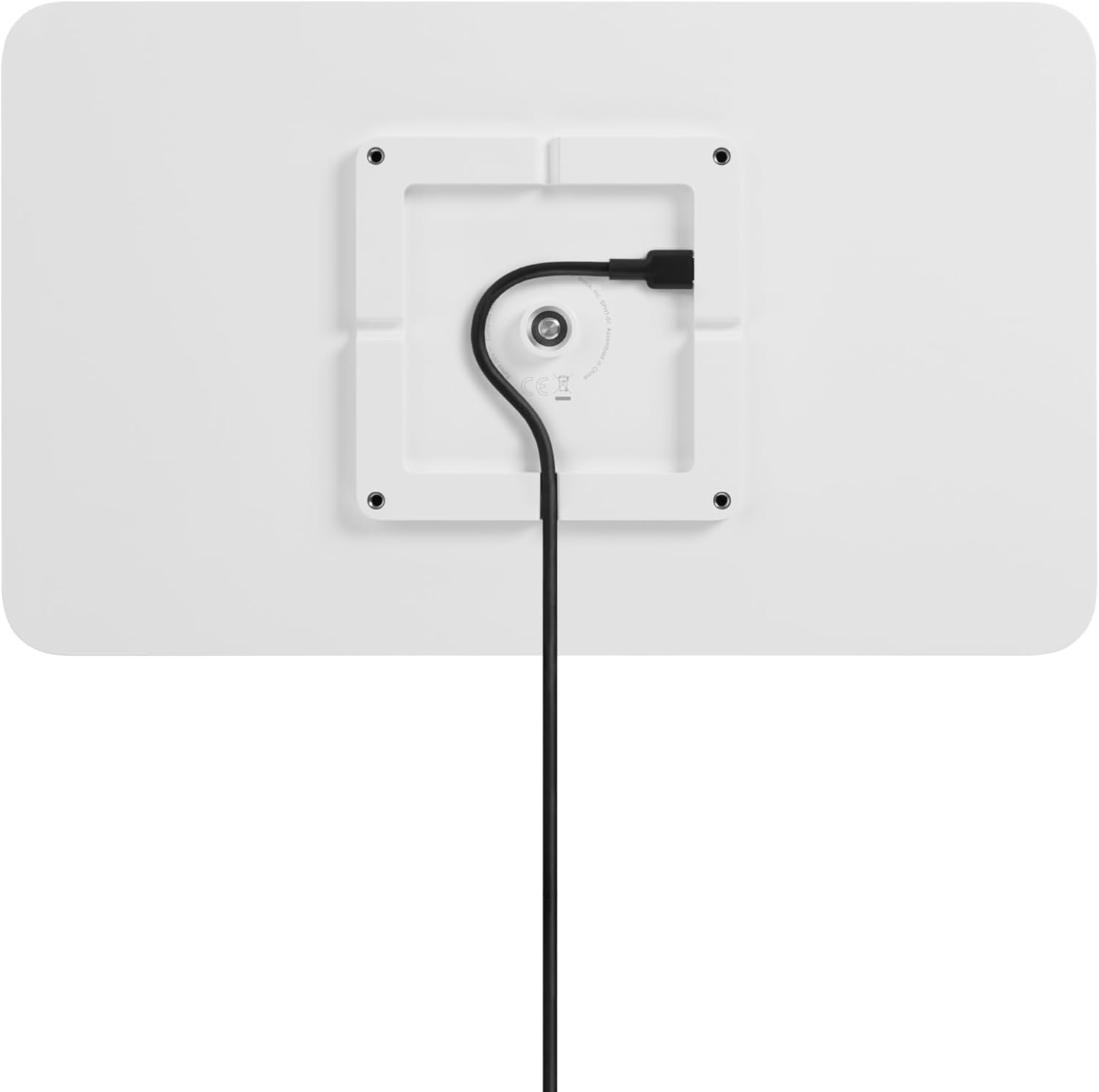
Image: The rear of the Square Kiosk, showing the integrated USB-C cable connected to the iPad.
3.3. Monteringsmuligheder
The Square Kiosk offers flexible mounting. Choose the option that best suits your business needs.
- Vægbeslag: Use the provided wall mounts and hardware to securely attach the kiosk to a vertical surface. Ensure the surface can support the weight of the kiosk and iPad.
- Countertop Placement: The kiosk can be placed on a countertop. For added stability, it can be secured using the appropriate hardware.
- VESA-Compatible Mount: The kiosk is compatible with 100x100mm VESA mounts, allowing integration with floor stands or swing arms (sold separately).

Image: A customer completing a contactless payment transaction on a Square Kiosk securely mounted to a wall.
3.4. Software installation
- On your iPad, download the Square Kiosk app fra App Store.
- Open the app and follow the on-screen instructions to set up your account and subscription.
- Configure your menu, pricing, and other business settings within the Square Kiosk app.
4. Operating the Square Kiosk
Once set up, the Square Kiosk is ready for customer use.
4.1. Customer Ordering Process
- Customers interact with the iPad screen to browse menu items and customize their orders.
- The Square Kiosk app guides customers through the selection process.

Image: The Square Kiosk with an iPad displaying a user interface for ordering food, showing various menu categories and items.

Image: A hand selecting an option on the Square Kiosk screen, which is mounted on a stand and displays an order summary.
4.2. Payment Processing
The Square Kiosk supports various payment methods:
- Kontaktløse betalinger (Tap): Customers can tap their contactless cards or mobile devices (Apple Pay, Google Pay, Samsung Pay) on the designated reader.
- Chip Card Payments (Dip): Customers insert their chip cards into the slot provided.
- Magstripe Payments (Swipe): An additional Square Reader for magstripe is required for swipe payments.

Image: A hand holding a credit card to the contactless payment area of the Square Kiosk for a tap transaction.

Image: A hand inserting a credit card into the chip card slot on the side of the Square Kiosk.
5. Vedligeholdelse
Regular maintenance ensures optimal performance and longevity of your Square Kiosk.
5.1. Rensning
- Brug en blød, fnugfri klud dampened with water or a mild, non-abrasive cleaner to wipe down the exterior surfaces.
- Undgå at sprøjte rengøringsmidler direkte på enheden.
- Brug ikke skrappe kemikalier, opløsningsmidler eller slibende materialer, da disse kan beskadige overfladen.
- For the iPad screen, follow Apple's recommended cleaning guidelines.
5.2. Softwareopdateringer
- Regularly check for and install updates for the Square Kiosk app and your iPad's operating system (iOS) to ensure compatibility and access to the latest features and security enhancements.
6. Fejlfinding
This section addresses common issues you might encounter with your Square Kiosk.
6.1. Kiosk Not Responding
- Check iPad Connection: Ensure the iPad is correctly seated and connected to the USB-C port within the kiosk. Try undocking and re-docking the iPad.
- Genstart iPad'en: Perform a soft reset of your iPad.
- Tjek strøm: Ensure the iPad has sufficient battery charge or is connected to a power source.
6.2. Payment Processing Issues
- Contactless Payments Not Working: Ensure the card or device is held correctly over the contactless reader. Check for any physical obstructions.
- Chip Card Read Errors: Ensure the chip card is inserted fully and correctly into the slot. Try cleaning the chip with a soft cloth.
- App-forbindelse: Verify that the Square Kiosk app is running and has an active internet connection (if required for the transaction).
6.3. App Functionality Problems
- Force Close and Reopen App: If the app is unresponsive, force close it and relaunch.
- Opdater app: Ensure the Square Kiosk app is updated to the latest version.
- Geninstaller app: As a last resort, delete and reinstall the Square Kiosk app.
7. Specifikationer
| Feature | Detalje |
|---|---|
| Modelnummer | A-SKU-0845 |
| Mærke | Firkant |
| Compatible iPad | iPad with USB-C port (iPad not included) |
| Operativsystem | iOS (via iPad) |
| Betalingstyper | Tap (Contactless), Dip (Chip), Swipe (with additional Square Reader for magstripe) |
| Monteringsmuligheder | Wall, Countertop, 100x100mm VESA-compatible |
| Farve | Blank hvid |
| Speciel funktion | Swivel (for customer interaction) |
| Varens vægt | 6.21 pund (2.82 kilo) |
| Pakkedimensioner | 14.13 x 9.8 x 5.08 tommer |
8. Garanti og support
8.1. Garantioplysninger
Specific warranty details for the Square Kiosk are typically provided at the point of purchase or can be found on the official Square webwebsted. Se venligst din købsdokumentation eller producentens webwebstedet for de seneste garantivilkår.
8.2. Kundesupport
For further assistance, technical support, or to report issues, please visit the official Square support website or contact their customer service directly. You can find contact information and extensive help resources at squareup.com/help.


