1. Introduktion
Velkommen til den sorteview Tab30 Kids Tablet user manual. This guide provides essential information for setting up, operating, maintaining, and troubleshooting your new tablet. Please read this manual thoroughly to ensure optimal performance and a safe user experience for your child.
2. Pakkens indhold
Når du åbner pakken, skal du kontrollere, at alle nedenstående varer er til stede og i god stand:
- Sortview Tab30 Kids Tablet
- Beskyttelsesetui med stativ
- USB opladningskabel
- Strømadapter
- Brugervejledning (dette dokument)
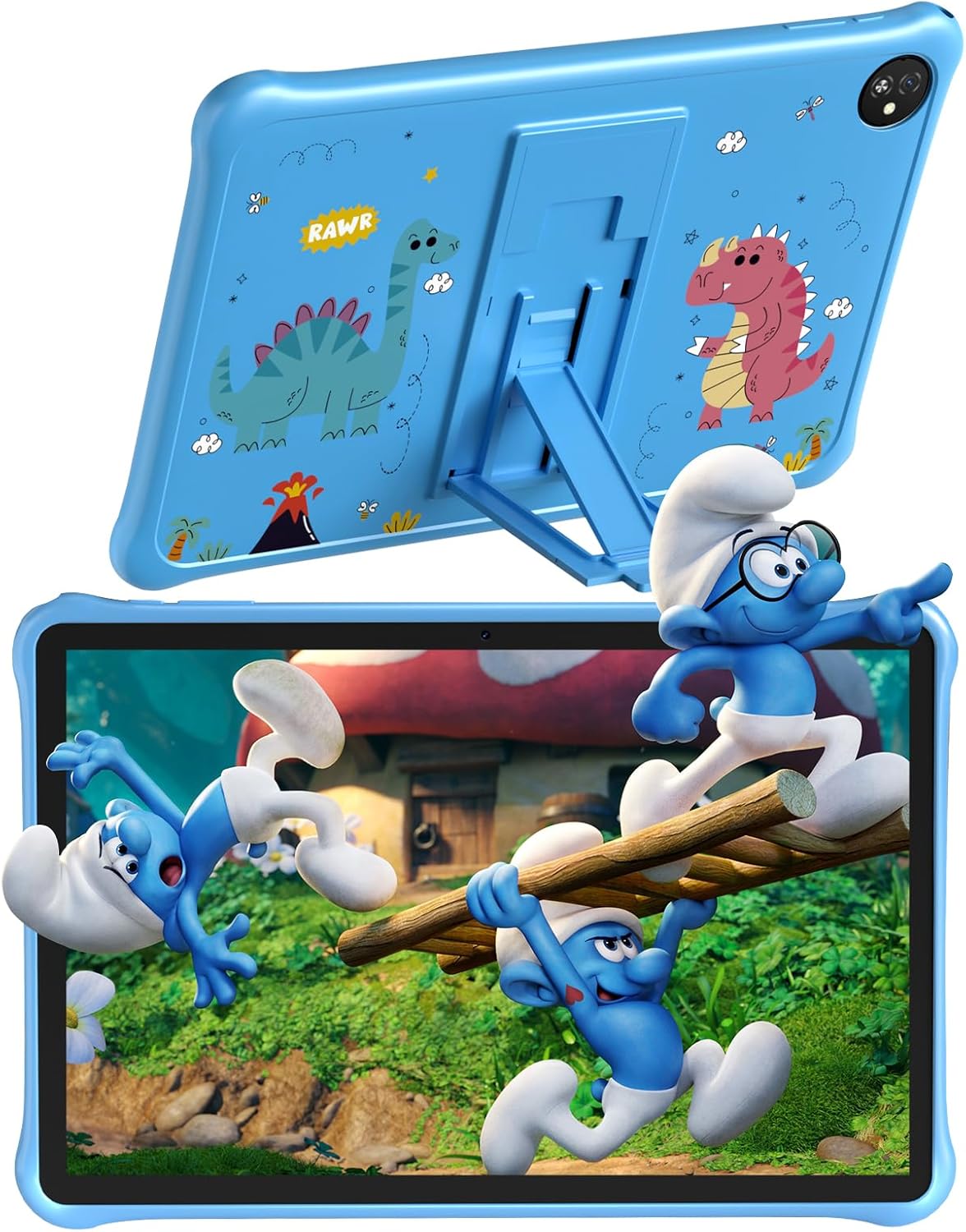
Billede: Sortview Tab30 Kids Tablet with its protective case and stand.

Image: Details of the protective case, showing the integrated stand and durable EVA material.
3. Enhed overview
Familiarize yourself with the physical components and key features of your Blackview Tab30 Kids Tablet.
- Forreste kamera: Til videoopkald og selfies.
- Skærm: 10-inch IPS display for clear visuals.
- Power knap: To turn the tablet on/off or put it to sleep/wake it up.
- Lydstyrkeknapper: For at justere lydstyrken.
- USB-C-port: Til opladning og dataoverførsel.
- Hovedtelefonstik: Til tilslutning af kablede hovedtelefoner.
- Bagkamera: Til at tage billeder og videoer.
- Højttaler: Til lydudgang.
- MicroSD -kortplads: Til udvidelig lagerplads.

Billede: Overview of the tablet's main features.
4. Opsætning
4.1 Opladning af tabletten
Before initial use, fully charge the tablet using the provided USB cable and power adapter. The battery indicator on the screen will show charging status.
4.2 Tænd/sluk
Tryk og hold på Power-knap located on the side of the tablet to turn it on or off. A short press will put the tablet to sleep or wake it up from sleep mode.
4.3 Guide til indledende opsætning
Upon first power-on, the tablet will guide you through an initial setup wizard. Follow the on-screen instructions to:
- Vælg dit foretrukne sprog.
- Opret forbindelse til et Wi-Fi-netværk.
- Set up or log in with your Google account.
- Konfigurer grundlæggende enhedsindstillinger.
4.4 Indsættelse af et MicroSD-kort
To expand the tablet's storage, locate the MicroSD card slot on the side of the device. Gently insert a compatible MicroSD card (up to 1TB, sold separately) until it clicks into place. Ensure the tablet is powered off before inserting or removing the card.
5. Betjeningsvejledning
5.1 Grundlæggende navigation
Den sorteview Tab30 Kids Tablet uses a touch-based interface:
- Tryk på: For at vælge et element eller åbne et program.
- Stryg: To scroll through screens, menus, or content.
- At klemme: For at zoome ind eller ud på billeder og web sider.
- Stryg ned: From the top of the screen to access notifications and quick settings.
5.2 Tilslutning til Wi-Fi
For at oprette forbindelse til et trådløst netværk:
- Gå til Indstillinger.
- Tryk på Netværk og internet.
- Vælge Wi-Fi og tænd den.
- Vælg dit ønskede Wi-Fi-netværk fra listen.
- Indtast netværksadgangskoden, hvis du bliver bedt om det, og tryk derefter på Forbinde.
5.3 Google Kids Space and Parental Controls
Den sorteview Tab30 Kids Tablet is designed with children in mind, featuring Google Kids Space and the iKids application. These provide a curated, safe, and educational environment.

Image: The iKids software interface with learning and entertainment options.
Setting Up Parental Controls:
Access the iKids application or Google Kids Space settings to configure parental control features. These tools allow you to:
- Adgangskodebeskyttelse: Prevent children from exiting the Kids Protection Area without parental permission.
- App Management: Filter and select which applications your child can access.
- WebSite Management: Choose safe and healthy websites for browsing.
- Tidsstyring: Set daily usage limits and break times to encourage balanced use.
- Tablet Usage Management: View statistical reports of app usage behavior.
- Create Multiple Kid Accounts: Customize different proper content and settings for each child.

Image: Parental Control and Kids Space features.
5.4 Brug af kameraet
Tryk på Kamera icon on the home screen to open the camera application. You can switch between the front and rear cameras and select photo or video mode.
5.5 Øjenplejetilstand
Aktiver Øjenplejetilstand from the quick settings panel (swipe down from the top of the screen) or within the display settings. This mode reduces blue light emission, which can help protect your child's eyes during extended screen time.
5.6 Widevine L1-understøttelse
The tablet supports Widevine L1, which enables high-definition (HD) streaming content from supported platforms like Netflix, Disney+, and Amazon Prime Video, ensuring a quality viewoplevelse.

Image: Display features including HD+ resolution, WiFi6, and Widevine L1.
6. Vedligeholdelse
6.1 Rengøring
Use a soft, lint-free cloth to clean the screen and tablet body. For stubborn smudges, slightly dampen the cloth with water. Avoid abrasive cleaners, solvents, or aerosol sprays, as these can damage the tablet's surfaces.
6.2 Softwareopdateringer
Periodically check for system updates to ensure your tablet has the latest features, performance improvements, and security patches. Go to Indstillinger > System > Systemopdatering for at søge efter og installere tilgængelige opdateringer.
6.3 Pleje af batterier
To prolong the lifespan of your tablet's battery:
- Undgå at udsætte tabletten for ekstreme temperaturer (meget varm eller meget kold).
- Do not allow the battery to fully discharge frequently. Charge it before it drops below 20%.
- Brug kun den medfølgende oplader og USB-kabel.
7. Fejlfinding
Dette afsnit omhandler almindelige problemer, du kan støde på med din Blackview Tab30 Kids Tablet.
7.1 Tablet tænder ikke
- Ensure the tablet is charged. Connect it to the charger for at least 30 minutes before attempting to power it on again.
- Tryk og hold tænd/sluk-knappen nede i 10-15 sekunder for at udføre en tvungen genstart.
7.2 Problemer med Wi-Fi-forbindelse
- Kontroller, om Wi-Fi er aktiveret i Indstillinger > Netværk og internet > Wi-Fi.
- Genstart din Wi-Fi-router og tabletten.
- Sørg for, at du indtaster den korrekte Wi-Fi-adgangskode.
- Prøv at oprette forbindelse til et andet Wi-Fi-netværk, hvis det er tilgængeligt.
7.3 Apps der går ned eller fryser
- Luk og genåbn den problematiske app.
- If the issue persists, clear the app's cache: Go to Indstillinger > Apps > [Appnavn] > Lagerplads og cache > Ryd cache.
- Consider uninstalling and reinstalling the app.
7.4 Langsom ydeevne
- Luk ubrugte programmer, der kører i baggrunden.
- Ryd cache og midlertidig files regelmæssigt.
- Consider uninstalling unnecessary applications to free up storage space.
7.5 Parental Control Issues
- Verify parental control settings within the iKids application or Google Kids Space.
- Ensure the correct password is used for parental access.
- Check if any time limits or app restrictions are inadvertently causing the issue.
8. Specifikationer
| Model | Sortview Fane 30 Børn |
| Operativsystem | Android 13 |
| Processor | Allwinner A133P Quad-Core, 1.8 GHz |
| Vise | 10-inch IPS, 1280 x 800 pixels |
| VÆDDER | 6 GB (2 GB fysisk + 4 GB virtuel udvidelse) |
| Intern opbevaring | 64 GB |
| Udvidelig opbevaring | Op til 1 TB via MicroSD-kort (medfølger ikke) |
| Batteri | 5100 mAh, up to 8 hours usage |
| Kameraer | Rear: 5 MP, Front: 2 MP |
| Forbindelse | Wi-Fi 6 (802.11ax) |
| Havne | USB-C, 3.5 mm hovedtelefonstik |
| Dimensioner | 9.85 mm thickness, 520 g weight |
| Særlige funktioner | Google Kids Space, iKids, Eye Care Mode, Widevine L1, Protective TPU Case included |
9. Sikkerhedsoplysninger
Please observe the following safety guidelines to ensure safe operation and prevent damage to your tablet or injury to yourself or others:
- Udsæt ikke tabletten for ekstreme temperaturer, direkte sollys eller fugt.
- Use only the provided charger and accessories. Using unauthorized accessories may void your warranty and pose safety risks.
- Keep the tablet and its small parts away from infants and small children to prevent choking hazards.
- Undgå at lytte til lyd ved høj lydstyrke i længere perioder for at forhindre høreskader.
- Do not attempt to disassemble, repair, or modify the tablet yourself. Contact authorized service personnel for any repairs.
- Bortskaf tabletten og dens batteri på en ansvarlig måde i henhold til lokale regler.
10. Garanti og support
For detailed warranty information, technical support, or service inquiries, please refer to the warranty card included in your product package. You may also visit the official Blackview website for the latest support resources and contact information. Please retain your proof of purchase for any warranty claims.


