Indledning
This manual provides detailed instructions for the setup, operation, and maintenance of your FLYINGVOICE FIP12WP Home VoIP Phone. Please read this guide thoroughly to ensure proper use and to maximize the benefits of your device.
Video: Overview of the FLYINGVOICE FIP12WP Big Button VoIP Phone for Seniors. This video highlights key features and benefits of the phone, demonstrating its user-friendly design for elderly individuals.
Pakkens indhold
Sørg for at alle varer er til stede i pakken:
- FLYINGVOICE FIP12WP VoIP Phone Base Unit
- Håndsæt
- Oprullet håndsætledning
- Ethernet kabel
- AC strømadapter
- Desktop Stand / Wall Mount Bracket
- Hurtig startvejledning
Opsætning
1. Tilslutning af håndsættet
Connect one end of the coiled handset cord to the handset and the other end to the designated port on the phone base unit. Ensure a secure connection.

Billede: Diagram illustrating the connection of the handset to the phone base unit using the coiled cord.
2. Connecting to Network (VoIP)
Connect one end of the Ethernet cable to the LAN port on the phone base unit and the other end to your router or network switch. This phone supports Power over Ethernet (PoE) for simultaneous data and power transmission, or it can be powered via the AC adapter.
3. Strømtilslutning
If not using PoE, connect the AC power adapter to the power port on the phone base unit and then plug it into a standard electrical outlet.
4. Desktop Stand / Wall Mount Setup
The phone can be used on a desktop with the included stand or mounted on a wall. For desktop use, attach the stand to the back of the phone for a 45-degree viewing angle. For wall mounting, use the provided bracket and screws to secure the phone to a wall.
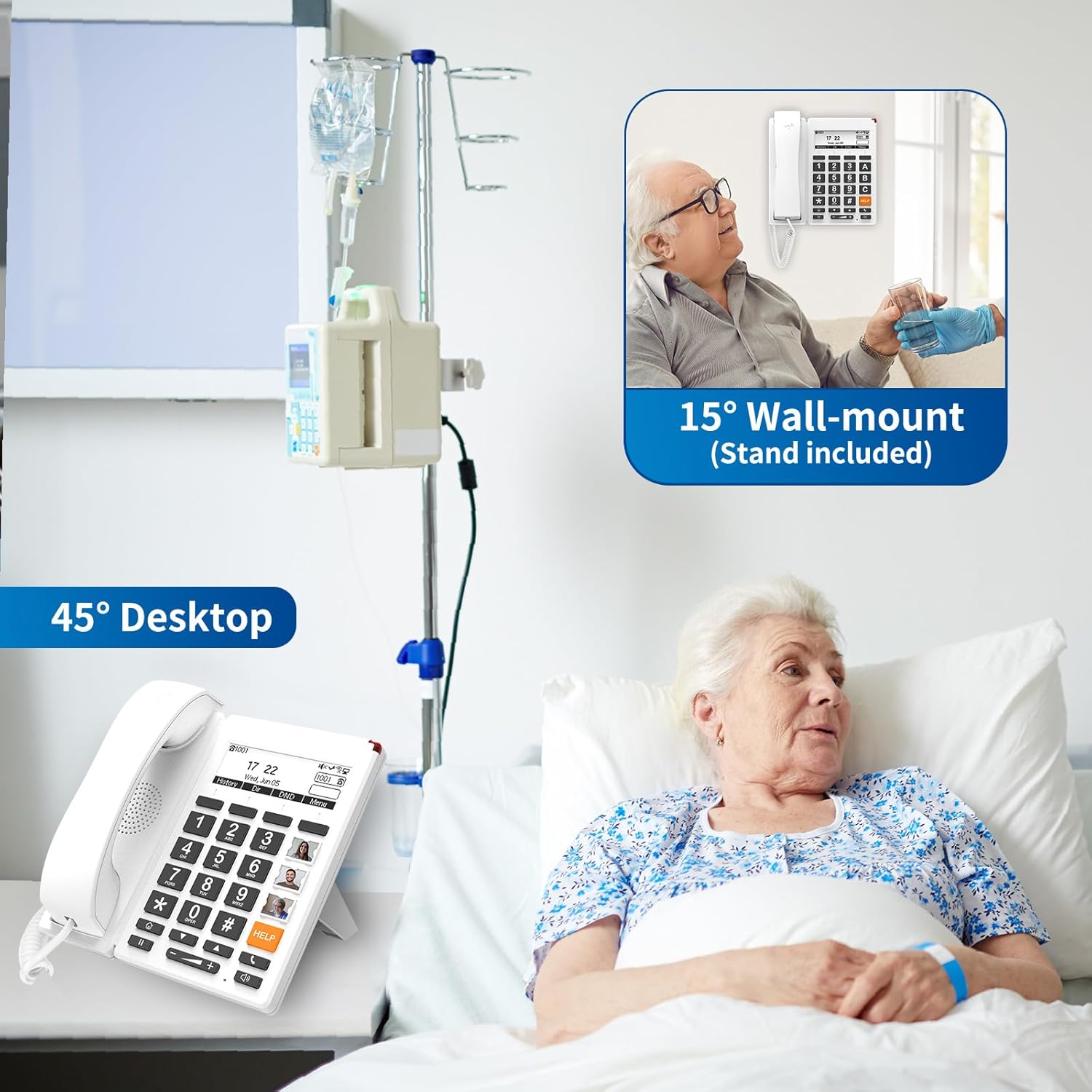
Billede: The FIP12WP phone configured for desktop use at a 45-degree angle and wall-mounted at a 15-degree angle.

Billede: Diagram illustrating the attachment of the desktop stand to the phone base unit.

Billede: Diagram illustrating the process of wall mounting the phone using the provided bracket.
Betjeningsvejledning
1. Basic Calling
Løft røret eller tryk på HØJTTALER button to get a dial tone. Dial the desired phone number using the large numeric keypad. Press the # key to confirm or wait a few seconds for the call to connect automatically.
2. Customized Image Keys / Speed Dial
The phone features customizable image keys (M1-M9) for one-touch dialing. Lift the transparent cover on each key to insert a photo of the contact. To program a number, refer to the detailed programming instructions in the full user guide (not provided here). Once programmed, simply press the corresponding image key to dial the contact.

Billede: The FIP12WP phone displaying custom images in the one-touch speed dial keys, facilitating easy calling for users.
3. HELP Button / Emergency Calling
Den dedikerede HJÆLP button allows for instant access to emergency assistance. This button can be programmed to dial a specific emergency contact or service. In an emergency, press the HJÆLP knap.
4. Adjustable Volume
Adjust the handset and speakerphone volume using the dedicated volume buttons (- og +) located below the numeric keypad. The handset volume can exceed 90dB, and the speakerphone volume can exceed 110dB for users with hearing impairments.
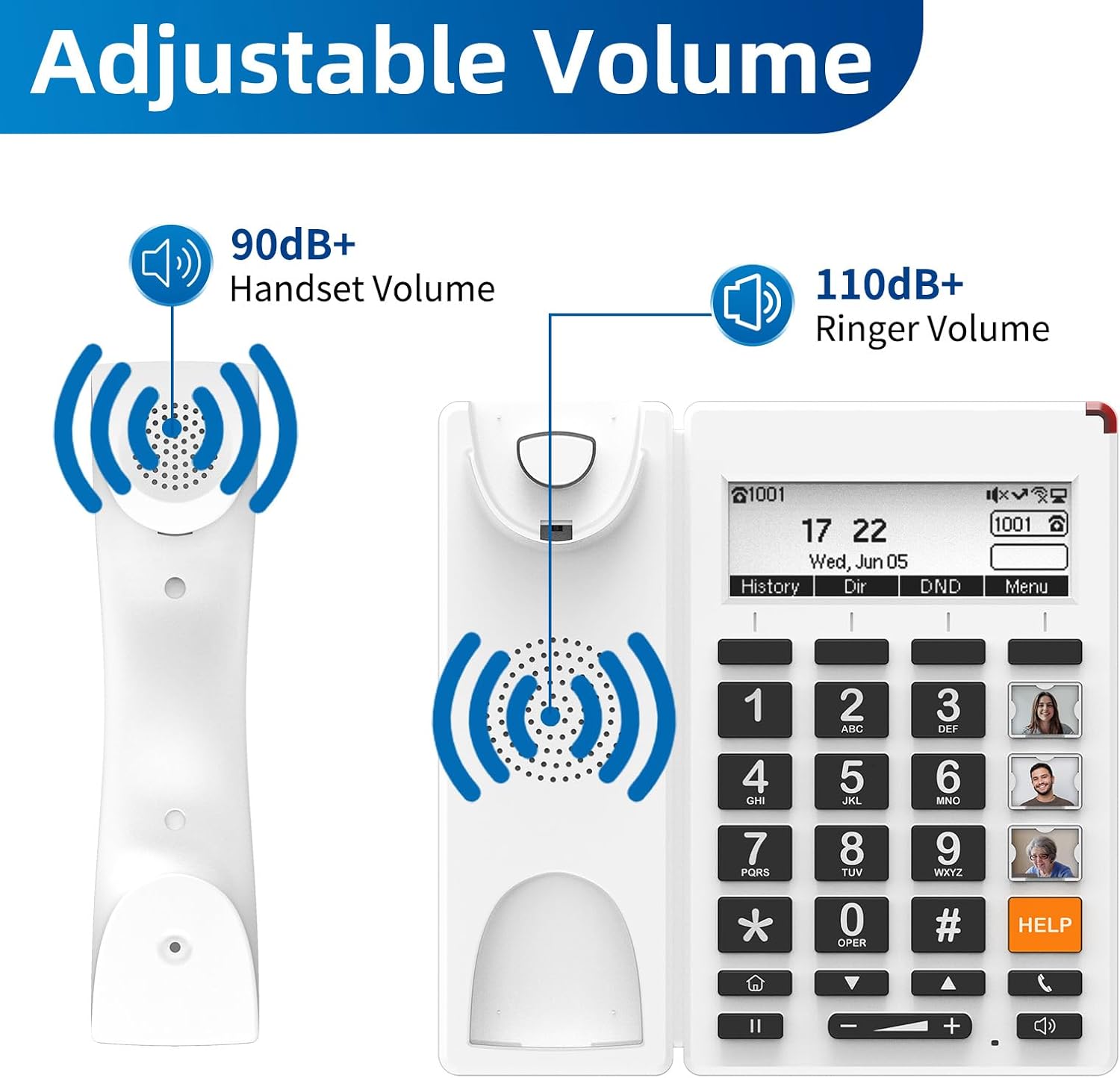
Billede: Visual representation of the adjustable volume levels for both the handset and ringer, highlighting the enhanced audio output.
5. Højttalertelefonens funktionalitet
To use the speakerphone, press the HØJTTALER button. This allows for hands-free communication. Press the HØJTTALER button again to end the call or switch back to the handset.
6. Red Indication Light
A bright red indication light on the top of the phone alerts users to incoming calls or missed messages, providing a visual cue for individuals with hearing impairments.
7. Adjustable Backlight & Auto Screen-Off
The phone features an adjustable backlight for the LCD screen and an auto screen-off function. These settings can be configured through the phone's menu to improve visibility and conserve energy, especially during nighttime hours.

Billede: The FIP12WP phone demonstrating its adjustable backlight and auto screen-off feature, designed for comfortable viewunder forskellige lysforhold.
Nøglefunktioner
- Customized Image Keys: Nine programmable keys allow users to insert photos of contacts for easy one-touch dialing.
- Store knapper: Large, easy-to-see buttons are designed for users with reduced vision.
- Dedicated HELP Key: Provides instant access to emergency contacts or services.
- Enhanced Volume: Handset volume over 90dB and speakerphone volume over 110dB for clear calls.
- Red Indication Light: Visual alerts for incoming calls and missed messages.
- Vægmonteret design: Saves space and ensures secure installation.
- HD Voice Quality: Supports G.722, G.711 WB, Opus, and AMR-WB codecs for superior audio clarity.
- Wi-Fi-forbindelse: Supports 2.4G Wi-Fi for flexible network deployment.
- PoE Support: Power over Ethernet for simplified installation.

Billede: The FLYINGVOICE FIP12WP Home VoIP Phone, featuring large, easy-to-read buttons and a clear display.

Billede: An infographic summarizing the main features of the FIP12WP, such as its backlit LCD, 2 SIP accounts, 4 DSS keys, 2*10/100M Ethernet, 2.4G Wi-Fi, HD Voice, PoE, 3 adjustable angles, and wall-mountable design.
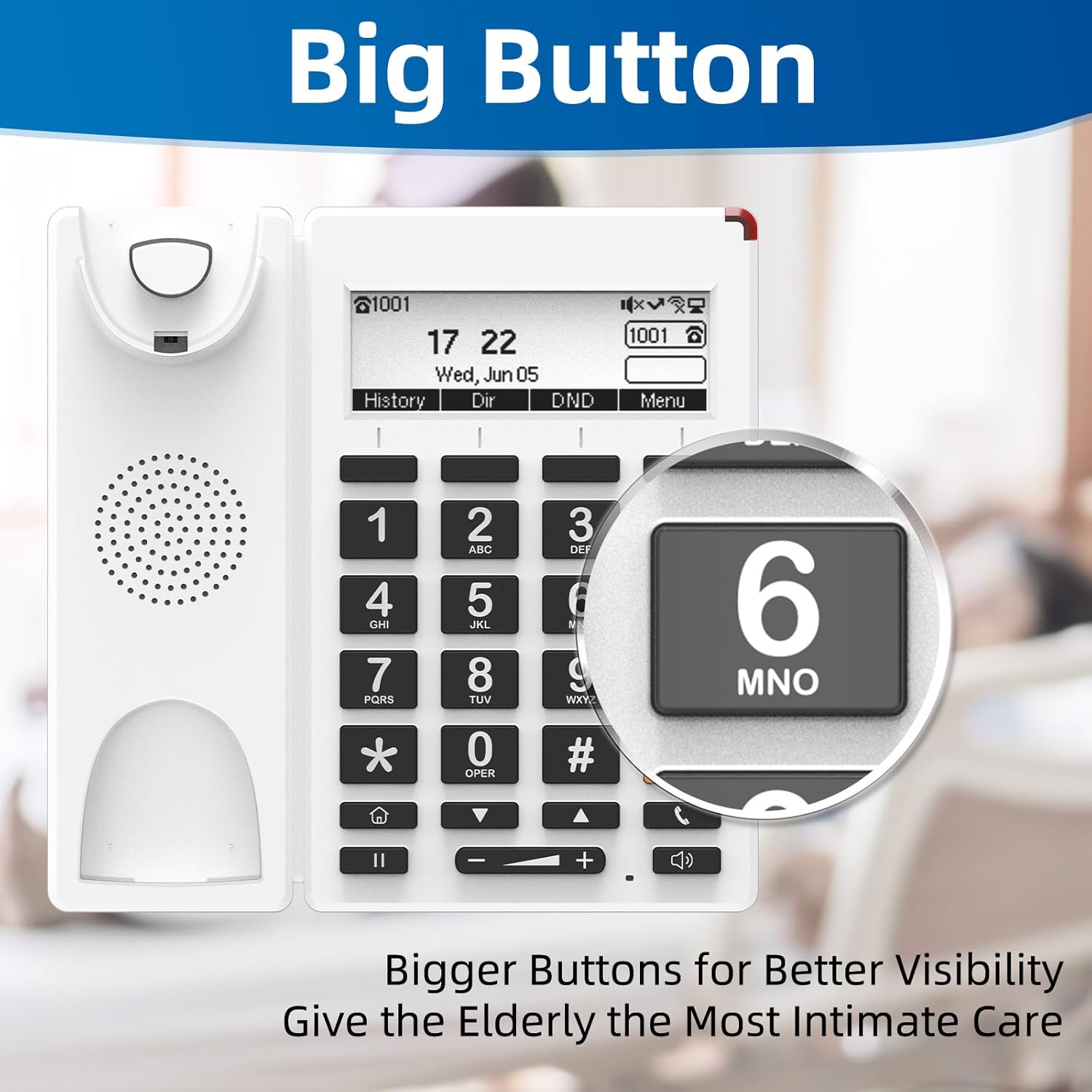
Billede: Et nærbillede view emphasizing the large, easy-to-read buttons of the FIP12WP phone, designed for enhanced visibility.
Management & Compatibility
Remote Management Tools
The FIP12WP can be centrally managed using Flyingvoice FACS (Cloud-based) and FDC (Local Network) management tools. These tools allow for efficient configuration and monitoring of the device.

Billede: Screenshots of the FACS (Cloud-based) and FDC (Local Network) management tools, illustrating remote configuration capabilities for the phone.
Bred kompatibilitet
The FIP12WP is compatible with a wide range of VoIP services and platforms, including Asterisk, Broadsoft, Yeastar, Huawei, Metaswitch, Phonesuite, PortaOne, VitalPBX, Vodia, VOIP.MS, ZYCOO, RingCentral, and Nextiva.

Billede: A collage of logos representing various VoIP platforms and services that are compatible with the FIP12WP phone.
Applikationsscenarier
The FLYINGVOICE FIP12WP is designed for various environments where ease of use and reliable communication are crucial:
- Hjemmebrug: Ideal for seniors living alone, providing simple and secure communication.
- Nursing Homes: Facilitates easy contact with family and staff, enhancing resident well-being.
- Hospitaler: Offers a straightforward communication method for patients and medical personnel.
- Assisted Living Facilities: Supports independent living with accessible phone features.

Billede: A visual representation of the FIP12WP phone being used in different settings, such as nursing homes, hospitals, and private residences.
Video: This video demonstrates the FLYINGVOICE FIP12WP VoIP Phone's suitability for seniors and its use in nursing home environments, highlighting its ease of use and accessibility features.
Opretholdelse
To ensure the longevity and optimal performance of your FIP12WP phone, follow these maintenance guidelines:
- Rensning: Brug en blød, damp cloth to clean the phone's surface. Avoid using harsh chemicals or abrasive cleaners.
- Ledningspleje: Periodically check the handset and Ethernet cables for any signs of wear or damage. Replace if necessary.
- Miljø: Keep the phone in a dry environment, away from direct sunlight, excessive heat, or moisture.
Fejlfinding
If you encounter issues with your FIP12WP phone, try the following steps:
- Ingen klartone: Check all cable connections (handset, Ethernet, power). Ensure your VoIP service is active and your router is functioning correctly.
- Kan ikke foretage/modtage opkald: Verify network connectivity. Ensure the phone is registered with your VoIP service provider. Check if call blocking features are accidentally activated.
- Lav lydstyrke: Juster lydstyrken ved hjælp af - og + buttons. Ensure the handset is properly seated.
- Skærmproblemer: If the screen is blank or unresponsive, check the power connection. If the backlight is too dim, adjust it through the phone's menu settings.
- Emergency Button Not Working: Ensure the HELP button is correctly programmed with the desired emergency number.
For further assistance, please contact FLYINGVOICE customer support.
Specifikationer
| Mærke | FLYVENDE STEMME |
| Model | FIP12WP |
| Telefontype | Kablet VoIP-telefon |
| Materiale | Plast |
| Strømkilde | AC adapter / PoE |
| Håndsæts lydstyrke | Over 90 dB |
| Lydstyrke på højttalertelefon | Over 110 dB |
| Forbindelse | 2.4G Wi-Fi, Ethernet (2*10/100M) |
| Kompatible enheder | VoIP services, PSTN, basic landline phone systems |
| Flerlinjeoperation | Enkeltlinjedrift |
| Opkaldsidentifikation | Ingen |
Garanti og support
For warranty information and technical support, please refer to the documentation included with your product or visit the official FLYINGVOICE webwebsted. Behold din købskvittering som købsbevis i tilfælde af garantikrav.


